Welcome to K230 Vision Module repository
7. Draw text
Draw text
Draw textExample introductionAPI documentationdraw_string_advanceddraw_stringSample codeExample running effect
Example introduction
In this section, we introduce the draw_string_advanced method for drawing text
API documentation
[Recommended]
draw_string_advanced
Enhanced version of draw_string, supports Chinese display, and allows users to customize fonts through the font parameter.
xxxxxxxxxximage.draw_string_advanced(x, y, char_size, str, [color, font])[Not recommended]
draw_string
xxxxxxxxxximage.draw_string(x, y, text[, color[, scale=1[, x_spacing=0[, y_spacing=0[, mono_space=True]]]]])Draw 8x10 text from the (x, y) position of the image. Parameters can be passed as x, y individually or as a tuple (x, y).
- text: The string to be drawn, newline characters
\n,\ror\r\nare used to move the cursor to the next line. - color: An RGB888 tuple representing a color, suitable for grayscale or RGB565 images, default is white. For grayscale images, pixel values (range 0-255) can also be passed; for RGB565 images, byte-flipped RGB565 values can be passed.
- scale: Controls the scaling of the text, default is 1. Can only be an integer.
- x_spacing: Adjusts the horizontal spacing between characters. Positive values increase spacing, negative values decrease.
- y_spacing: Adjusts the vertical spacing between lines. Positive values increase spacing, negative values decrease.
- mono_space: Defaults to
True, making characters have fixed width. When set toFalse, character spacing will be dynamically adjusted based on character width.
This method returns an image object, allowing other methods to be called through chaining.
Compressed images and Bayer format images are not supported.
Sample code
xxxxxxxxxx# Import required modules# 导入所需的模块import time, os, urandom, sys, math# Import display and media related modules# 导入显示和媒体相关模块from media.display import *from media.media import *# Define display resolution constants# 定义显示分辨率常量DISPLAY_WIDTH = 640DISPLAY_HEIGHT = 480def display_test(): """ Function to test display functionality 测试显示功能的函数 """ # Create main background image with white color # 创建白色背景的主图像 img = image.Image(DISPLAY_WIDTH, DISPLAY_HEIGHT, image.ARGB8888) img.clear() img.draw_rectangle(0, 0, DISPLAY_WIDTH, DISPLAY_HEIGHT,color=(255,255,255),fill=True) # Initialize display with ST7701 driver # 使用ST7701驱动初始化显示器 Display.init(Display.ST7701, width = DISPLAY_WIDTH, height = DISPLAY_HEIGHT, to_ide = True) # Initialize media manager # 初始化媒体管理器 MediaManager.init() try: # 中文 - 使用翠绿色 # Chinese - Use Emerald Green img.draw_string_advanced(300, 240, 30, "你好,世界!", color=(0, 255, 127)) # 英语 - 使用天蓝色 # English - Use sky blue img.draw_string_advanced(300, 180, 30, "Hello World!", color=(0, 191, 255)) # Update display with background image # 更新显示背景图像 Display.show_image(img) while True: time.sleep(2) except KeyboardInterrupt as e: print("user stop: ", e) except BaseException as e: print(f"Exception {e}") # Cleanup and deinitialize display # 清理并反初始化显示器 Display.deinit() os.exitpoint(os.EXITPOINT_ENABLE_SLEEP) time.sleep_ms(100) # Release media resources # 释放媒体资源 MediaManager.deinit()if __name__ == "__main__": # Enable exit points and run display test # 启用退出点并运行显示测试 os.exitpoint(os.EXITPOINT_ENABLE) display_test()
Example running effect
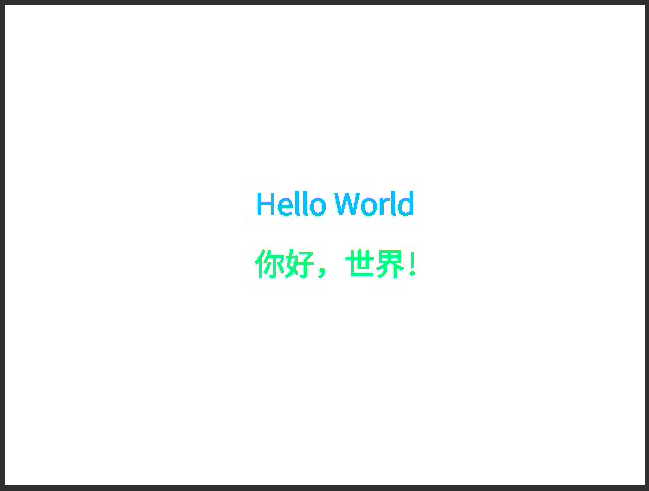
You can see that we draw a string of "Hello World" and "Hello, World!" in a straight line in the center of the screen.