Welcome to K230 Vision Module repository
15.k230 target tracking
k230 target tracking
k230 target trackingk230 and Jetson Orin communication1. Experimental Prerequisites2. Experimental wiring3. Main code explanation4. Experimental Phenomenon
k230 and Jetson Orin communication
1. Experimental Prerequisites
This tutorial uses the Jetson Orin development board, and the corresponding routine path is [14.export\Jetson-K230\15_k230_nano_tracker.py].
K230 needs to run the [14.export\CanmvIDE-K230\15.nano_tracker.py] program to start the experiment. It is recommended to download it as an offline program.
Things you need:
Windows computer Jetson Orin development board usb to ttl module K230 visual module (including TF card with burned image) type-C data cable connection cable
2. Experimental wiring
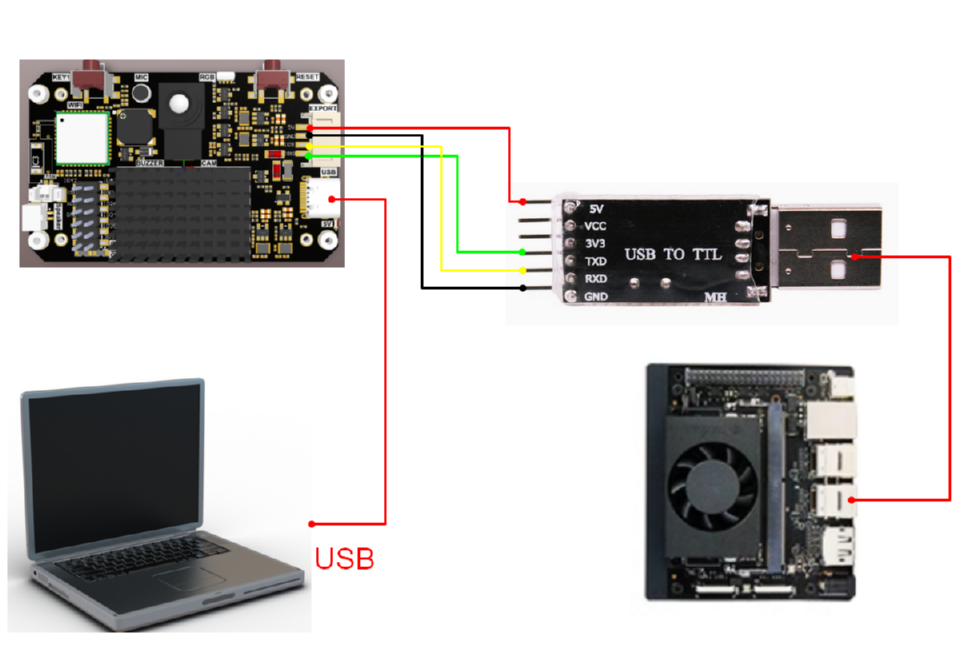
| k230 vision module | USB to TTL module |
|---|---|
| 5V | VCC |
| GND | GND |
| TXD(IO9) | RxD |
| RXD(IO10) | TXD |
3. Main code explanation
ximport serialcom="/dev/ttyUSB0"ser = serial.Serial(com, 115200)FUNC_ID = 15def parse_data(data): if data[0] == ord('$') and data[len(data)-1] == ord('#'): data_list = data[1:len(data)-1].decode('utf-8').split(',') data_len = int(data_list[0]) data_id = int(data_list[1]) if data_len == len(data) and data_id == FUNC_ID: # print(data_list) x = int(data_list[2]) y = int(data_list[3]) w = int(data_list[4]) h = int(data_list[5]) return x, y, w, h elif (data_len != len(data)): print("data len error:", data_len, len(data)) elif(data_id != FUNC_ID): print("func id error:", data_id, FUNC_ID) else: print("pto error", data) return -1, -1, -1, -1while True: if ser.in_waiting: data = ser.readline() # print("rx:", data) x, y, w, h = parse_data(data.rstrip(b'\n')) print("tracker:x:%d, y:%d, w:%d, h:%d" % (x, y, w, h))The above program is for parsing K230 data. Only when it complies with specific protocols can the corresponding data be parsed.
in
- x: is the horizontal coordinate of the upper left corner of the recognized box
- y: is the vertical coordinate of the upper left corner of the recognized box
- w: is the width of the recognized frame
- h: is the length of the recognized frame
4. Experimental Phenomenon
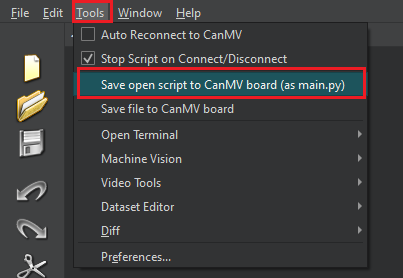
- After connecting the cables, the k230 visual module runs offline. After K230 is connected to Canmv IDE, open the corresponding program, click [Save open script to CanMV board (as main.py)] on the toolbar, and then restart K230.
When K230 is turned on, a green box will appear on the screen. Please aim the green box at the target to be tracked (using ultrasound as an example here), wait for a few seconds, and when the green box turns red, it means the target has been detected. At this time, move the target object and you can see that the red box will move with it.
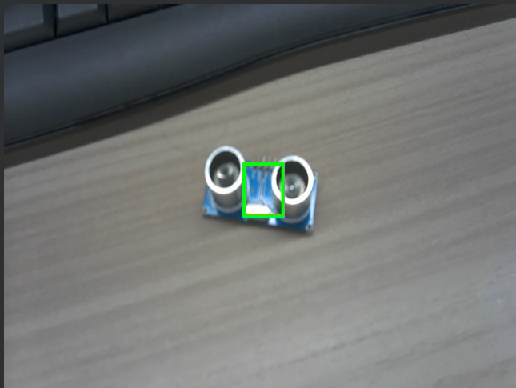
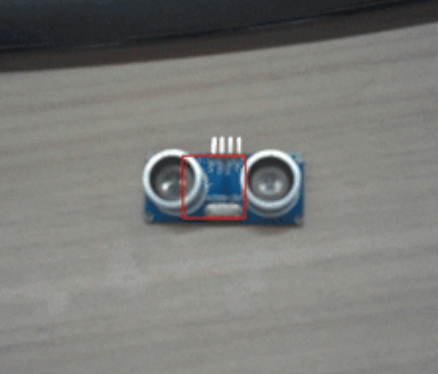
Note: Please do not move the object to be tracked quickly, otherwise it will not be tracked correctly.
- Transfer the program file to the system, open the terminal and enter the corresponding directory, then run the following command to start the program.
xxxxxxxxxxpython3 15_k230_nano_tracker.py
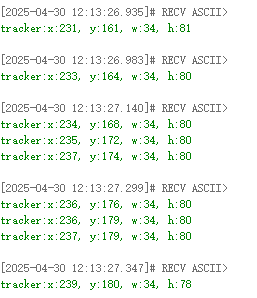
- When the K230 camera image recognizes the target object, the terminal will parse and print out the information transmitted by the K230.
in
x: is the horizontal coordinate of the upper left corner of the recognized box
y: is the vertical coordinate of the upper left corner of the recognized box
w: is the width of the recognized frame
h: is the length of the recognized frame
As shown in the figure below