yahboom
HomeTutorialsProduct
Solution
Blog
Online Store
About Us
EN/中文
Store
K230 Vision Module📖
1. Quick Start
  • 0.Get start
  • 1. K230 firmware download and burning
  • 2. Install the programming environment
  • 3. Debug and run routines
  • 4. Offline running routine
  • 5. Micropython Quick Start
  • 6. GUI Program Instructions
  • 7.K230 module bracket installation tutorial
  • 8.K230 module 2DOF PTZ installation tutorial
2. Basic Courses
  • 1.FPIOA pin assignment
  • 2.RGB lights
  • 3.Buzzer
  • 4.Buttons
  • 5.Serial communication
  • 6.I2C communication
  • 7.PWM
  • 8.WDT watchdog
  • 9.Timer
  • 10.Fourier Transform
  • 11.SHA256 encryption
  • 12.AES encryption
  • 13.Multithreading
  • 14.File reading and writing
  • 15.Image Display
  • 16.Touch Display
  • 17.Camera display
  • 18.Image Flip
  • 19.Camera
3. Draw the image
  • 1. Draw the lines
  • 2. Draw the circle
  • 3. Draw the rectangle
  • 4. Draw the ellipse
  • 5. Draw the arrow
  • 6. Draw the crosshairs
  • 7. Draw text
  • 8. Draw key points
4. Graphics detection
  • 1. Line segment detection
  • 2. Rectangle Detection
  • 3. Circle detection
  • 4. Object edge detection
  • 5. Line inspection basics:fast linear regression
5. Color recognition
  • 1. Color recognition
  • 2. Object Counting
  • 3. Multi-color recognition
  • 4. K230 Color Line Patrol
6.1 CV_lite Image Processing Special Topic
  • 1.Introduction to cv_litenew
  • 2.cv_lite API Reference Manualnew
  • 3.Color Block Recognition - Grayscale Imagenew
  • 4.Color Block Recognition - Color Imagenew
  • 5.Circle Recognition - Grayscale Imagenew
  • 6.Circle Recognition - Color Imagenew
  • 7.Corner Recognition - Grayscale Imagenew
  • 8.Corner Recognition - Color Imagenew
  • 9.Edge Recognition - Grayscale Imagenew
  • 10. Edge Recognition - Color Imagenew
  • 11. Rectangle Recognition - Grayscale Imagenew
  • 12.Rectangle Recognition - Color Imagenew
  • 13.Rectangle recognition combined with corner recognition - grayscale imagenew
  • 14.Rectangle recognition combined with corner recognition - color imagenew
  • 15.Image Binarization - Grayscalenew
  • 16.Image Binarization - Color Imagenew
  • 17.Exposure Adjustmentnew
  • 18.Image Black Hat Operationsnew
  • 19.Image Color Histogramnew
  • 20.Image Closingnew
  • 21.Image Expansionnew
  • 22.Image Corrosionnew
  • 23.Gaussian Blurnew
  • 24.Gradient Transformationnew
  • 25.Mean Fuzzynew
  • 26.Image Openingnew
  • 27.Image Top Hat Operationnew
  • 28.PnP rangingnew
  • 29.Find rectangles and measure distancesnew
  • 30.Image grayscale world white balancenew
6.2 OpenCV Image Processing Special Topicnew
  • 1. OpenCV Introduction
  • 2. OpenCV API Reference
  • 3. Image Basic Transforms
  • 4. Morphological Operations
  • 5. Color Segmentation and Shape Classification
  • 6. Corner and Centroid Detection
  • 7. Hough Circle Detection
  • 8. Hough Line Detection
  • 9. Contour Analysis
  • 10. Drawing Functions
  • 11. Template Matching
  • 12. Image Blur Filtering
  • 13. Edge Detection
  • 14. Thresholding
  • 15. Color Segmentation
  • 16. Histogram and Pixel Transformation
  • 17. Arithmetic and Bitwise Operations
  • 18. Channel Operation and Statistics
  • 19. Image File Read and Write
  • 20. Pixel Level Transformation
7. Code type recognition
  • 1.Barcode recognition
  • 2.QR code recognition
  • 3.AprilTag tag recognition
  • 4.DM code recognition
8. Face Recognition
  • 1.[Must-read] General code structure and prerequisite knowledge of AI vision routines
  • 2.Face Detection
  • 3.Facial key point recognition
  • 4.Face orientation detection
  • 5.Face 3D Network
  • 6.Gaze direction detection
  • 7.Register for face recognition
9. Human body characteristics
  • 1. Human body detection
  • 2. Human key point detection
  • 3. Human posture recognition
  • 4. Fall detection
  • 5. Palm detection
  • 6. Palm key point detection
  • 7. Palm key point classification
  • 8. Gesture Recognition
  • 9. Dynamic gesture recognition
  • 10. Rock, Paper, Scissors
10. Scenario Application
  • 1.OCR character detection
  • 2.OCR character recognition
  • 3.yolov8n target detection
  • 4.yolov8n segmentation
  • 5. Self-learning object recognition
  • 6. License plate detection
  • 7. License Plate Recognition
  • 8. Target Tracking
  • 9. Fruit classification
  • 10. Garbage classification
  • 11. Road sign recognition
11. Audio and video processing
  • 1. Audio Recording
  • 2. Play Audio
  • 3. Video Recording
  • 4. Play Video
  • 5. Keyword wake-up
12. Network Basics
  • 1. Wireless network connection
  • 2. AP hotspot mode
  • 3. TCP-Server Example
  • 4. TCP-Client Example
  • 5. UDP-Server Example
  • 6. UDP-Client Example
  • 7. HTTP-Server Example
  • 8. HTTP-Client Example
  • 9. MQTT Quick Start
  • 10. MQTT-Publisher
  • 11. MQTT-Subscriber
  • 12. RTSP real-time image transmission
  • 13. RTSP real-time image transmission combined with AIDemo
  • 14. Call OpenRouter large model aggregation service
  • 15. Open the Resource Monitoring Panel
13. LVGL Graphical Interface
  • 1. Introduction to LVGL
  • 2. Create a button
  • 3. Create a slider
  • 4. Create an Image
  • 5. Create a text box and keyboard
14. GUI Code Tutorial & Secondary Development
  • 01.GUI System Architecture
  • 02.Core Engine Initialization
  • 03.Application Discovery Mechanism in GUI
  • 04.Desktop Layout Algorithm
  • 05.Advanced UI Styling
  • 06.BaseApp Base Class Analysis
  • 07.Hello_World Practical
  • 08.GUI Application Lifecycle and Resource Management
15. Train your own model
  • 1. Local deployment of yolo training environment
  • 2. Use online platforms for training
16.Touch Course
  • 1.Touch point detectionnew
  • 2.Touch Paintingnew
  • 3.Touch to take a photonew
17. Multi-master communication (purchased separately)
Arduino-K230
  • 1.arduino_k230 color recognition
  • 2.arduino_k230 barcode recognition
  • 3.arduino_k230 QR code recognition
  • 4.arduino_k230 Apriltag code recognition
  • 5.arduino_k230 DM code recognition
  • 6.arduino_k230 face detection
  • 7.arduino_k230 looking direction
  • 8.arduino_k230 face recognition
  • 9.arduino_k230 human body detection
  • 10.arduino_k230 fall detection
  • 11.arduino_k230 palm detection
  • 12.arduino_k230 gesture recognition
  • 13.arduino_k230 OCR character recognition
  • 14.arduino_k230 object detection
  • 15.arduino_k230 target tracking
  • 16.arduino_k230 self-learning object recognition
  • 17.arduino_k230 license plate recognition
ESP32-K230
  • 1.k230 color recognition
  • 2.k230 barcode recognition
  • 3.k230 QR code recognition
  • 4.k230Apriltag code recognition
  • 5.k230DM code recognition
  • 6.k230 face detection
  • 7.k230 gaze direction
  • 8.k230 face recognition
  • 9.k230 human body detection
  • 10.k230 fall detection
  • 11.k230 palm detection
  • 12.k230 gesture recognition
  • 13.k230OCR character recognition
  • 14.k230 object detection
  • 15.k230 target tracking
  • 16.k230 self-learning object recognition
  • 17.k230 license plate recognition
Jetson-K230
  • 1.k230 color recognition
  • 2.k230 barcode recognition
  • 3.k230 QR code recognition
  • 4.k230Apriltag code recognition
  • 5.k230DM code recognition
  • 6.k230 face detection
  • 7.k230 gaze direction
  • 8.k230 face recognition
  • 9.k230 human body detection
  • 10.k230 fall detection
  • 11.k230 palm detection
  • 12.k230 gesture recognition
  • 13.k230OCR character recognition
  • 14.k230 object detection
  • 15.k230 target tracking
  • 16.k230 self-learning object recognition
  • 17.k230 license plate recognition
Microbit-K230
  • 1.microbit_k230 color recognition
  • 2.microbit_k230 barcode recognition
  • 3.microbit_k230 QR code recognition
  • 4.microbit_k230 Apriltag code recognition
  • 5.microbit_k230 DM code recognition
  • 6.microbit_k230 face detection
  • 7.microbit_k230 looking direction
  • 8.microbit_k230 face recognition
  • 9.microbit_k230 human body detection
  • 10.microbit_k230 fall detection
  • 11.microbit_k230 palm detection
  • 12.microbit_k230 gesture recognition
  • 13.microbit_k230 OCR character recognition
  • 14.microbit_k230 object detection
  • 15.microbit_k230 target tracking
  • 16.microbit_k230 self-learning object recognition
  • 17.microbit_k230 license plate recognition
MSPM0G3507-K230
  • 1.k230 color recognition
  • 2.k230 barcode recognition
  • 3.k230 QR code recognition
  • 4.k230Apriltag code recognition
  • 5.k230DM code recognition
  • 6.k230 face detection
  • 7.k230 gaze direction
  • 8.k230 face recognition
  • 9.k230 human body detection
  • 10.k230 fall detection
  • 11.k230 palm detection
  • 12.k230 gesture recognition
  • 13.k230OCR character recognition
  • 14.k230 object detection
  • 15.k230 target tracking
  • 16.k230 self-learning object recognition
  • 17.k230 license plate recognition
MSPM0G3519-K230
  • 1. K230 Color Recognitionnew
  • 2. K230 Barcode Recognitionnew
  • 3. K230 QR Code Recognitionnew
  • 4. K230 Apriltag Code Recognitionnew
  • 5. K230 DM Code Recognitionnew
  • 6. K230 Face Detectionnew
  • 7. K230 Gaze Directionnew
  • 8. K230 Face Recognitionnew
  • 9. K230 Human Body Detectionnew
  • 10. K230 Fall Detectionnew
  • 11. K230 Palm Detectionnew
  • 12. K230 Gesture Recognitionnew
  • 13. K230 OCR Character Recognitionnew
  • 14. K230 Object Detectionnew
  • 15. K230 Target Trackingnew
  • 16. K230 Self-learning Object Recognitionnew
  • 17. K230 License Plate Recognitionnew
Pico-K230
  • 1.k230 color recognition
  • 2.k230 barcode recognition
  • 3.k230 QR code recognition
  • 4.k230Apriltag code recognition
  • 5.k230DM code recognition
  • 6.k230 face detection
  • 7.k230 gaze direction
  • 8.k230 face recognition
  • 9.k230 human body detection
  • 10.k230 fall detection
  • 11.k230 palm detection
  • 12.k230 gesture recognition
  • 13.k230OCR character recognition
  • 14.k230 object detection
  • 15.k230 target tracking
  • 16.k230 self-learning object recognition
  • 17.k230 license plate recognition
raspberrypi-K230
  • 1.k230 color recognition
  • 2.k230 barcode recognition
  • 3.k230 QR code recognition
  • 4.k230Apriltag code recognition
  • 5.k230DM code recognition
  • 6.k230 face detection
  • 7.k230 gaze direction
  • 8.k230 face recognition
  • 9.k230 human body detection
  • 10.k230 fall detection
  • 11.k230 palm detection
  • 12.k230 gesture recognition
  • 13.k230OCR character recognition
  • 14.k230 object detection
  • 15.k230 target tracking
  • 16.k230 self-learning object recognition
  • 17.k230 license plate recognition
RDK-K230
  • 1.k230 color recognition
  • 2.k230 barcode recognition
  • 3.k230 QR code recognition
  • 4.k230Apriltag code recognition
  • 5.k230DM code recognition
  • 6.k230 face detection
  • 7.k230 gaze direction
  • 8.k230 face recognition
  • 9.k230 human body detection
  • 10.k230 fall detection
  • 11.k230 palm detection
  • 12.k230 gesture recognition
  • 13.k230OCR character recognition
  • 14.k230 object detection
  • 15.k230 target tracking
  • 16.k230 self-learning object recognition
  • 17.k230 license plate recognition
STM32-K230
  • 1. stm32_k230 color recognition
  • 2. stm32_k230 barcode recognition
  • 3. stm32_k230 QR code recognition
  • 4. stm32_k230Apriltag code recognition
  • 5. stm32_k230DM code recognition
  • 6. stm32_k230 face detection
  • 7.stm32_k230 looking direction
  • 8. stm32_k230 face recognition
  • 9. stm32_k230 human body detection
  • 10. stm32_k230 fall detection
  • 11. stm32_k230 palm detection
  • 12. stm32_k230 gesture recognition
  • 13. stm32_k230OCR character recognition
  • 14. stm32_k230 object detection
  • 15. stm32_k230 target tracking
  • 16. stm32_k230 self-learning object recognition
  • 17.stm32_k230 license plate recognition
18.Extension case (purchase separately)
For 2DOF Electric Platform
  • 1.Moving target control and automatic tracking system
  • 2.Human body recognition alarm
  • 3.Gesture Recognition
  • 4.Rock Paper Scissors
  • 5.Fruit sorting
  • 6.Color Tracking
  • 7.Face Tracking
MSPM0G3507 wheeled chassis V1/V2 combined with K230 application case
  • 1.Visual tracking
  • 2.Color tracking
  • 3.Color response
  • 4.Road sign recognition
  • 5.Machine code tracking
  • 6.QR code recognition action
  • 7.Autonomous avoid
  • 8.License plate tracking
  • 9.Face tracking
  • 10.Gaze direction tracking
  • 11.Palm tracking
  • 12.Target tracking
  • 13.Human body tracking
  • 14.OCR character recognition action
MSPM0G3519 wheeled chassis V1/V2 combined with K230 application case
  • 1.Visual trackingnew
  • 2.Color trackingnew
  • 3.Color responsenew
  • 4.Road sign recognitionnew
  • 5.Machine code trackingnew
  • 6.QR code recognition actionnew
  • 7.Autonomous avoidnew
  • 8.License plate trackingnew
  • 9.Face trackingnew
  • 10.Gaze direction trackingnew
  • 11.Palm trackingnew
  • 12.Target trackingnew
  • 13.Human body trackingnew
  • 14.OCR character recognition actionnew
STM32 wheeled chassis V1/V2 combined with K230 application case
  • 1.Visual tracking
  • 2.Color tracking
  • 3.Color response
  • 4.Road sign recognition
  • 5.Machine code tracking
  • 6.QR code recognition action
  • 7.Autonomous avoid
  • 8.License plate tracking
  • 9.Face tracking
  • 10.Gaze direction tracking
  • 11.Palm tracking
  • 12.Target tracking
  • 13.Human body tracking
  • 14.OCR character recognition action
19. Expansion case(purchase separately)new
  • 1.Motion target control and Auto track system
  • 2.Vehicle-mounted balance ball motion control system
Download
  • Manual
  • CanMV IDE
  • Software Tools
  • Firmware
  • Source Code
  • Appendix
Download ZIP

Welcome to K230 Vision Module repository

1.Barcode recognition

Barcode recognition

Barcode recognitionIntroduction to the results of routine experimentsCode ExplanationComplete codeCode structurefind_barcodes([roi])BarCodekindConstructorcornersrectxwhpayloadtyperotationquality


Introduction to the results of routine experiments

In this section, we will use K230 to recognize barcodes. First, we use the barcode generator to generate a barcode image.

(You can use the barcode generation tool provided in our attachment, or you can search online to generate a barcode)

Enter English or digital content in the input box and click the Generate Barcode button to generate
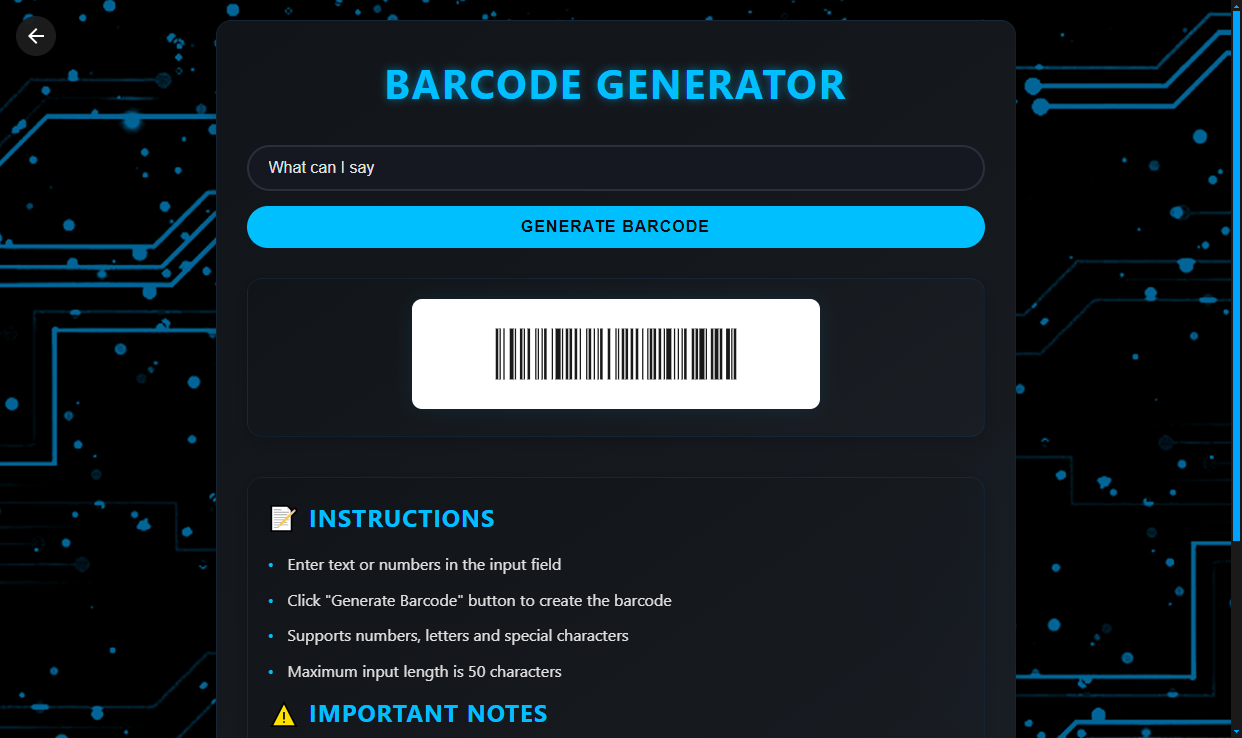
image-20250122154902708

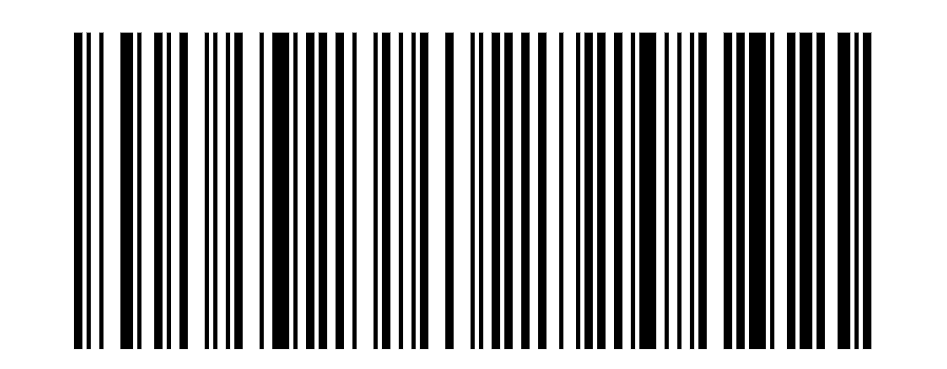
We zoom in on the generated barcode

image-20250122155219591

The example code for the K230 section of this section is located in: [Source Code/06.Codes/01.find_barcodes.py]

We use CanMV IDE to open the sample code and connect K230 to the computer via USB.

Click the Run button in the lower left corner of CanMV IDE to run the example

Point the camera at the QR code just generated, and you can see that the content of the barcode has been successfully recognized.
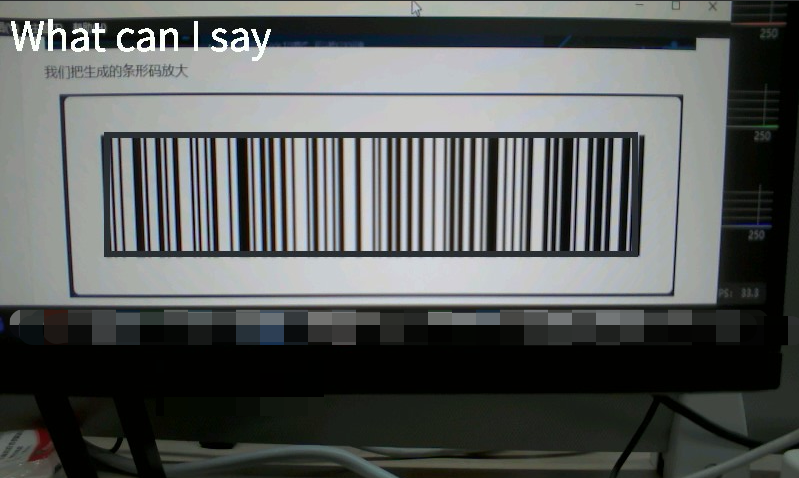
image-20250122155637490

At the same time, the lower left corner of CanMV IDE will also output our recognition results
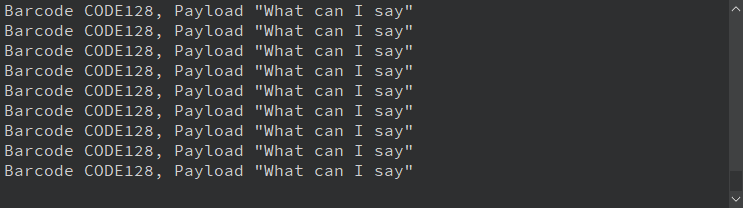
image-20250122155738720

Code Explanation

The peripherals we will use in this section are mainly camera modules

The detection and recognition of barcodes is implemented by the find_barcodes() method in K230, which belongs to the image module.

Complete code

xxxxxxxxxx
# 导入必要的模块 Import required modules
import time
import gc
from media.sensor import Sensor
from media.display import Display
from media.media import MediaManager
import image
​
# 定义条形码类型映射字典 Define barcode type mapping dictionary
BARCODE_TYPES = {
    image.EAN2: "EAN2",
    image.EAN5: "EAN5",
    image.EAN8: "EAN8",
    image.UPCE: "UPCE",
    image.ISBN10: "ISBN10",
    image.UPCA: "UPCA",
    image.EAN13: "EAN13",
    image.ISBN13: "ISBN13",
    image.I25: "I25",
    image.DATABAR: "DATABAR",
    image.DATABAR_EXP: "DATABAR_EXP",
    image.CODABAR: "CODABAR",
    image.CODE39: "CODE39",
    image.PDF417: "PDF417",
    image.CODE93: "CODE93",
    image.CODE128: "CODE128"
}
​
def barcode_name(code):
    """
    获取条形码类型名称
    Get barcode type name
    """
    return BARCODE_TYPES.get(code.type(), "UNKNOWN")
​
def init_camera():
    """
    初始化摄像头设置
    Initialize camera settings
    """
    sensor = Sensor()  # 构建摄像头对象 Create camera object
    sensor.reset()     # 复位和初始化摄像头 Reset and initialize camera
    # 设置帧大小为LCD分辨率(640x480) Set frame size to LCD resolution (640x480)
    sensor.set_framesize(width=640, height=480)
    # 设置输出图像格式 Set output image format
    sensor.set_pixformat(Sensor.RGB565)
    return sensor
​
def main():
    # 初始化摄像头 Initialize camera
    sensor = init_camera()
​
    # 初始化显示设置 Initialize display settings
    Display.init(Display.ST7701, to_ide=True)
​
    # 初始化media资源管理器 Initialize media resource manager
    MediaManager.init()
​
    # 启动sensor Start the sensor
    sensor.run()
​
    # 创建时钟对象用于FPS计算 Create clock object for FPS calculation
    clock = time.clock()
​
    while True:
        clock.tick()
​
        # 捕获图像 Capture image
        img = sensor.snapshot()
​
        # 查找图像中所有条形码 Find all barcodes in the image
        codes = img.find_barcodes()
​
        for code in codes:
            # 用矩形框标记条码位置 Mark barcode position with rectangle
            img.draw_rectangle(code.rect(), thickness=6, color=(46, 47, 48))
​
            # 获取条码类型和内容 Get barcode type and content
            code_type = barcode_name(code)
            payload = code.payload()
​
            # 打印条码信息 Print barcode information
            print(f"Barcode {code_type}, Payload \"{payload}\"")
​
            # 在图像中显示条码内容 Display barcode content in image
            img.draw_string_advanced(10, 10, 40, payload, color=(255, 255, 255))
​
        # 显示处理后的图像 Display processed image
        Display.show_image(img)
​
        # 执行垃圾回收 Perform garbage collection
        gc.collect()
​
if __name__ == "__main__":
    main()

Code structure

The main functions and structure of this section's routine are as follows:

  1. Module import part:

    • Imported necessary modules such as time processing, garbage collection, sensors, displays, media management and image processing
  2. Barcode type definition:

    • Created a dictionary BARCODE_TYPESmapping various barcode types (such as EAN13, ISBN13, CODE128, etc.)
  3. Main functions:

    • barcode_name(): Get the name of the barcode type
    • init_camera(): Initialize the camera, set the resolution (800x480) and image format
    • main(): The main operating logic of the program
  4. Main program flow:

    • Initialize the camera, display, and media manager

    • Enter an infinite loop and continue executing:

      • Capturing an Image

      • Find barcodes in images

      • For each barcode found:

        • Mark the location with a rectangular box
        • Get and display barcode type and content
      • Display the processed image

      • Perform garbage collection

find_barcodes([roi])

image.find_barcodes([roi])

This function finds all 1D barcodes within the specified ROI and returns a image.barcodelist containing objects. For more information, see image.barcodethe documentation of the object.

For best results, a window of 640 pixels long and 40/80/160 pixels wide is recommended. The lower the vertical window, the faster it will run. Since barcodes are linear, one-dimensional images, they need to have a higher resolution in one direction and a lower resolution in the other. Note that the function scans horizontally and vertically, so you can use a window of 40/80/160 pixels wide and 480 pixels long. Be sure to adjust the lens so that the barcode is in the area of sharpest focus. Blurred barcodes cannot be decoded.

This function supports all the following 1D barcodes:

  • image.EAN2
  • image.EAN5
  • image.EAN8
  • image.UPCE
  • image.ISBN10
  • image.UPCA
  • image.EAN13
  • image.ISBN13
  • image.I25
  • image.DATABAR (RSS-14)
  • image.DATABAR_EXP (RSS-Expanded)
  • image.CODABAR
  • image.CODE39
  • image.PDF417
  • image.CODE93
  • image.CODE128
  • roiis a rectangle tuple specifying the region of interest (x, y, w, h). If not specified, ROI defaults to the entire image. The operation is limited to pixels within this region.

Note: Compressed images and Bayer images are not supported.

BarCodekind

The barcode object is returned by image.find_barcodesthe function.

Constructor

xxxxxxxxxx
class image.barcode

Please call image.find_barcodes()the function to create this object.

corners

xxxxxxxxxx
barcode.corners()

This method returns a list of tuples containing the four corners of the barcode, each tuple is in the format of (x, y). The four corners are usually arranged in a clockwise direction starting from the top left corner.

rect

xxxxxxxxxx
barcode.rect()

This method returns a rectangle tuple (x, y, w, h) that can be used in other image processing methods, such as image.draw_rectanglethe barcode bounding box in .

x

xxxxxxxxxx
barcode.x()

This method returns the x-coordinate of the barcode's bounding box as an integer. You can also get this value doing [0] on the object.

xxxxxxxxxx
barcode.y()

This method returns the y-coordinate of the barcode's bounding box (an integer). You may also get this value doing [1] on the object.

w

x
barcode.w()

This method returns the width of the barcode's bounding box as an integer. You may also get this value doing [2] on the object.

h

x
barcode.h()

This method returns the height of the barcode's bounding box as an integer. You may also get this value using [3] on the object.

payload

xxxxxxxxxx
barcode.payload()

This method returns the barcode's payload string, for example: "Quantity".

You can also get this value doing [4] on the object.

type

xxxxxxxxxx
barcode.type()

This method returns the type of the barcode (an integer). Possible types include:

  • image.EAN2
  • image

.EAN5

  • image.EAN8
  • image.UPCE
  • image.ISBN10
  • image.UPCA
  • image.EAN13
  • image.ISBN13
  • image.I25
  • image.DATABAR
  • image.DATABAR_EXP
  • image.CODABAR
  • image.CODE39
  • image.PDF417 (to be enabled in the future, not currently available)
  • image.CODE93
  • image.CODE128

You can also get this value doing [5] on the object.

rotation

xxxxxxxxxx
barcode.rotation()

This method returns the barcode's rotation angle (measured in radians, as a floating point number).

You may also get this value doing [6] on the object.

quality

xxxxxxxxxx
barcode.quality()

This method returns an integer representing the number of times the barcode was detected in the image.

As you scan a barcode, each new scan line decodes the same barcode. Each time this process occurs, the barcode value increases.

You may also get this value doing [7] on the object.

Pixel Level Transformation
QR code recognition

COMPANY

  • About us
  • Team Style
  • Blog

LEARNING & EXPLORATION

  • Tutorials
  • Edge AI hardware
  • Educational robots
  • Embedded intelligent hardware

WHERE TO BUY

  • Yahboom Online Store
  • Amazon
  • Alibaba
  • AliExpress
  • Mercado

TECHNOLOGY SUPPORT

  • Email: support@yahboom.com

BE A DISTRIBUTOR

  • Email: sales@yahboom.com
QR Code

Copyright © 2017-2026 Yahboom. All Rights Reserved.

EN/中文