Welcome to K230 Vision Module repository
2. Object Counting
Object counting
Object countingIntroduction to the results of routine experimentsCode ExplanationComplete codeCode structureFrequently asked questionsWhy is my recognition result not good?
Introduction to the results of routine experiments
Based on the color recognition we learned in the previous section, in this section we will try to count the number of objects with similar colors.
Here we use the [Generate Random Number of Coins] tool in the supporting materials to generate a random number of gold coin images

Generate a picture like the following:

Then we run the example code in this section and point the camera at this picture. You can see how many gold coins are recognized in the upper left corner of the screen.
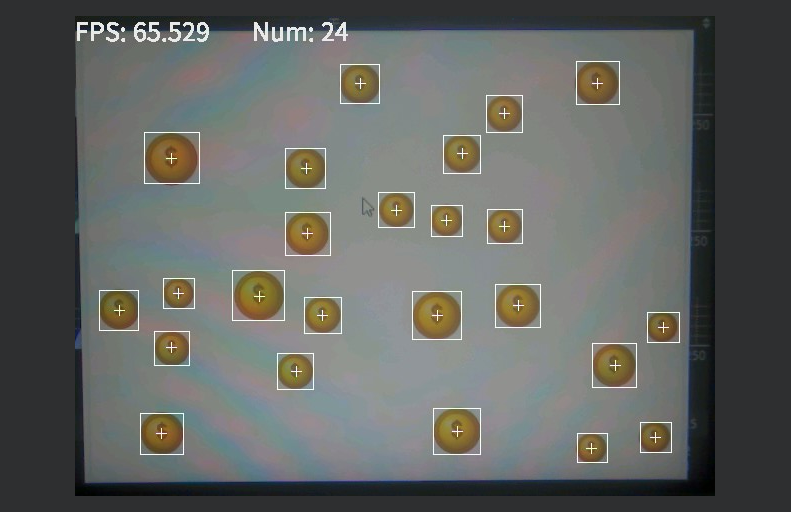
We can generate a few more pictures to test, and we can see that the recognition speed is still very fast and the accuracy is relatively high.
Code Explanation
The example code file of this section is located in [Source Code/05.Color/02.item_count.py]
Complete code
xxxxxxxxxximport timeimport osimport sysfrom media.sensor import Sensorfrom media.display import Displayfrom media.media import MediaManager# 常量定义 / Constants definitionSCREEN_WIDTH = 640SCREEN_HEIGHT = 480# 待检测物体的LAB色彩空间阈值 / LAB color space thresholds# 这里写的阈值是配套工具中【金币生成器】生成的金币的颜色 / The threshold written here is the color of the gold coins generated by the [Generate Random Number of Coins] in the supporting tool# Format: (L_min, L_max, A_min, A_max, B_min, B_max)TRACK_THRESHOLD = [(0, 100, -7, 127, 10, 83)]# 文字显示参数 / Text display parametersFONT_SIZE = 25TEXT_COLOR = (233, 233, 233) # 白色 / Whitedef init_camera(): """ 初始化并配置摄像头 Initialize and configure the camera """ # sensor = Sensor(width=1280,height=960) sensor = Sensor() sensor.reset() sensor.set_framesize(width=SCREEN_WIDTH, height=SCREEN_HEIGHT) sensor.set_pixformat(Sensor.RGB565) return sensordef init_display(): """ 初始化显示设备 Initialize display device """ # 初始化3.5寸MIPI屏幕和IDE显示 # Initialize 3.5-inch MIPI screen and IDE display Display.init(Display.ST7701,width=SCREEN_WIDTH,height=SCREEN_HEIGHT,to_ide=True) MediaManager.init()def process_frame(img, threshold): """ 处理单帧图像,检测并标记目标物体 Process single frame, detect and mark target objects Args: img: 输入图像 / Input image threshold: 颜色阈值 / Color threshold Returns: blobs: 检测到的物体列表 / List of detected objects """ blobs = img.find_blobs([threshold]) if blobs: for blob in blobs: # 绘制矩形框和中心十字 / Draw rectangle and center cross img.draw_rectangle(blob[0:4]) img.draw_cross(blob[5], blob[6]) return blobsdef draw_info(img, fps, num_objects): """ 在图像上绘制信息 Draw information on image Args: img: 输入图像 / Input image fps: 帧率 / Frames per second num_objects: 检测到的物体数量 / Number of detected objects """ info_text = f'FPS: {fps:.3f} Num: {num_objects}' img.draw_string_advanced(0, 0, FONT_SIZE, info_text, color=TEXT_COLOR)def main(): """ 主程序入口 Main program entry """ # 初始化设备 / Initialize devices sensor = init_camera() init_display() sensor.run() # 创建时钟对象用于FPS计算 / Create clock object for FPS calculation clock = time.clock() try: while True: clock.tick() # 捕获图像 / Capture image img = sensor.snapshot() # 处理图像 / Process image blobs = process_frame(img, TRACK_THRESHOLD[0]) # 显示信息 / Display information draw_info(img, clock.fps(), len(blobs)) # 显示图像 / Show image Display.show_image(img) # 打印FPS / Print FPS print(f"FPS: {clock.fps():.3f}") except KeyboardInterrupt: print("Program terminated by user") except Exception as e: print(f"Error occurred: {str(e)}") finally: # 清理资源 / Cleanup resources sensor.deinit() Display.deinit()if __name__ == "__main__": main()Code structure
Initialization phase:
- Import necessary modules
- Define constants (screen size, color thresholds, etc.)
- Defining Helper Functions
- Initialize the camera and display
- Create a clock object
In the main loop:
- Clock timing
- Capturing image frames
- Process the image (find color patches, draw markers)
- Display information and images
- Print FPS
Exception handling:
- Handling keyboard interrupts
- Handling other exceptions
Cleaning:
- Destroy the camera
- Destroy the display
The detailed process is shown in the figure:
图像处理帧详情:
Frequently asked questions
Why is my recognition result not good?
Due to differences in lighting, camera parameters, and screen parameters, the threshold in the routine code may not be the most appropriate. We can use the camera routine code used in the previous tutorial to take pictures of the objects we want to recognize in real scenes. Then refer to the process of customizing colors in the previous color recognition tutorial to extract a more appropriate color threshold.