Welcome to K230 Vision Module repository
3. Create a slider
Creating a Slider
Detailed Tutorial
In this section, we will learn how to use the slider. In this section, we will create a slider component and read the slider reading in the serial terminal.
Again, we create a new code, copy the code structure given in the first section, and add initialization touch according to the method learned previously.
After adding it, we declare a method to create a slider bar and call it in the main function
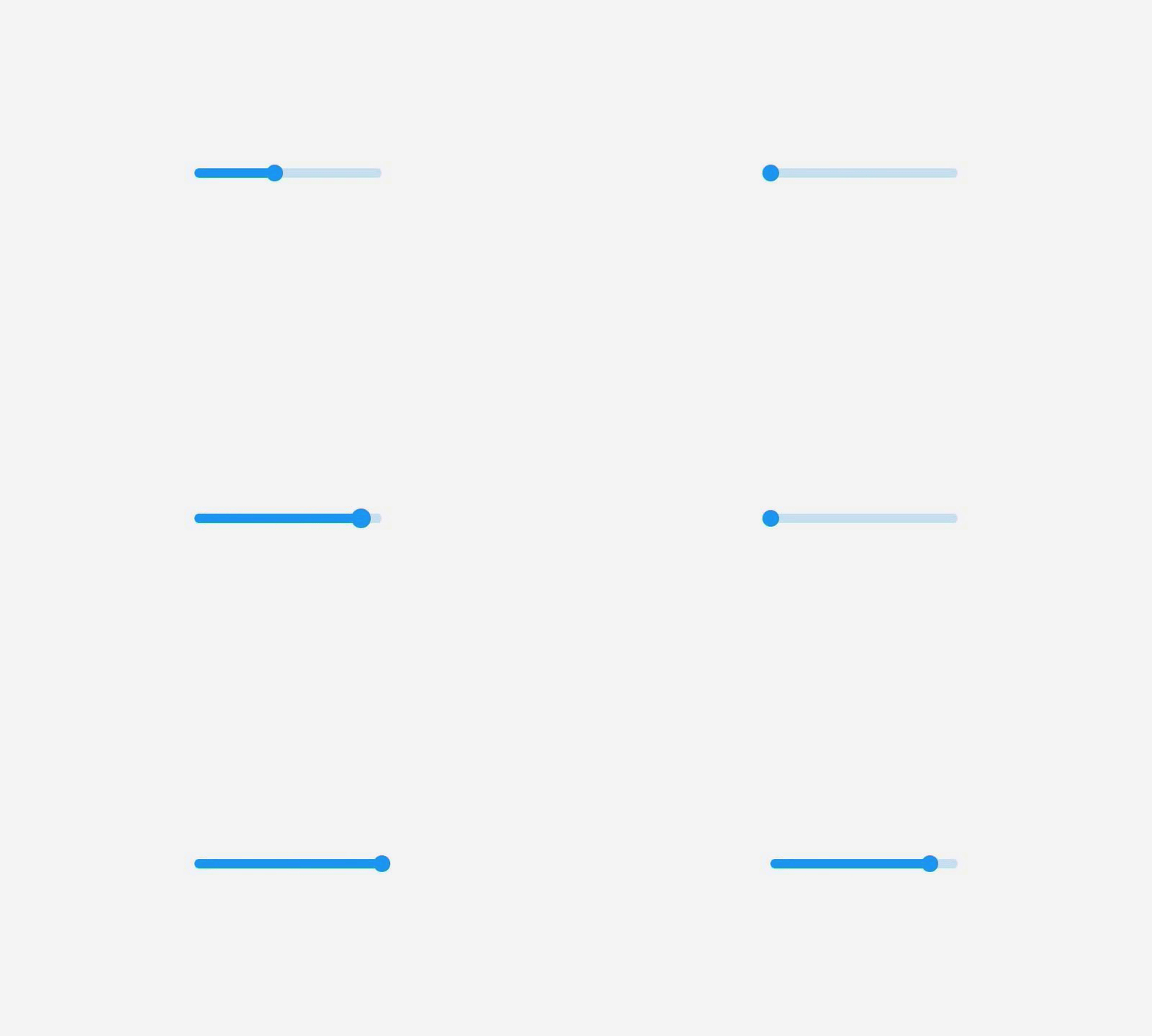
xxxxxxxxxxdef create_slider(): slider = lv.slider(lv.scr_act()) slider.center() def main(): """ 主函数 Main function """ try: # 初始化显示设备和LVGL / Initialize display device and LVGL display_init() lvgl_init() create_slider() ...Click Run, the effect is as shown
Next, let's get the current progress in real time.
We declare a callback function and get the current progress bar reading here
xxxxxxxxxxdef slider_event_cb(e): # The commented out code below is the way the lvgl official routine is written, but it is wrong on K230! # 下面注释掉的这条代码,是lvgl官方例程的写法,但是在K230上是错误的! # slider = e.get_target() # The correct way to write it is to use the __cast__() method to convert # 正确的写法要使用__cast__() 方法去转换 slider = lv.slider.__cast__(e.get_target()) print(f'value: {slider.get_value()}%')The e in the callback function refers to the event that initiates the callback. From the event, we can get the component that triggers the callback, the triggered event, and other content.
Click Run to view the output in the serial terminal
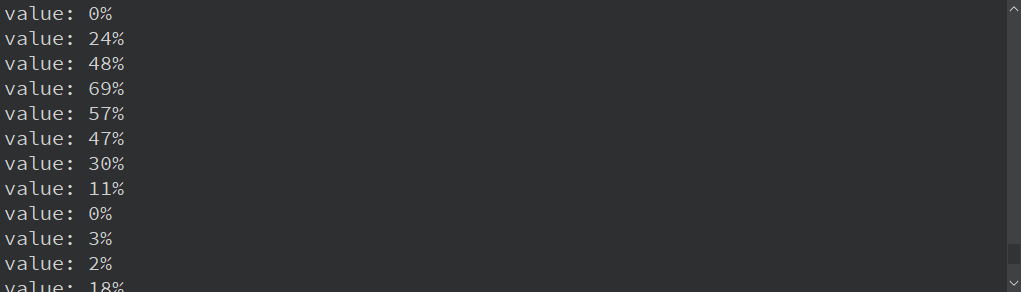
Known BUG, when dragging the slider, it will sometimes automatically slide to 0. The cause of this problem has not been found yet.
Through the above steps, we can successfully create an lvgl program with a slider.
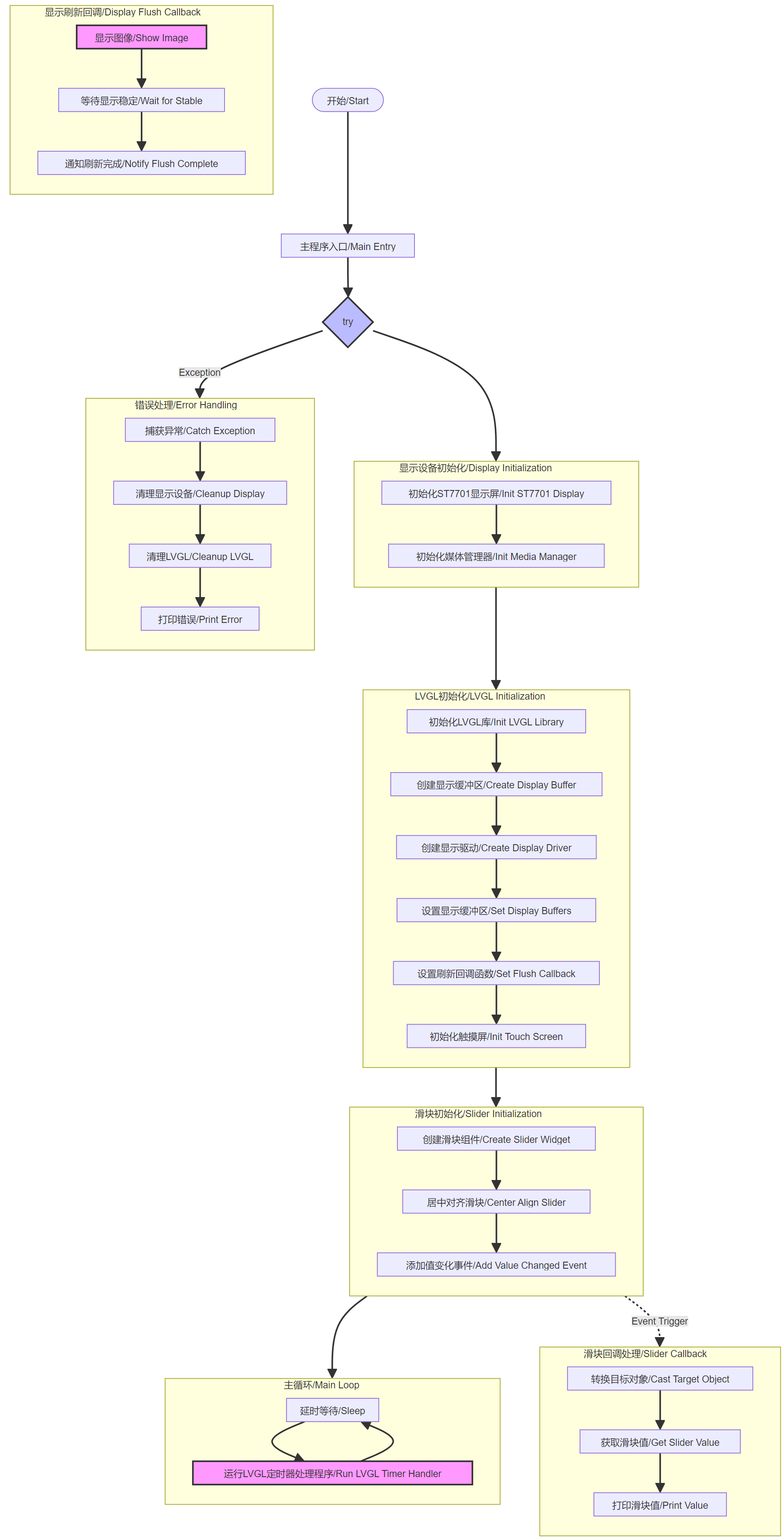
Code flow chart
Complete code file [Source code/12.Lvgl/03.lvgl_slider.py]