Welcome to MicroROS V2 Robot Car repository
1. VM Keyboard Remote Control
Quick-Start Keyboard Control in the Virtual Machine
Quick-Start Keyboard Control in the Virtual Machine1. Course Content2. Demonstration Case3. Key Bindings3.1 Chassis Movement Control3.2 Speed Adjustment3.3 Gimbal (PTZ) Control
1. Course Content
- Use the desktop Keyboard Control icon to quickly start controlling the robot with the keyboard
2. Demonstration Case
- Double-click the KeyboardControl application icon on the desktop to start the keyboard control feature
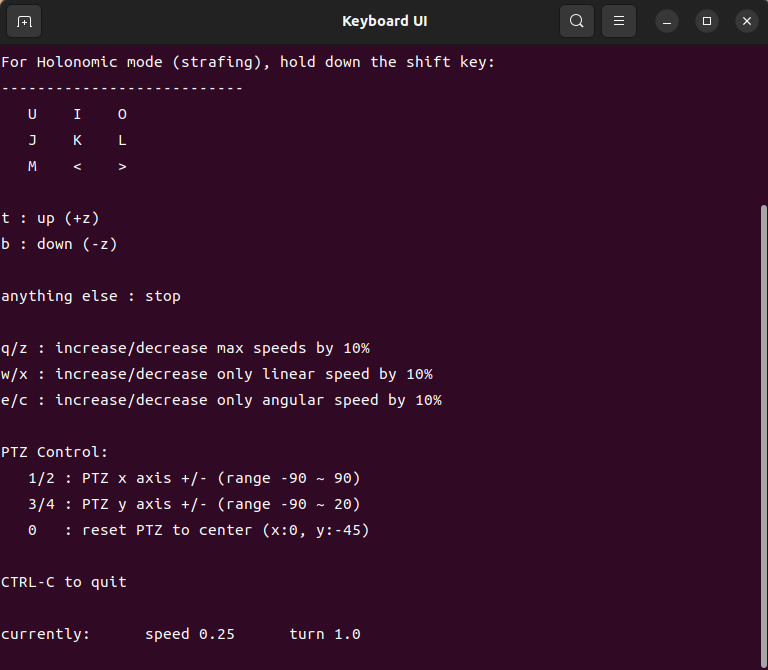
- Click the Keyboard UI terminal with the mouse and follow the terminal prompts; use the keyboard to control the robot chassis movement and the gimbal servo angles
3. Key Bindings
3.1 Chassis Movement Control
| Key | Function |
|---|---|
u | Move forward-left (forward + turn left) |
i | Move forward |
o | Move forward-right (forward + turn right) |
j | Turn left in place |
k | Stop |
l | Turn right in place |
m | Move backward-left (backward + turn left) |
, | Move backward |
. | Move backward-right (backward + turn right) |
3.2 Speed Adjustment
| Key | Function |
|---|---|
q | Increase both the max linear speed and angular speed by 10% |
z | Decrease both the max linear speed and angular speed by 10% |
w | Increase only the linear speed by 10% |
x | Decrease only the linear speed by 10% |
e | Increase only the angular speed by 10% |
c | Decrease only the angular speed by 10% |
3.3 Gimbal (PTZ) Control
| Key | Function |
|---|---|
1 | Increase the gimbal X-axis angle (range -90 ~ 90) |
2 | Decrease the gimbal X-axis angle (range -90 ~ 90) |
3 | Increase the gimbal Y-axis angle (range -90 ~ 20) |
4 | Decrease the gimbal Y-axis angle (range -90 ~ 20) |
0 | Reset the gimbal to the center position (x:0, y:-45) |
Tip: During keyboard control, keep the Keyboard UI terminal window focused; otherwise, the keys will not take effect.
[!NOTE]
To stop keyboard control, press ctrl+c in the opened terminal to end the process and close the terminal window