Welcome to MicroROS V2 Robot Car repository
8. KCF Object Tracking
KCF Object Tracking (PTZ)
1. Experiment Objective
The PTZ pan-tilt + mouse box selection combines the KCF (Kernelized Correlation Filter) tracking algorithm to track any object. The user drags a box with the mouse to select the target in the frame; the KCF tracker automatically learns the target features and keeps locating it, while PD control drives the pan-tilt so that the target stays at the center of the frame.
2. Experiment Principle
1. Key Terms
| Term | Description |
|---|---|
| KCF (Kernelized Correlation Filter) | An online tracking algorithm based on correlation filtering; uses circulant matrices and the kernel trick to compute the target response map at high speed in the frequency domain, suitable for real-time applications |
| OpenCV Tracking API | The unified tracking interface provided by the OpenCV contrib module, supporting KCF/CSRT/MIL/BOOSTING/MOSSE/TLD/MEDIANFLOW and other trackers |
| Mouse box selection (ROI Selection) | The user drags a rectangle in the frame to specify the tracking target; the tracker extracts features from this region and keeps locating it |
| Visual Tracking | Detects a target and keeps locking onto it through a vision algorithm; only the pan-tilt follows, the car does not move |
| PTZ Pan-Tilt | A two-degree-of-freedom servo pan-tilt; s1 rotates horizontally and s2 tilts, controlled via the /cmd_ptz_angle topic |
| PD Control | Proportional-derivative control; computes the pan-tilt angle step from the target offset and the offset change rate |
| Deadband | When the target offset is within the deadband pixel range, the pan-tilt does not move, avoiding continuous jitter caused by tiny errors |
2. Technical Architecture
State estimation (ekf_filter_node + camera_node) → kcf_tracker_ptz_node → /cmd_ptz_angle → firmware servo control
Node chain explanation:
- ekf_filter_node: Extended Kalman filter node that fuses IMU/odometry data for state estimation
- camera_node: Camera driver node that handles the image topic published by the ESP32
- kcf_tracker_ptz_node: KCF tracking node that processes the image at full resolution (960×720); it supports mouse box selection of the target followed by continuous tracking with the OpenCV KCF tracker, and a PD controller computes the pan-tilt angle step
- /cmd_ptz_angle: PTZ servo angle command topic, bridged to the ESP32 firmware by micro_ros_agent, controlling the s1 (horizontal) and s2 (tilt) servos
3. Core Topics Quick Reference
Firmware Uplink (ESP32 firmware → micro_ros_agent → ROS2 node)
| Topic Name | Type | QoS | Description |
|---|---|---|---|
/camera/image_raw | sensor_msgs/Image | BEST_EFFORT, KEEP_LAST, depth=1, VOLATILE | Raw image frames published by the ESP32 camera |
Firmware Downlink (ROS2 node → micro_ros_agent → ESP32 firmware)
| Topic Name | Type | QoS | Description |
|---|---|---|---|
/cmd_ptz_angle | geometry_msgs/Vector3 | RELIABLE, KEEP_LAST, depth=10 | PTZ pan-tilt angle command (s1: horizontal angle, s2: tilt angle) |
ROS2 Internal (inter-node communication)
| Topic Name | Type | QoS | Description |
|---|---|---|---|
/camera/image_raw | sensor_msgs/Image | BEST_EFFORT | Camera image (bridged to ROS2 by micro_ros_agent; subscribed by the tracking node) |
/cmd_ptz_angle | geometry_msgs/Vector3 | RELIABLE | PTZ angle command (published by the tracking node; bridged to the firmware by micro_ros_agent) |
3. Experiment Steps
1. Hardware Preparation
| Hardware | Requirement |
|---|---|
| PTZ version | ✅ |
| No-PTZ version | ❌ |
| Required peripherals | ESP32 camera (pan-tilt) + PTZ servo |
2. Start Agent + Camera + Joint Model (Terminal 1)
xxxxxxxxxxros2 launch microros_v2_bringup car_base.launch.py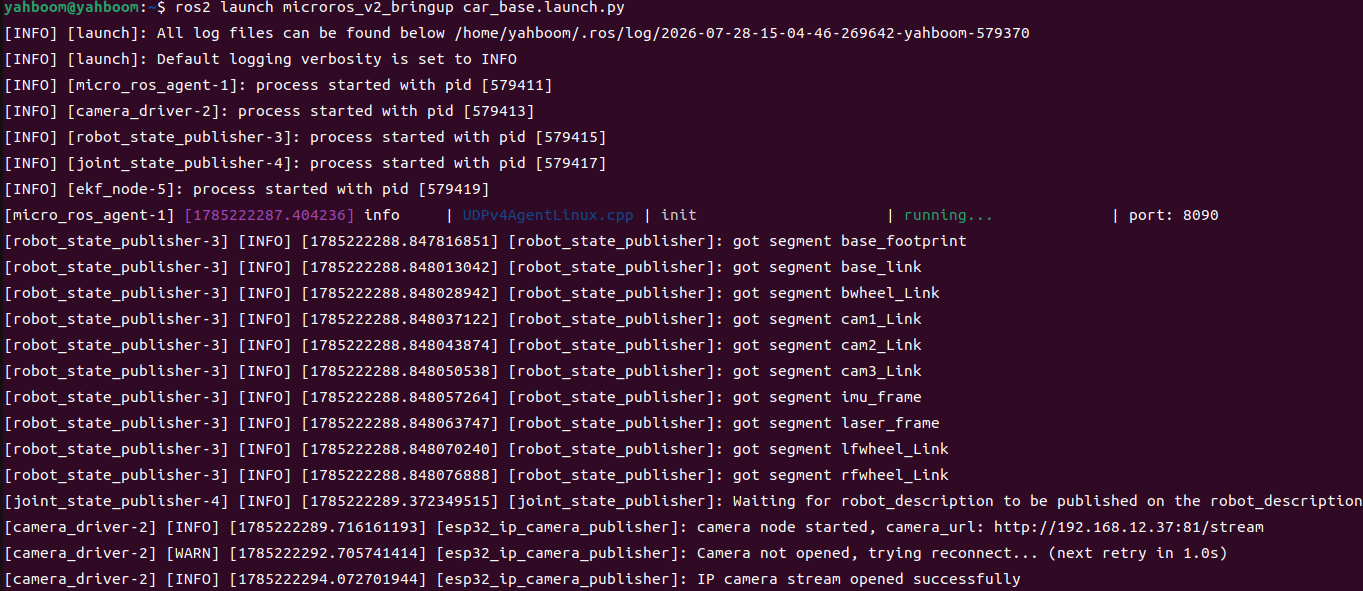
3. Start the KCF Object Tracking Node (Terminal 2)
Open a second terminal and start the KCF object tracking node:
xxxxxxxxxxros2 launch microros_v2_ptz_visual_control_pkg kcf_tracker_ptz.launch.py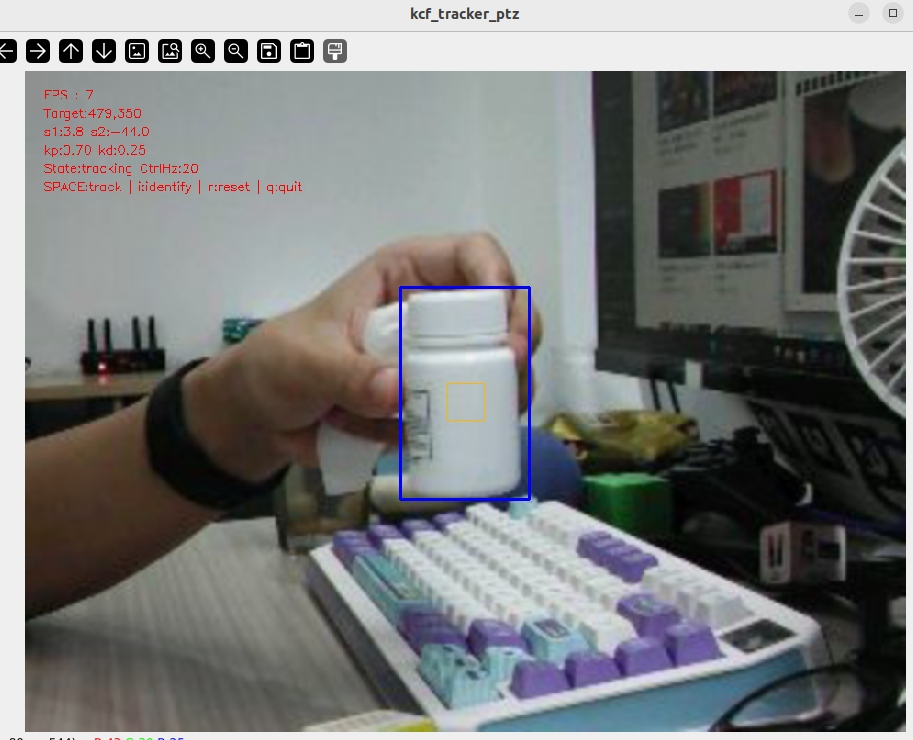
4. Operation Instructions
After startup, the node is in the init state, and the main loop spin_once schedules image processing and keyboard polling. Image processing (image_processing_rate_hz = 15 Hz) and pan-tilt control (control_rate_hz = 20 Hz) are decoupled.
Image preprocessing
Decoding + orientation correction + scaling (image_width×image_height = 960×720) is done directly in the image callback, and the processed frame is cached for the image processing timer. The KCF tracker runs directly at the original resolution.
Target box selection (mouse interaction)
In the init state, drag with the left mouse button to select the target. After release, the KCF tracker is initialized automatically:
- Clip the ROI to the image boundary
- Require a width/height ≥ 10 px
- Create the
KcfTracker(internally triescv.TrackerKCF_create, falling back to the legacy version on failure) - Initialize the tracker with the first-frame ROI; on success, switch to the
trackingstate
KCF tracking update (every frame)
The _track() method calls tracker.update(frame) every frame to obtain the new target position (ok, bbox). On success it draws a blue rectangle and updates the target center (cx, cy); on failure the frame shows "Tracking failure detected" and the target is marked lost.
PD pan-tilt control (tracking state only)
Fixed-rate 20 Hz PD control: target center pixel coordinates → normalized error → PD step → limiting (±max_ptz_step = 1.2°) → step smoothing (α = ptz_step_smooth_alpha = 0.35) → direction reversal (horizontal not reversed, tilt reversed) → angle smoothing + limiting → publish. When there is no valid target, the PD outputs nothing.
Tracker type switching
Supports dynamically modifying tracker_type (KCF/CSRT/MIL/BOOSTING/MOSSE/TLD/MEDIANFLOW) via ros2 param set /kcf_tracker_ptz_node tracker_type CSRT (or rqt); the new tracker type takes effect on the next box selection.
Shortcut keys
| Key | Function | Description |
|---|---|---|
| Mouse drag | Select the target | Hold the left button and drag to box-select the tracking target; the KCF tracker is initialized automatically on release |
| Space | tracking ↔ identify | Toggles between tracking and paused control |
| i / I | Recognition mode | Only tracks and displays, without controlling the pan-tilt |
| r / R | Re-select | Clears the current tracker and returns to the init state waiting for a new box selection |
| q / Q / ESC | Exit | Force-exits the node process with os._exit(0) |
On-screen overlay: The debug window shows the FPS, the target coordinates (when tracking succeeds) or "Target:None", the pan-tilt s1/s2 angles, the PD parameters (kp/kd), the current state, and the control rate. A crosshair is drawn at the frame center, the deadband is shown as an orange rectangle, and the KCF tracking box is drawn as a blue rectangle.
Safety and Edge Cases
- ROI too small is rejected: a selection smaller than 10×10 px refuses to initialize the tracker
- Tracker creation failure: automatically falls back to the legacy version when KCF is unavailable
- Tracking loss handling: when
tracker.update()returns failure → the target is marked lost and the PD outputs no control; pressrto re-select - Pan-tilt angle limiting: horizontal [-90°, 90°], tilt [-90°, 20°]
- Deadband protection: the step is forced to zero when the target offset is within the deadband (20 px)
- Initial PTZ publish at startup: the initial angle (0°, -45°) is published 20 times at 0.2 s intervals
5. How to Stop
Press Ctrl+C in the two terminals to stop each process; it is recommended to close them in the reverse order:
xxxxxxxxxx# Terminal 2: press Ctrl+C to stop the KCF tracking node# Terminal 1: press Ctrl+C to stop micro_ros_agent4. Experiment Observations
- init state (after startup): The frame streams in real time and prompts the user to drag with the mouse to box-select the tracking target; the pan-tilt stays at its initial position (0°, -45°)
- After box selection: The KCF tracker is initialized and automatically enters the
trackingstate; the target position is marked with a blue rectangle, and on successful tracking the frame shows the target coordinates and the kp/kd parameters - tracking mode: The pan-tilt follows the target movement smoothly with PD control; KCF computes the response map in the frequency domain to update the target position in real time
- Recognition mode (identify/paused): The tracker keeps running and displaying, but publishes no pan-tilt control commands
- Tracking failure: The frame shows the red "Tracking failure detected" prompt, the target state becomes None, and the pan-tilt stays at its last position
- Target within the deadband: The step is zeroed and the pan-tilt stays completely still without jitter
- Low frame-rate scenes: KCF is relatively tolerant of frame rate, but it is easily lost when the target moves too fast or is heavily occluded; select a larger target and move slowly
- Switching tracker type: Run
ros2 param set /kcf_tracker_ptz_node tracker_type CSRT(or modify it via rqt), then pressrto re-select for it to take effect (e.g., CSRT is more accurate but slower)
5. Program Analysis
Source code paths:
- Launch file:
~/microros_ws/src/microros_v2_ptz_visual_control_pkg/launch/kcf_tracker_ptz.launch.py- Node file:
~/microros_ws/src/microros_v2_ptz_visual_control_pkg/microros_v2_ptz_visual_control_pkg/kcf_tracker_ptz_node.py
1. Core Node Analysis
KcfTracker wrapper class — encapsulates multiple OpenCV trackers
xclass KcfTracker: """Wrapper around the built-in OpenCV trackers, supporting KCF/CSRT/MIL/BOOSTING/MOSSE/TLD/MEDIANFLOW""" def __init__(self, tracker_type: str = "KCF"): self._type = tracker_type.upper() self._tracker = None self._working = False self._create() def _create(self) -> None: t = self._type if t == "BOOSTING": self._tracker = cv.TrackerBoosting_create() elif t == "MIL": self._tracker = cv.TrackerMIL_create() elif t == "KCF": self._tracker = self._try_create("TrackerKCF_create") elif t == "TLD": self._tracker = cv.TrackerTLD_create() elif t == "MEDIANFLOW": self._tracker = cv.TrackerMedianFlow_create() elif t == "CSRT": self._tracker = self._try_create("TrackerCSRT_create") elif t == "MOSSE": self._tracker = self._try_create("legacy.TrackerMOSSE_create") if self._tracker is None: self._tracker = self._try_create(f"legacy.Tracker{t}_create") if self._tracker is None: raise RuntimeError(f"Tracker {t} not available") def init(self, frame: np.ndarray, roi: Tuple[int, int, int, int]) -> bool: ok = self._tracker.init(frame, roi) self._working = ok if ok is not None else True return self._working def update(self, frame) -> Tuple[bool, Tuple[int, int, int, int]]: if not self._working: return False, (0, 0, 0, 0) ok, bbox = self._tracker.update(frame) if ok: self._working = True return True, tuple(int(v) for v in bbox) else: self._working = False return False, (0, 0, 0, 0)Node initialization (__init__) — state machine + image/control dual timers
xxxxxxxxxxclass KcfTrackerPtzNode(Node): def __init__(self) -> None: super().__init__(DEFAULT_NODE_NAME) self._img_lock = threading.Lock() self._tgt_lock = threading.Lock() self._latest_frame: Optional[np.ndarray] = None self._state = STATE_INIT # "init" / "identify" / "tracking" self._select_flags = False # mouse box-selection state self._roi_init = (0, 0, 0, 0) # ROI selected by the mouse self._tracker: Optional[KcfTracker] = None self._tracker_ready = False self._has_target = False self._target_x: Optional[float] = None self._target_y: Optional[float] = None self._declare_params() self._load_params() self._h_deg = self._init_h_deg; self._p_deg = self._init_p_deg # Create the image subscription (BEST_EFFORT QoS) self._sub = self.create_subscription( Image, self._img_topic, self._on_image, QoSProfile(history=QoSHistoryPolicy.KEEP_LAST, depth=1, reliability=QoSReliabilityPolicy.BEST_EFFORT, durability=QoSDurabilityPolicy.VOLATILE), ) self._pub = self.create_publisher(Vector3, self._ptz_topic, 10) # Image processing timer (15 Hz) self._img_timer = self.create_timer( 1.0 / max(self._img_rate, MINIMUM_TIMER_RATE_HZ), self._process_image, ) self._ctrl_timer = None; self._rebuild_ctrl_timer(False) # Mouse callback + keyboard timer if self._show_win: self._init_win() self._key_timer = self.create_timer(0.05, self._poll_keys) # Initial PTZ angle publishing if self._pub_init: self._start_init_ptz() self.get_logger().info( f"KCF tracker started. Drag ROI → SPACE to track. " f"ctrl={self._ctrl_rate:.1f}Hz")Mouse box selection initializes the tracker (_on_mouse + _init_tracker)
xxxxxxxxxxdef _on_mouse(self, event, x, y, flags, param): if event == cv.EVENT_LBUTTONDOWN: self._state = STATE_INIT; self._select_flags = True self._mouse_xy = (x, y); self._ms_start = (x, y); self._ms_end = (x, y) elif event == cv.EVENT_MOUSEMOVE and self._select_flags: self._ms_start = self._mouse_xy; self._ms_end = (x, y) self._roi_init = (self._ms_start[0], self._ms_start[1], self._ms_end[0], self._ms_end[1]) elif event == cv.EVENT_LBUTTONUP: self._select_flags = False self._init_tracker(frame_hint=None)def _init_tracker(self, frame_hint=None) -> None: x1, y1, x2, y2 = self._roi_init if x1 == x2 or y1 == y2: return rx = min(x1, x2); ry = min(y1, y2) rw = abs(x2 - x1); rh = abs(y2 - y1) if rw < 10 or rh < 10: return # reject a ROI that is too small rx = int(clamp(rx, 0, self._img_w - 1)) ry = int(clamp(ry, 0, self._img_h - 1)) rw = int(min(rw, self._img_w - rx)) rh = int(min(rh, self._img_h - ry)) roi = (rx, ry, rw, rh) with self._img_lock: frame = self._latest_frame if frame is None: return init_frame = frame.copy() # Create and initialize the KCF tracker self._tracker = KcfTracker(self._trk_type) self._tracker.init(init_frame, roi) self._tracker_ready = True self._reset_pd() self._state = STATE_TRACKING self.get_logger().info(f"Tracker ready. ROI={roi}")KCF tracking update (_track) — calls tracker.update() every frame
xxxxxxxxxxdef _track(self, frame: np.ndarray) -> Tuple[bool, float, float]: if self._select_flags and hasattr(self, '_ms_start') and hasattr(self, '_ms_end'): cv.rectangle(frame, self._ms_start, self._ms_end, (0, 255, 0), 2) if self._state == STATE_INIT: return False, 0.0, 0.0 if not self._tracker_ready or self._tracker is None: return False, 0.0, 0.0 ok, bbox = self._tracker.update(frame) if not ok: cv.putText(frame, "Tracking failure detected", (100, 80), cv.FONT_HERSHEY_SIMPLEX, 0.75, (0, 0, 255), 2) with self._tgt_lock: self._has_target = False return False, 0.0, 0.0 x, y, w, h = bbox cx, cy = x + w / 2.0, y + h / 2.0 cv.rectangle(frame, (x, y), (x + w, y + h), (255, 0, 0), 2, 1) with self._tgt_lock: self._has_target = True self._target_x = float(cx); self._target_y = float(cy) return True, float(cx), float(cy)PD pan-tilt control (_ctrl_tick) — shares the same PD algorithm as the pose tracking node
xxxxxxxxxxdef _ctrl_tick(self) -> None: if self._state != STATE_TRACKING: return with self._tgt_lock: tx, ty, ok = self._target_x, self._target_y, self._has_target if not ok or tx is None or ty is None: return icx, icy = self._img_w * 0.5, self._img_h * 0.5 pex, pey = tx - icx, ty - icy cx, cy = abs(pex) < self._db_x, abs(pey) < self._db_y if cx: pex = 0.0 if cy: pey = 0.0 n = time.perf_counter() dt = n - self._prev_ctrl_t if self._prev_ctrl_t > 0.0 else 1.0 / max(...) dt = max(dt, 1e-3) nex, ney = pex / icx, pey / icy dx, dy = (nex - self._prev_err_x) / dt, (ney - self._prev_err_y) / dt rx = clamp((self._kp * nex + self._kd * dx) * self._max_s, -self._max_s, self._max_s) ry = clamp((self._kp * ney + self._kd * dy) * self._max_s, -self._max_s, self._max_s) sx = (1.0 - self._step_a) * self._last_sx + self._step_a * rx sy = (1.0 - self._step_a) * self._last_sy + self._step_a * ry self._h_deg = clamp(...) self._p_deg = clamp(...) self._pub_ptz()2. Key Parameters
Parameter definition file:
~/microros_ws/src/microros_v2_ptz_visual_control_pkg/launch/kcf_tracker_ptz.launch.py
| Parameter | Type | Default Value | Description |
|---|---|---|---|
pd_kp / pd_kd | float | 0.7 / 0.25 | PD proportional/derivative gains |
control_rate_hz | float | 20.0 Hz | Pan-tilt control rate |
image_processing_rate_hz | float | 15.0 Hz | Image processing rate |
deadband_x / deadband_y | float | 20.0 / 20.0 px | Horizontal/vertical deadband |
max_ptz_step | float | 1.2° | Maximum single angle step |
ptz_step_smooth_alpha | float | 0.35 | Step EMA smoothing coefficient |
ptz_smooth_alpha | float | 0.85 | Pan-tilt angle EMA smoothing coefficient |
tracker_type | str | KCF | Tracker type: KCF/CSRT/MIL/BOOSTING/MOSSE/TLD/MEDIANFLOW |
image_width / image_height | int | 960 / 720 px | Processing image resolution (full resolution) |
window_width / window_height | int | 960 / 720 px | Debug window size |
initial_horizontal_deg / initial_pitch_deg | float | 0.0° / -45.0° | Initial pan-tilt angles |
6. Frequently Asked Questions
| Problem | Cause | Solution |
|---|---|---|
| Unstable tracking | Low frame rate + KCF is sensitive to occlusion/scale changes | Box-select a larger target, move slowly, avoid occlusion; or switch to CSRT (more accurate) |
| Tracker initialization failure | OpenCV contrib not installed or an incompatible version | Make sure the python3-opencv contrib module is installed, or switch tracker_type to an available type |
| No automatic recovery after target loss | KCF has no loss-recovery mechanism | Press r to box-select the target again |
| Tracking box drifts to the background | The background texture resembles the target | Make sure the target texture inside the ROI is distinctive when selecting, and avoid large solid-color or textureless objects |