Welcome to MicroROS V2 Robot Car repository
2. Facial Tracking
Facial Tracking (PTZ)
1. Experiment Objective
The PTZ pan-tilt tracks the face position, keeping the face at the center of the frame.
2. Experiment Principle
1. Key Terms
| Term | Description |
|---|---|
| Visual Tracking | Detects and continuously locks onto a target through a vision algorithm; only the pan-tilt follows, the car does not move |
| PTZ Pan-Tilt | A two-degree-of-freedom servo pan-tilt; s1 rotates horizontally and s2 tilts, controlled via the /cmd_ptz_angle topic |
| Haar Cascade | An OpenCV cascade classifier based on Haar features that detects face regions using a pretrained XML model |
| PD Control | Proportional-derivative control; computes the pan-tilt angle step from the target offset (P term) and the offset change rate (D term) |
| Deadband | When the target offset is within the deadband pixel range, the pan-tilt does not move, avoiding continuous jitter caused by tiny errors |
| Histogram Equalization | Applies equalizeHist to the grayscale image to enhance contrast, improving the Haar detector's face detection rate under varying lighting |
2. Technical Architecture
The facial tracking node face_tracker_ptz_node subscribes to the raw image topic /camera/image_raw of the ESP32 camera, detects face regions with the Haar Cascade classifier, manages the tracking lifecycle with a five-state machine (searching → tracking → lost → paused/identify), computes the pan-tilt angle step with a PD controller, and publishes to /cmd_ptz_angle to control the pan-tilt to track the face.
Detection pipeline: image conversion → orientation correction → scaled detection → grayscale conversion → histogram equalization → Haar detectMultiScale → multi-face selection strategy (largest area / nearest center) → target center EMA filter → PD pan-tilt control (fixed 20 Hz).
3. Core Topics Quick Reference
Firmware Uplink (Sensor Data)
| Topic | Message Type | QoS | Description |
|---|---|---|---|
| /camera/image_raw | sensor_msgs/msg/Image | best_effort | Raw image from the ESP32 camera |
Firmware Downlink (Control Commands)
| Topic | Message Type | QoS | Field | Range | Direction |
|---|---|---|---|---|---|
| /cmd_ptz_angle | geometry_msgs/msg/Vector3 | best_effort + keep_last(1) | x | [-90, 90]° | s1 horizontal servo angle |
| y | [-90, 20]° | s2 tilt servo angle |
3. Experiment Steps
1. Hardware Preparation
| Hardware | Requirement |
|---|---|
| PTZ version | ✅ Supported |
| No-PTZ version | ❌ |
| Required peripherals | ESP32 camera (pan-tilt) + PTZ servo |
2. Start Agent + Camera + Joint Model (Terminal 1)
ros2 launch microros_v2_bringup car_base.launch.py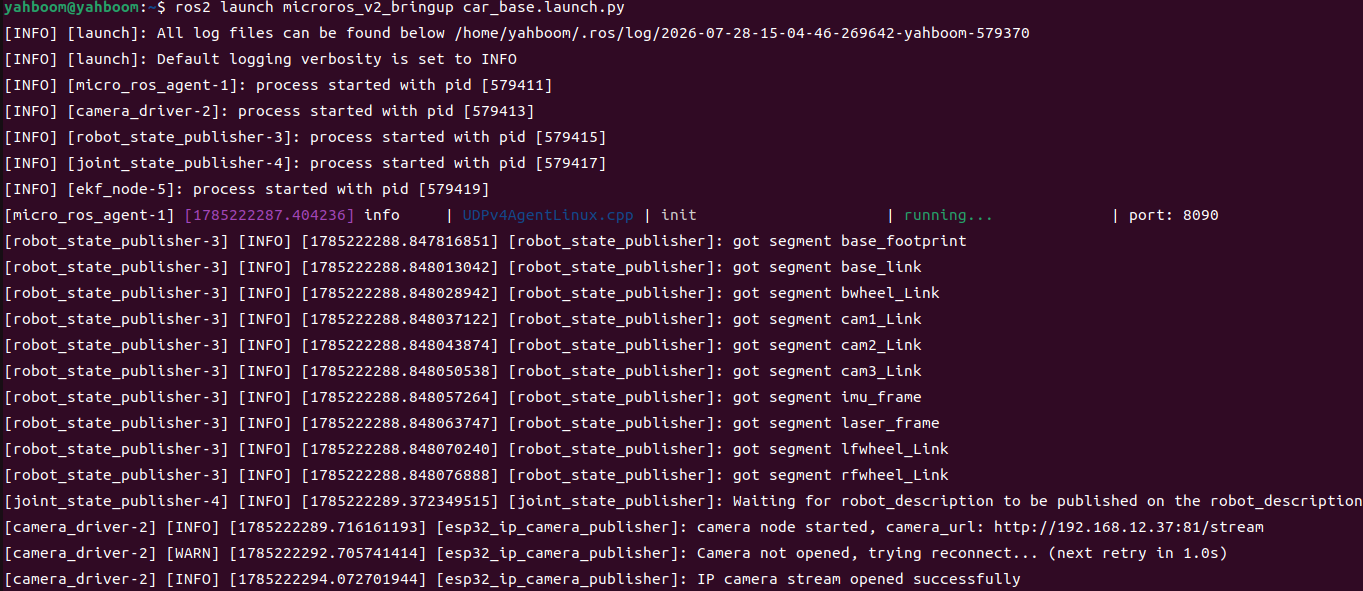
3. Start Facial Tracking (Terminal 2)
xxxxxxxxxxros2 launch microros_v2_ptz_visual_control_pkg face_tracker_ptz.launch.py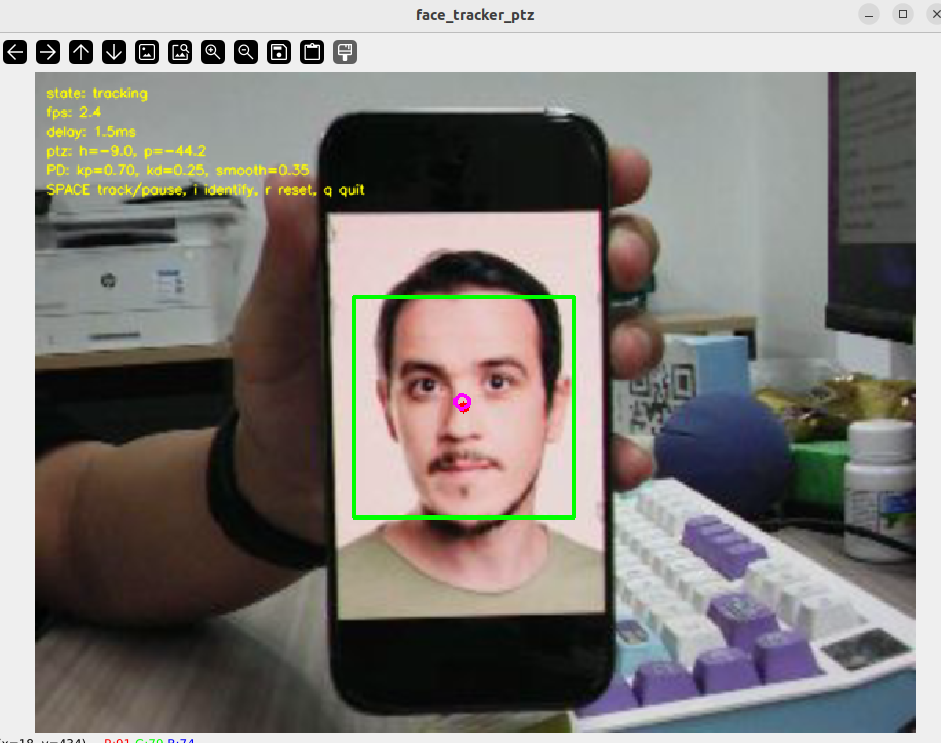
4. Operation Instructions
Workflow
After startup, the node runs through the main loop spin_once plus a fixed-rate image processing timer (image_processing_rate_hz = 30 Hz) and an independent pan-tilt control timer (control_rate_hz = 20 Hz):
1. Image reception and preprocessing
Subscribes to /camera/image_raw (QoS: BEST_EFFORT, KEEP_LAST); the image callback only converts and caches the raw Image. The main loop takes the latest frame at 30 Hz and applies horizontal/vertical flipping and rotation correction as needed.
2. Face detection (Haar Cascade)
Scales the image down by face_detection_scale (0.75), converts it to grayscale, optionally applies histogram equalization (enable_gray_equalize=true), and detects faces with the OpenCV Haar cascade classifier detectMultiScale. Detection parameters: scaleFactor=1.1, minNeighbors=5, minimum detection size 80×80 px.
3. Multi-face selection
If multiple faces are detected, the main target is chosen by the face_select_strategy:
largest(default): selects the face with the largest areanearest_center: selects the face closest to the frame center
4. Target state management (five-state machine)
The node maintains 5 states: searching (searching) → tracking (tracking) → lost (lost) → can pause to paused or switch to identify (recognition only). With auto_start_tracking=true, the first detected face enters tracking automatically; with auto_reacquire_face=true, tracking resumes automatically once a face is re-detected after a loss.
5. Target center low-pass filter
Applies EMA low-pass filtering (α = target_smooth_alpha = 0.55) to the detected face center, reducing the effect of Haar detector box jitter on pan-tilt control.
6. PD pan-tilt control
Fixed-rate 20 Hz PD control: normalizes the pixel error (divided by the image half-width/half-height), computes the P+D step, clamps the step (±max_ptz_step = 1.2°), smooths the step (α = ptz_step_smooth_alpha = 0.35), smooths the angle (α = ptz_smooth_alpha = 0.75), and publishes to /cmd_ptz_angle.
Interaction
| Key | Function | Description |
|---|---|---|
| Space | Tracking/pause | Toggles between "tracking" and "paused"; keeps the current pan-tilt angle while paused |
| i / I | Recognition mode | Only detects the face and draws the box, without controlling the pan-tilt |
| r / R | Reset target | Clears the current face target and searches again |
| q / Q / ESC | Exit | Force-exits the node process with os._exit(0) |
On-screen overlay: The debug window shows the current state (searching/tracking/lost/paused/identify), frame rate (based on the header stamp or reception time), image latency, pan-tilt angle, PD parameters, and key hints in real time. All detected faces are drawn with thin yellow boxes; the primary target face is drawn with a thick green box + red center point, and the filtered target center is a purple hollow circle.
Safety and Edge Cases
- Classifier load failure: If the Haar Cascade XML file (
haarcascade_frontalface_default.xml) fails to load, an error log is recorded and the node does not crash - Target lost handling: When no face is detected for more than
target_lost_timeout_sec(1.0 s) → switches to theloststate; iflost_target_stop=true, the filtered target state is cleared and the PD control resets - Auto re-acquisition: With
auto_reacquire_face=true, a face re-detected after a loss resumes tracking automatically - Pan-tilt angle limiting: Horizontal [-90°, 90°], tilt [-90°, 20°]; initial homing to (0°, -45°)
- Deadband protection: The step is forced to zero when the face offset is within the deadband (20 px)
- Initial publish at startup: With
publish_initial_ptz_command=true, the initial pan-tilt angle is published repeatedly 20 times at 0.2 s intervals to ensure the servos receive the homing command - Exit strategy: Press q/ESC to exit directly with
os._exit(0);cv2.destroyAllWindows()is not called during cleanup to avoid the GUI backend hanging
5. How to Stop
Press Ctrl+C to stop Terminal 2 → Terminal 1 in order.
4. Experiment Observations
- Searching (no face): The frame streams in real time with the state
searching; the Haar classifier keeps scanning and the pan-tilt holds its initial angle (0°, -45°) - Face detected + auto tracking: Enters the
trackingstate automatically; the primary target face is drawn with a thick green box, the face center with a red point, and the filtered tracking point with a purple hollow circle; the pan-tilt follows the face smoothly - Multi-face scene: All detected faces are drawn with thin yellow boxes; the primary target selected by the strategy is highlighted with a thick green box
- Face within the deadband: The step is zeroed and the pan-tilt stays still without jitter
- Face briefly lost (<1 s): The last valid face target is retained and tracking is not interrupted
- Face lost by timeout (>1 s): Enters the
loststate, the PD state resets, and the pan-tilt stays at its last position; withauto_reacquire_face=true, tracking resumes automatically when a face is re-detected - Paused mode: The frame continues detecting and showing face boxes, but pan-tilt control is paused and holds the current angle
5. Program Analysis
Source code paths:
- Launch:
~/microros_ws/src/microros_v2_ptz_visual_control_pkg/launch/face_tracker_ptz.launch.py- Node:
~/microros_ws/src/microros_v2_ptz_visual_control_pkg/microros_v2_ptz_visual_control_pkg/face_tracker_ptz_node.py- Haar classifier:
~/microros_ws/src/microros_v2_ptz_visual_control_pkg/config/haarcascade_frontalface_default.xml
1. Launch Parameters
Parameter definition files:
- Launch:
~/microros_ws/src/microros_v2_ptz_visual_control_pkg/launch/face_tracker_ptz.launch.py- Node:
~/microros_ws/src/microros_v2_ptz_visual_control_pkg/microros_v2_ptz_visual_control_pkg/face_tracker_ptz_node.py
| Parameter | Type | Default Value | Description |
|---|---|---|---|
image_topic | string | /camera/image_raw | Raw image input topic |
ptz_command_topic | string | /cmd_ptz_angle | Pan-tilt angle output topic |
show_debug_window | bool | true | Whether to show the OpenCV debug window |
window_name | string | face_tracker_ptz | OpenCV debug window name |
face_cascade_file | string | config/haarcascade_frontalface_default.xml | Haar face cascade classifier path |
face_detection_scale_factor | float | 1.1 | Haar detectMultiScale scale factor |
face_min_neighbors | int | 5 | Haar detectMultiScale minimum neighbors |
face_min_width / face_min_height | int | 80 / 80 px | Minimum face detection size |
face_detection_scale | float | 0.75 | Image scale factor before face detection (0.1~1.0) |
face_select_strategy | string | largest | Multi-face selection strategy: largest / nearest_center |
enable_gray_equalize | bool | true | Whether to apply histogram equalization to the grayscale image |
pd_kp / pd_kd | float | 0.7 / 0.25 | PD proportional/derivative gains |
control_rate_hz | float | 20.0 Hz | Pan-tilt control publishing rate |
image_processing_rate_hz | float | 30.0 Hz | Image processing main-loop rate |
deadband_x / deadband_y | float | 20.0 / 20.0 px | Horizontal/vertical deadband |
target_smooth_alpha | float | 0.55 | Face center low-pass filter coefficient |
ptz_smooth_alpha | float | 0.75 | Pan-tilt angle low-pass filter coefficient |
max_ptz_step | float | 1.2° | Maximum single angle step |
ptz_step_smooth_alpha | float | 0.35 | Step smoothing coefficient |
target_lost_timeout_sec | float | 1.0 s | Target lost timeout |
auto_start_tracking | bool | true | Start tracking automatically after a face is detected |
auto_reacquire_face | bool | true | Resume automatically when a face is re-detected after a loss |
lost_target_stop | bool | true | Whether to clear the filtered state after the target is lost |
initial_horizontal_deg / initial_pitch_deg | float | 0.0° / -45.0° | Initial pan-tilt angles |
horizontal_min_deg / horizontal_max_deg | float | -90.0° / 90.0° | s1 horizontal servo angle range |
pitch_min_deg / pitch_max_deg | float | -90.0° / 20.0° | s2 tilt servo angle range |
2. Core Node Analysis
FaceTrackerPtzNode inherits from rclpy.node.Node and is the core implementation of facial tracking. The constructor, the pan-tilt control callback, and the PD computation method are shown below.
Constructor __init__
The constructor declares the ROS2 parameters, loads the Haar classifier, creates the publishers and subscribers, initializes the tracking state, and sets up the control timer:
xclass FaceTrackerPtzNode(Node): """ROS2 face tracking PTZ control node.""" def __init__(self) -> None: super().__init__("face_tracker_ptz_node") self.latest_image_lock = threading.Lock() self.target_state_lock = threading.Lock() self.latest_image_frame = None self.tracking_state = "searching" self._declare_ros_parameters() self._load_ros_parameters() self._reload_face_cascade_classifier() # Initial pan-tilt angles self.horizontal_angle_deg = self.initial_horizontal_deg self.pitch_angle_deg = self.initial_pitch_deg # Create the image subscriber (raw image) self.image_subscription = self.create_subscription( Image, self.image_topic_name, self.image_callback, QoSProfile(history=QoSHistoryPolicy.KEEP_LAST, depth=1, reliability=QoSReliabilityPolicy.BEST_EFFORT, durability=QoSDurabilityPolicy.VOLATILE), ) # Create the pan-tilt angle publisher self.ptz_angle_publisher = self.create_publisher( Vector3, self.ptz_command_topic_name, 10 ) # Create the pan-tilt control timer (fixed rate, 20 Hz by default) self._recreate_ptz_control_timer(False) # Register the runtime dynamic tuning callback self.dynamic_parameter_callback_handle = self.add_on_set_parameters_callback( self.on_dynamic_parameter_update ) # Initialize the OpenCV debug window self._initialize_debug_window() # Start repeated publishing of the initial pan-tilt angle if self.publish_initial_ptz_command: self._start_initial_ptz_publish_timer()Pan-tilt control callback ptz_control_timer_callback
Triggered at a fixed rate (20 Hz); reads the target snapshot and runs PD control only in the tracking state:
xxxxxxxxxxdef ptz_control_timer_callback(self) -> None: if self.is_shutdown_requested: return current_time_sec = time.monotonic() time_delta_sec = current_time_sec - self.last_control_time_sec self.last_control_time_sec = current_time_sec if self.tracking_state != "tracking": self._reset_pd_control_state() return target_state = self._get_face_target_state_snapshot() if not self._is_target_snapshot_usable(target_state): self._handle_unusable_target_snapshot(target_state) return image_cx = float(target_state.image_width) * 0.5 image_cy = float(target_state.image_height) * 0.5 horizontal_error = float(target_state.filtered_target_center_x) - image_cx pitch_error = float(target_state.filtered_target_center_y) - image_cy self.calculate_ptz_angle_command( horizontal_error, pitch_error, time_delta_sec ) self.publish_ptz_angle_command()PD control core calculate_ptz_angle_command
Implements the complete PD control chain from the face offset to the pan-tilt angle step:
xxxxxxxxxxdef calculate_ptz_angle_command( self, horizontal_error_pixel, pitch_error_pixel, time_delta_sec) -> None: # Deadband handling if abs(horizontal_error_pixel) <= self.deadband_x: horizontal_error_pixel = 0.0 if abs(pitch_error_pixel) <= self.deadband_y: pitch_error_pixel = 0.0 # Normalize the pixel error image_cx = float(self.latest_tracking_image_width) * 0.5 image_cy = float(self.latest_tracking_image_height) * 0.5 norm_x = horizontal_error_pixel / image_cx norm_y = pitch_error_pixel / image_cy time_delta_sec = max(float(time_delta_sec), 1.0e-3) # Derivative terms dx = (norm_x - self.previous_error_x) / time_delta_sec dy = (norm_y - self.previous_error_y) / time_delta_sec # PD step computation + limiting raw_x = (self.pd_kp * norm_x + self.pd_kd * dx) * self.max_ptz_step raw_y = (self.pd_kp * norm_y + self.pd_kd * dy) * self.max_ptz_step raw_x = clamp_numeric_value(raw_x, -self.max_ptz_step, self.max_ptz_step) raw_y = clamp_numeric_value(raw_y, -self.max_ptz_step, self.max_ptz_step) # Step EMA smoothing alpha = self.ptz_step_smooth_alpha step_x = (1.0 - alpha) * self.last_step_x + alpha * raw_x step_y = (1.0 - alpha) * self.last_step_y + alpha * raw_y # Save the control history self.previous_error_x = norm_x self.previous_error_y = norm_y self.last_step_x = step_x self.last_step_y = step_y # Direction reversal if self.reverse_horizontal_direction: step_x = -step_x if self.reverse_pitch_direction: step_y = -step_y # Compute the desired angle and clamp it desired_h = self.horizontal_angle_deg + step_x desired_p = self.pitch_angle_deg + step_y desired_h = clamp_numeric_value(desired_h, self.horizontal_min_deg, self.horizontal_max_deg) desired_p = clamp_numeric_value(desired_p, self.pitch_min_deg, self.pitch_max_deg) # Angle EMA smoothing ptz_alpha = self.ptz_smooth_alpha self.horizontal_angle_deg = ( (1.0 - ptz_alpha) * self.horizontal_angle_deg + ptz_alpha * desired_h ) self.pitch_angle_deg = ( (1.0 - ptz_alpha) * self.pitch_angle_deg + ptz_alpha * desired_p ) # Final limiting self.horizontal_angle_deg = clamp_numeric_value( self.horizontal_angle_deg, self.horizontal_min_deg, self.horizontal_max_deg) self.pitch_angle_deg = clamp_numeric_value( self.pitch_angle_deg, self.pitch_min_deg, self.pitch_max_deg)6. Frequently Asked Questions
| Problem | Cause | Solution |
|---|---|---|
| Profile tracking unstable | Haar Cascade is sensitive to frontal faces; profiles lack enough features | Face the camera squarely, or reduce strictness by adjusting face_detection_scale_factor |
| Face not detected | Insufficient lighting or too far away | Improve the lighting, move closer to the camera, and make sure enable_gray_equalize=true |
| Wrong face tracked with multiple faces | The largest face is selected by default; the nearest-center strategy may suit better | ros2 param set /face_follow_node face_select_strategy nearest_center |
| Pan-tilt responds slowly | ptz_smooth_alpha too large causes over-smoothing | Reduce ptz_smooth_alpha (e.g., 0.5) to improve responsiveness |