Welcome to MicroROS V2 Robot Car repository
6. Openclaw Common CLI Command
OpenClaw Common CLI Commands
OpenClaw Common CLI Commands1. Course ContentCourse Overview2. Initial Configuration2.1 configure — Configuration Wizard2.2 View the OpenClaw Version2.3 View Help for All Available Commands3. Gateway Management4. Model Management4.1 View the Model List and Status4.2 Set the Default Model5. Skills and Plugin Management5.1 Basic Skills Operations5.2 Plugin Management6. Configuration, Logs, and Other Useful Commands6.1 Viewing Logs6.2 Session Management6.3 Communication Channel Management
1. Course Content
Course Overview
OpenClaw CLI is the command-line management tool provided by the OpenClaw robot system. This course introduces the most frequently used CLI commands.
2. Initial Configuration
openclaw onboard is OpenClaw's interactive onboarding command, which was already covered in the API-KEY configuration chapter:
- Configure the API Key and model connection information
- Set Gateway runtime parameters
- Select the Skills to enable
openclaw onboard2.1 configure — Configuration Wizard
If there are parameters to adjust after the initial onboarding, you can use the configure command to re-enter the interactive configuration interface:
xxxxxxxxxxopenclaw configure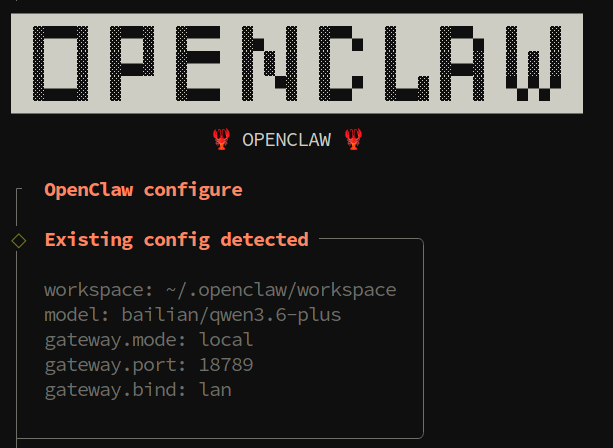
2.2 View the OpenClaw Version
xxxxxxxxxxopenclaw --version2.3 View Help for All Available Commands
xxxxxxxxxxopenclaw --help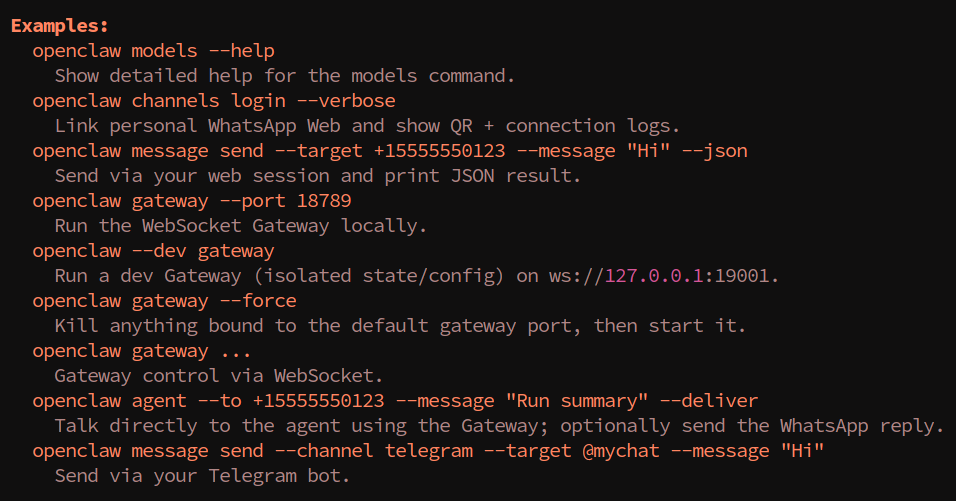
3. Gateway Management
- OpenClaw's gateway is set to start automatically on boot by default
xxxxxxxxxxopenclaw gateway start # Start the Gatewayopenclaw gateway stop # Stop the Gatewayopenclaw gateway restart # Restart the Gateway- View detailed runtime status of the Gateway, including uptime, connection count, and other information:
xxxxxxxxxxopenclaw gateway status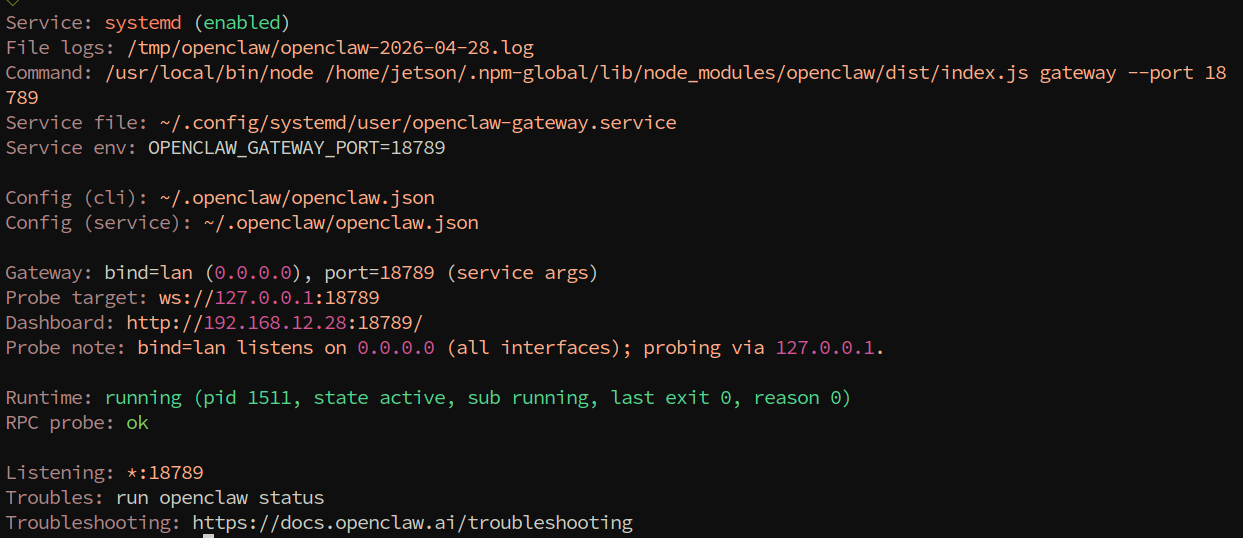
4. Model Management
4.1 View the Model List and Status
- List all configured models and their basic information:
xxxxxxxxxxopenclaw models list- View the status of all current models, including connection status, latency, availability, etc.:
xxxxxxxxxxopenclaw models status4.2 Set the Default Model
Set a model as the system default model; subsequent conversations will use this model by default:
xxxxxxxxxxopenclaw models set gpt-4oTip: The model name must exactly match the identifier in the configuration. You can view the available model names with
openclaw models list.
5. Skills and Plugin Management
5.1 Basic Skills Operations
List all currently installed Skills:
xxxxxxxxxxopenclaw skills list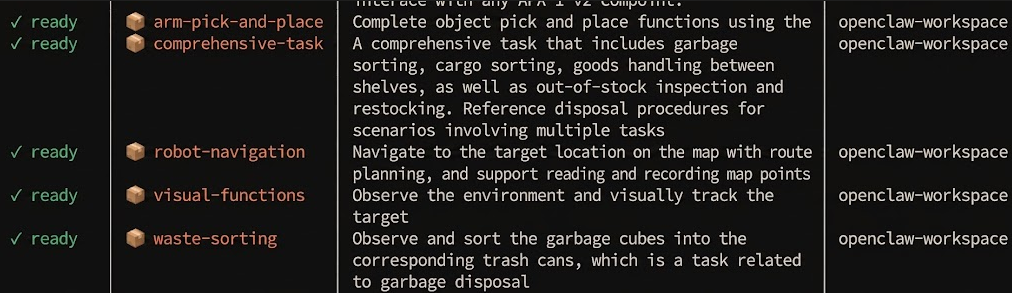
5.2 Plugin Management
List all currently installed plugins:
xxxxxxxxxxopenclaw plugins listEnable or disable a plugin:
xxxxxxxxxxopenclaw plugins enable plugin-id # Enable the pluginopenclaw plugins disable plugin-id # Disable the plugin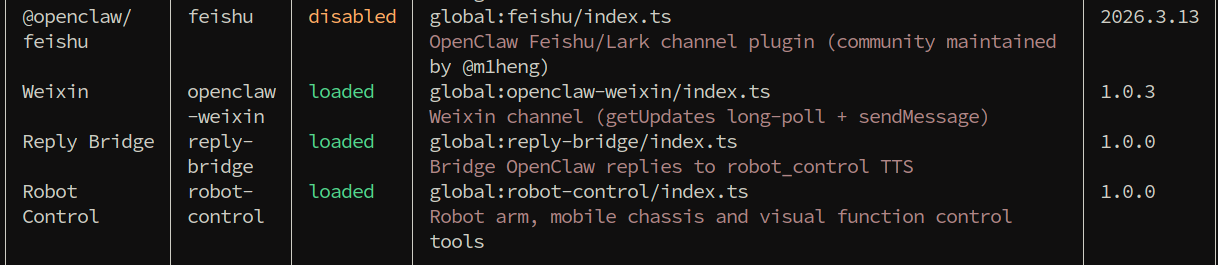
6. Configuration, Logs, and Other Useful Commands
6.1 Viewing Logs
xxxxxxxxxxopenclaw logs --followWith the --follow parameter, logs are continuously output to the terminal. Press Ctrl+C to exit follow mode.
6.2 Session Management
View the list of all currently active sessions:
xxxxxxxxxxopenclaw sessions
6.3 Communication Channel Management
- View all currently available communication channels (Feishu, WeChat, etc.)
xxxxxxxxxxopenclaw channels list