Welcome to MicroROS V2 Robot Car repository
3. ESP Flash Tool Flashing Firmware
Flashing Firmware with esp-flash-tool
Flashing Firmware with esp-flash-tool1. Downloading the Flash Tool2. Configuring the Flashing Tool3. Starting the Firmware Flashing4. Flashing Completed
1. Downloading the Flash Tool
Download URL:
https://www.espressif.com.cn/zh-hans/support/download/other-tools
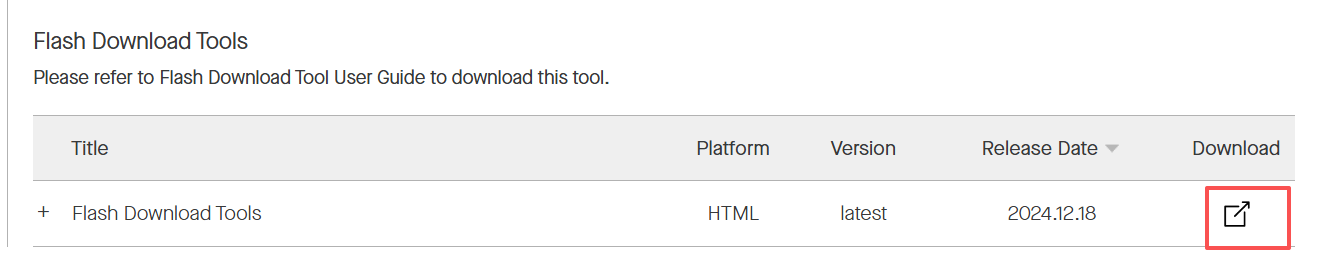
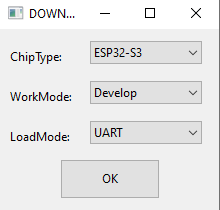
After extracting, you get flash_download_tool. Double-click to open it. Select serial flashing for the ESP32-S3. Click OK to open the flashing tool.
2. Configuring the Flashing Tool
Copy the compiled bin files from the project (taking the main project as an example) to the bin folder in the flash-download-tool directory.
bin file paths:
xxxxxxxxxxbuild/bootloader/bootloader.binbuild/partition_table/partition-table.binbuild/main.bin
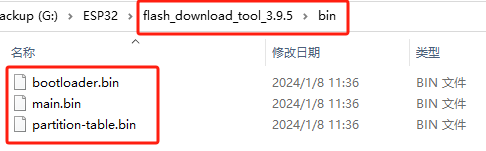
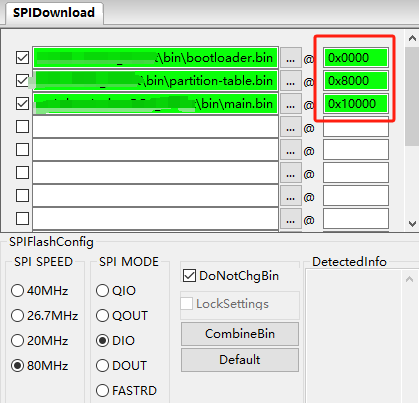
In 'SPIDownload', select the firmware to be flashed to the ESP32S3. The correspondence between files and addresses is shown in the table below. Then select the connected COM port. Keep all other configurations at their defaults.
| Firmware name | Firmware address | Notes |
|---|---|---|
| bootloader.bin | 0x0000 | Bootloader file |
| partition-table.bin | 0x8000 | Partition table file |
| main.bin | 0x10000 | Application file |
3. Starting the Firmware Flashing
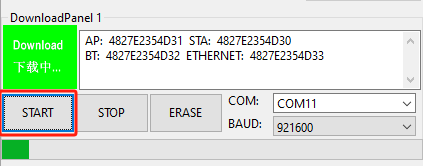
Click the Start button, and the tool will automatically begin flashing the firmware.
Note: If the firmware flashing does not start automatically, first press and hold the boot0 key, then press the reset key, and then release the boot0 key to manually enter flashing mode.
4. Flashing Completed
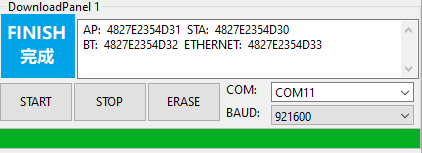
After the download is complete, a blue FINISH indicator is displayed. At this point, power off and restart the microcontroller, or press the reset key once to start the program.