Welcome to MicroROS V2 Robot Car repository
3. QR Code Tracking
QR Code Tracking (PTZ)
1. Experiment Objective
The PTZ pan-tilt tracks the position of a QR code while decoding its content and displaying it in the terminal and on the frame.
2. Experiment Principle
1. Key Terms
| Term | Description |
|---|---|
| QR Code | A two-dimensional matrix barcode that can encode data such as URLs and text; decoded with the pyzbar or OpenCV library |
| pyzbar | A Python wrapper library based on the zbar library for barcode/QR code detection and decoding |
| Visual Tracking | Detects and continuously locks onto a target through a vision algorithm; only the pan-tilt follows, the car does not move |
| PTZ Pan-Tilt | A two-degree-of-freedom servo pan-tilt; s1 rotates horizontally and s2 tilts, controlled via the /cmd_ptz_angle topic |
| PD Control | Proportional-derivative control; computes the pan-tilt angle step from the target offset and the offset change rate |
| Deadband | When the target offset is within the deadband pixel range, the pan-tilt does not move, avoiding continuous jitter caused by tiny errors |
2. Technical Architecture
The QR code tracking node qr_tracker_ptz_node subscribes to the raw image topic /camera/image_raw of the ESP32 camera, detects QR codes with the pyzbar or OpenCV dual backend, parses the payload, computes the pan-tilt angle step with a PD controller, and publishes to /cmd_ptz_angle to control the pan-tilt to track the QR code.
Detection pipeline: the Image message is converted via CvBridge.imgmsg_to_cv2 → scaled to 640×480 → orientation correction → QR code detection (pyzbar/opencv/auto) → multi-code selection strategy (largest area / nearest center / first) → target center EMA filter → PD pan-tilt control (fixed 20 Hz).
3. Core Topics Quick Reference
Firmware Uplink (Sensor Data)
| Topic | Message Type | QoS | Description |
|---|---|---|---|
| /camera/image_raw | sensor_msgs/msg/Image | best_effort | Raw image from the ESP32 camera |
Firmware Downlink (Control Commands)
| Topic | Message Type | QoS | Field | Range | Direction |
|---|---|---|---|---|---|
| /cmd_ptz_angle | geometry_msgs/msg/Vector3 | best_effort + keep_last(1) | x | [-90, 90]° | s1 horizontal servo angle |
| y | [-90, 20]° | s2 tilt servo angle |
3. Experiment Steps
1. Hardware Preparation
| Hardware | Requirement |
|---|---|
| PTZ version | ✅ Supported |
| No-PTZ version | ❌ |
| Required peripherals | ESP32 camera (pan-tilt) + PTZ servo |
2. Start Agent + Camera + Joint Model (Terminal 1)
ros2 launch microros_v2_bringup car_base.launch.py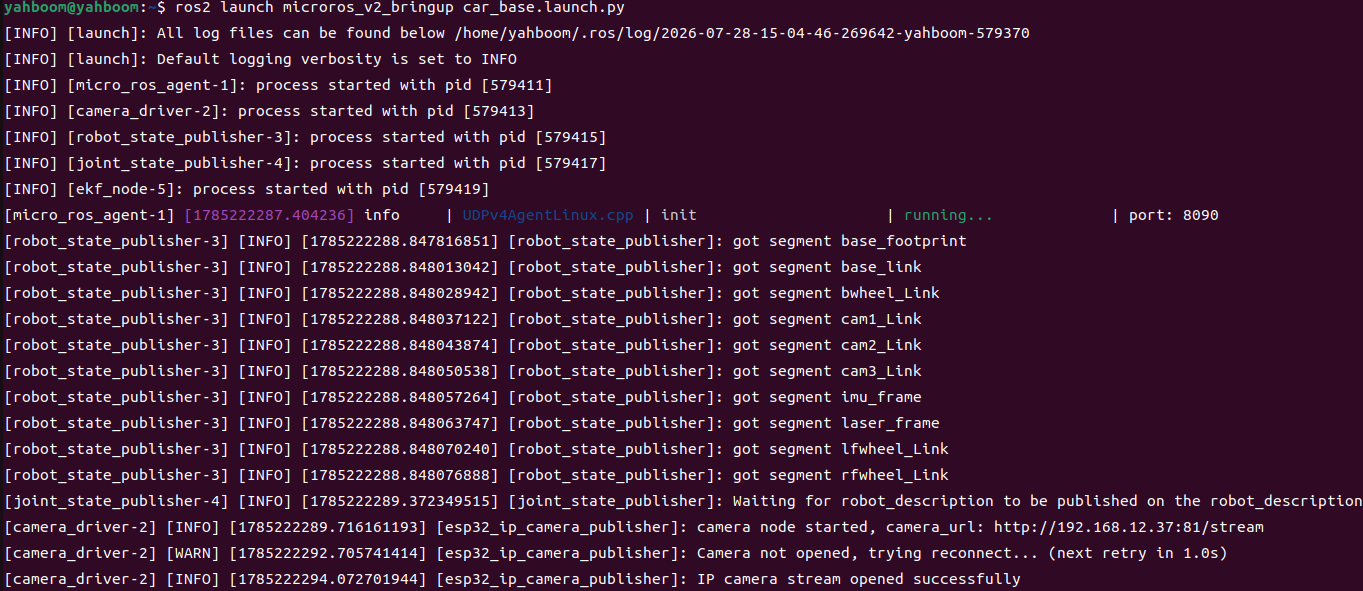
3. Start QR Code Tracking (Terminal 2)
xxxxxxxxxxros2 launch microros_v2_ptz_visual_control_pkg qr_tracker_ptz.launch.py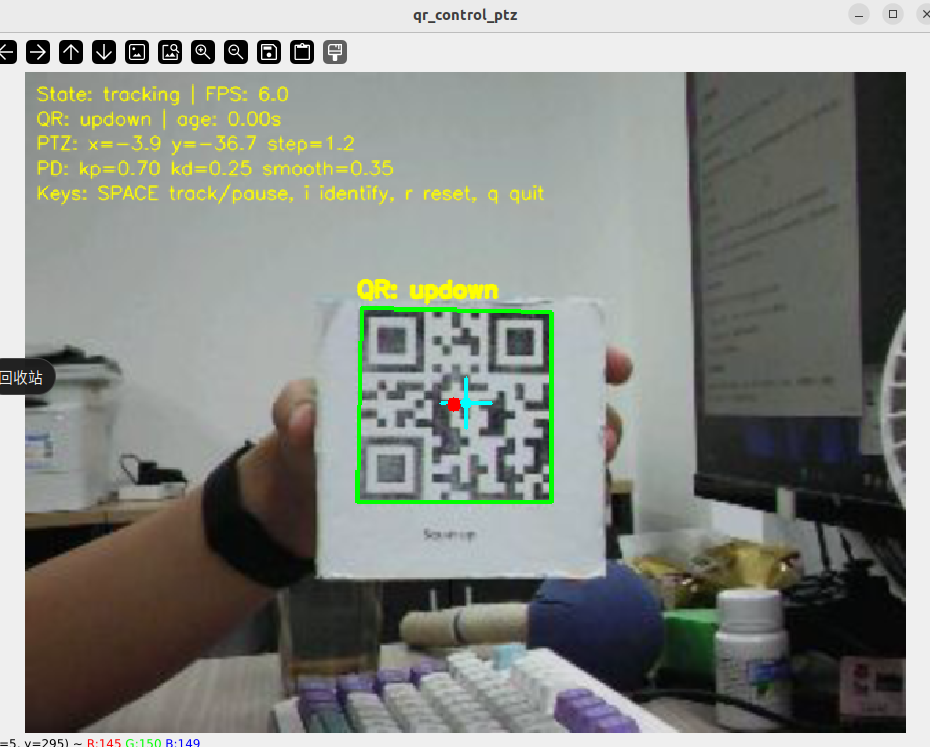
4. Operation Instructions
Workflow
After startup, the node runs with two independent timers (image processing at 30 Hz + pan-tilt control at 20 Hz):
1. Image decoding and preprocessing
The image callback converts and caches the raw image; the image processing timer takes the latest frame, scales it to 640×480, applies orientation correction, and enters the detection pipeline.
2. QR code detection
Dual-backend detection is supported:
- pyzbar (default): grayscale image →
pyzbar.decodescan, extracting the payload text, rectangle, and polygon vertices - opencv:
cv2.QRCodeDetector.detectAndDecode/detectAndDecodeMulti, supporting simultaneous detection of multiple codes - auto: tries pyzbar first, falls back to opencv when it returns nothing
3. Multi-code selection strategy
If multiple QR codes are detected at the same time, the primary target is chosen by qr_select_strategy:
largest(default): selects the code with the largest area (rect.width × rect.height)nearest_center: selects the code closest to the frame centerfirst: selects the first detected code
4. Target state update
When a QR code is detected, the target state is updated (payload, rectangle, polygon vertices, center coordinates) and the update time is recorded. If no code is detected for more than lost_timeout (0.5 s), the target is marked lost.
5. PD pan-tilt control (tracking state only)
Fixed-rate 20 Hz PD control: uses the QR code center as the tracking point, normalizes the pixel error → PD computation → step limiting (±1.2°) → step smoothing (α=0.35) → direction reversal (ptz_x_reverse=true, ptz_y_reverse=true) → angle update → publish to /cmd_ptz_angle.
6. Decoded content display
The QR code payload is displayed in the on-screen overlay in real time (truncated with an ellipsis beyond 36 characters); the full content can also be seen in the node log.
Interaction
| Key | Function | Description |
|---|---|---|
| Space | Tracking/pause switch | Toggles the pan-tilt control; QR codes are still detected and displayed while paused |
| i / I | Recognition mode | Only detects and decodes, without controlling the pan-tilt |
| r / R | Reset target | Clears the current QR target, stops control, and returns to recognition mode |
| q / Q / ESC | Exit | Force-exits the node process with os._exit(0) |
On-screen overlay: The debug window shows the current state (tracking/identify/lost/paused), frame rate, QR payload (truncated), target age, pan-tilt angle, and PD parameters. A yellow crosshair is drawn at the frame center; detected QR codes are drawn with a green polygon + red center point + blue payload label.
Safety and Edge Cases
- pyzbar unavailable: When pyzbar is not installed (
import pyzbarfails), the node degrades to the opencv-only backend automatically and logs a warning at thedebug_log_interval_secinterval - Target lost handling: When no QR code is detected for more than
lost_timeout(0.5 s) → the target is marked lost and the PD state resets; ifcontrol_enabled=true, the node switches to theloststate - Pan-tilt angle limiting: Horizontal [-90°, 90°], tilt [-90°, 20°]
- Deadband protection: The step is forced to zero when the QR center offset is within the deadband (18 px)
- Initial publish at startup: With
publish_initial_ptz_command=true, the initial pan-tilt angle (0°, -45°) is published repeatedly 20 times at 0.2 s intervals - Auto start: With
auto_start_control=true(default), the node enters tracking mode automatically as soon as a QR code is detected after startup - Exit strategy: Press q/ESC to exit directly with
os._exit(0)
5. How to Stop
Press Ctrl+C to stop Terminal 2 → Terminal 1 in order.
4. Experiment Observations
- No QR code: The frame streams in real time with the state
lostoridentify; the pan-tilt stays at its current position - QR code detected + tracking mode: The pan-tilt follows the QR code smoothly; the frame overlays a green polygon + red center point, the payload is shown in real time, and the pan-tilt angle and PD parameters are overlaid
- QR code detected + recognition mode: QR code detection and decoding work normally, but the pan-tilt does not move
- QR code within the deadband: The step is zeroed and the pan-tilt stays still without jitter
- QR code lost by timeout (>0.5 s): Enters the
loststate, the PD state resets, and the pan-tilt stays at its last position - Multiple QR codes: All codes are drawn with green polygons; the primary target code (selected by the strategy) is highlighted with a purple polygon, and the IDs of multiple codes are shown on the frame
- Decoding failure (content cannot be parsed): The QR position is tracked normally, but the payload is shown as empty
5. Program Analysis
Source code paths:
- Launch:
~/microros_ws/src/microros_v2_ptz_visual_control_pkg/launch/qr_tracker_ptz.launch.py- Node:
~/microros_ws/src/microros_v2_ptz_visual_control_pkg/microros_v2_ptz_visual_control_pkg/qr_tracker_ptz_node.py
1. Launch Parameters
Parameter definition files:
- Launch:
~/microros_ws/src/microros_v2_ptz_visual_control_pkg/launch/qr_tracker_ptz.launch.py- Node:
~/microros_ws/src/microros_v2_ptz_visual_control_pkg/microros_v2_ptz_visual_control_pkg/qr_tracker_ptz_node.py
| Parameter | Type | Default Value | Description |
|---|---|---|---|
image_topic | string | /camera/image_raw | Raw image input topic |
ptz_command_topic | string | /cmd_ptz_angle | Pan-tilt angle output topic |
window_name | string | qr_control_ptz | OpenCV debug window name |
show_debug_window | bool | true | Whether to show the debug window |
qr_detector_backend | string | pyzbar | Detection backend: pyzbar / opencv / auto |
qr_select_strategy | string | largest | Multi-code selection strategy: largest / nearest_center / first |
control_rate_hz | float | 20.0 Hz | Pan-tilt control publishing rate |
image_processing_rate_hz | float | 30.0 Hz | Image processing rate |
auto_start_control | bool | true | Start tracking automatically once a QR code is detected after launch |
lost_timeout | float | 0.5 s | Target lost timeout |
publish_initial_ptz_command | bool | true | Whether to publish the initial pan-tilt angle at startup |
initial_horizontal_deg / initial_pitch_deg | float | 0.0° / -45.0° | Initial pan-tilt angles |
pd_kp / pd_kd | float | 0.7 / 0.25 | PD proportional/derivative gains |
ptz_step_smooth_alpha | float | 0.35 | Step smoothing coefficient |
max_ptz_step | float | 1.2° | Maximum single angle step |
deadband_x / deadband_y | float | 18.0 / 18.0 px | Horizontal/vertical deadband |
ptz_x_min / ptz_x_max | float | -90.0° / 90.0° | Horizontal angle range |
ptz_y_min / ptz_y_max | float | -90.0° / 20.0° | Tilt angle range |
ptz_x_reverse / ptz_y_reverse | bool | true / true | Horizontal/tilt direction reversal |
debug_log_interval_sec | float | 2.0 s | Debug log interval (0 disables) |
enable_rqt_dynamic_parameters | bool | true | Allow runtime dynamic tuning via rqt |
2. Core Node Analysis
QrControlPtzNode inherits from rclpy.node.Node and is the core implementation of QR code tracking. The constructor and the PD control callback are shown below.
Constructor __init__
The constructor declares the ROS2 parameters, creates the publishers and subscribers, initializes the tracking state, and sets up the dual timers for image processing and pan-tilt control:
xclass QrControlPtzNode(Node): """QR code PTZ tracking node.""" def __init__(self) -> None: super().__init__("qr_tracker_ptz_node") self.image_lock = threading.Lock() self.target_lock = threading.Lock() self.qr_detector = cv2.QRCodeDetector() self.latest_display_frame = None self.running = True self._declare_qr_tracker_parameters() self.load_parameters() # Initial pan-tilt angles self.current_horizontal_deg = clamp( self.initial_horizontal_deg, self.ptz_x_min, self.ptz_x_max ) self.current_pitch_deg = clamp( self.initial_pitch_deg, self.ptz_y_min, self.ptz_y_max ) self.control_enabled = self.auto_start_control self.state = "tracking" if self.control_enabled else "identify" # Create the image subscriber (raw image) self.image_subscription = self.create_subscription( Image, self.image_topic, self.image_callback, QoSProfile(history=QoSHistoryPolicy.KEEP_LAST, depth=1, reliability=QoSReliabilityPolicy.BEST_EFFORT, durability=QoSDurabilityPolicy.VOLATILE), ) # Create the pan-tilt angle publisher self.ptz_publisher = self.create_publisher( Vector3, self.ptz_command_topic, 10 ) # Create the image processing timer (30 Hz by default) self.image_timer = self.create_timer( 1.0 / max(self.image_processing_rate_hz, MIN_TIMER_RATE_HZ), self.process_latest_image, ) # Create the pan-tilt control timer (20 Hz by default) self.control_timer = self.create_timer( 1.0 / max(self.control_rate_hz, MIN_TIMER_RATE_HZ), self.update_ptz_tracking, ) # Start repeated publishing of the initial pan-tilt angle if self.publish_initial_ptz_command: self.initial_timer = self.create_timer( max(self.initial_publish_interval_sec, 0.02), self.publish_initial_ptz, ) # Register the runtime dynamic tuning callback self.parameter_callback = self.add_on_set_parameters_callback( self.on_parameter_update )PD control callback update_ptz_tracking
Triggered at a fixed rate (20 Hz); computes the QR center offset and runs PD pan-tilt control:
xxxxxxxxxxdef update_ptz_tracking(self) -> None: if not self.running or not self.control_enabled: return with self.target_lock: target = self.qr_target target_age = time.perf_counter() - self.last_target_time # Lost detection if (not target.found or target_age > self.lost_timeout or self.image_width <= 0 or self.image_height <= 0): self.state = "lost" self.reset_pd_state() return # Time delta now = time.perf_counter() dt = max(now - self.previous_control_time, 1.0e-3) # Compute the pixel error (zeroed in the deadband) image_cx = self.image_width * 0.5 image_cy = self.image_height * 0.5 err_x = target.center[0] - image_cx err_y = target.center[1] - image_cy if abs(err_x) < self.deadband_x: err_x = 0.0 if abs(err_y) < self.deadband_y: err_y = 0.0 # Normalization + derivative + PD norm_x = err_x / image_cx norm_y = err_y / image_cy dx = (norm_x - self.previous_error_x) / dt dy = (norm_y - self.previous_error_y) / dt raw_x = (self.pd_kp * norm_x + self.pd_kd * dx) * self.max_ptz_step raw_y = (self.pd_kp * norm_y + self.pd_kd * dy) * self.max_ptz_step raw_x = clamp(raw_x, -self.max_ptz_step, self.max_ptz_step) raw_y = clamp(raw_y, -self.max_ptz_step, self.max_ptz_step) # Step EMA smoothing alpha = self.ptz_step_smooth_alpha step_x = (1.0 - alpha) * self.last_step_x + alpha * raw_x step_y = (1.0 - alpha) * self.last_step_y + alpha * raw_y # Save the control history self.previous_error_x = norm_x self.previous_error_y = norm_y self.previous_control_time = now self.last_step_x = step_x self.last_step_y = step_y # Accumulate the angle after direction reversal self.current_horizontal_deg += step_x if self.ptz_x_reverse else -step_x self.current_pitch_deg += -step_y if self.ptz_y_reverse else step_y # Clamp the angles and publish self.current_horizontal_deg = clamp( self.current_horizontal_deg, self.ptz_x_min, self.ptz_x_max ) self.current_pitch_deg = clamp( self.current_pitch_deg, self.ptz_y_min, self.ptz_y_max ) self.publish_ptz_angle( self.current_horizontal_deg, self.current_pitch_deg )6. Frequently Asked Questions
| Problem | Cause | Solution |
|---|---|---|
| Blur caused by decoding + tracking conflict | The QR code moves too fast, producing motion blur on the camera | Slow down the QR code movement |
| QR code not detected | pyzbar not installed or insufficient light | Install python3-pyzbar + libzbar0, improve the lighting |
| pyzbar error | Missing dependency libraries | Switch to the opencv backend: ros2 param set /qr_tracker_ptz_node qr_detector_backend opencv |
| Tracking position offset | PD response lags when the QR code moves fast | Increase pd_kp (e.g., 1.0), reduce ptz_step_smooth_alpha (e.g., 0.2) |