Welcome to Jetson Orin NANO Developer Kit repository
04. Disabling automatic updates and troubleshooting issues
Disabling Automatic Updates and Troubleshooting Issues
1. Why Automatic Updates Need to Be Disabled:
The current factory system is based on JetPack 7.2.1, L4T R39.2.1, and Ubuntu 24.04, and the development environment required by the course has been configured. Automatic updates may change the system kernel, drivers, or software dependency versions, causing the original environment to be incompatible, and resulting in problems such as the camera being unusable, program errors, or abnormal case operation.
To keep the shipped environment stable, it is recommended to disable automatic updates.
2. How to Disable Automatic Updates:
2.1 Disable Updates
cd /etc/apt/apt.conf.dsudo touch 20auto-upgradessudo vi 20auto-upgrades# Fill the following content into the 20auto-upgrades fileAPT::Periodic::Update-Package-Lists "0";APT::Periodic::Unattended-Upgrade "0";
2.2 Disable and Stop the apt-daily Timers
xxxxxxxxxxsudo systemctl disable apt-daily.timersudo systemctl disable apt-daily-upgrade.timersudo systemctl stop apt-daily.timersudo systemctl stop apt-daily-upgrade.timer
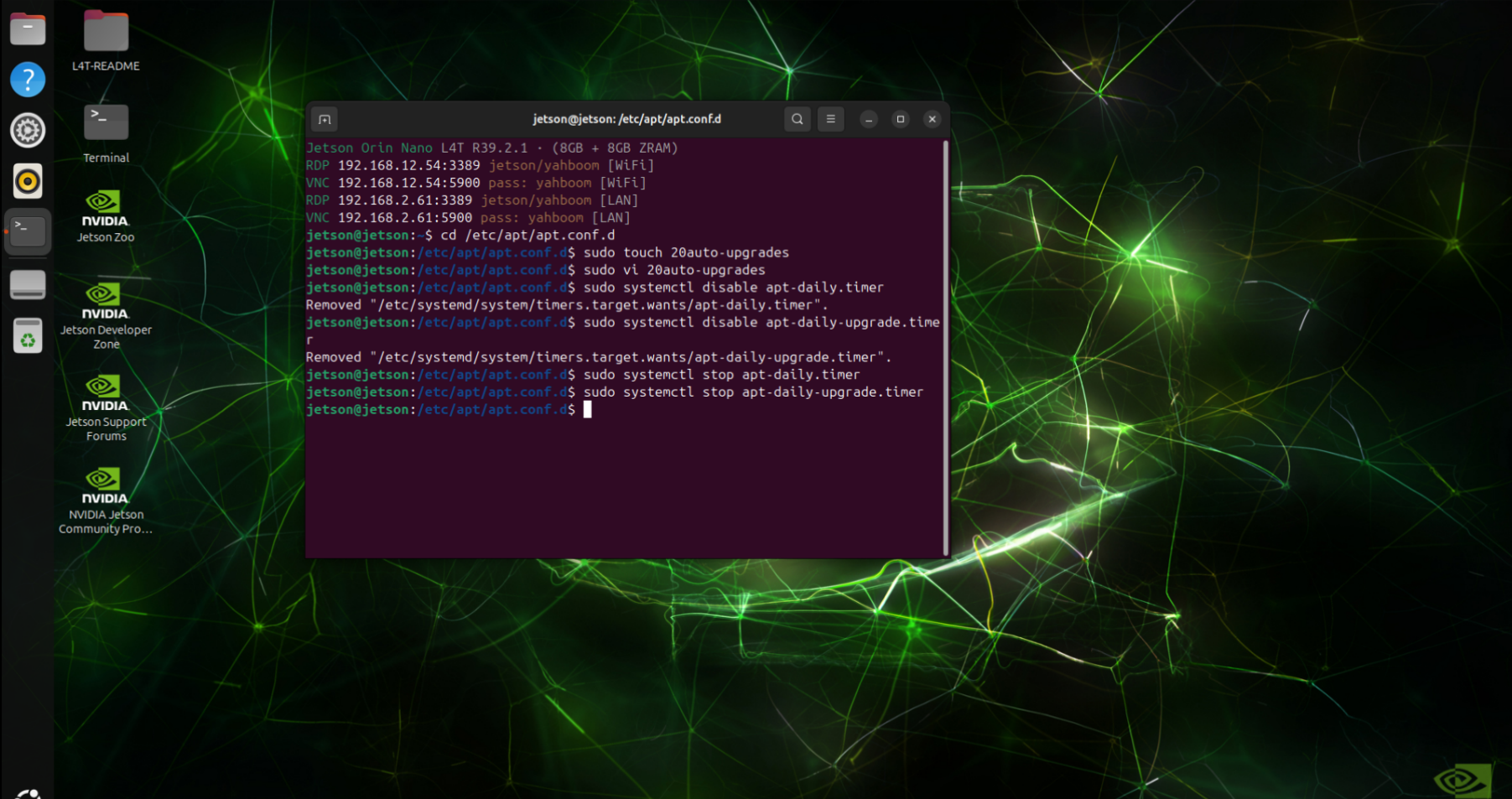
3. Solutions to Abnormal Problems:
3.1 System Upgrade Failed, Causing Boot Failure?
A: Re-write the bootloader and system image, restore factory settings, disable automatic updates according to the instructions, and upgrade individual function packages as actually required.
3.2 Shutdown Prompts That an Update Is Required, but You Do Not Want to Update?
A: First confirm that there is no ongoing installation/upgrade task. If there is none, reboot the mainboard and then run the command to disable automatic updates.
3.3 How to Check the System Version?
A: Run the command: cat /etc/nv_tegra_release, and refer to the NVIDIA website: https://developer.nvidia.com/embedded/jetson-linux-archive to check the Jetson Linux version and the corresponding Jetpack version.
3.4 Mainboard Indicator Lights Not On?
A: Check whether the mainboard power supply is 9-19V, check whether a jumper cap is connected below the core board to enter writing mode, and check whether the core board is properly plugged into the carrier board. If the lights are still not on, it may be a hardware problem.