Welcome to Jetson Orin NANO Developer Kit repository
07.Retail product detection and recognition
TAO Retail Product Detection and Recognition
TAO Retail Product Detection and Recognition1. Case Goal and Processing Flow2. Pre-Run Checks3. Starting Detection4. USB Camera Real-Time Detection4.1 Direct Run4.2 Common Parameters5. CSI Camera Real-Time Detection5.1 Direct Run5.2 Common Parameters6. Common Issues
Applicable environment: Jetson Orin Nano 8GB, JetPack 7.2.1, DeepStream 9.1
After setting the power mode to MAXN, running the case may pop up an over-current warning; just ignore it.
1. Case Goal and Processing Flow
Retail Object Detection (DINO) locates shelf products; Retail Object Recognition classifies product crops and generates embeddings. It is not single-label classification of the whole shelf image.
video/USB/CSI → product detection → crop → product recognition/embedding → preview and video output + JSONL feature records2. Pre-Run Checks
xxxxxxxxxxcd ~/DeepStream/tao-toolkit-shell-demols -lh video_in/retail_object_h264.mp4ls -ld video_outConfirm the material and output directory are available. Camera mode requires the graphical desktop/VNC; for USB check the device node, and for CSI confirm the sensor and Argus are ready.
3. Starting Detection
xxxxxxxxxx./run_video.sh mdx --retail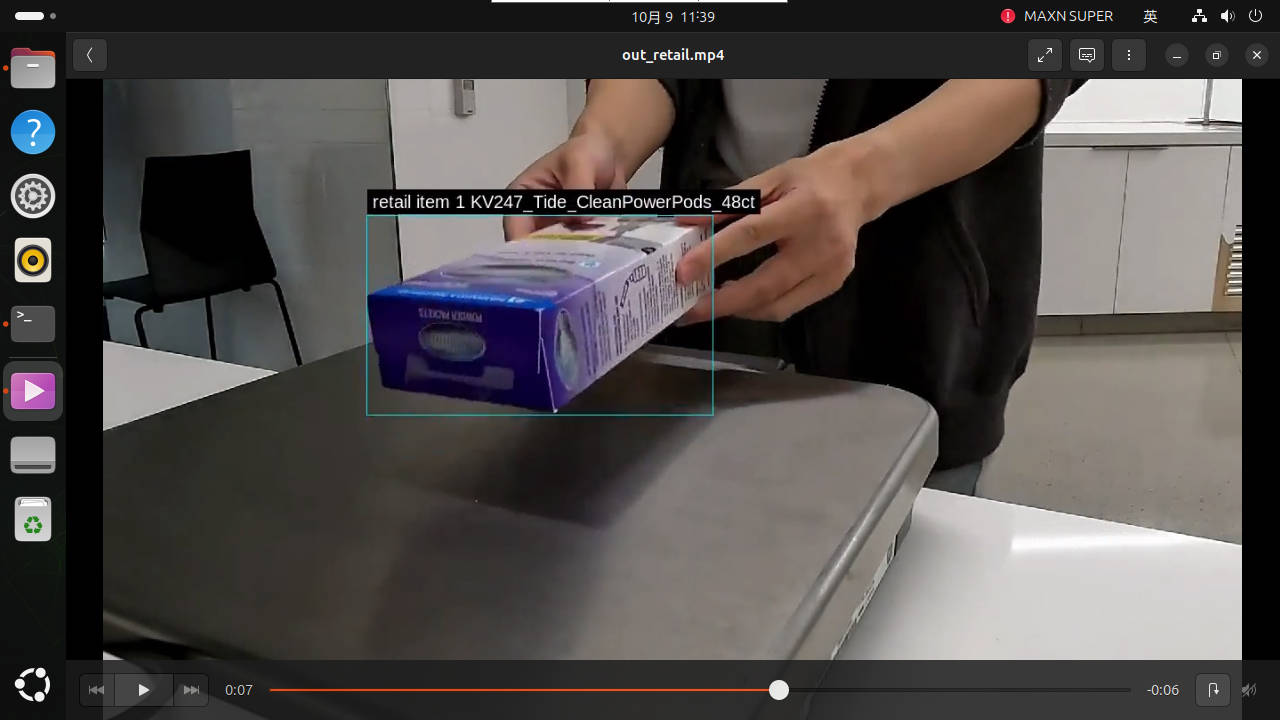
Input video_in/retail_object_h264.mp4, video output video_out/out_retail.mp4, embedding file video_out/mdx_retail_embeddings.jsonl. Detection boxes, class labels, and vectors are products of different stages.
After waiting for EOS, check:
xxxxxxxxxxgst-discoverer-1.0 video_out/out_retail.mp4wc -l video_out/mdx_retail_embeddings.jsonlhead -n 1 video_out/mdx_retail_embeddings.jsonlReplacing the test video: replace it at the video_in/retail_object_h264.mp4 path referenced by the configuration, or check the configuration first and then modify the input source. Use gst-discoverer-1.0 to confirm it is decodable; the material should preferably contain clear shelf products. Keep the original video and the outputs you need to retain.
4. USB Camera Real-Time Detection
4.1 Direct Run
The course MDX USB entry supports --retail. Connect the camera and check the node and formats, then start in a graphical session:
xxxxxxxxxxcd ~/DeepStream/tao-toolkit-shell-demo./run_usb.sh mdx --retailThe real-time camera entry only previews and does not generate an offline MP4; whether JSONL is generated depends on the actual configuration of the camera branch, and the video mode's file output cannot be applied directly to camera mode.
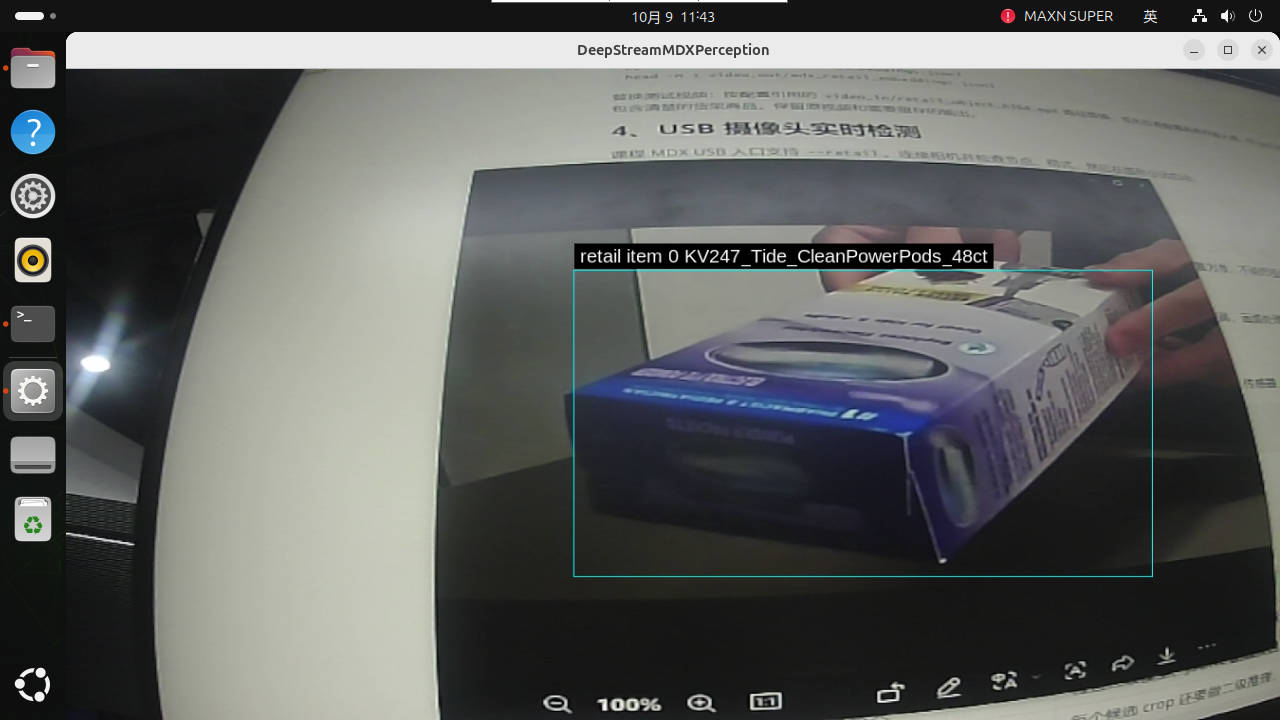
Press Ctrl+C once, wait for the application to exit, and confirm the camera is released. Retail detection plus secondary recognition has a high load, and frame processing speed may be lower than the camera frame rate.
4.2 Common Parameters
Before running, you can check the formats, resolutions, and frame rates supported by the camera:
xxxxxxxxxxv4l2-ctl -d /dev/video0 --list-formats-ext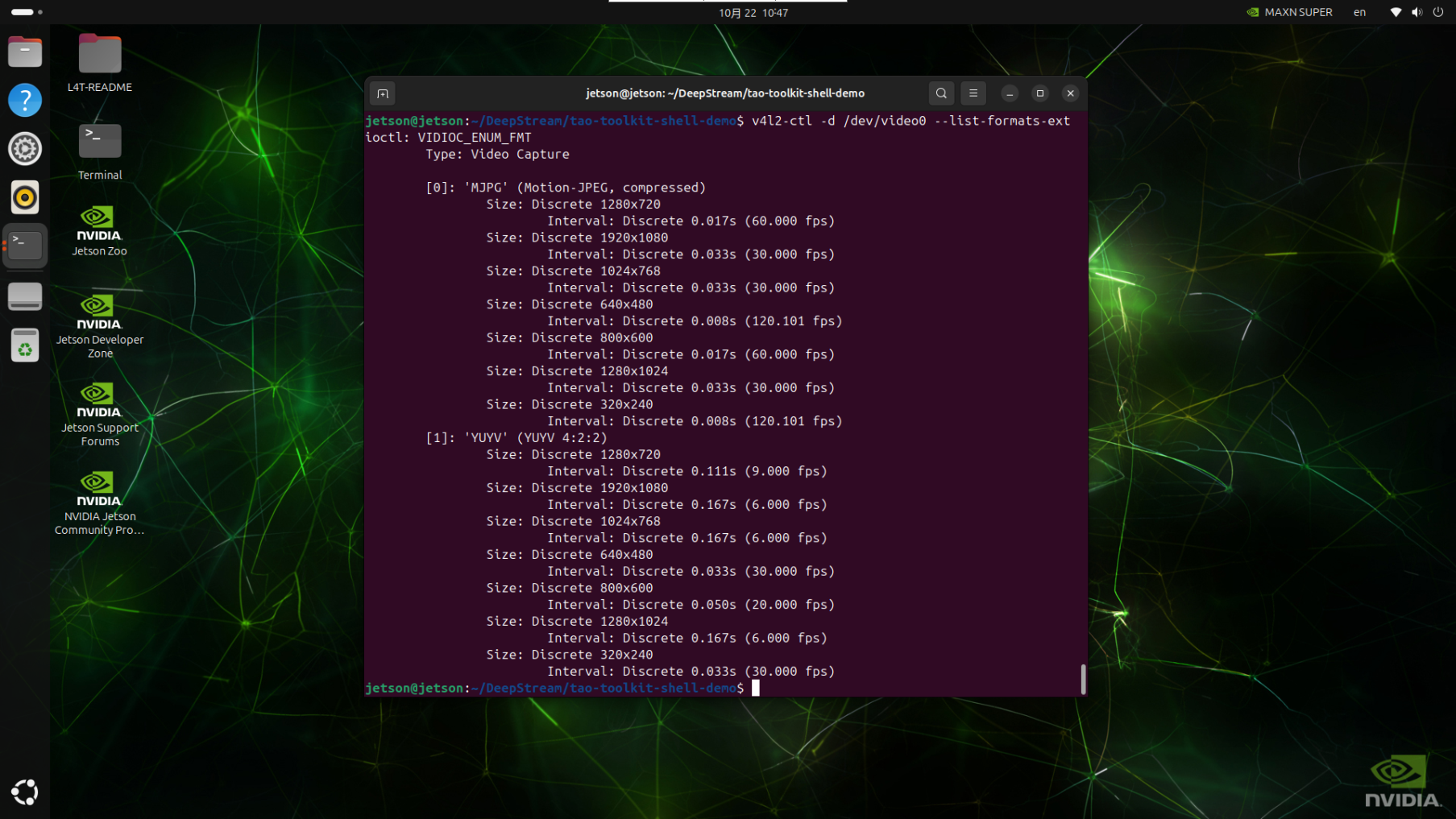
Note: the USB pipeline of Object Embedding Vector Generation is fixed to YUY2, so among the parameters below, choose the YUY2 parameters
x# View all parameters./run_usb.sh mdx --retail --help
# Use another video device./run_usb.sh mdx --retail --device /dev/video1
# Choose from the configurations found above that the camera supports; here we use 1280×720, 9FPS./run_usb.sh mdx --retail --width 1280 --height 720 --fps 95. CSI Camera Real-Time Detection
5.1 Direct Run
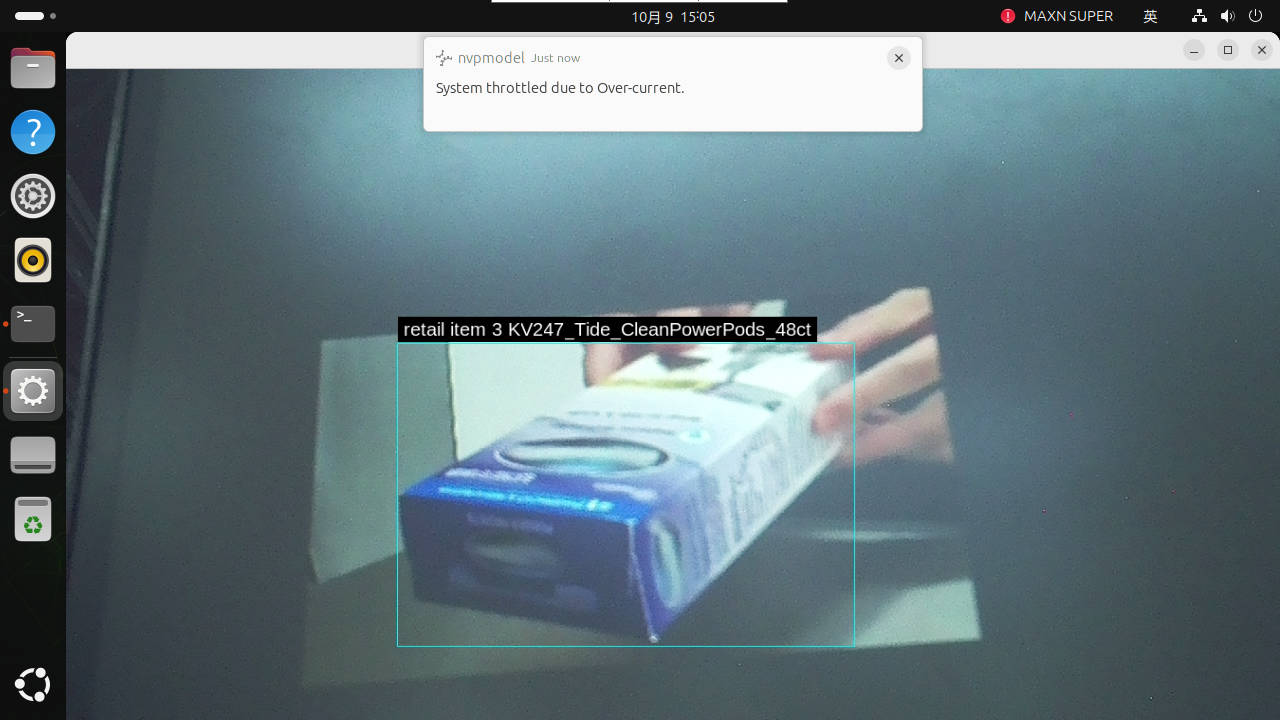
The course CSI entry supports live preview. Connect a compatible camera, confirm the driver and Argus service are working, then run the corresponding command in a Jetson desktop/VNC graphical terminal:
xxxxxxxxxxcd ~/DeepStream/tao-toolkit-shell-demo./run_csi.sh mdx --retailThe CSI camera entry supports live preview and does not generate offline video or JSONL output; if you need to write to disk, the camera branch must be configured and accepted separately.
5.2 Common Parameters
Before running, you can check the formats, resolutions, and frame rates supported by the camera; this must be run in a graphical interface:
xxxxxxxxxxgst-launch-1.0 nvarguscamerasrc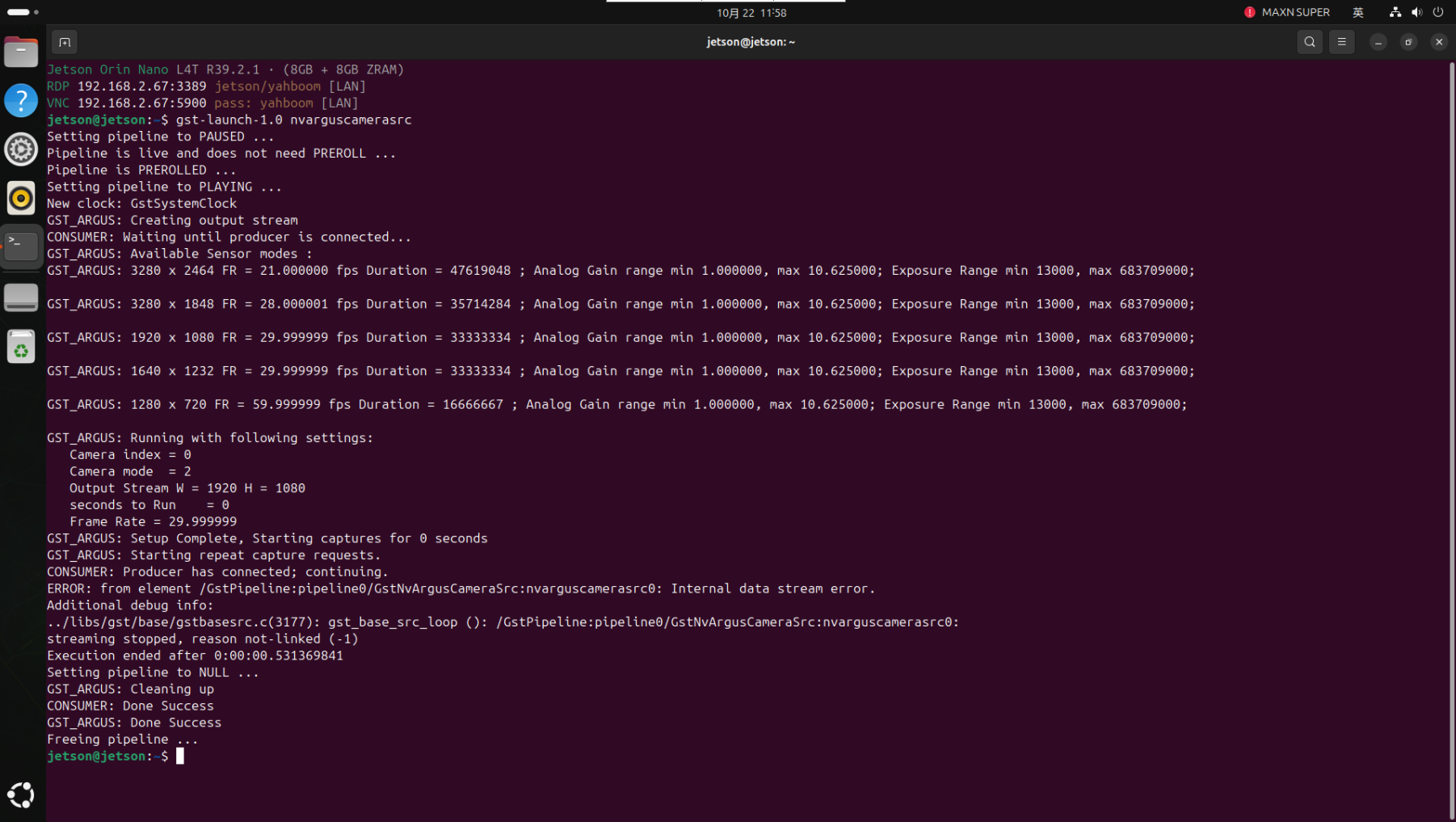
xxxxxxxxxx# View all parameters./run_csi.sh mdx --retail --help
# Use the second CSI camera./run_csi.sh mdx --retail --sensor-id 1
# Adjust input size and frame rate./run_csi.sh mdx --retail --width 1920 --height 1080 --fps 30
6. Common Issues
| Symptom | Check and Handling |
|---|---|
| Products not detected | Check the detection model logs, frame scale, and occlusion; confirm the input material contains shelves. |
| Detection boxes but recognition data missing | Check the secondary model, JSONL configuration, and directory permissions. |
| Offline processing is slow | Each candidate crop also requires secondary inference; insufficient throughput makes processing slower than the source video playback. |
| No USB image | Check the node, format, permissions, occupancy, and display session. |
| No CSI image | Check the compatible sensor connection, driver, Argus service, and camera occupancy. |