Welcome to Jetson Orin NANO Developer Kit repository
07.Jtop tool
Using the Jtop Tool
Using the Jtop Tool1. Install Jtop2. Best Performance Mode2.1. Enable MAXN Mode2.2. Enable Jetson Clocks3. Using Jtop
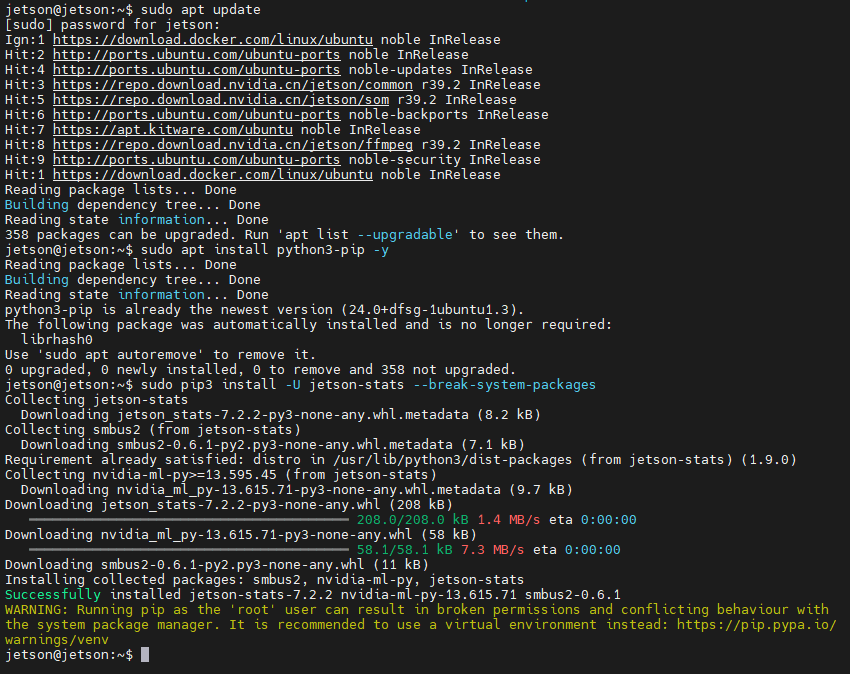
pip Installation Note: According to PEP 668, Ubuntu 24.04 marks the system Python as "externally managed", so installing directly with pip may report
externally-managed-environment.--break-system-packagesallows pip to install packages in this environment; a virtual environment usually does not need this parameter, but this tutorial keeps it for consistent commands.
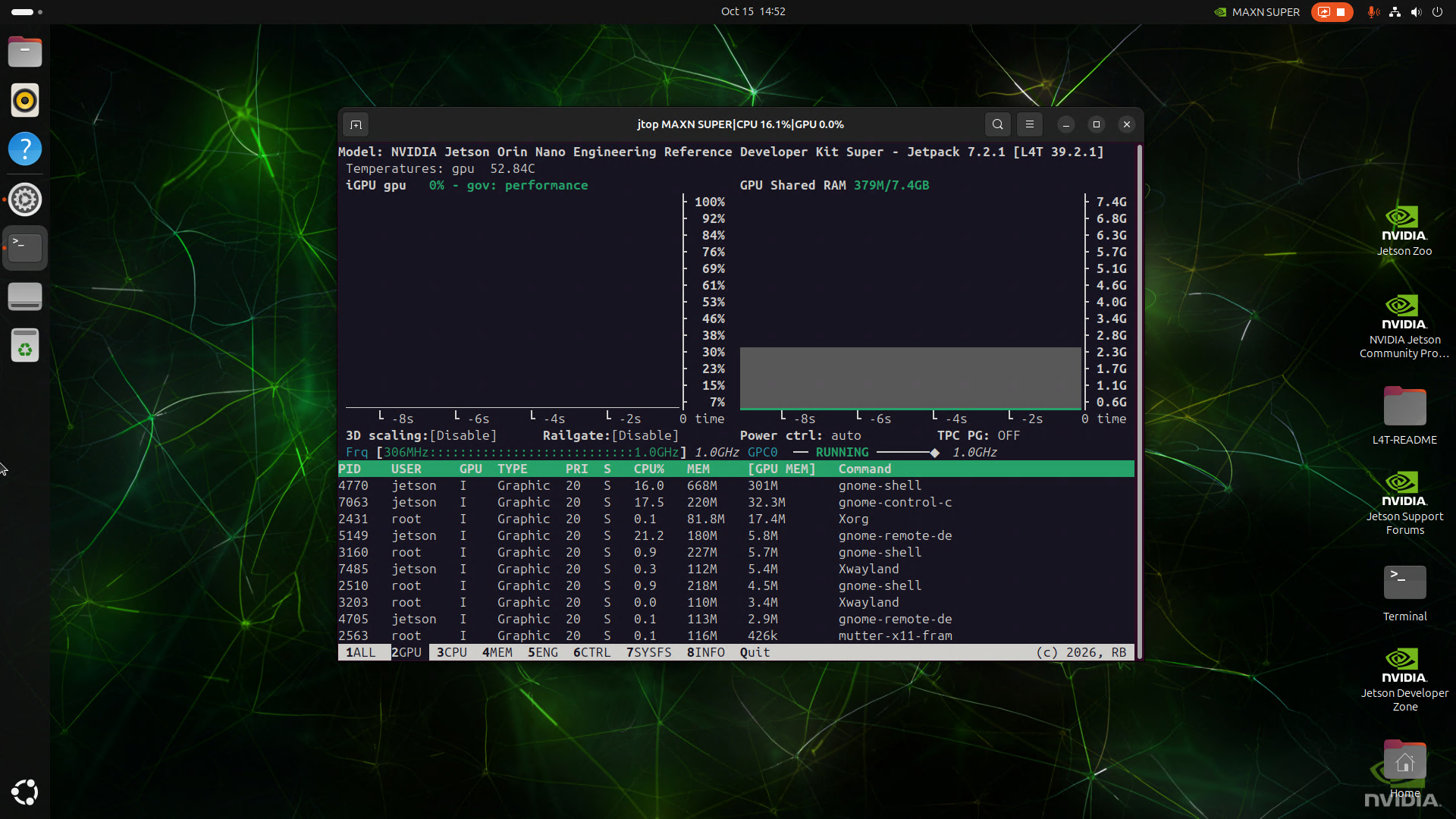
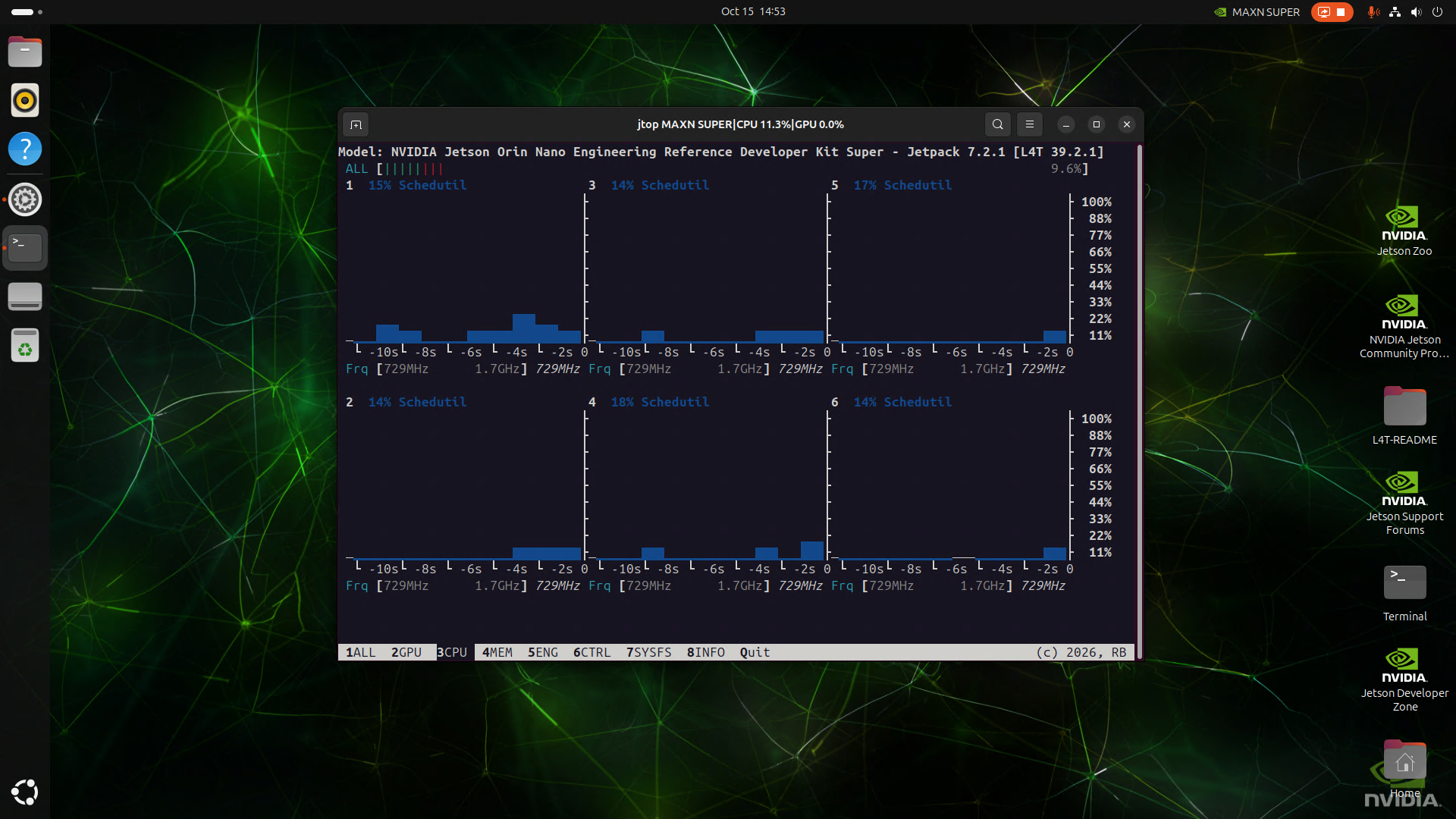
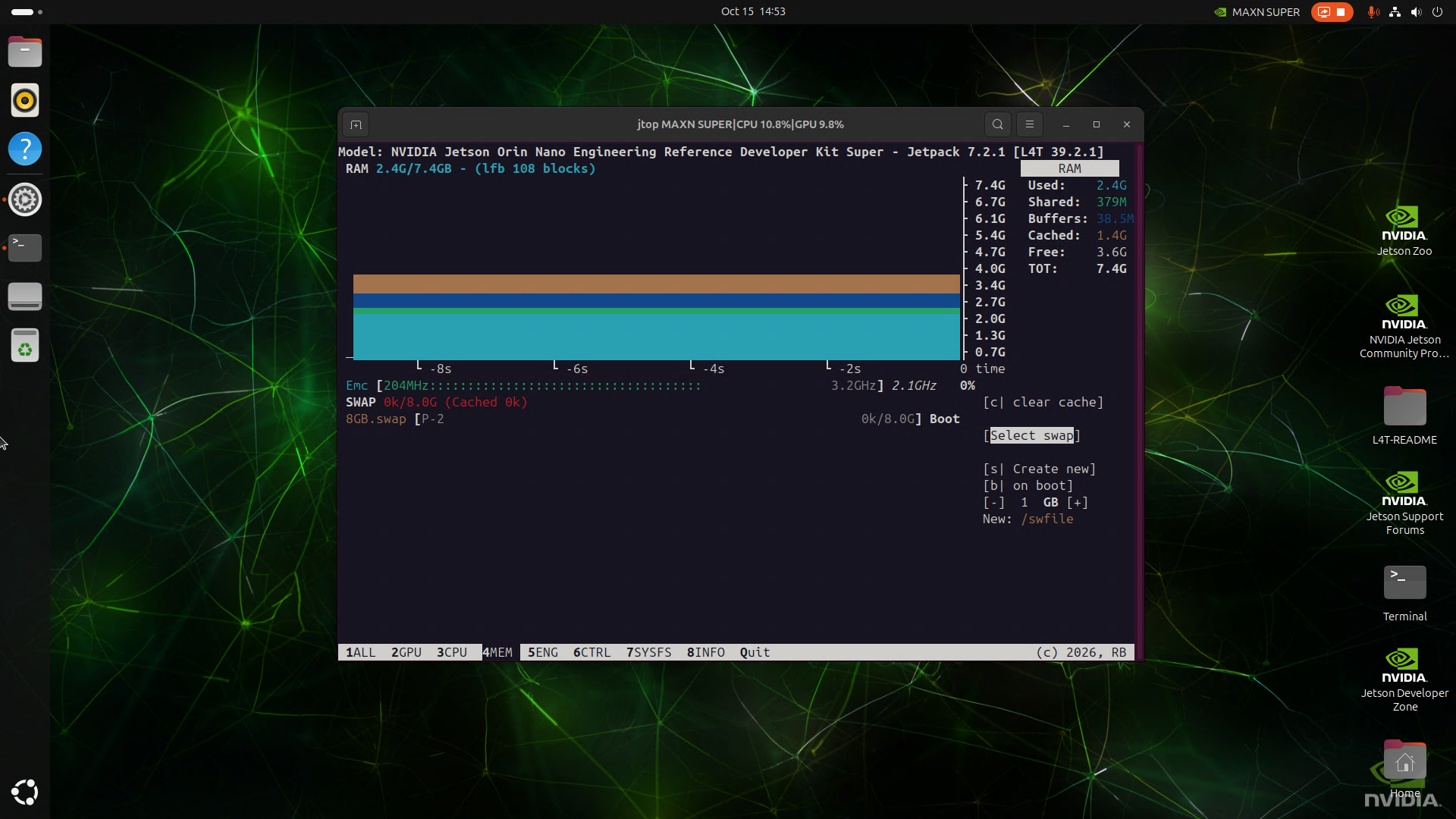
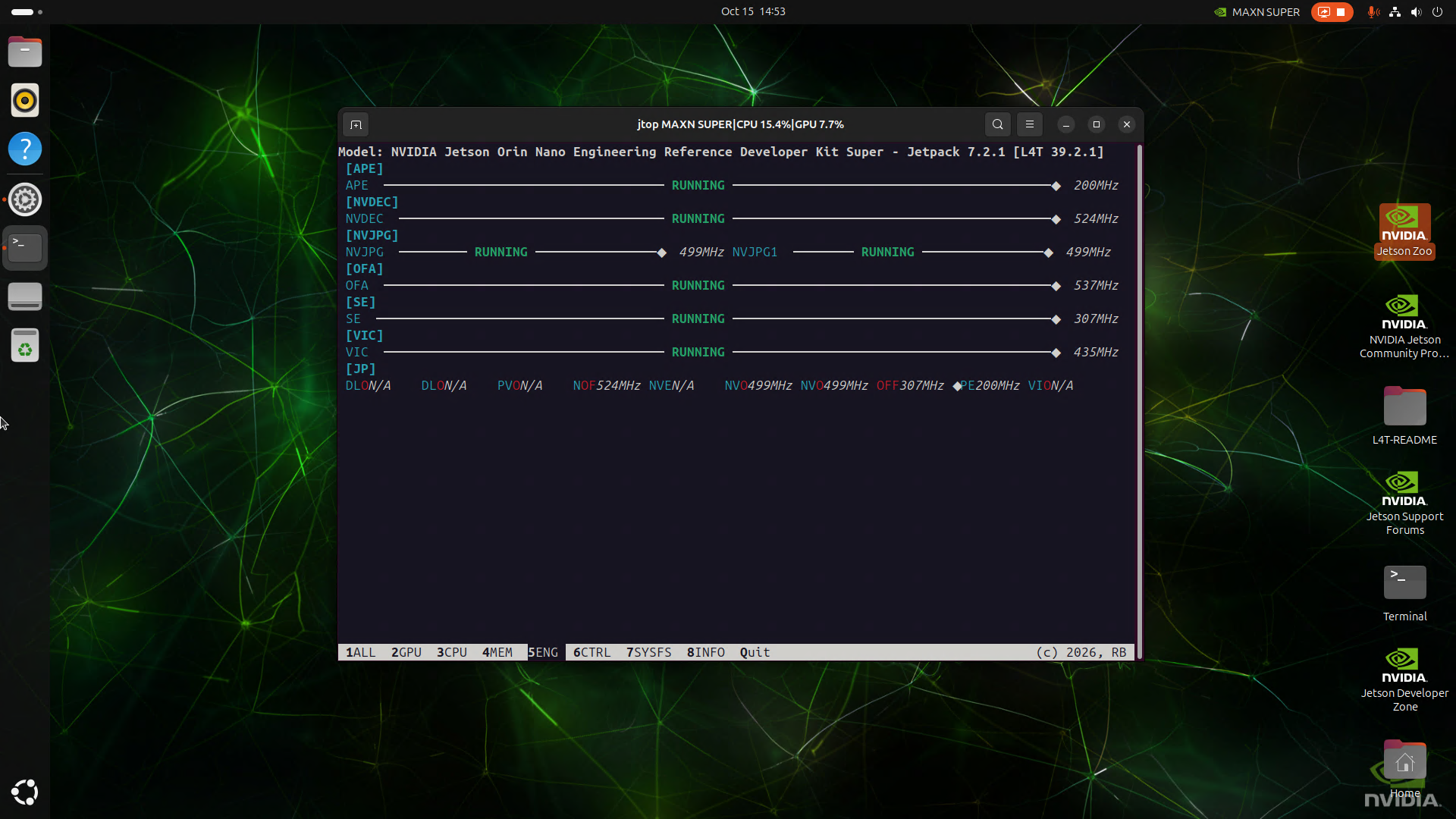
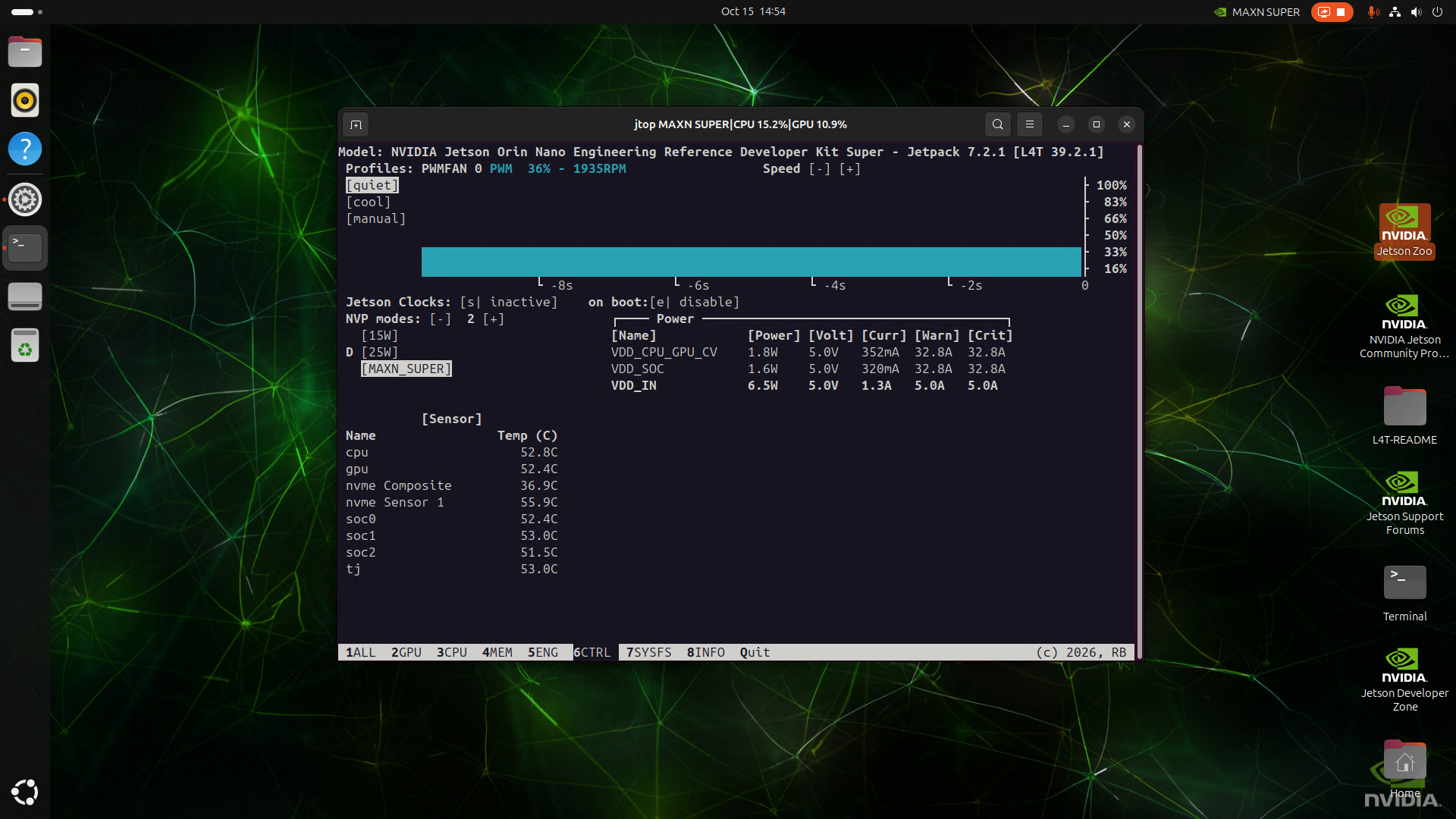
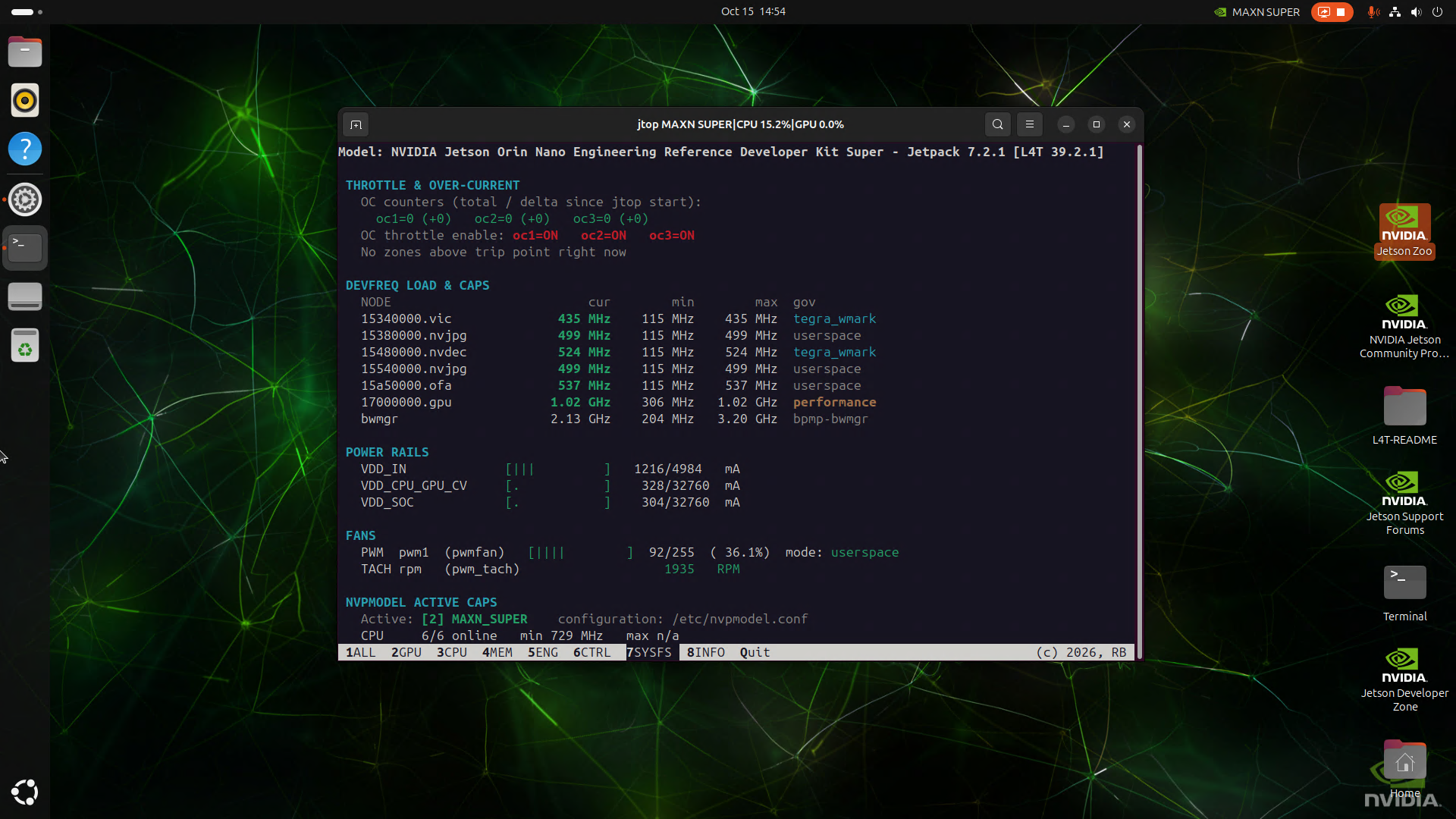
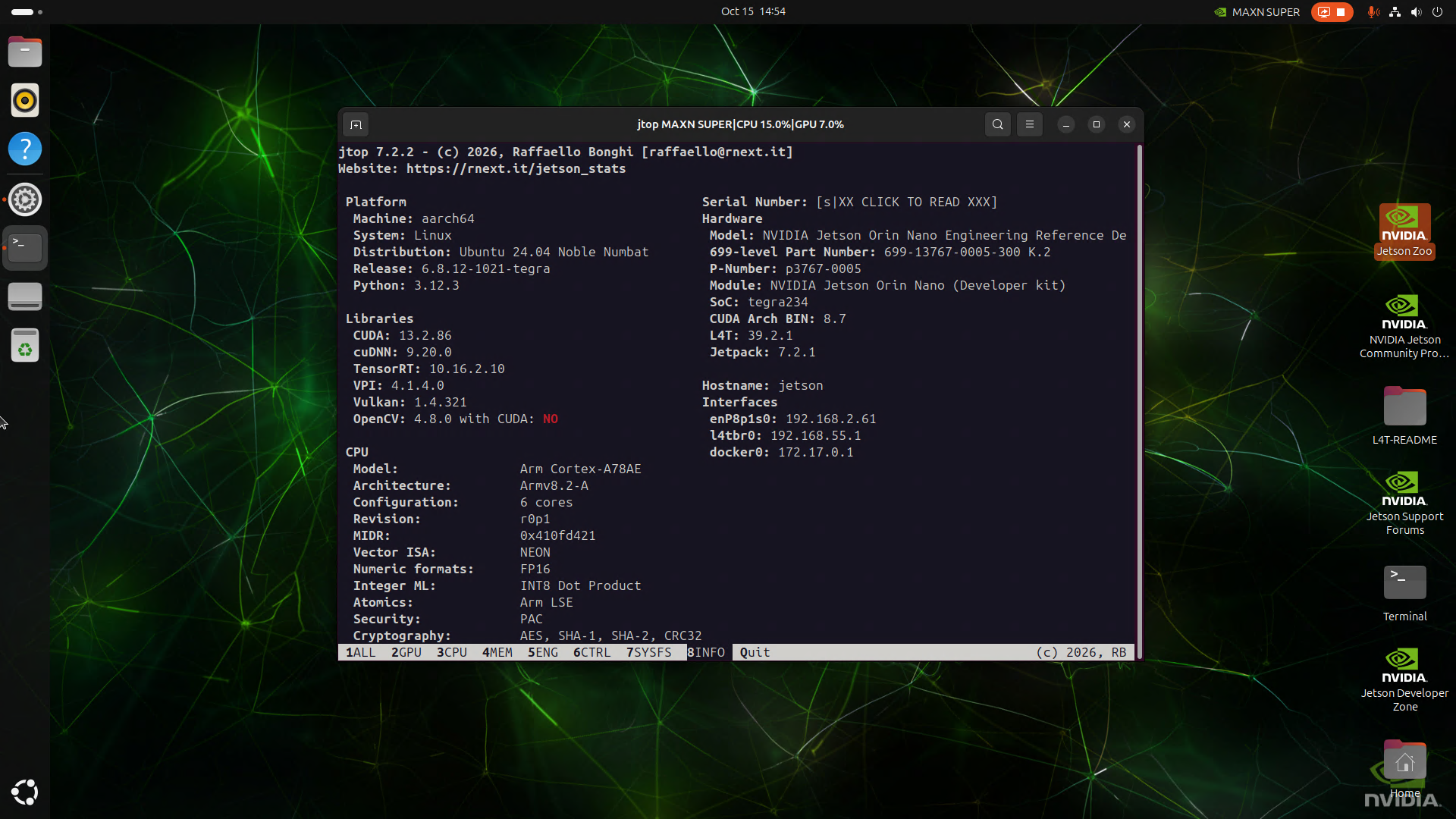
Jtop is a system monitoring tool developed for NVIDIA Jetson series devices. It can display the resource usage of various aspects of the Jetson device such as the CPU, GPU, memory, disk, and network, and can display the temperature, power consumption, and frequency of different hardware in real time.
1. Install Jtop
sudo apt updatesudo apt install python3-pip -ysudo pip3 install -U jetson-stats --break-system-packagessudo jtop --install-service
2. Best Performance Mode
2.1. Enable MAXN Mode
Enabling the MAXN Power Mode (maximum power mode) on the Jetson ensures that all CPU and GPU cores are turned on:
xxxxxxxxxxsudo nvpmodel -m 2
2.2. Enable Jetson Clocks
Enabling Jetson Clocks ensures that all CPU and GPU cores run at the maximum frequency:
xxxxxxxxxxsudo jetson_clocks
3. Using Jtop
The Jtop tool can only be started by entering the jtop command in the terminal after the system is restarted:
xxxxxxxxxxjtop
Note: the strongest performance parameters are only displayed when the mainboard power mode is set to MAXN!