Welcome to Jetson Orin NANO Developer Kit repository
4.ROS2 workspace
4. ROS 2 Workspace
1. Workspace Introduction
In ROS robot development, when developing certain functions of a robot, the various code, parameter, script, and other files that are written need to be placed in a certain folder for management. In the ROS system, this folder is called a workspace. A workspace is therefore a folder that stores files related to project development, and it is also the base camp that stores all materials during the development process.
2. Create a Workspace
Create a folder as the workspace for storing project files. yahboomcar_ws is the folder name, which can be named arbitrarily.
mkdir -p yahboomcar_ws/srcSwitch to the workspace folder
xxxxxxxxxxcd ~/yahboomcar_ws
3. Compile the Workspace
xxxxxxxxxxcolcon build After the build is completed, you should see the build, install, and log directories:
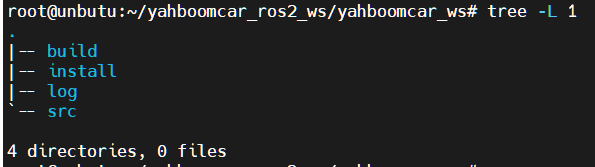
A typical workspace structure in the ROS system is shown above. This yahboomcar_ws is the root directory of the workspace, and there will be four subdirectories inside it, also called four subspaces.
src, code space: the code and scripts written in the future need to be placed here manually;
build, build space: stores the intermediate files generated during the compilation process;
install, install space: stores the compiled executable files and scripts;
log, log space: stores various warnings, errors, information, and other logs generated during compilation and running.
Generally speaking, among the folders of these four spaces, the vast majority of operations are performed in src. After a successful compilation, the results in install are executed, and the build and log folders are rarely used.
It should also be emphasized here that workspace names can be customized, and the number of workspaces is not necessarily unique, for example:
xxxxxxxxxxWorkspace 1: ros2_ws_a, for robot A developmentWorkspace 1: ros2_ws_b, for robot B developmentWorkspace 1: ros2_ws_c, for robot C developmentThe above situation is completely allowed, just like creating multiple new projects in an integrated development environment; they all exist in parallel.
4. Setting Environment Variables
After a successful compilation, in order for the system to find our packages and executable files, environment variables also need to be set:
xxxxxxxxxx# Takes effect only in the current terminalsource install/setup.bash # Takes effect in all terminalsecho "source ~/yahboomcar_ws/install/setup.bash" >> ~/.bashrc At this point, the creation, compilation, and configuration of the workspace are complete.