Welcome to Jetson Orin NANO Developer Kit repository
09.Dataset annotation
Dataset Annotation
Dataset Annotation1. Dataset Collection1.1. Extracting Images1.2. Dataset Paths2. Using Label Studio2.1. Installing Label Studio2.2. Starting Label Studio2.2.1. Shared Folder Permissions2.2.2. Starting Label Studio2.2.3. Accessing Label StudioHost MachineSame Local NetworkFirst Use3. Dataset Annotation3.1. Creating a Project3.2. Project Name3.3. Importing the Training Set3.4. Label Settings3.5. Dataset Annotation3.6. Exporting the Dataset3.7. Dataset Directory Structure3.8. Dataset Configuration FileReferences
pip Installation Note: Ubuntu 24.04 marks the system Python as "externally managed" per PEP 668, so installing packages directly with pip may raise
externally-managed-environment.--break-system-packagesallows pip to install packages in that environment; virtual environments usually do not need this flag, but it is kept here to keep the commands consistent throughout this tutorial.
To recognize specific objects or improve object recognition accuracy, users need to train their own model, and dataset collection and annotation are an indispensable part of that.
1. Dataset Collection
Note: For recognition in specific scenarios, users can use the camera to record videos of the object from various angles, then extract images from the videos as the training set.
1.1. Extracting Images
A simple example: extract one frame from the video every 15 frames as the dataset
ximport cv2import os
# Path to the input video filevideo_file = '/home/jetson/ultralytics_yolo26/data/yahboom_data/orange_video/orange.mkv'
# Path to the output folder to save the framesoutput_folder = '/home/jetson/ultralytics_yolo26/data/yahboom_data/orange_pic'
# Check if the output folder exists, if not, create itif not os.path.exists(output_folder): os.makedirs(output_folder)
# Open the video file using OpenCVcap = cv2.VideoCapture(video_file)
# Get the total number of frames in the videototal_frames = int(cap.get(cv2.CAP_PROP_FRAME_COUNT))
# Get the frames per second (fps) of the videofps = cap.get(cv2.CAP_PROP_FPS)
# Frame counter to keep track of the current frame numberframe_number = 0
# Define the interval for extracting frames (every 15th frame)frame_interval = 15
# Initialize a new counter for saved frames (starting from 1)saved_frame_number = 1
while True: ret, frame = cap.read() # If the frame is not successfully read, exit the loop if not ret: break
# Save every 15th frame if frame_number % frame_interval == 0: # Format the frame number starting from 1 (e.g., 1.png, 2.png) image_name = f'{saved_frame_number}.png' image_path = os.path.join(output_folder, image_name)
# Save the current frame as a PNG image cv2.imwrite(image_path, frame) print(f'Saving frame {frame_number}/{total_frames} as {image_name}')
# Increment the saved frame counter saved_frame_number += 1
# Increment the frame counter for the video frame_number += 1
# Release the video capture objectcap.release()
# Print message when processing is completeprint("Video processing complete! Every 15th frame saved as an image!")1.2. Dataset Paths
Example video: /home/jetson/ultralytics_yolo26/data/yahboom_data/orange_video/
Example images: /home/jetson/ultralytics_yolo26/data/yahboom_data/orange_pic/
2. Using Label Studio
Label Studio is an open-source data annotation platform for data annotation and the management of annotation tasks, supporting various types of data input and annotation formats.
2.1. Installing Label Studio
xxxxxxxxxxdocker pull heartexlabs/label-studio:latest
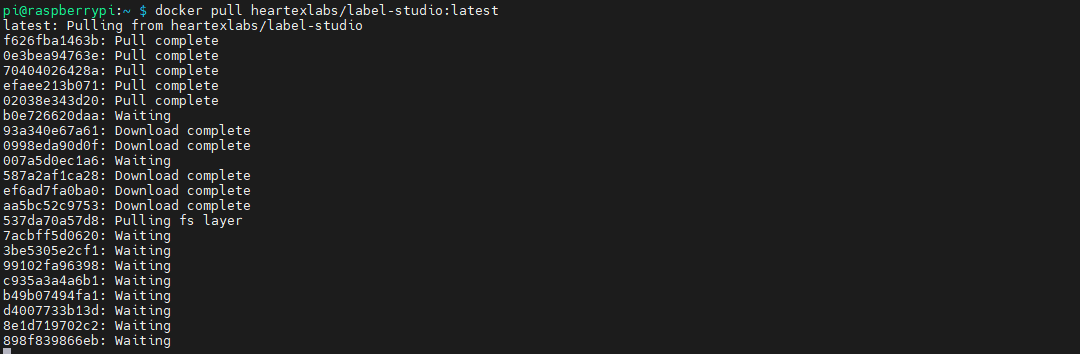
If the heartexlabs repository is unreachable from domestic networks, use the following method to run Label Studio
Install: pip install label-studio -i https://mirrors.aliyun.com/pypi/simple/ --trusted-host mirrors.aliyun.com --break-system-packages
Start: label-studio start
2.2. Starting Label Studio
2.2.1. Shared Folder Permissions
Share the prepared dataset to the folder used by Label Studio:
xxxxxxxxxxsudo chmod -R u+rwX /home/jetson/ultralytics_yolo26/data/
2.2.2. Starting Label Studio
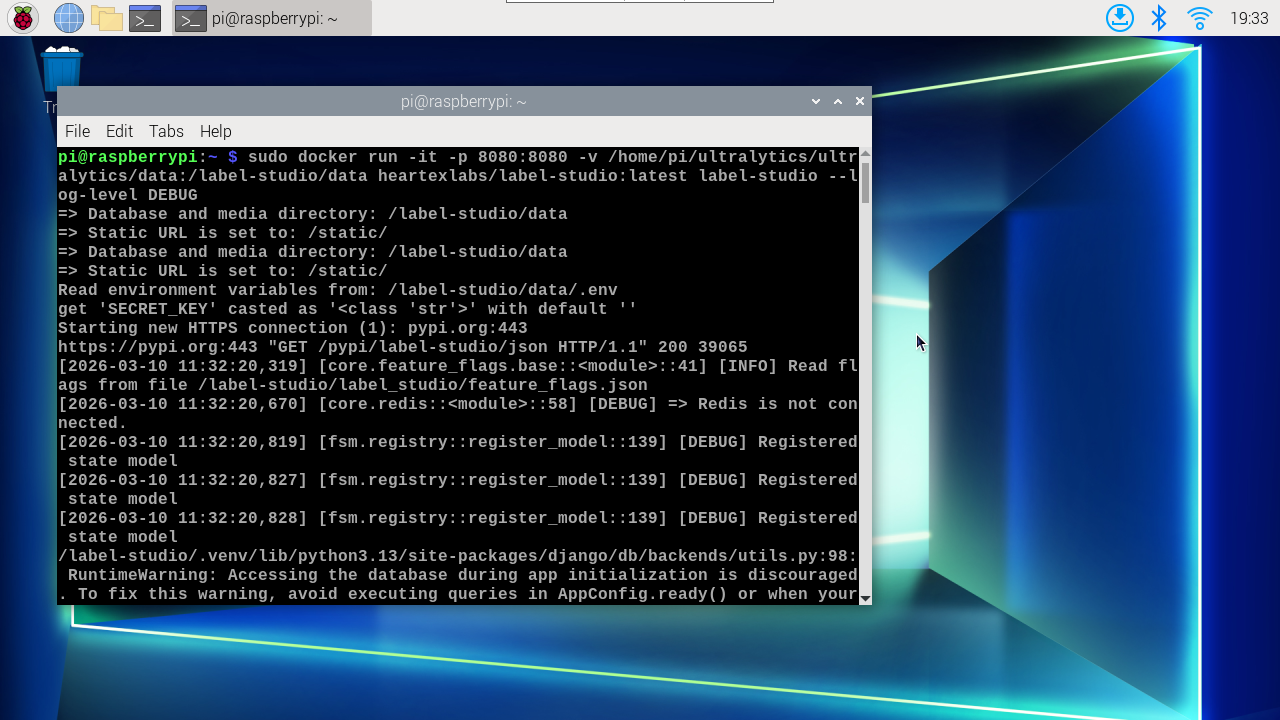
xxxxxxxxxxsudo docker run --rm -it -p 8080:8080 -v /home/jetson/ultralytics_yolo26/data:/label-studio/data heartexlabs/label-studio:latest label-studio --log-level DEBUG
2.2.3. Accessing Label Studio
Host Machine
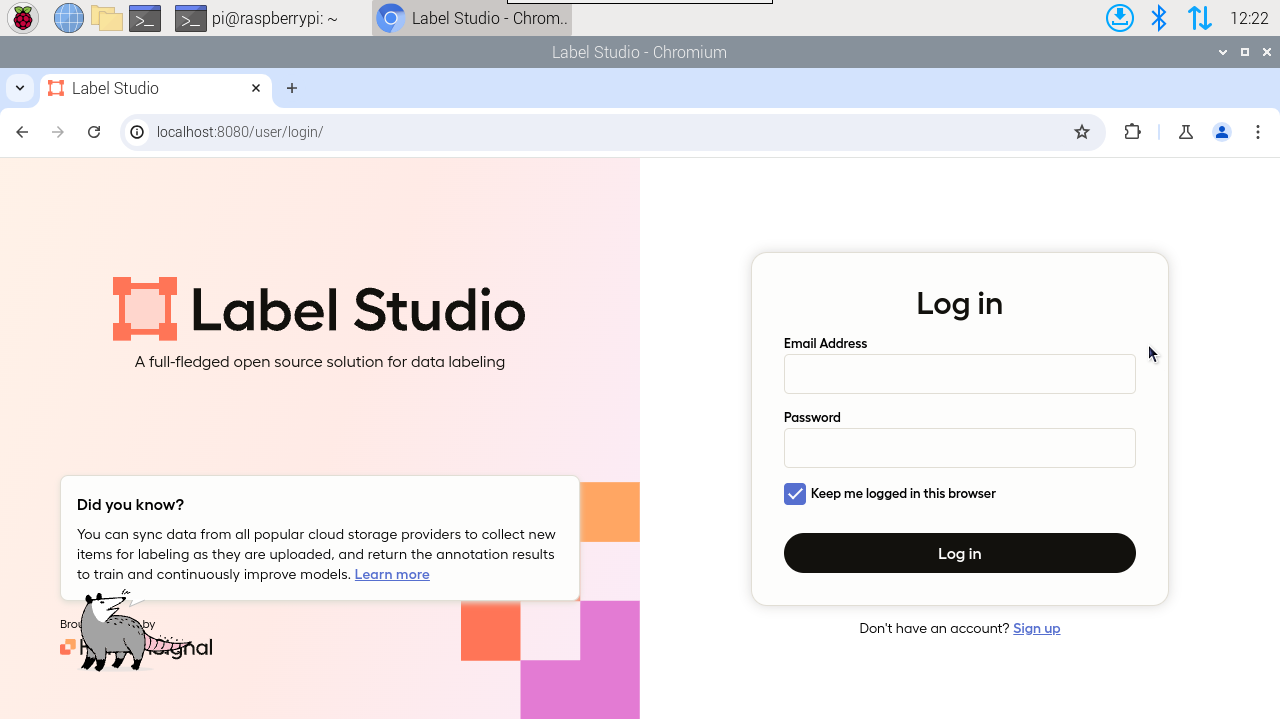
Access method for the pi Orin series development board; the first login requires you to enter a username and password yourself
xxxxxxxxxxhttp://localhost:8080/
Same Local Network
Devices on the same local network can access it via the mainboard IP:8080
xxxxxxxxxxhttp://mainboard-IP:8080/ # For example: http://192.168.2.99:8080/
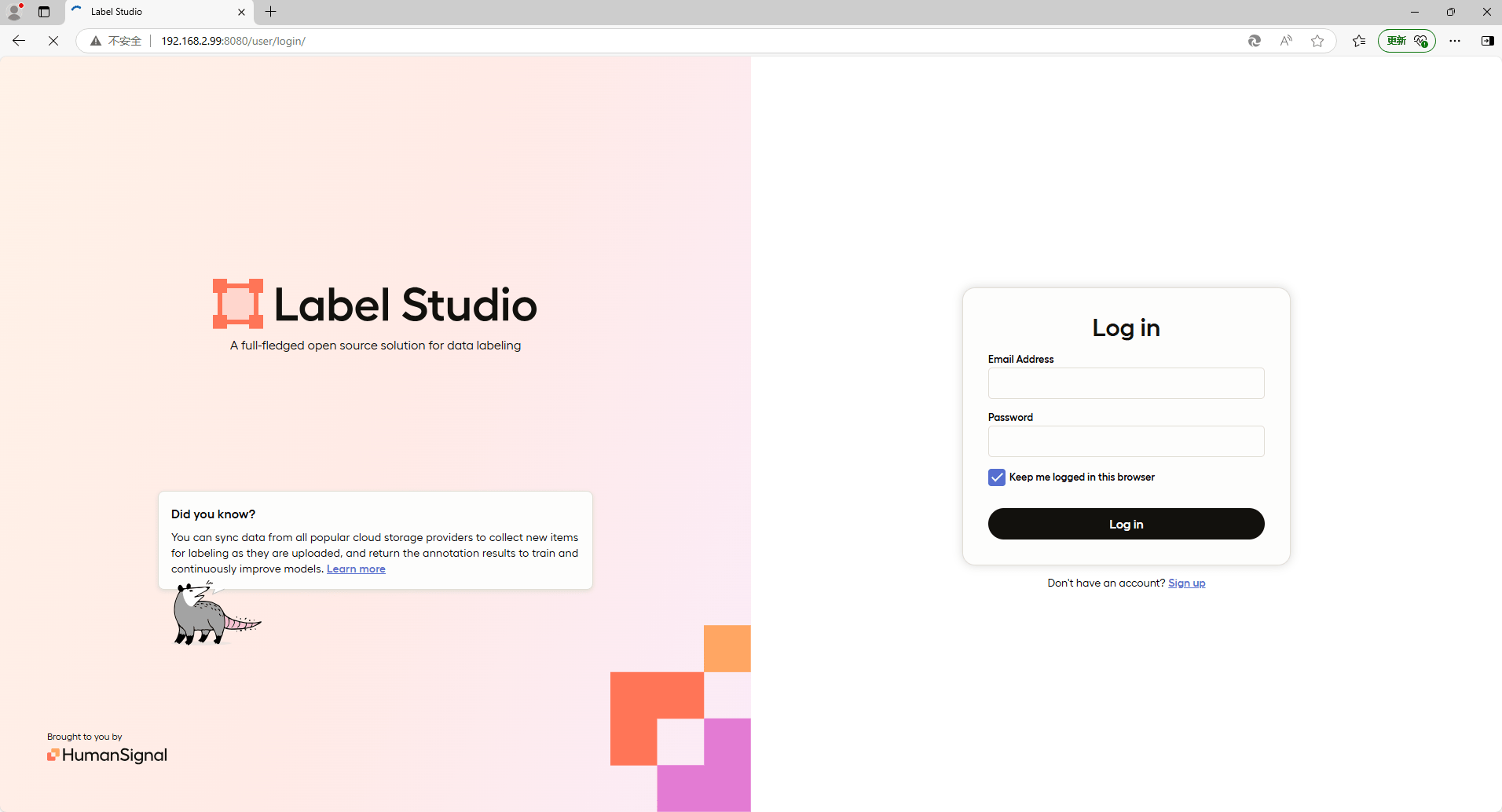
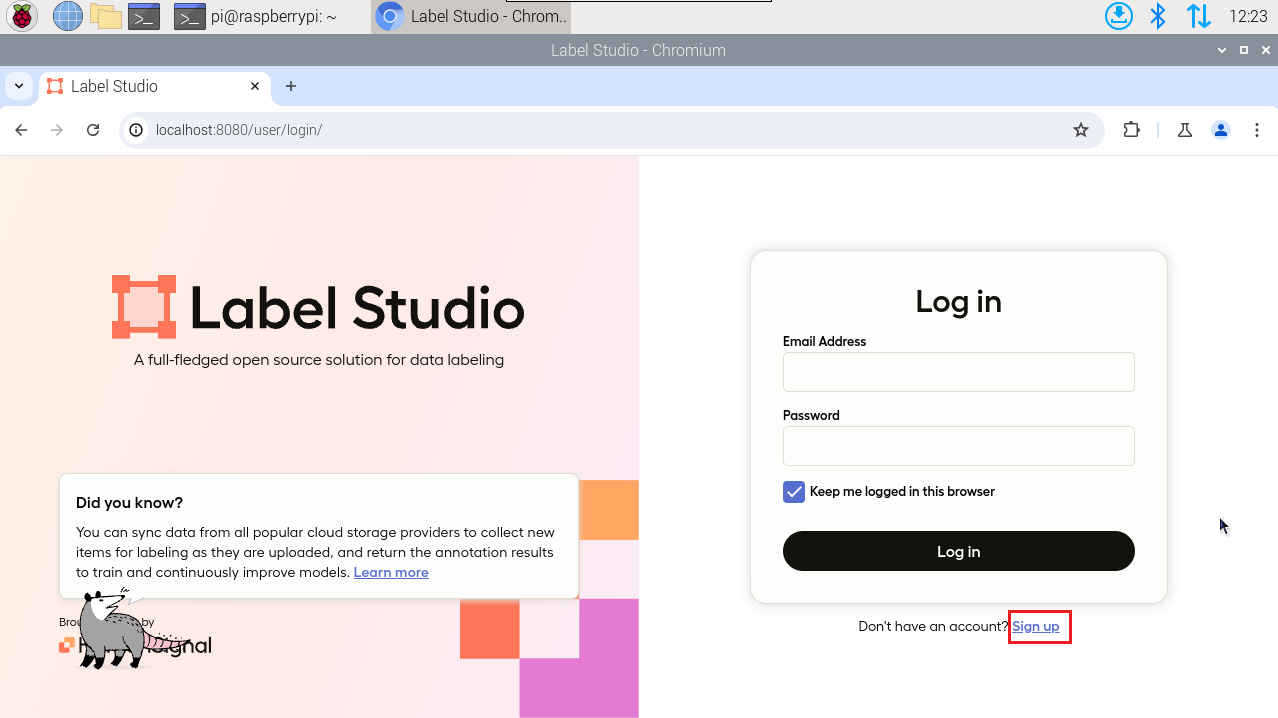
First Use
First use requires you to register and log in to an account yourself; the factory preset account information (the account information is fake):
xxxxxxxxxxAccount: yahboom@163.comPassword: yahboom@163.com
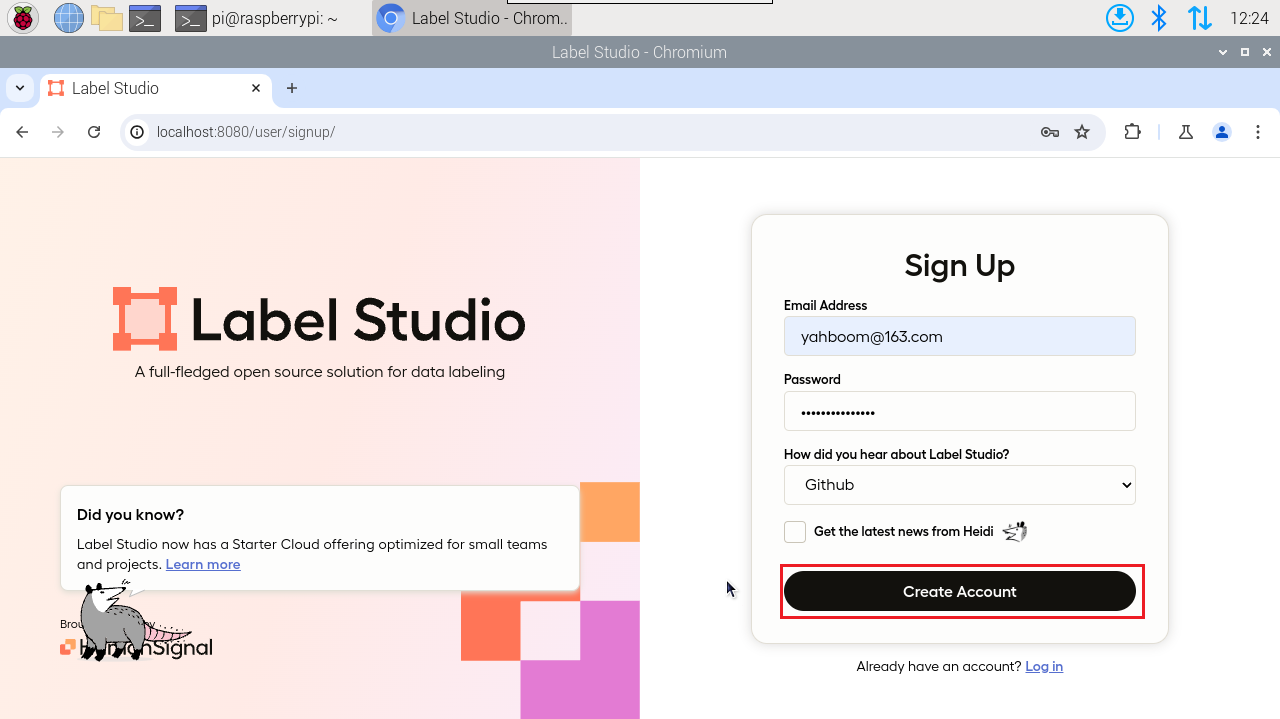
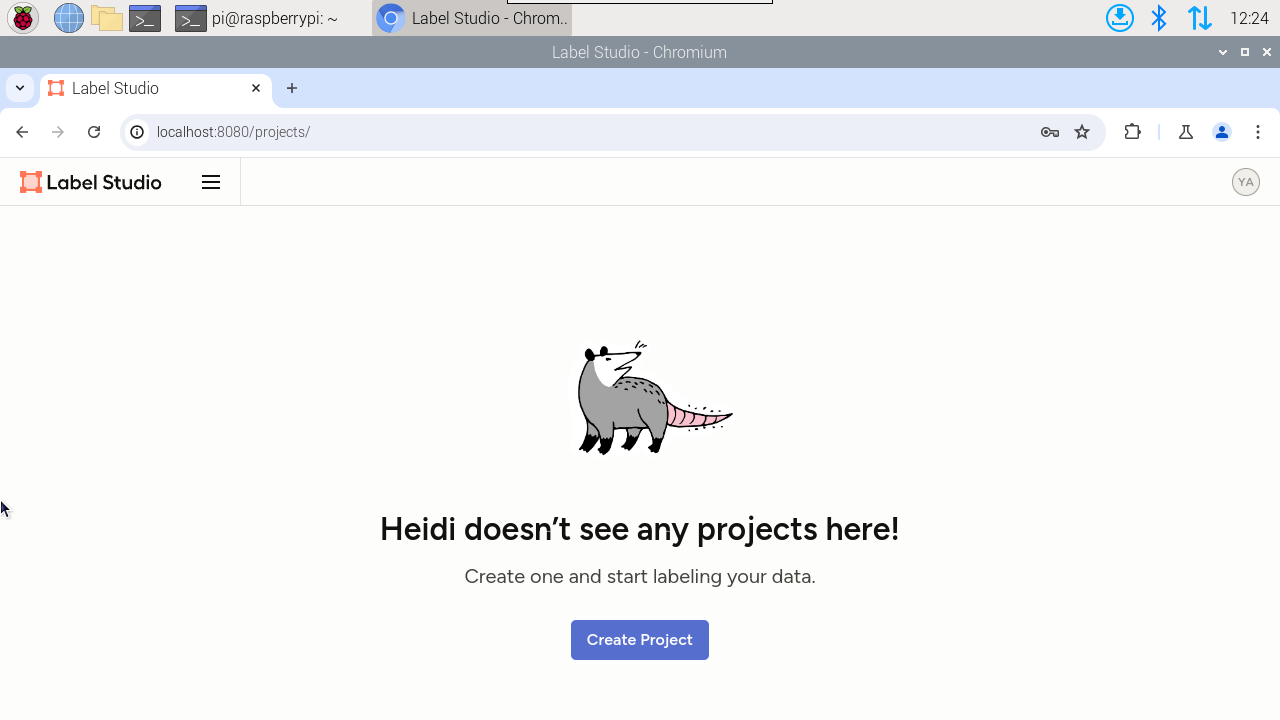
After registration is complete, the website logs in automatically:
3. Dataset Annotation
The demonstration dataset is on the mainboard, so access Label Studio from the mainboard.
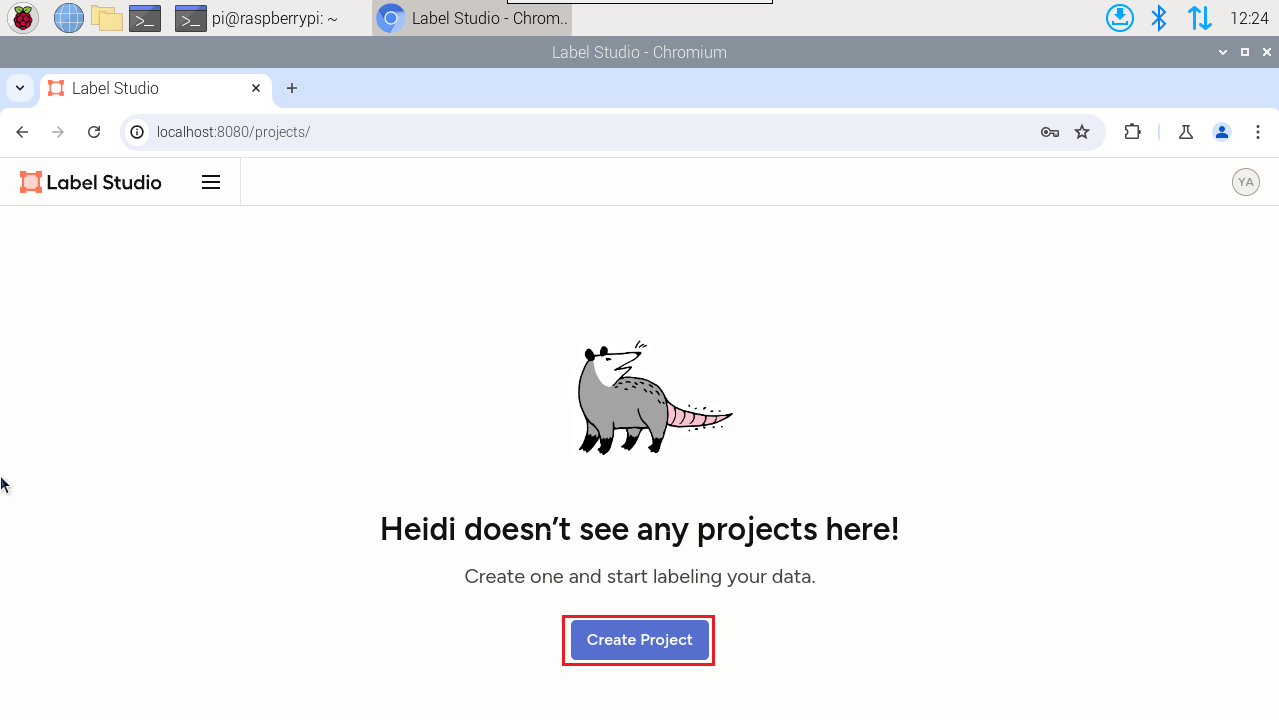
3.1. Creating a Project
3.2. Project Name
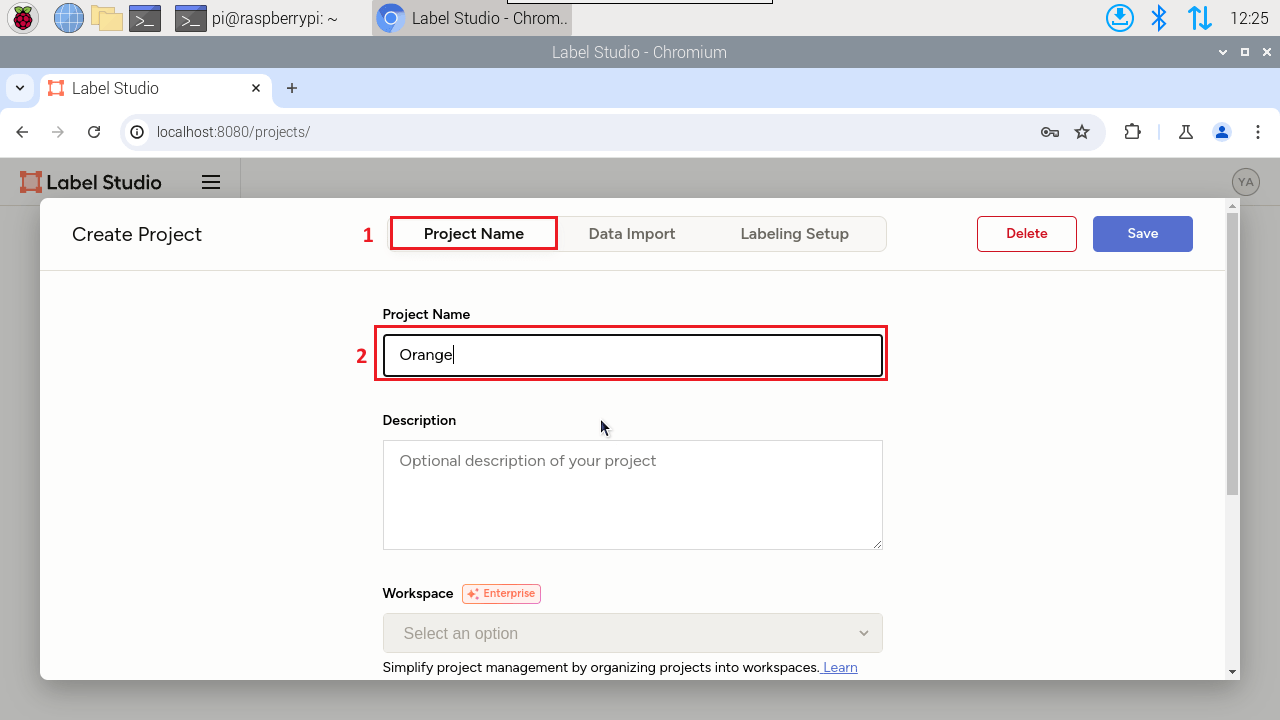
The project name can be anything you like; name it according to your training set:
3.3. Importing the Training Set
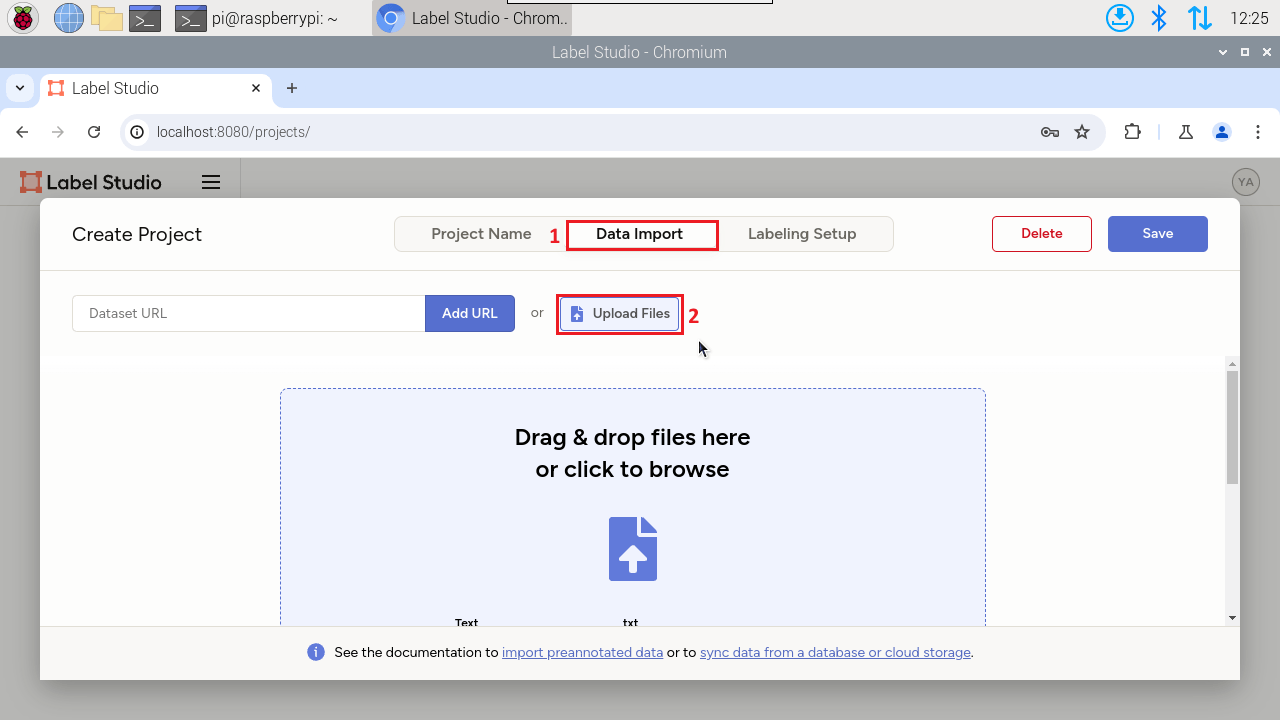
Manually import the prepared dataset: do not import too many images at once; it is recommended to select 50-100 images each time and import multiple times
3.4. Label Settings
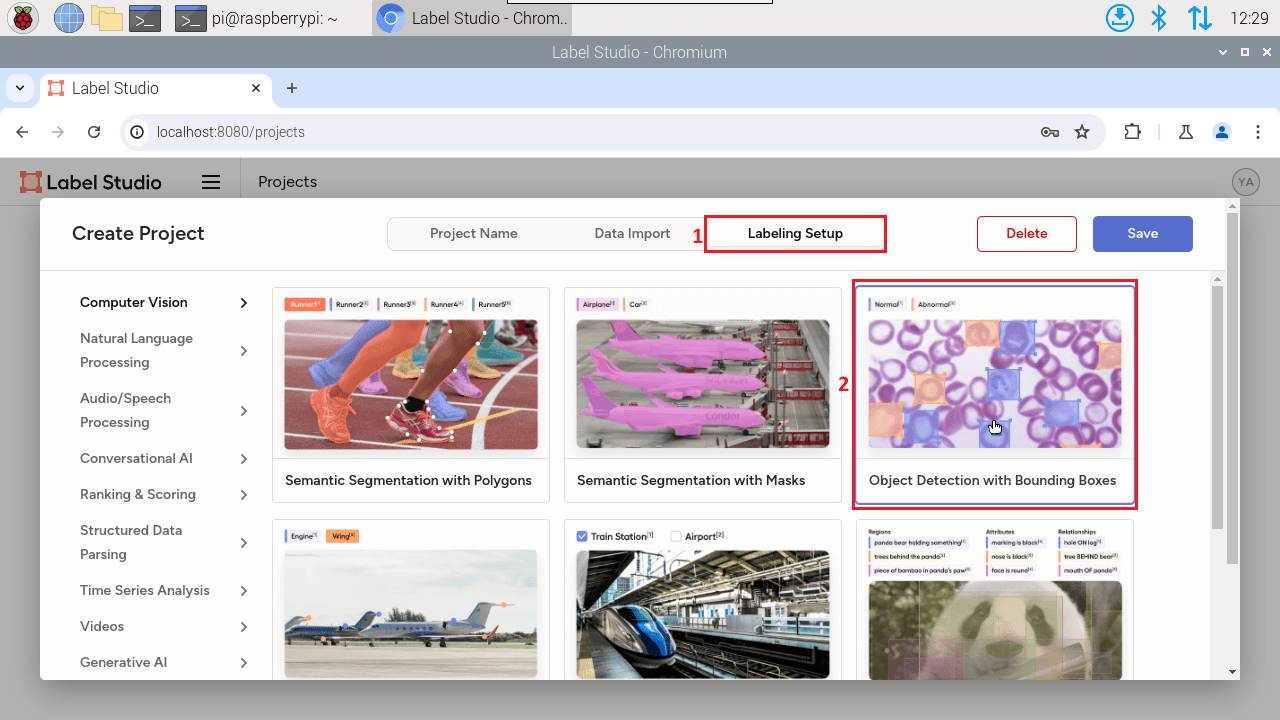
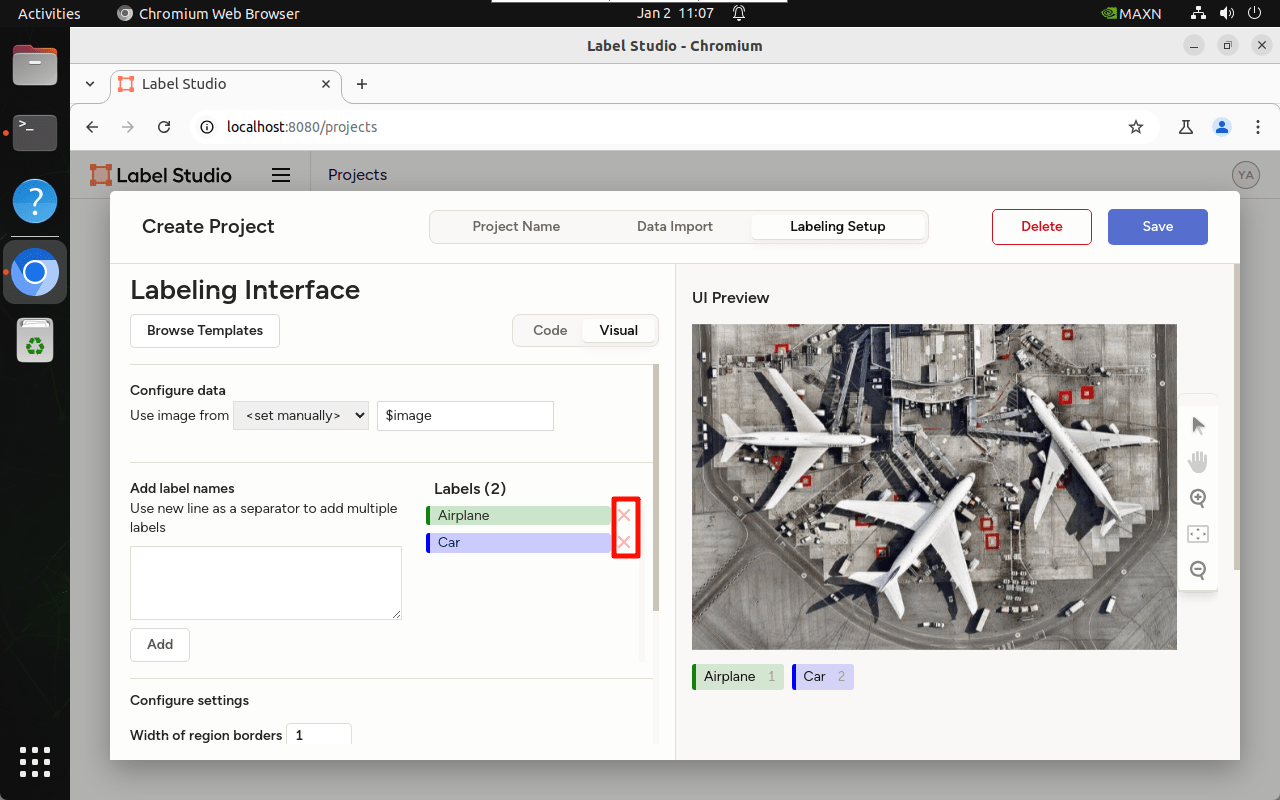
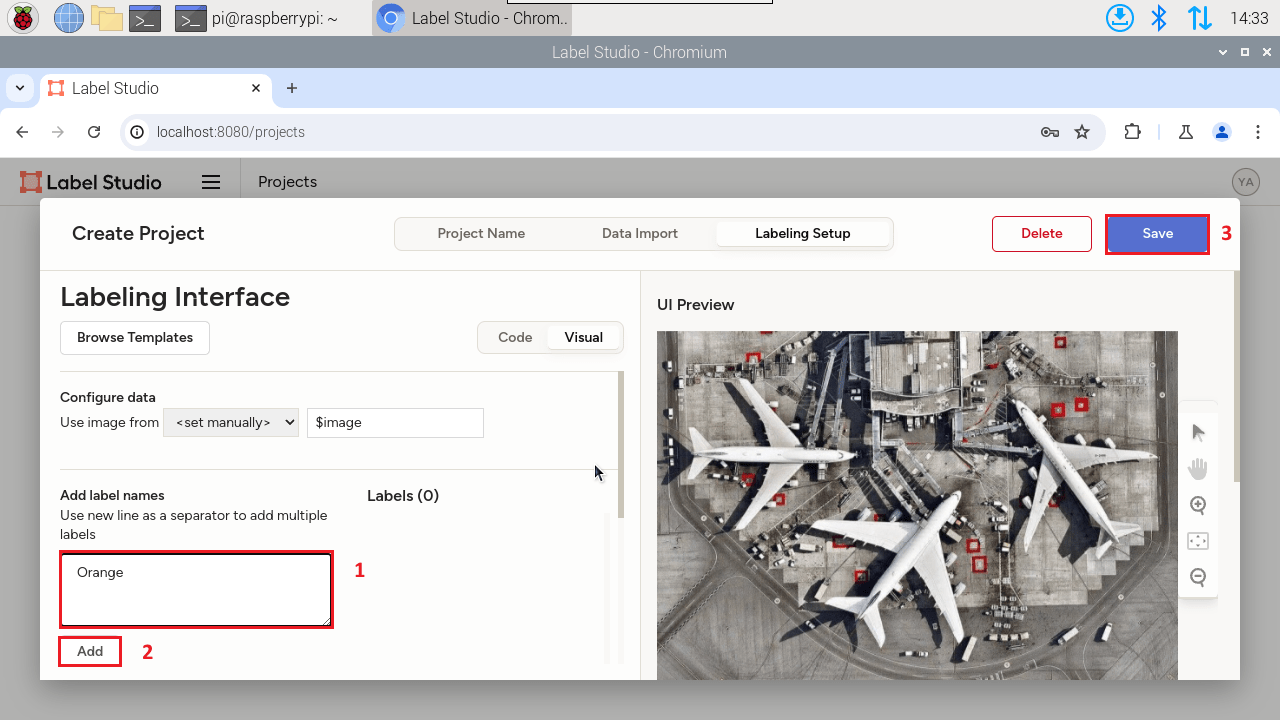
What we demonstrate is recognizing oranges, so choose "Object Detection"
Delete the built-in labels:
Add new labels:
3.5. Dataset Annotation
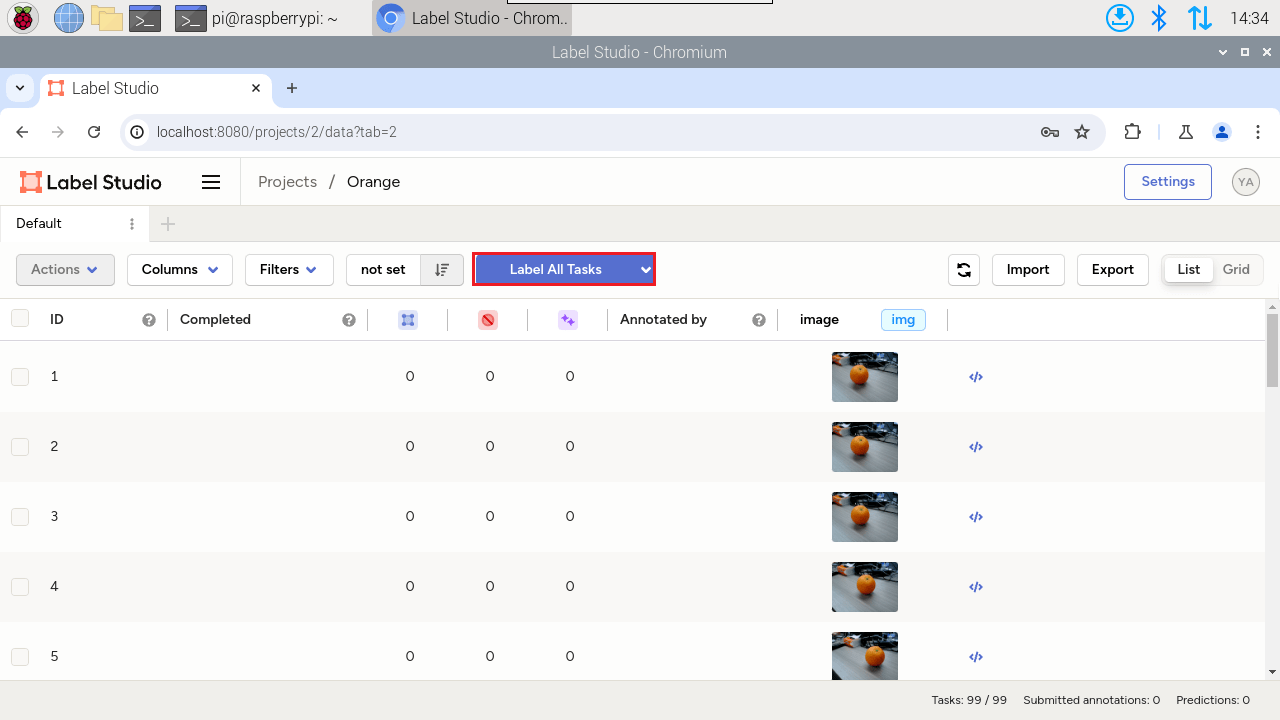
Click to annotate all tasks:
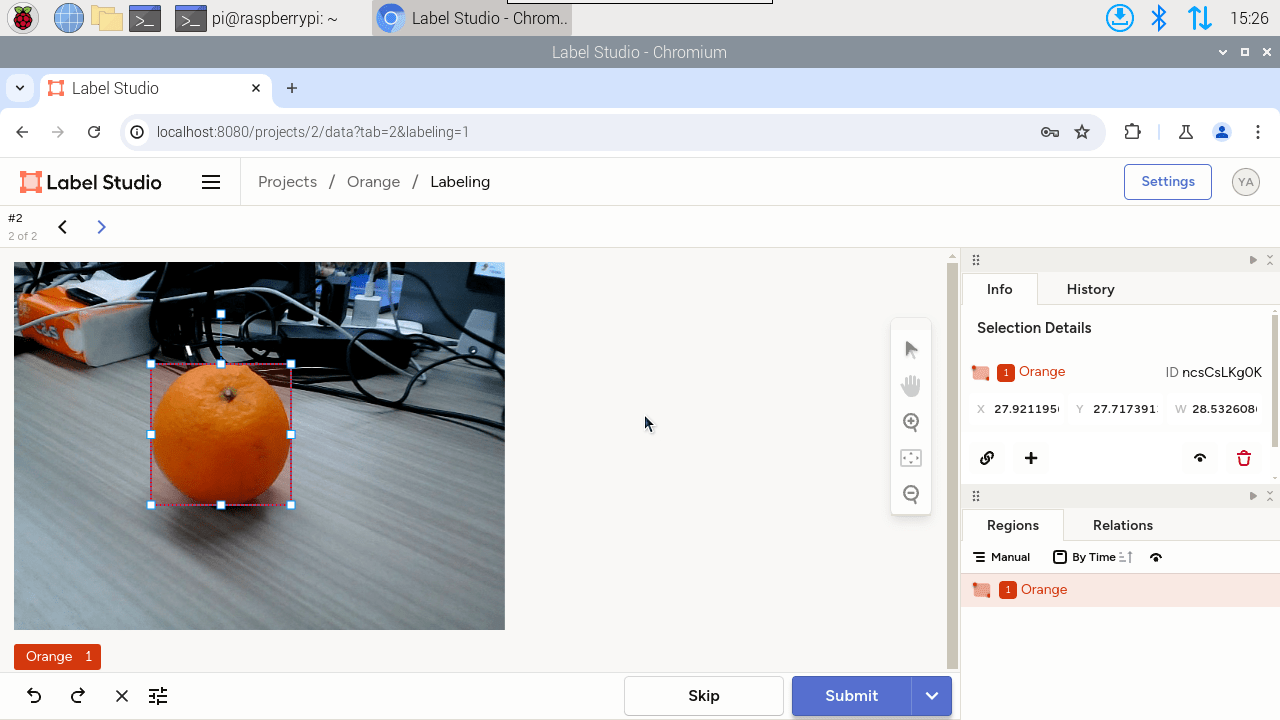
Annotation steps: first click the label "Orange", then use the mouse to draw a box around the corresponding orange in the image; when finished, click Submit to move on to the next image
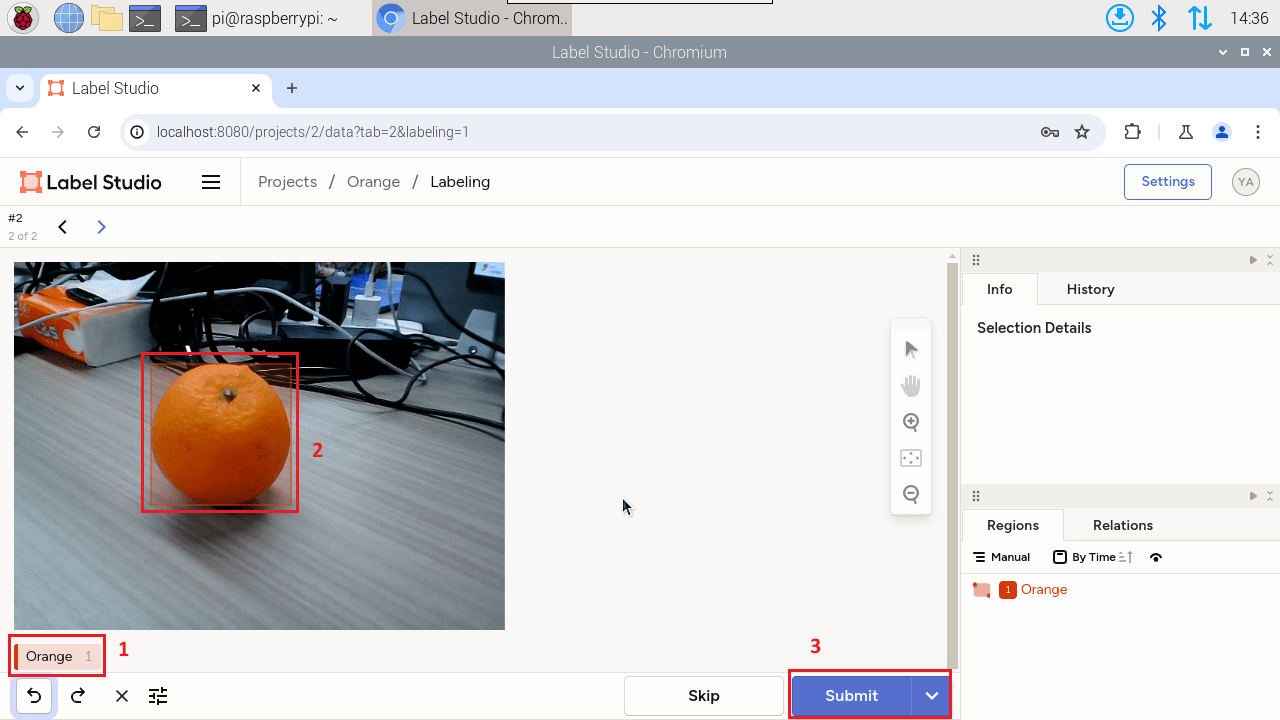
If the boxed object is not a complete orange, you can click the drawn box and readjust the position of each side:
3.6. Exporting the Dataset
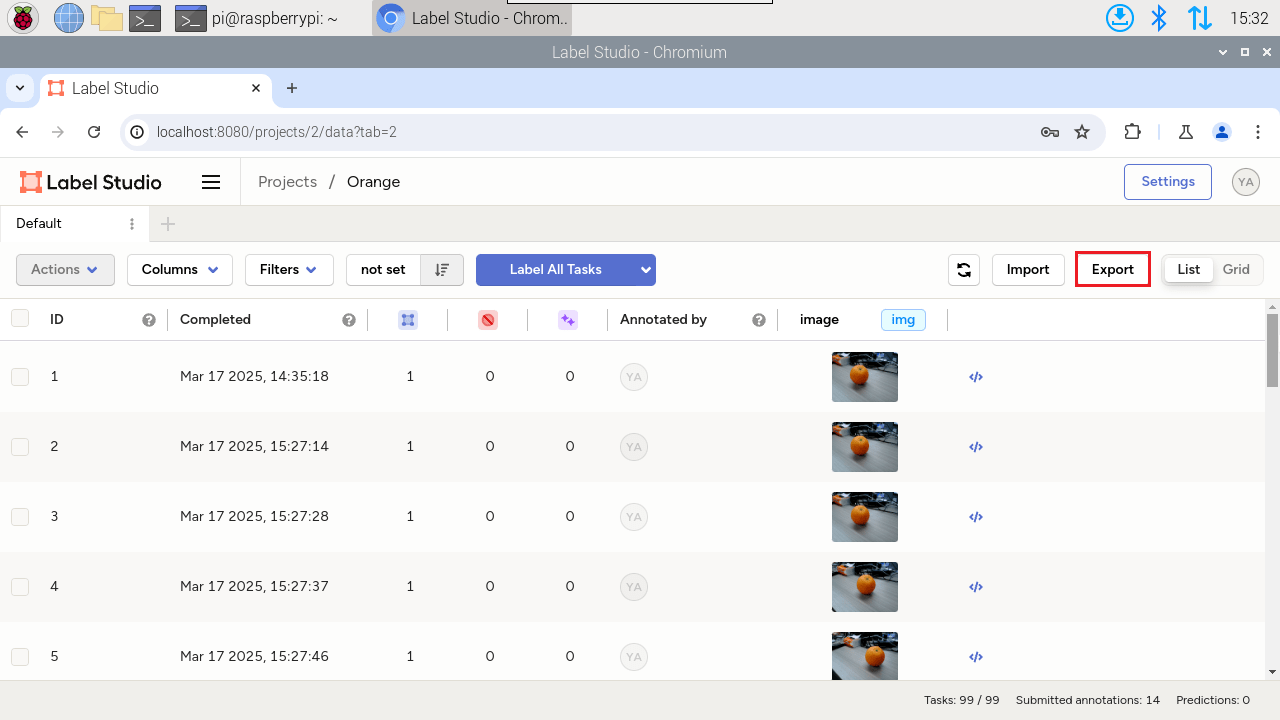
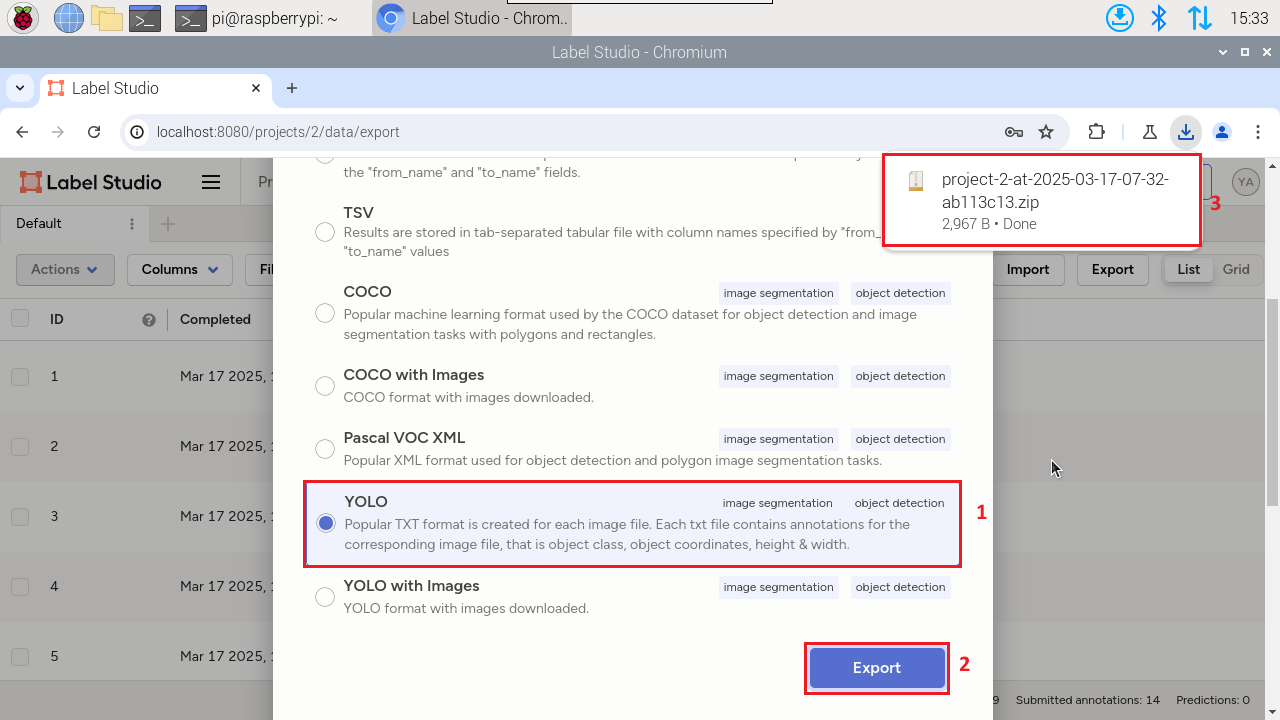
Choose the YOLO format for export, and the browser will automatically download a compressed package
3.7. Dataset Directory Structure
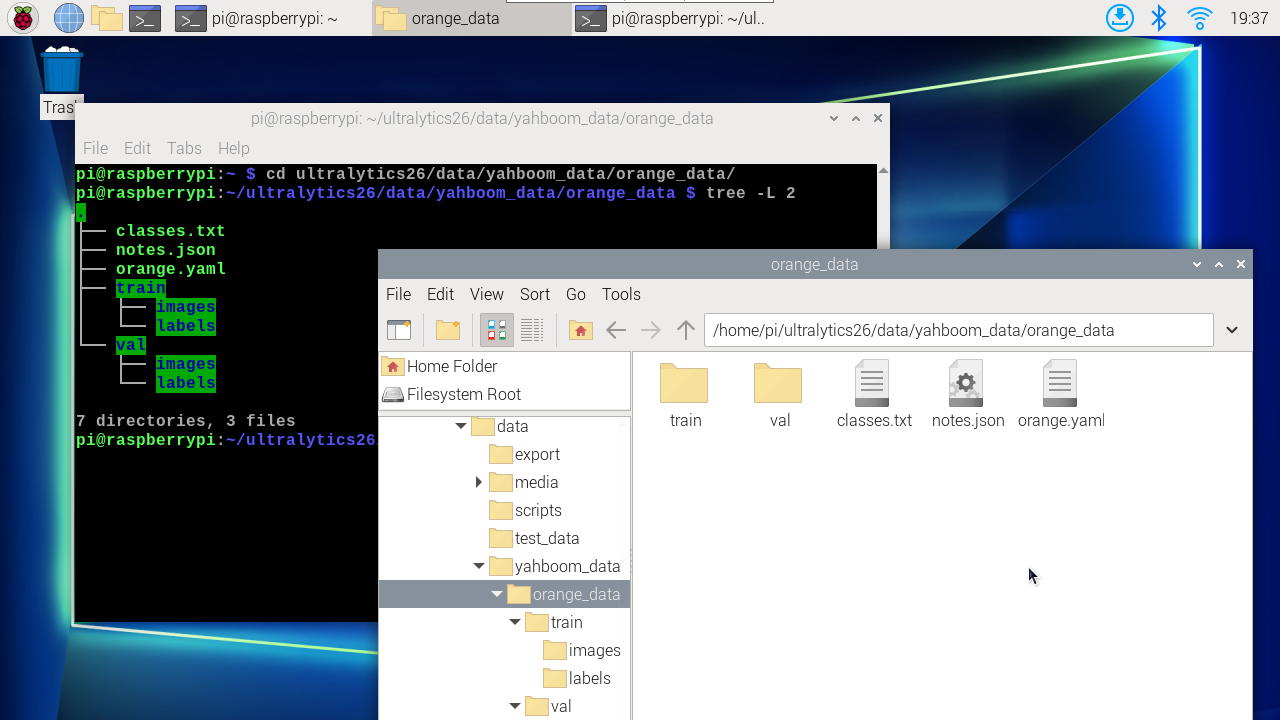
The directory structure of the compressed package exported by Label Studio:
xxxxxxxxxx.├── images├── labels├── classes.txt└── notes.json
We need to split the images and labels exported by Label Studio into train (training set) and val (validation set), with a ratio of about 8:2: the images and labels inside train and val must correspond one-to-one by name.
xxxxxxxxxx.├── classes.txt├── notes.json├── train│ ├── images│ └── labels└── val├── images└── labels
3.8. Dataset Configuration File
Contains the paths to the training set and validation set, as well as the number and names of the classes.
xxxxxxxxxxpath: /home/jetson/ultralytics_yolo26/data/yahboom_data/orange_data/train: train/imagesval: val/imagesnc: 1# Classesnames:0: Orange