Welcome to Jetson Orin NANO Developer Kit repository
03.Vehicle brand classification
TAO VehicleMakeNet Vehicle Brand Classification
TAO VehicleMakeNet Vehicle Brand Classification1. Case Goal and Processing Flow2. Pre-Run Checks3. Starting Detection4. USB Camera Real-Time Detection4.1 Direct Run4.2 Common Parameters5. CSI Camera Real-Time Detection5.1 Direct Run5.2 Common Parameters6. Common Issues
Applicable environment: Jetson Orin Nano, JetPack 7.2.1, DeepStream 9.1
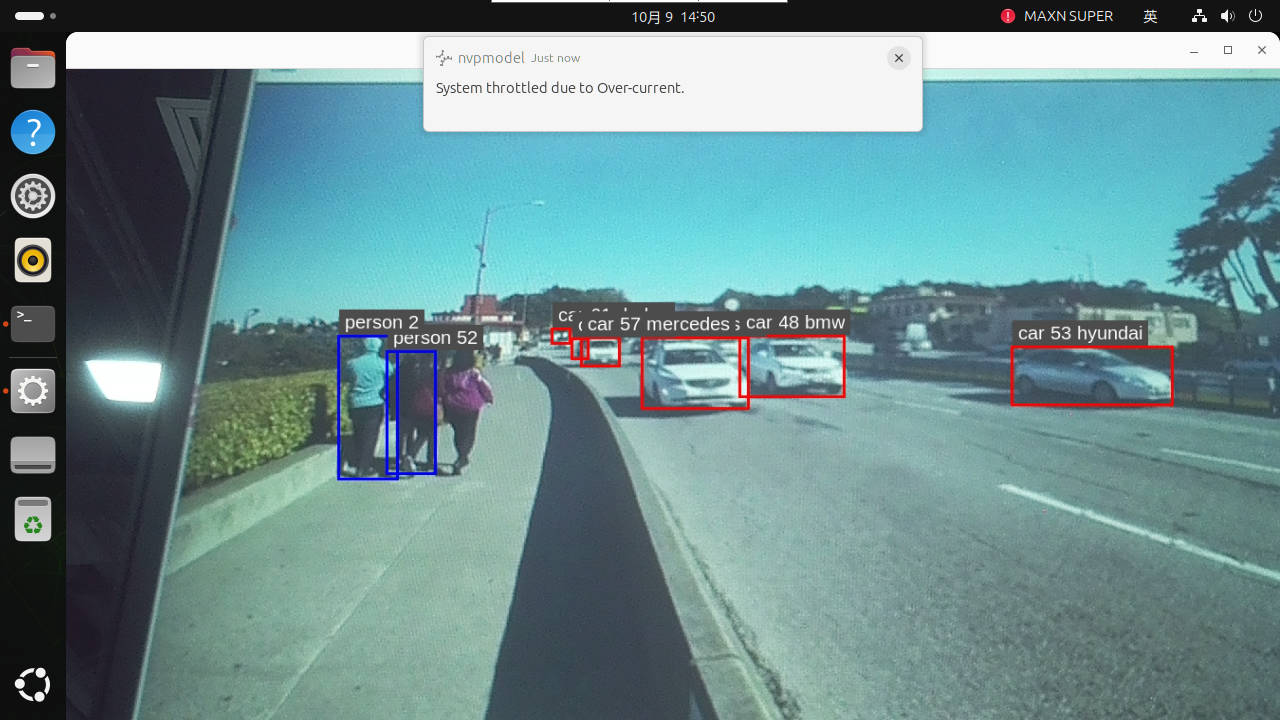
After setting the power mode to MAXN, running the case may pop up an over-current warning; just ignore it.
1. Case Goal and Processing Flow
VehicleMakeNet is a secondary classifier and is not responsible for locating vehicles from the full frame. TrafficCamNet first detects vehicles, DeepStream crops the vehicle regions, and then VehicleMakeNet predicts the brand class.
video/USB/CSI → TrafficCamNet vehicle detection → crop/resize → VehicleMakeNet brand classification → preview/video outputWithout vehicle boxes from the preceding stage, no brand results will appear; the class coverage is also limited by the training set.
2. Pre-Run Checks
xxxxxxxxxxcd ~/DeepStream/tao-toolkit-shell-demols -lh video_in/sample_1080p_h265.mp4ls -ld video_outConfirm the material and output directory are available. USB/CSI real-time modes must run in a Jetson graphical session, and the camera should be connected in advance.
3. Starting Detection
Run brand classification only:
xxxxxxxxxx./run_video.sh vehicle --make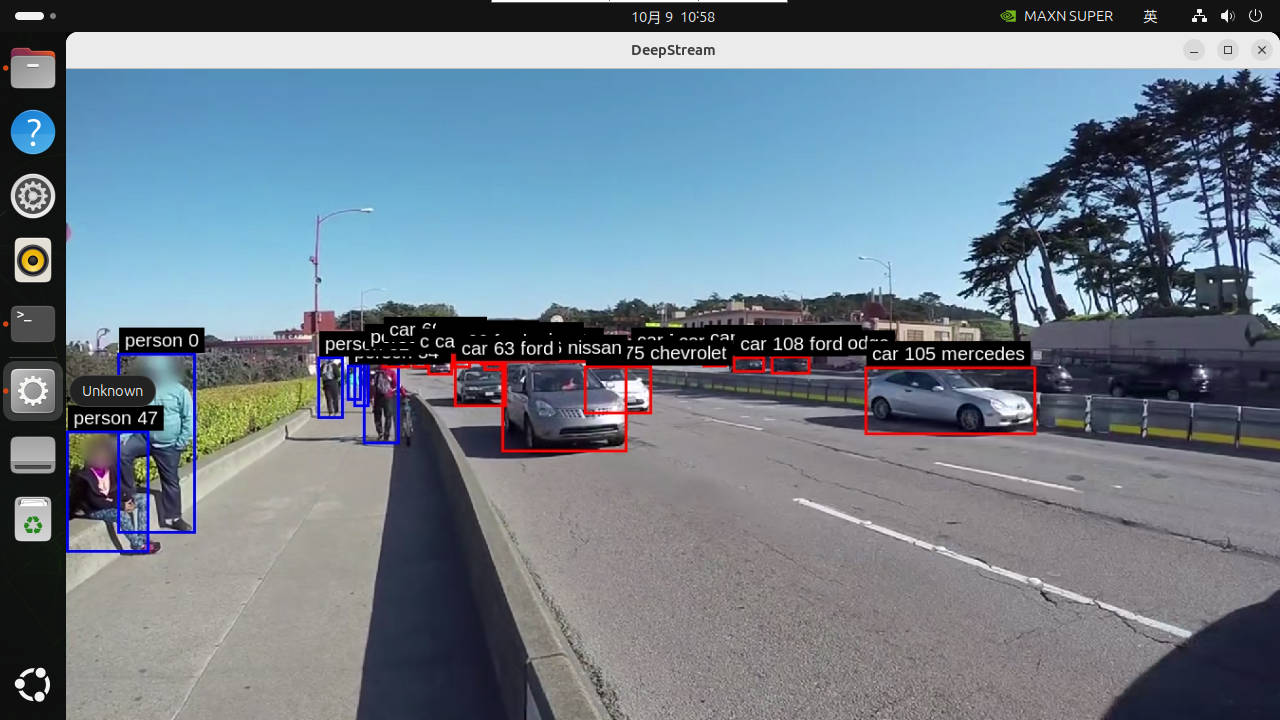
Input video_in/sample_1080p_h265.mp4, output video_out/out_vehicle_make.mp4. The default command ./run_video.sh vehicle runs both brand and vehicle model classification, outputting video_out/out_vehicle.mp4.
Replacing the test video: replace the material according to the input file referenced by the vehicle case configuration, or check the configuration on the Jetson and modify the input source. Use gst-discoverer-1.0 to confirm the new video can be decoded. Keep the original video first; when you need to keep old outputs, rename the target MP4 first.
4. USB Camera Real-Time Detection
4.1 Direct Run
The USB entry supports Vehicle single-item classification. After checking the device, start in a graphical session:
xxxxxxxxxxls -l /dev/video*cd ~/DeepStream/tao-toolkit-shell-demo./run_usb.sh vehicle --makeIn the live frame, the vehicle boxes come from TrafficCamNet and the brand labels come from the secondary classifier. USB mode is for preview and does not produce the above offline MP4.
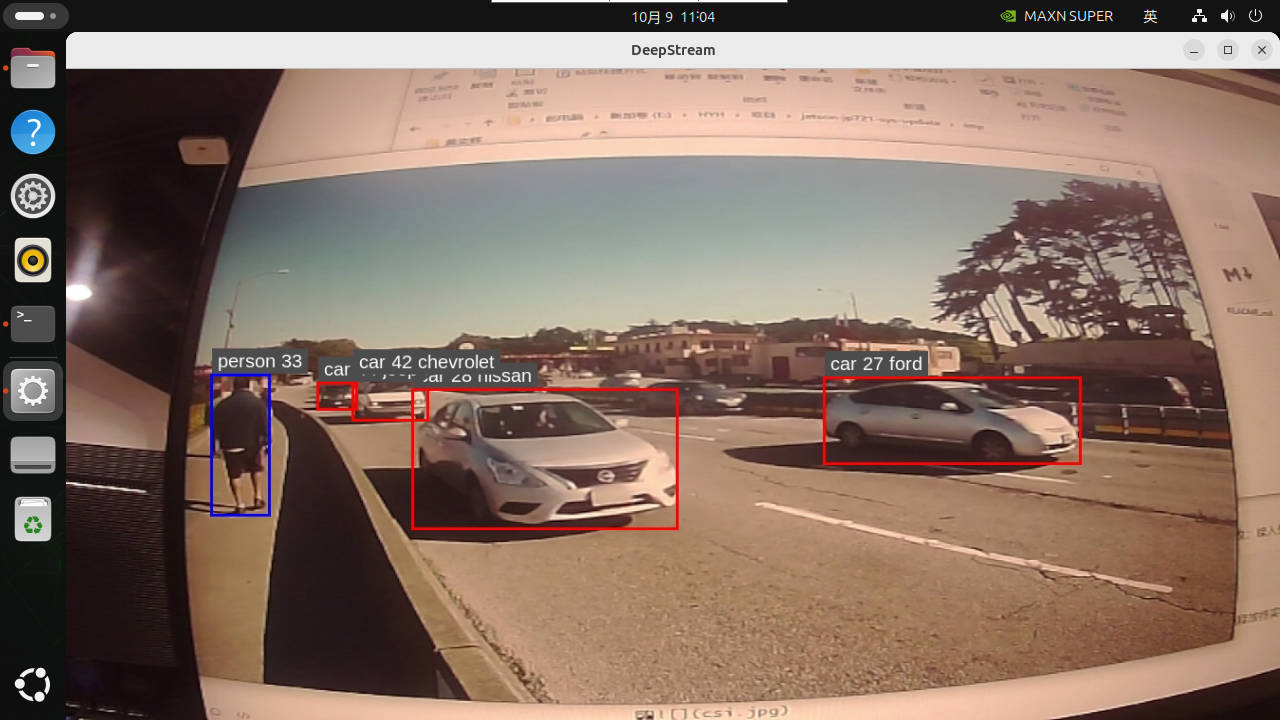
Press Ctrl+C once and wait for App run successful, then confirm the camera is released.
4.2 Common Parameters
Before running, you can check the formats, resolutions, and frame rates supported by the camera:
xxxxxxxxxxv4l2-ctl -d /dev/video0 --list-formats-ext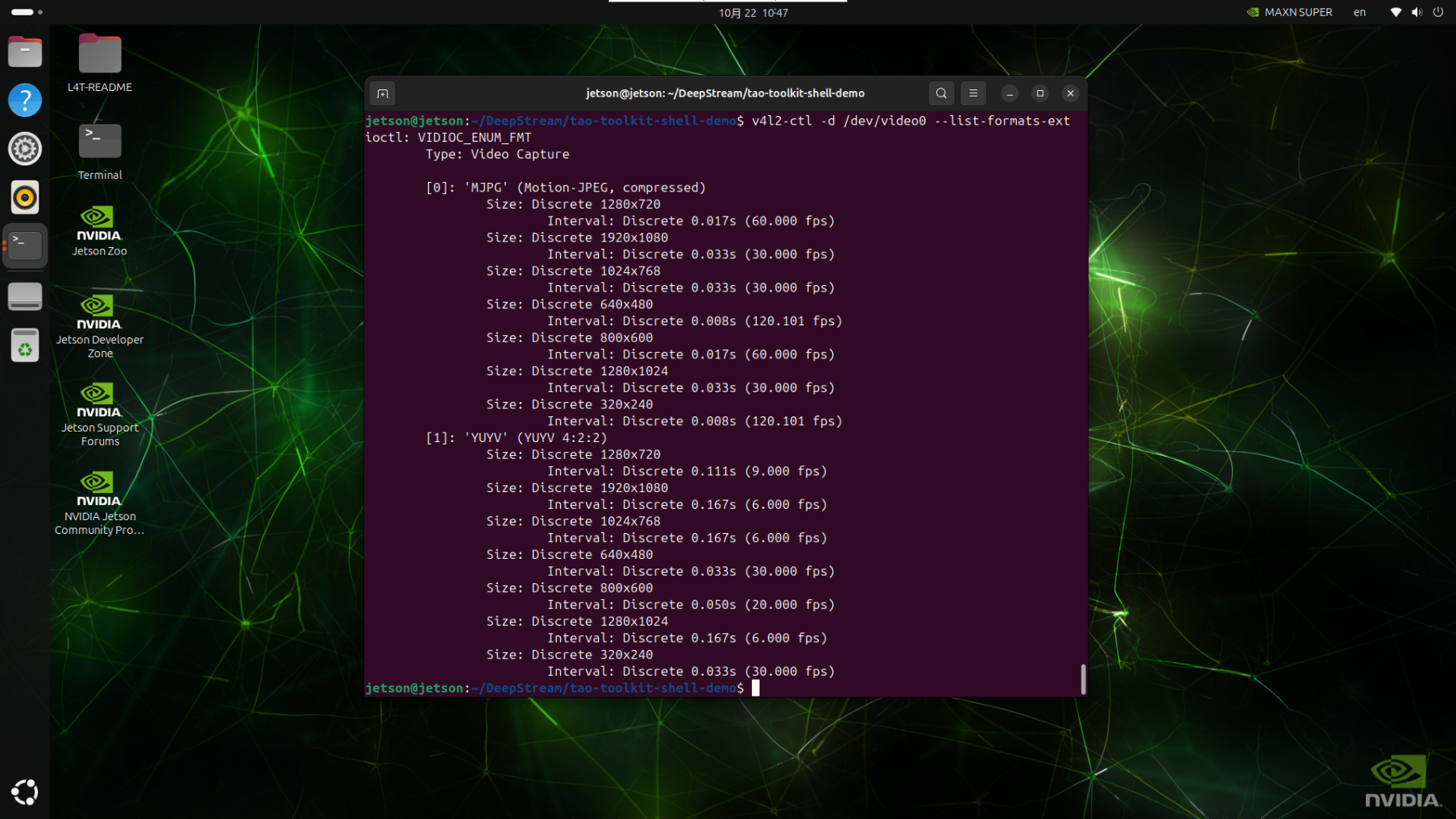
Note: the USB pipeline of Object Embedding Vector Generation is fixed to YUY2, so among the parameters below, choose the YUY2 parameters
x# View all parameters./run_usb.sh vehicle --make --help
# Use another video device./run_usb.sh vehicle --make --device /dev/video1
# Choose from the configurations found above that the camera supports; here we use 1280×720, 9FPS./run_usb.sh vehicle --make --width 1280 --height 720 --fps 95. CSI Camera Real-Time Detection
5.1 Direct Run
The CSI entry supports live preview. Connect a compatible camera, confirm the driver and Argus service are working, then run the corresponding command in a Jetson desktop/VNC graphical terminal:
xxxxxxxxxxcd ~/DeepStream/tao-toolkit-shell-demo./run_csi.sh vehicle --makeCSI mode supports live preview and does not generate offline video output. To stop, press Ctrl+C once and wait for the program to release the camera.
5.2 Common Parameters
Before running, you can check the formats, resolutions, and frame rates supported by the camera; this must be run in a graphical interface:
xxxxxxxxxxgst-launch-1.0 nvarguscamerasrc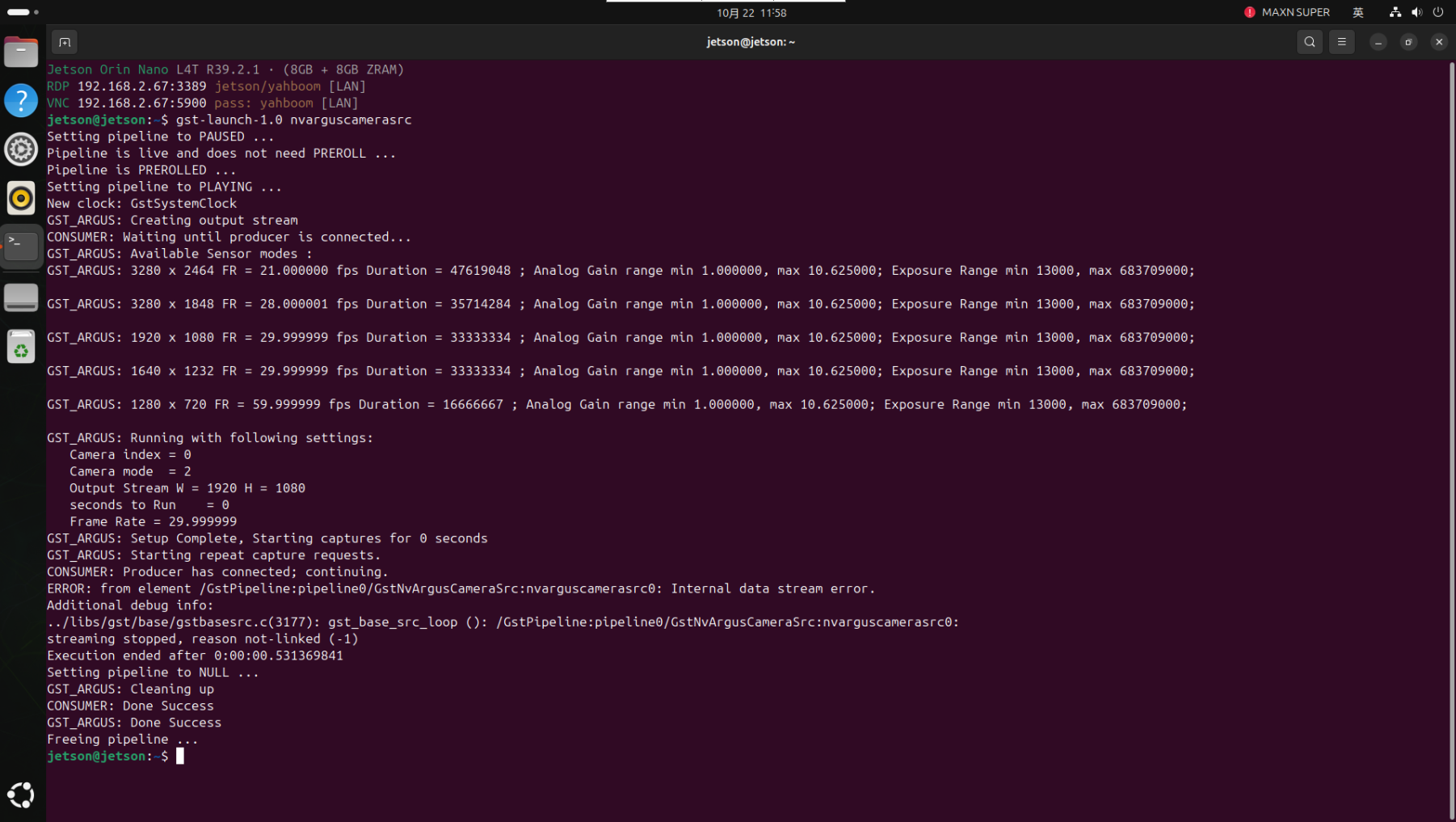
xxxxxxxxxx# View all parameters./run_csi.sh vehicle --make --help
# Use the second CSI camera./run_csi.sh vehicle --make --sensor-id 1
# Adjust input size and frame rate./run_csi.sh vehicle --make --width 1920 --height 1080 --fps 30
6. Common Issues
| Symptom | Check and Handling |
|---|---|
| Vehicle boxes but no brand | First check whether TrafficCamNet hits vehicles, then check the VehicleMakeNet configuration, engine, and labels. |
| Brand classes inaccurate | The class set is limited; evaluate with data of the target region, vehicle models, and shooting angles, and do not judge from a single frame. |
| No USB image | Check the node, format, permissions, and device occupancy. |
| CSI cannot start | Check the compatible module connection, sensor driver, Argus service, and camera occupancy. |
| MP4 not found | Camera mode only previews; in video mode, confirm the pipeline EOS and output path. |