Welcome to Jetson Orin NANO Developer Kit repository
02.CLI use
Using the CLI
Using the CLI1. Prediction with the CLI2. CLI Syntax3. Image PredictionResult Preview4. Video Prediction5. Real-Time PredictionReferences
1. Prediction with the CLI
CLI (Command-Line Interface) is a way for users to interact with a computer or software program, where the user runs programs or performs tasks by typing text commands instead of clicking icons or buttons in a graphical user interface (GUI).
2. CLI Syntax
xyolo26 TASK MODE ARGSWhere TASK (optional) is one of [detect, segment, classify, pose, obb]MODE (required) is one of [train, val, predict, export, track, benchmark]ARGS (optional) are any number of custom 'arg=value' pairs like 'imgsz=320' that override defaults.
3. Image Prediction
Use yolo26n.pt to predict the images in the YOLO26 project. Models are stored uniformly in /home/jetson/ultralytics_yolo26/models, and yolo26 resolves the model path automatically.
Enter the project folder:
xxxxxxxxxxcd /home/jetson/ultralytics_yolo26
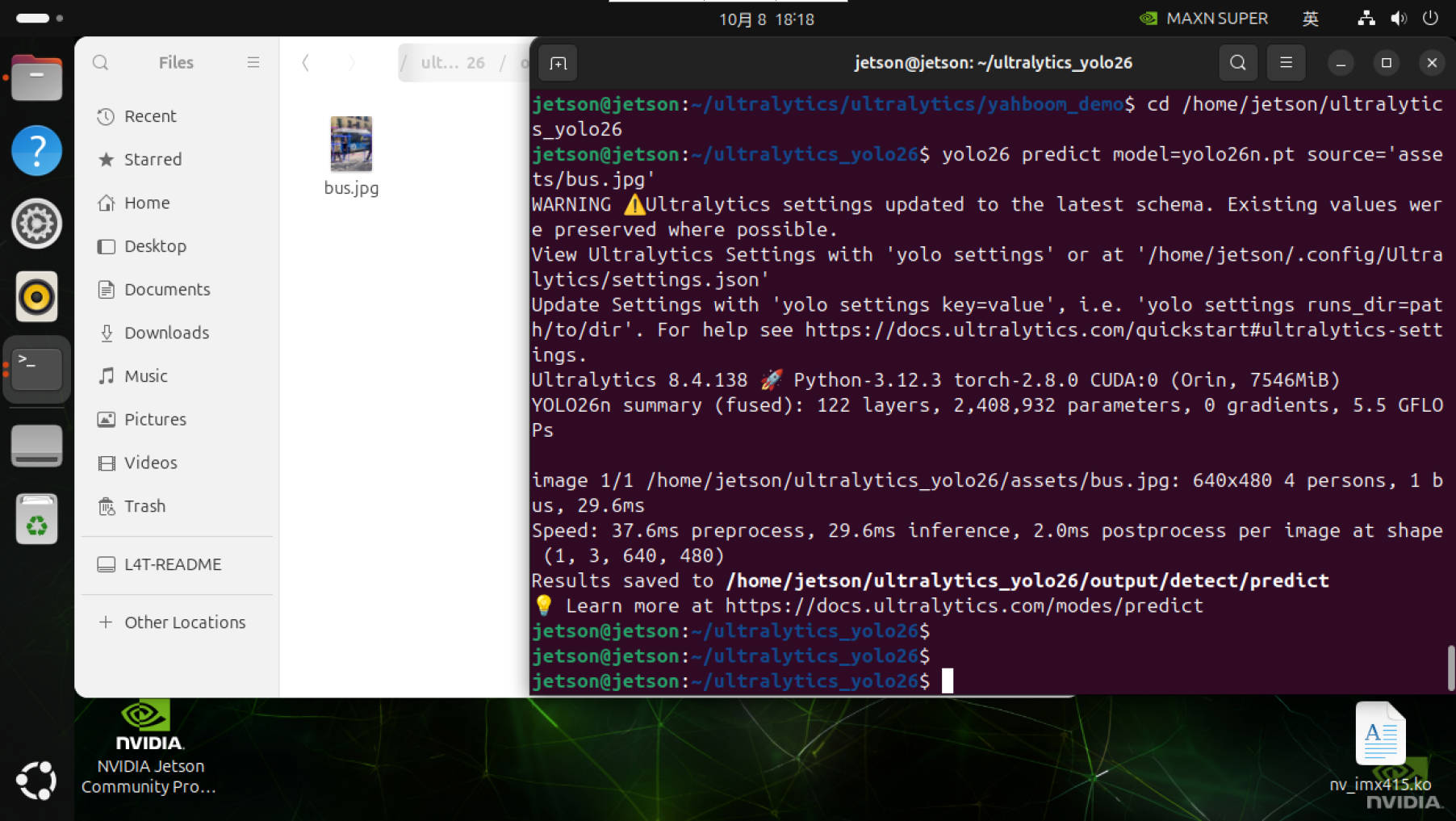
Use yolo26n.pt to detect the images in the target folder and output the results:
xxxxxxxxxxyolo26 predict model=yolo26n.pt source='assets/bus.jpg'
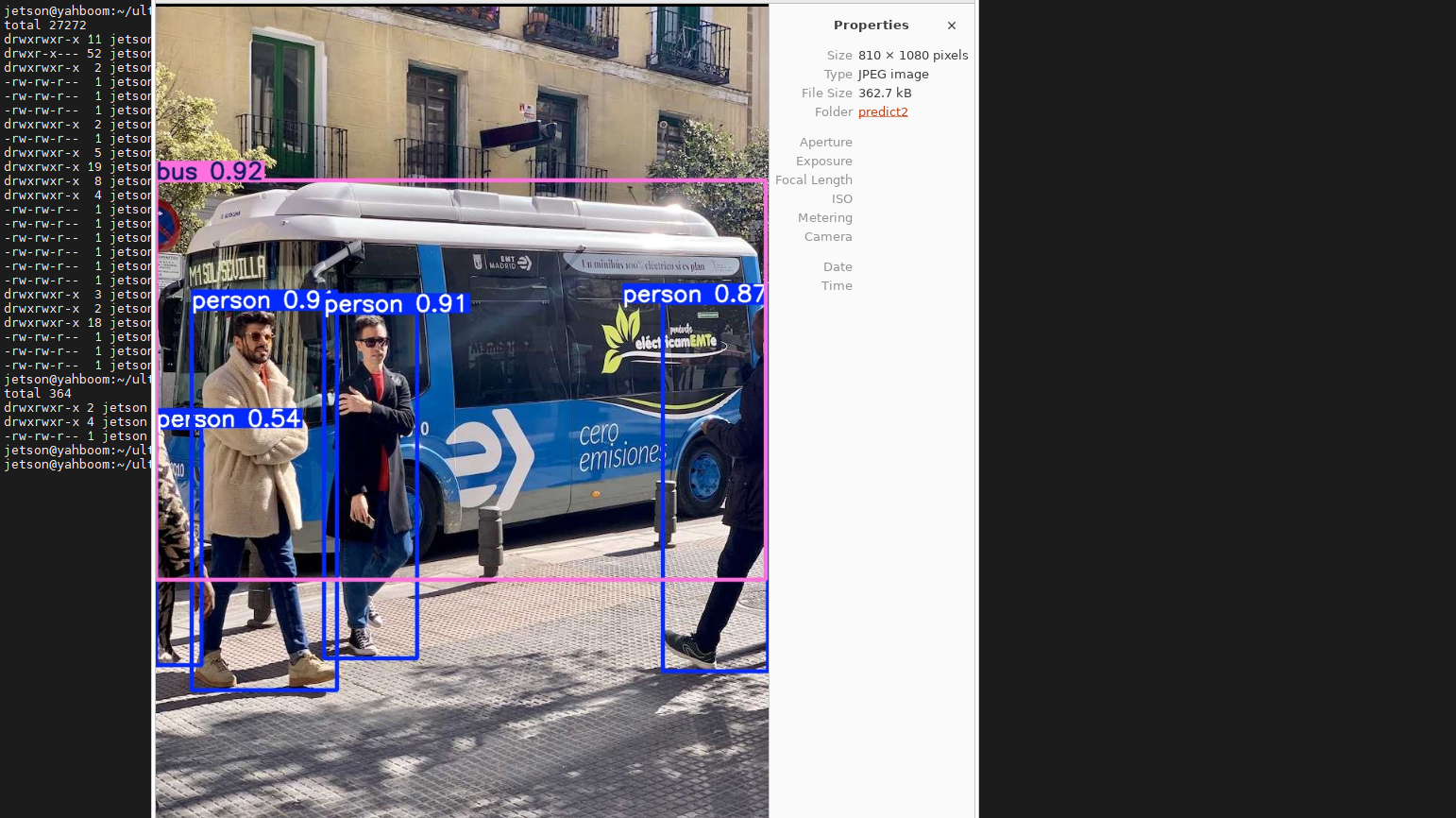
Result Preview
The location of the images output by yolo recognition: /home/jetson/ultralytics_yolo26/output/detect/predict
When the directory already exists, predict automatically increments to predict2, predict3, and so on.
4. Video Prediction
Use yolo26n.engine to predict the video in the project:
Enter the project folder:
xxxxxxxxxxcd /home/jetson/ultralytics_yolo26
Use yolo26n.pt to detect the target video and output the results:
Here we switch to yolo26n.engine, which is the TensorRT model we converted in the previous section; on Jetson it runs better than yolo26n.pt
xxxxxxxxxxyolo26 predict model=yolo26n.engine source='/home/jetson/ultralytics_yolo26/videos/car.mp4'
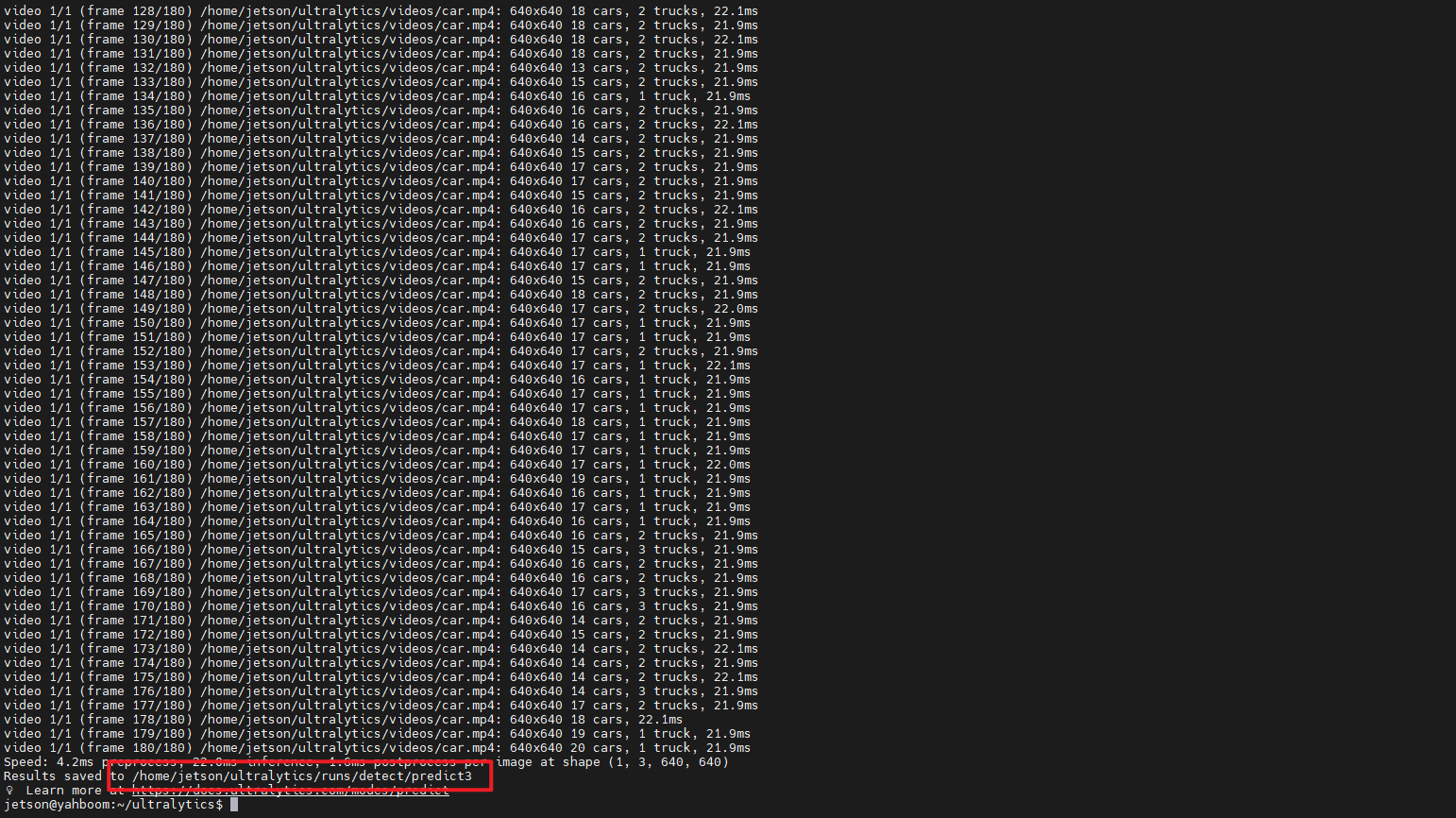
To view the video you can use ffmpeg; if you do not have ffmpeg, install it with the following command:
xxxxxxxxxxsudo apt updatesudo apt install ffmpeg -y
Play the video:
xxxxxxxxxxffplay <video_name>.avi
You can also preview with vlc:
xxxxxxxxxxvlc <video_name>.avi
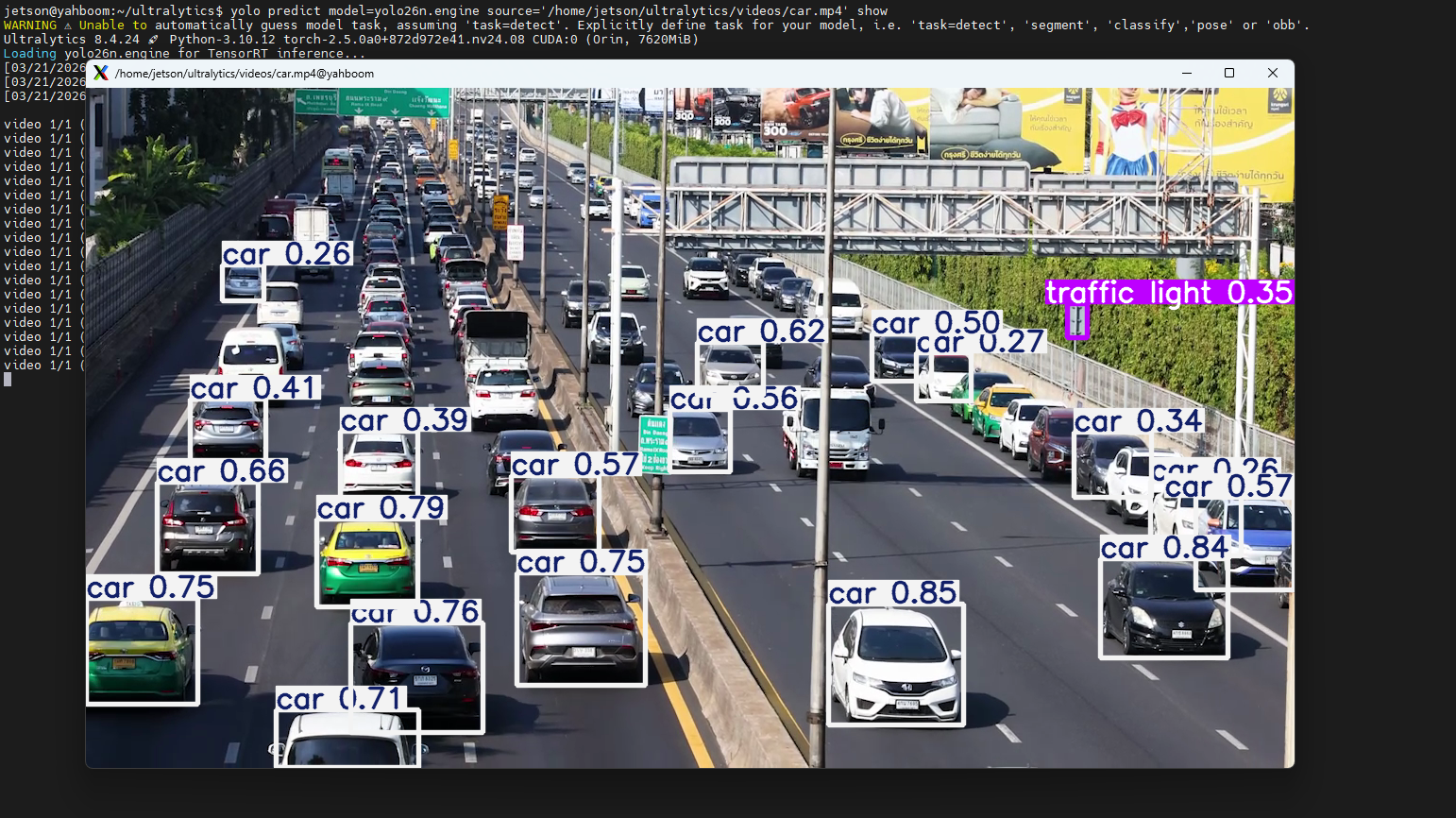
Alternatively, we can also add the show parameter to watch the video directly
xxxxxxxxxxyolo26 predict model=yolo26n.engine source='/home/jetson/ultralytics_yolo26/videos/car.mp4' show=True
5. Real-Time Prediction
Use the YOLO26 model to predict the USB camera feed:
Note that the CLI method does not support CSI cameras
Enter the project folder:
xxxxxxxxxxcd /home/jetson/ultralytics_yolo26
Use yolo26n.pt to detect the camera feed and output the results: currently only USB cameras can directly use the CLI to predict the live feed; no relevant documentation has been found for using CSI cameras directly as an input source
xxxxxxxxxxyolo26 predict model=yolo26n.engine source=0 save=False show=True# Instance segmentation: yolo26 predict model=yolo26n-seg.engine source=0 save=False show=True# Image classification: yolo26 classify predict model=yolo26n-cls.engine source=0 save=False show=True# Pose estimation: yolo26 predict model=yolo26n-pose.engine source=0 save=False show=True# Oriented object detection: yolo26 predict model=yolo26n-obb.engine source=0 save=False show=True
If you get Device '/dev/video0' is busy, the camera is being used by ROS 2 camera_csi or another program. First run sudo fuser -v /dev/video0 to find out who is occupying it, release the device, and run again; do not mistake this error for a model or TensorRT loading failure.
Click into the terminal and press the "Ctrl + C" shortcut to stop the program!
Parameter Description
model: Specifies the YOLO model
source: Specifies the recognition source: with multiple cameras, switch the number
save=False: Disables saving results
show=True: Displays in real time