Welcome to Jetson Orin NANO Developer Kit repository
02.USB camera preview
USB Camera Preview
USB Camera Preview1. Check the Video Device2. GUVCView2.1. GUVCView Installation2.2. GUVCView Usage3. VLC3.1. VLC Installation3.2. VLC Usage
1. Check the Video Device
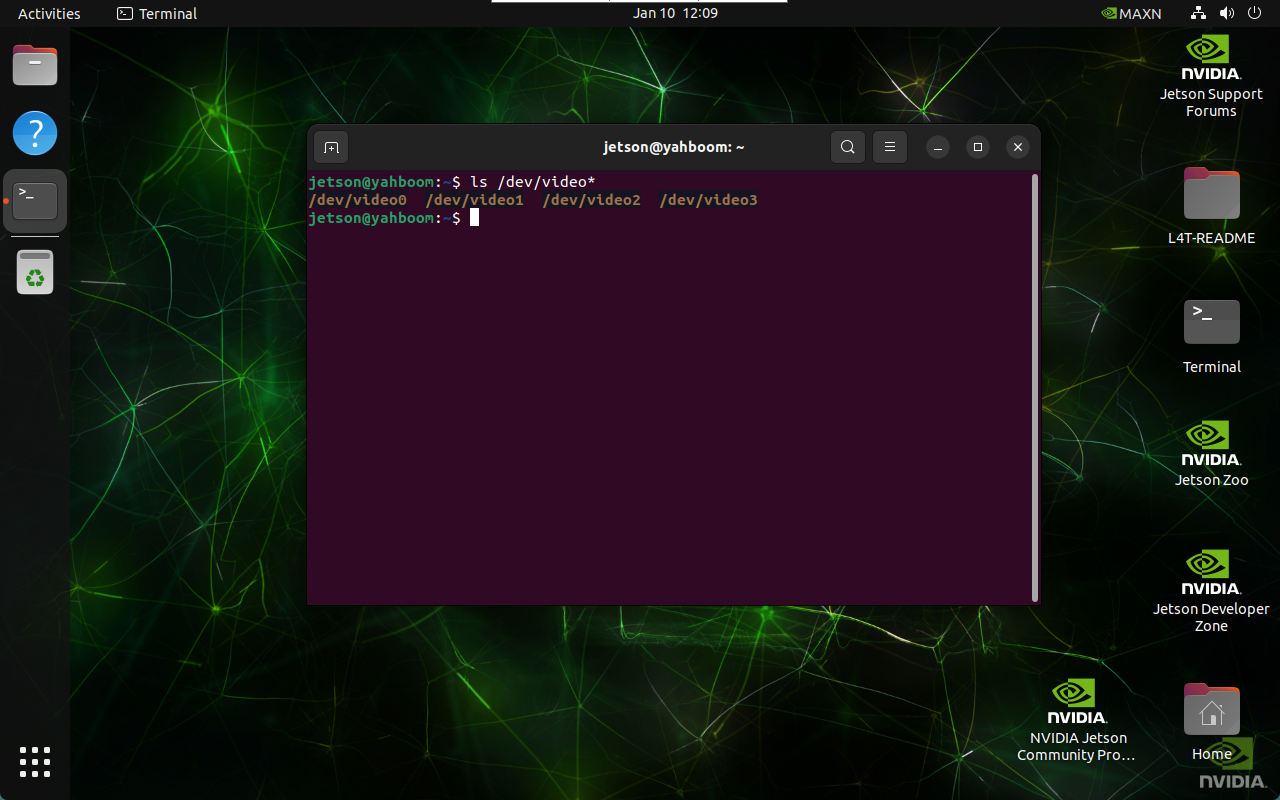
ls /dev/video*
The result in the picture is the result of connecting two CSI cameras and one USB camera: generally, one CSI camera displays one video device, and one USB camera displays two video devices. For the USB camera, select the newly added /dev/video2, which has the smaller number, for calling (after the USB camera is connected, the system adds the /dev/video2 and /dev/video3 device numbers)
2. GUVCView
GUVCView is open source software for Linux systems, used to capture and record videos and images, mainly for Webcam cameras.
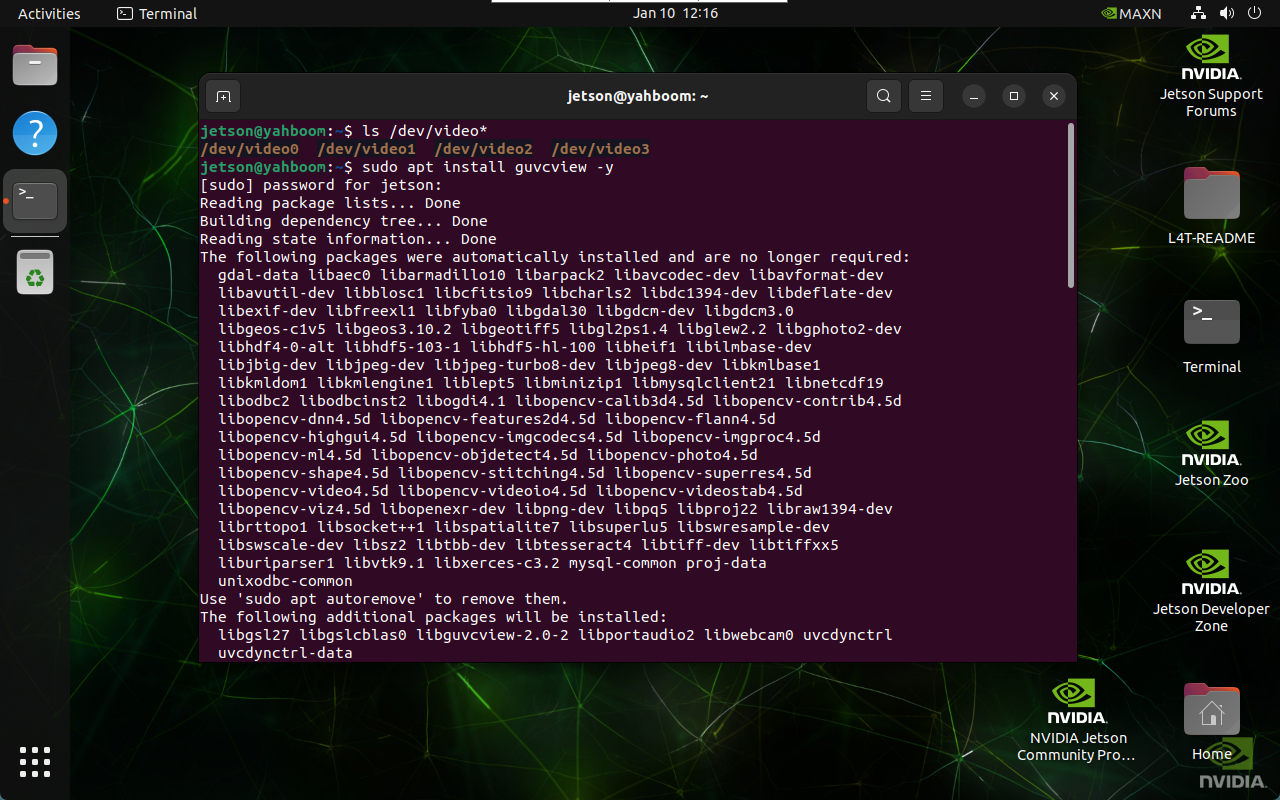
2.1. GUVCView Installation
xxxxxxxxxxsudo apt updatesudo apt install guvcview -y
2.2. GUVCView Usage
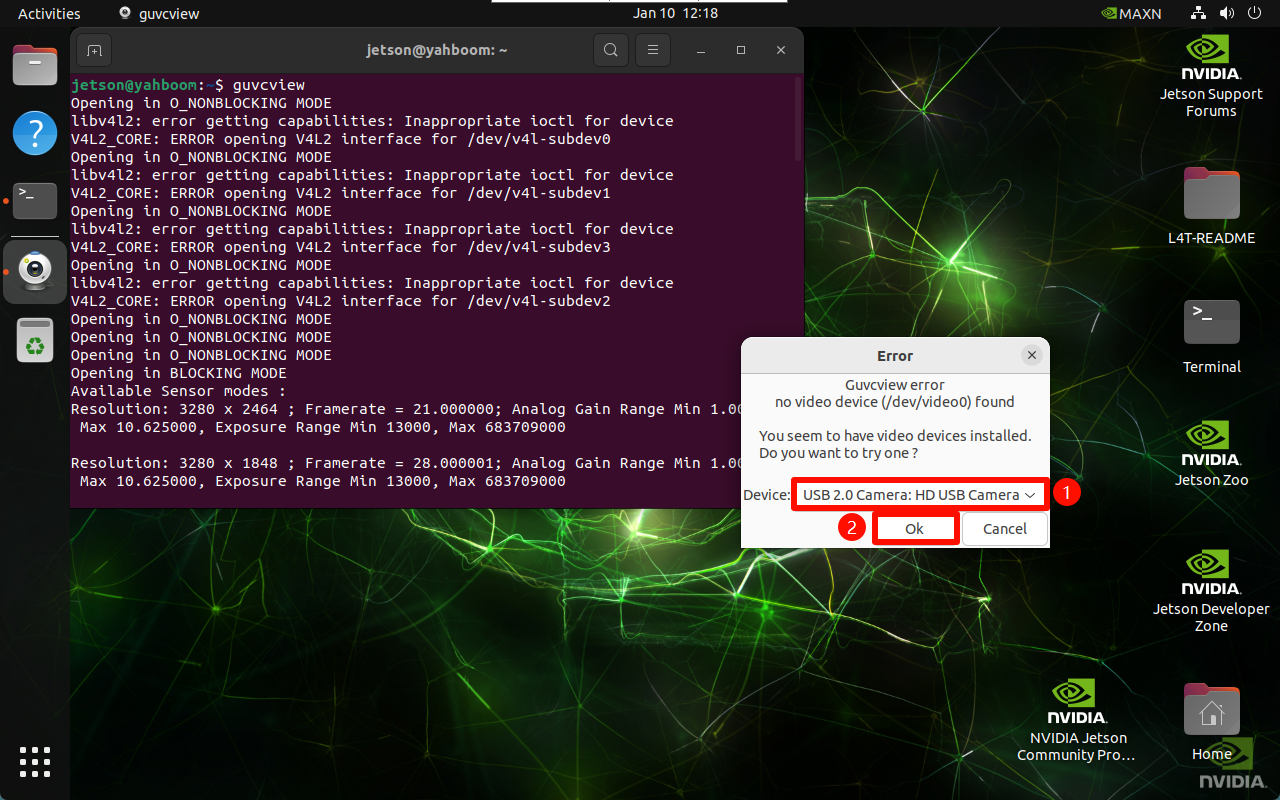
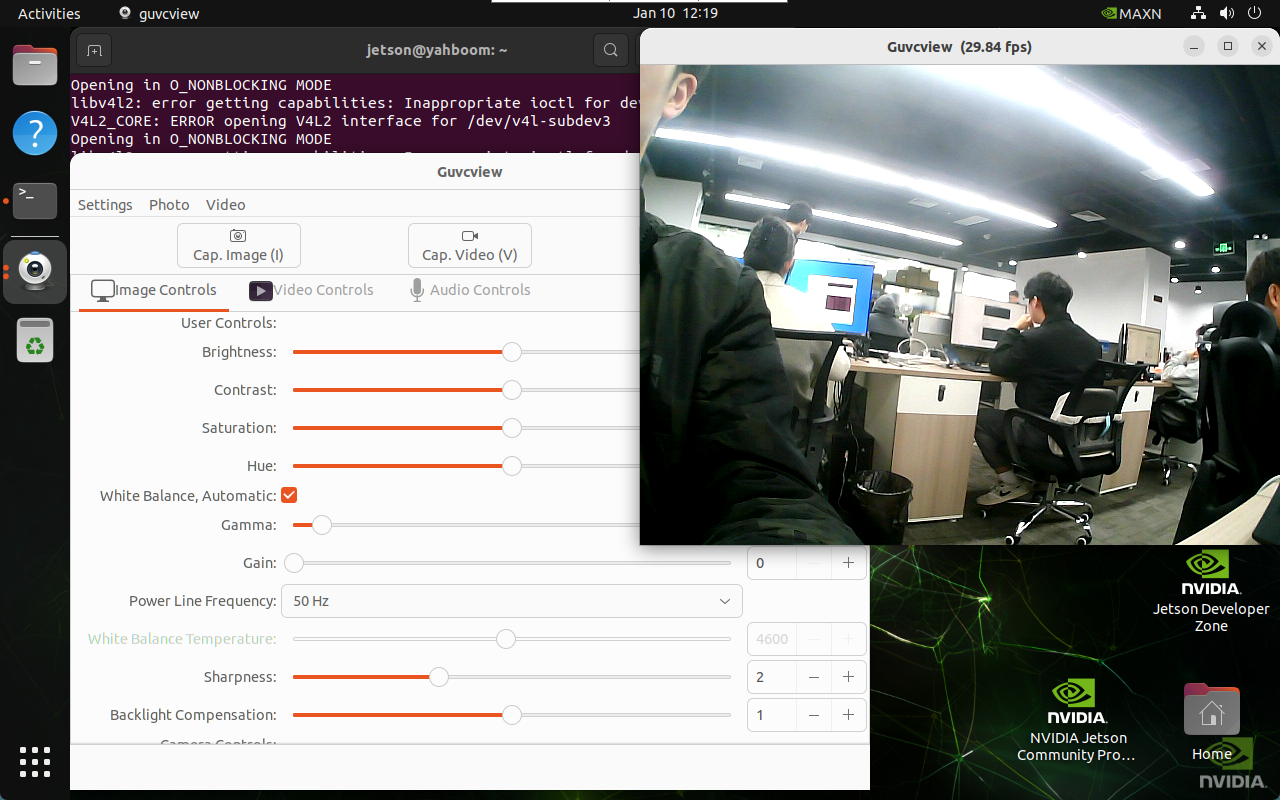
Go to the application menu bar and click the guvcview icon, or enter the start command in the terminal: select the USB camera, and the CSI camera has no preview image
xxxxxxxxxxguvcview
3. VLC
VLC media player is a free and open source multimedia player that supports various audio and video formats as well as DVD, audio CD, VCD, and various streaming protocols.
3.1. VLC Installation
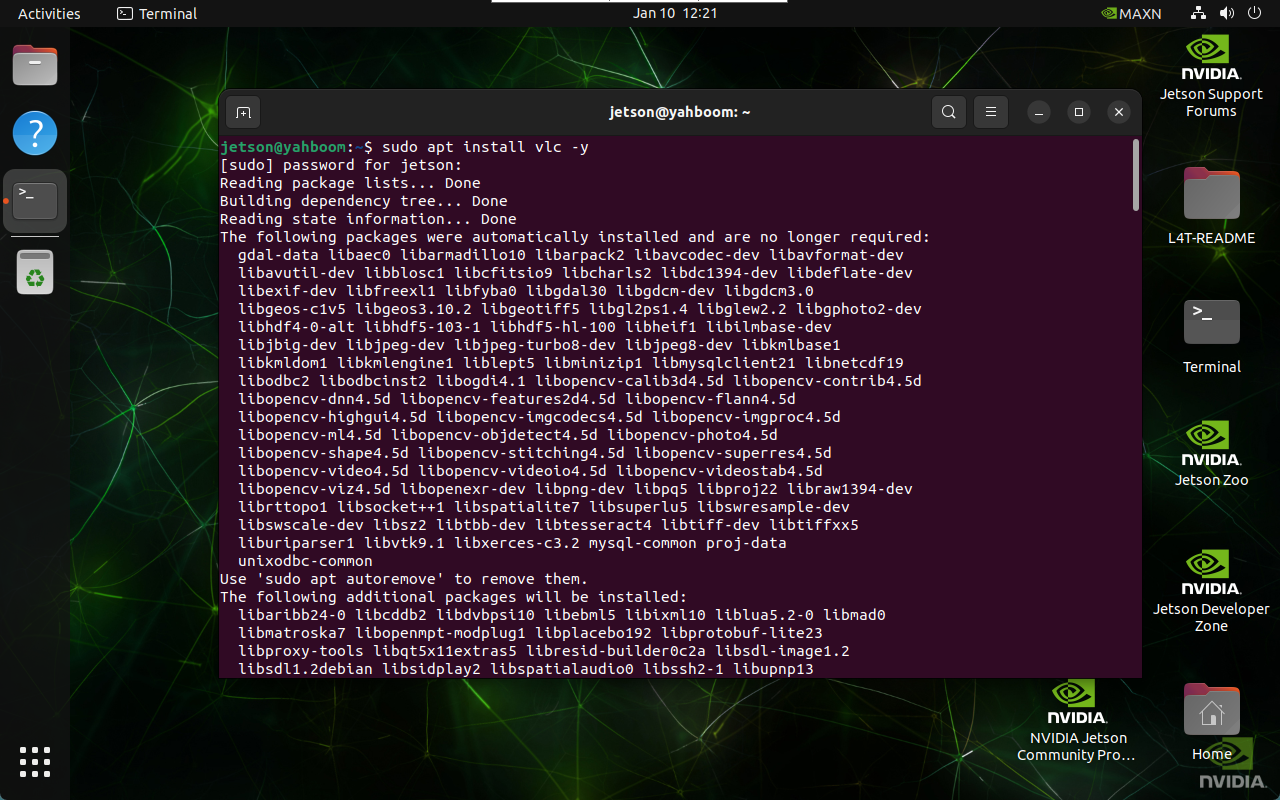
xxxxxxxxxxsudo apt updatesudo apt install vlc -y
3.2. VLC Usage
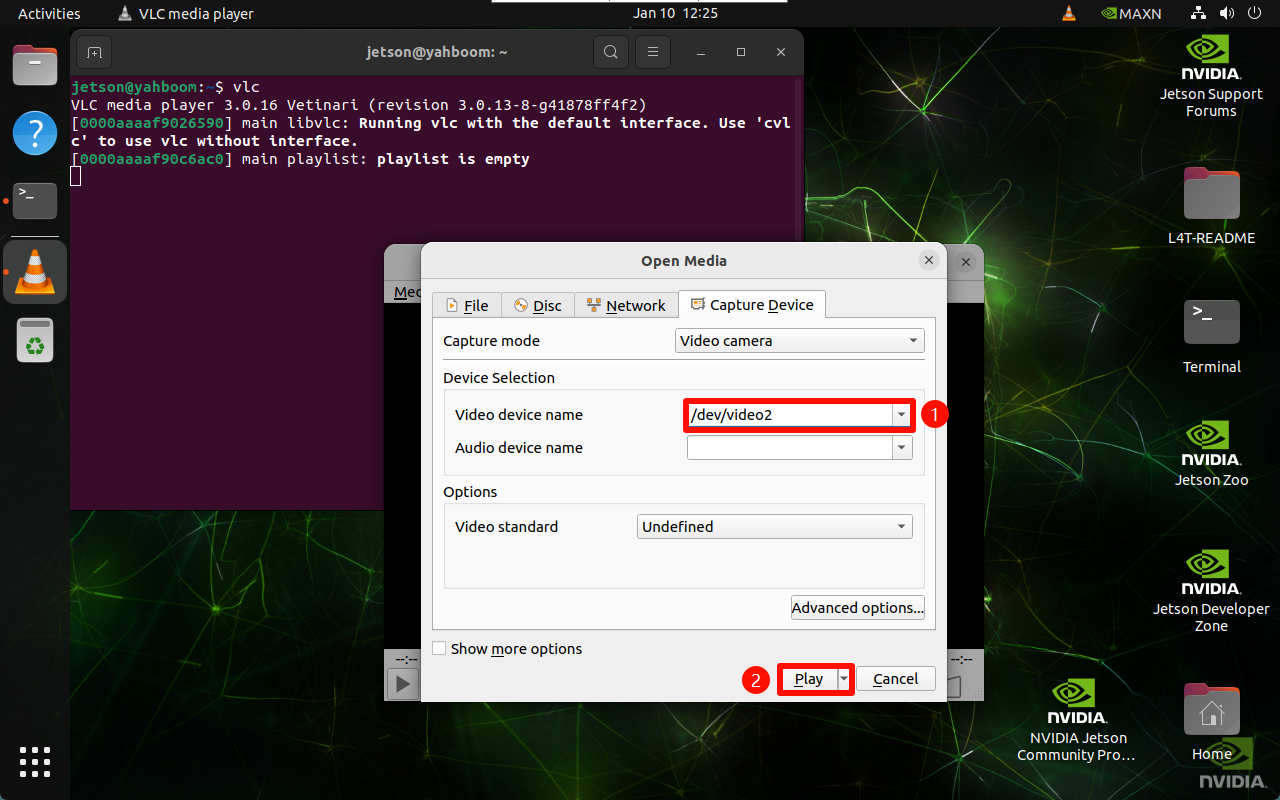
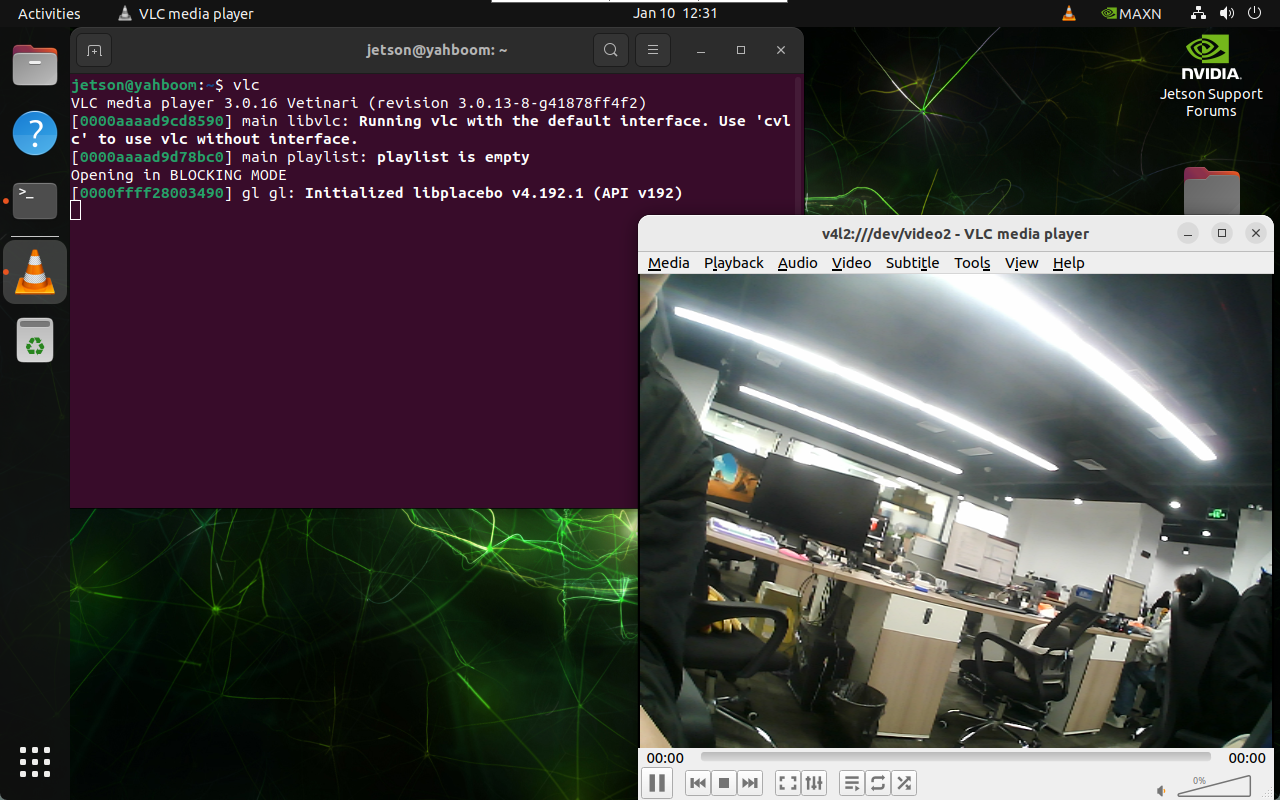
Go to the application menu bar and click the VLC media player icon, or enter the start command in the terminal: select the USB camera, and the CSI camera has no preview image
xxxxxxxxxxvlc
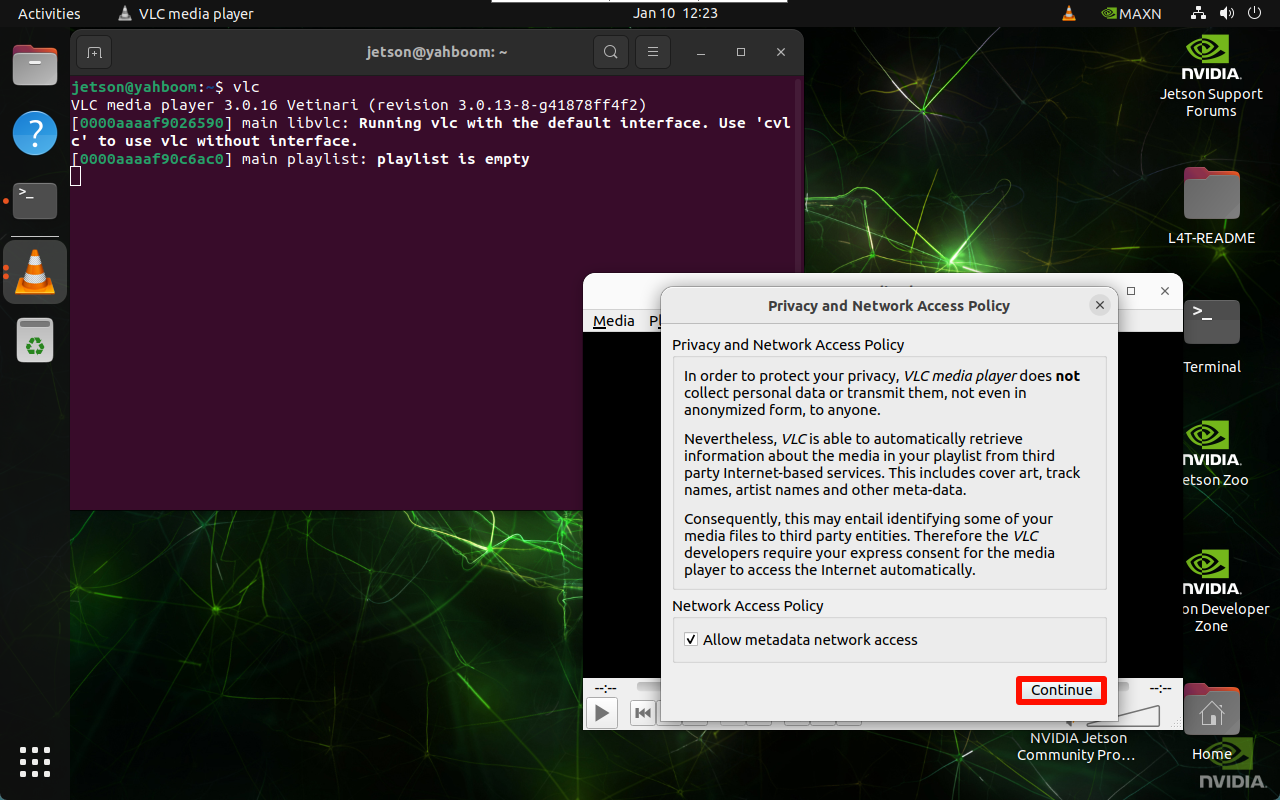

Select the device number corresponding to the USB camera: