Welcome to Jetson Orin NANO Developer Kit repository
05.OpenClaw TUI Interaction
4. OpenClaw TUI Interaction
TUI (Text User Interface) is OpenClaw's "command-line chat window". When it is inconvenient to open the web console on the Jetson, or when you are connected remotely via SSH, you can use the TUI to complete most daily interactions in the terminal: dialogue, switching models, checking status, managing sessions, invoking skills, and so on.
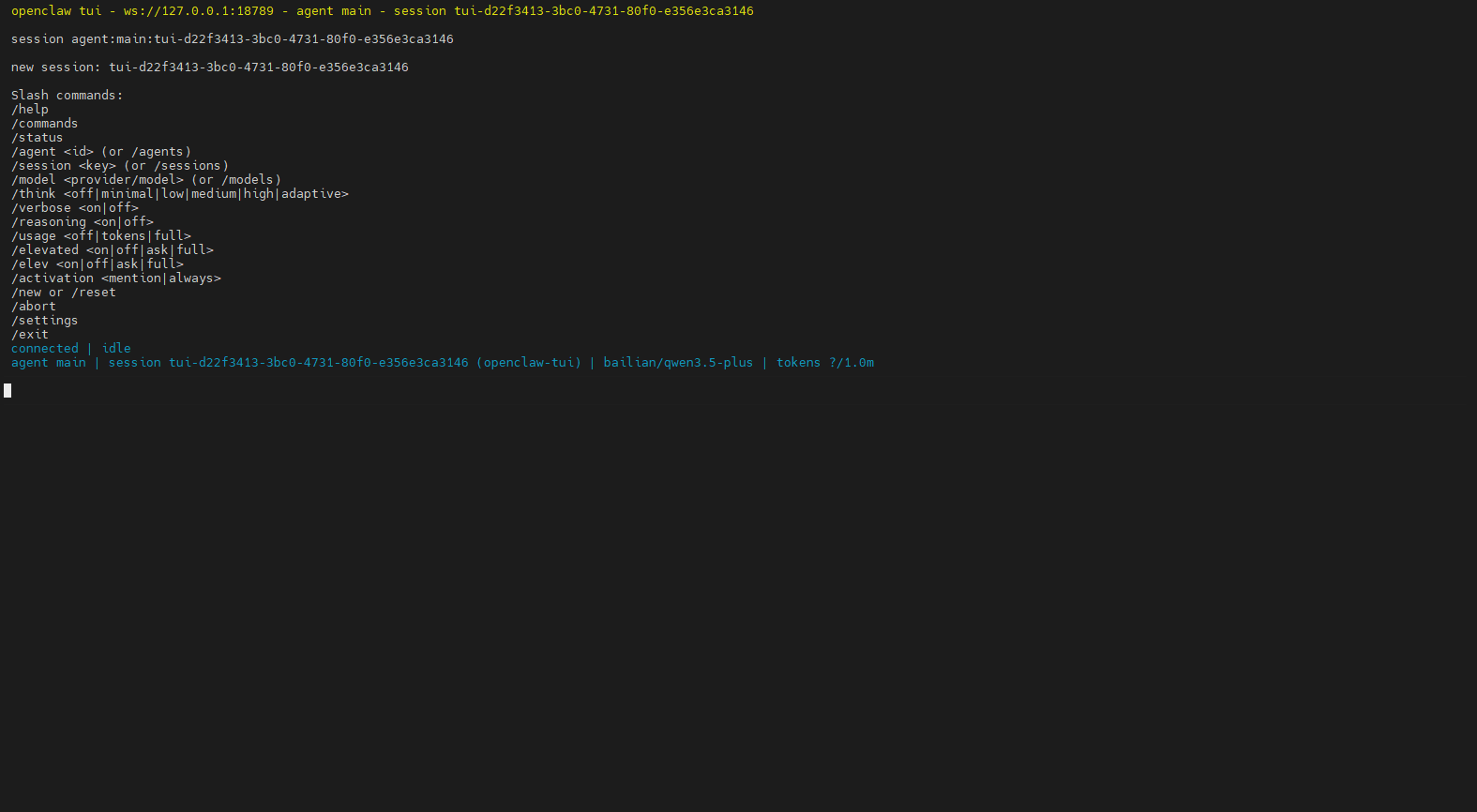
1. How to Enter the TUI
Execute the following in the terminal:
openclaw tuiIf you have already started the OpenClaw gateway in another terminal (for example, the gateway/server side), you can directly execute openclaw tui to enter the interactive interface
For the non-Docker version, openclaw gateway does not need to be started manually; it starts automatically at boot
For the Docker version (such as Jetson Nano), you need to open a terminal first and run openclaw gateway manually to start the gateway
2. What the TUI Interface Is
You can think of the TUI as a "chat box with commands":
Top: dialogue history (messages you send, model replies, tool/skill output)
Bottom: input box (enter questions or send slash commands)
Sending: type the content and press Enter to send
It is recommended to do two things first when entering for the first time:
xxxxxxxxxx/status3. Slash Commands
Slash commands generally need to be sent as a separate message starting with /, and are used to control sessions and run operations.
| Command | Purpose | When to Use | Example |
|---|---|---|---|
/help | View help and the command list | You do not know which commands exist | /help |
/status | View the current status | You suspect it is not connected, or want to see context usage | /status |
/new | Start a new conversation thread (new session) | Switching topics, avoiding context interference | /new |
/reset | Reset the session (equivalent to starting over; same effect as new) | The dialogue goes off track, you want to clear the context | /reset |
/model / /models list | View/switch models | You want a faster or stronger model | /models list |
/think medium | Set the thinking depth | For daily use, low or off is recommended | /think medium |
/stop | Abort the current task | It is stuck and you want to stop immediately | /stop |
/context detail | View the context currently injected | Investigating "why it remembers/forgets something" | /context detail |
/compact | Compress earlier history into a summary | The dialogue is too long and the context is nearly full | /compact |
/skill <name> | Run a certain skill | You know the skill name and want to run it directly | /skill web_search |
Two additional "everyday usage" suggestions:
Write only one slash command per message; this is the most reliable
To browse all commands quickly, use
/helpor/commands
4. Session and Memory
In OpenClaw, these two concepts have a clear division of labor:
Session: manages "how far this conversation has progressed". When you use
/newor/resetin the TUI, you are essentially switching/restarting the session.Memory: manages "content that should be retained long-term across sessions". It is written to disk (Markdown) and retrieved back into the current session when needed.
4.1 Where Session Files Are Located
Sessions are saved to disk in JSONL form. Common locations (subject to the actual installation path):
Index:
~/.openclaw/agents/<agentId>/sessions/sessions.jsonTranscript:
~/.openclaw/agents/<agentId>/sessions/<SessionId>.jsonl
For actual troubleshooting, the easier approach is to execute the following first:
xxxxxxxxxxopenclaw statusIt usually provides the store path and information about recent sessions.
4.2 How Memory Is "Put to Use"
You can think of Memory as "letting the robot write notes":
memory/YYYY-MM-DD.md: a daily record of the process, suitable for recording progress and temporary decisionsMEMORY.md: long-term stable information (preferences, fixed rules, project constraints, etc.)
Practical suggestions:
To make a conclusion usable across sessions: simply say to the robot "write this into MEMORY.md"
Before using
/newto switch to a new topic: first use/compactor write the key decisions into Memory, then switch the session
5. Quick Start Workflow
Enter the TUI:
openclaw tuiConfirm the status:
/statusSelect a model:
/models list→/model <number or name>Daily dialogue: directly enter a question and press Enter
Switch topics:
/newContext too long:
/compactKey conclusions to keep long-term: have the robot write them into Memory
6. Common Troubleshooting
6.1 No Response After Entering a Command
Make sure the command is sent as a separate line (do not mix it with ordinary text)
First use
/helpto see which commands the current version supports
6.2 It Starts Talking Nonsense, Does Not Understand You, or Is Disturbed by History
Start a new session:
/newor/resetSee what has been injected into the context:
/context detail
6.3 Responses Are Getting Slower
Lower the thinking depth:
/think lowor/think minimalCompress the history:
/compact