Welcome to Jetson Orin NANO Developer Kit repository
9.ROS2 action communication
9. ROS 2 Action Communication
1. Introduction to Action Communication
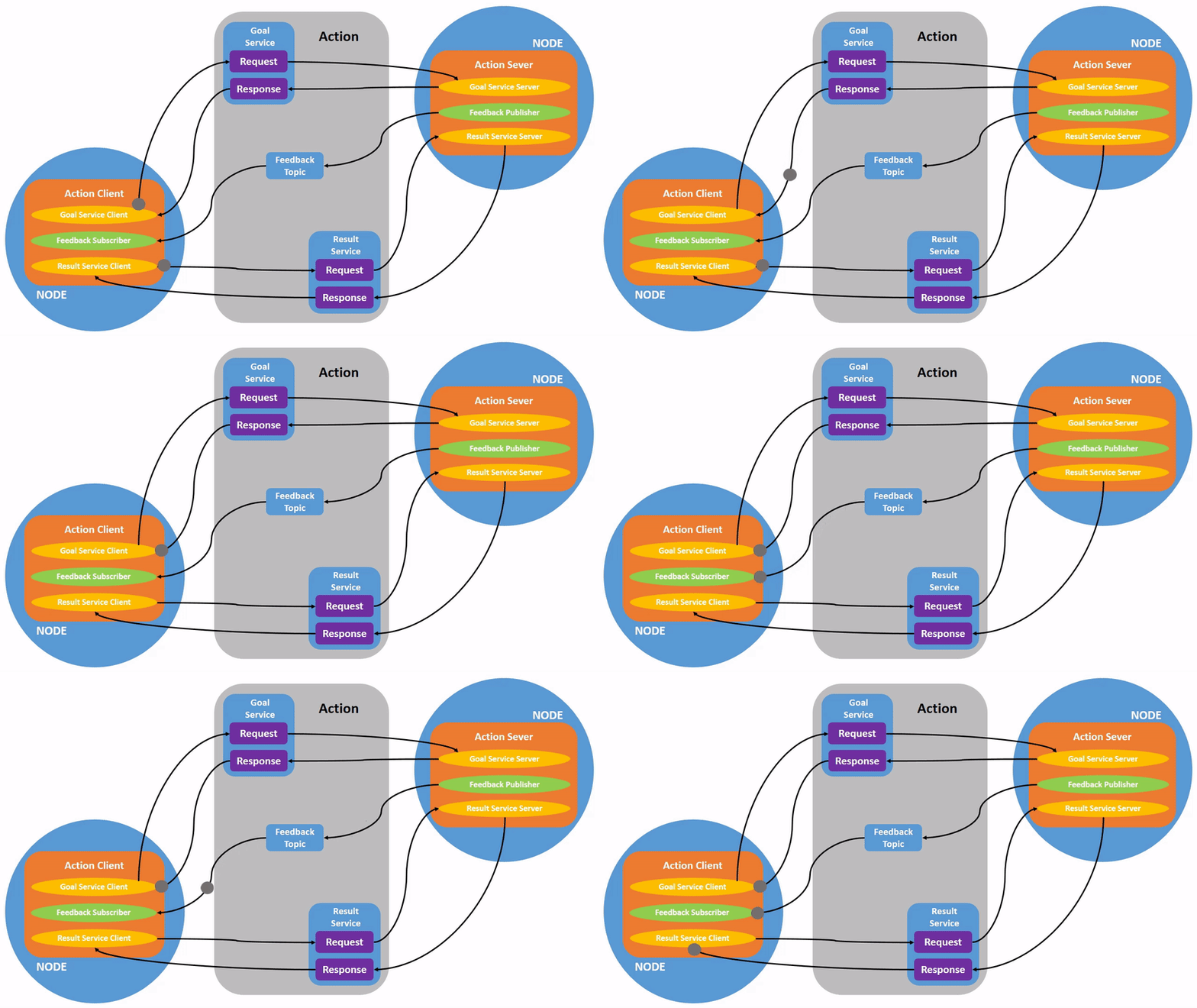
Action communication is a communication model with continuous feedback. Between the two communicating parties, the client sends request data to the server, and the server responds with the result to the client. However, in the process from the server receiving the request to generating the final response, continuous feedback information is sent to the client.
The action communication client/server model is as follows:
2. Case Introduction
The action client submits an integer N. The action server receives the request data and accumulates all integers between 1 and N, then returns the final result to the action client. Each accumulation also calculates the current computation progress and feeds it back to the action client.
3. Creating a New Package
3.1. Creating an Action Communication Interface Package
Action communication requires creating an action communication interface first.
Create a new pkg_interfaces package in the src directory of the workspace.
ros2 pkg create --build-type ament_cmake pkg_interfaces
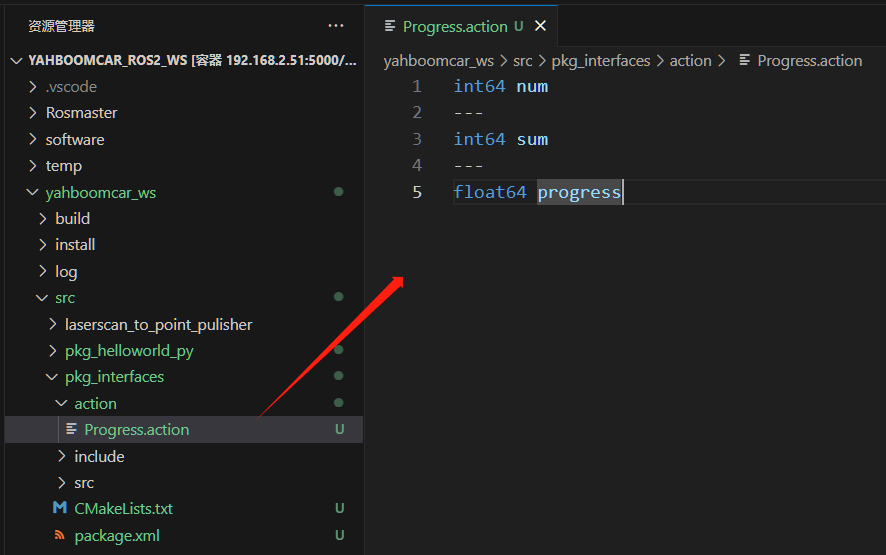
Next, create an action folder under the pkg_interfaces package, and create a new 【Progress.action】 file in the action folder. The file content is as follows:
xxxxxxxxxxint64 num---int64 sum---float64 progress
Some dependency packages need to be added to package.xml. The specific content is as follows:
xxxxxxxxxx<buildtool_depend>rosidl_default_generators</buildtool_depend><exec_depend>rosidl_default_runtime</exec_depend><depend>action_msgs</depend><member_of_group>rosidl_interface_packages</member_of_group>Add the following configuration to CMakeLists.txt:
xfind_package(rosidl_default_generators REQUIRED)
rosidl_generate_interfaces(${PROJECT_NAME} "action/Progress.action")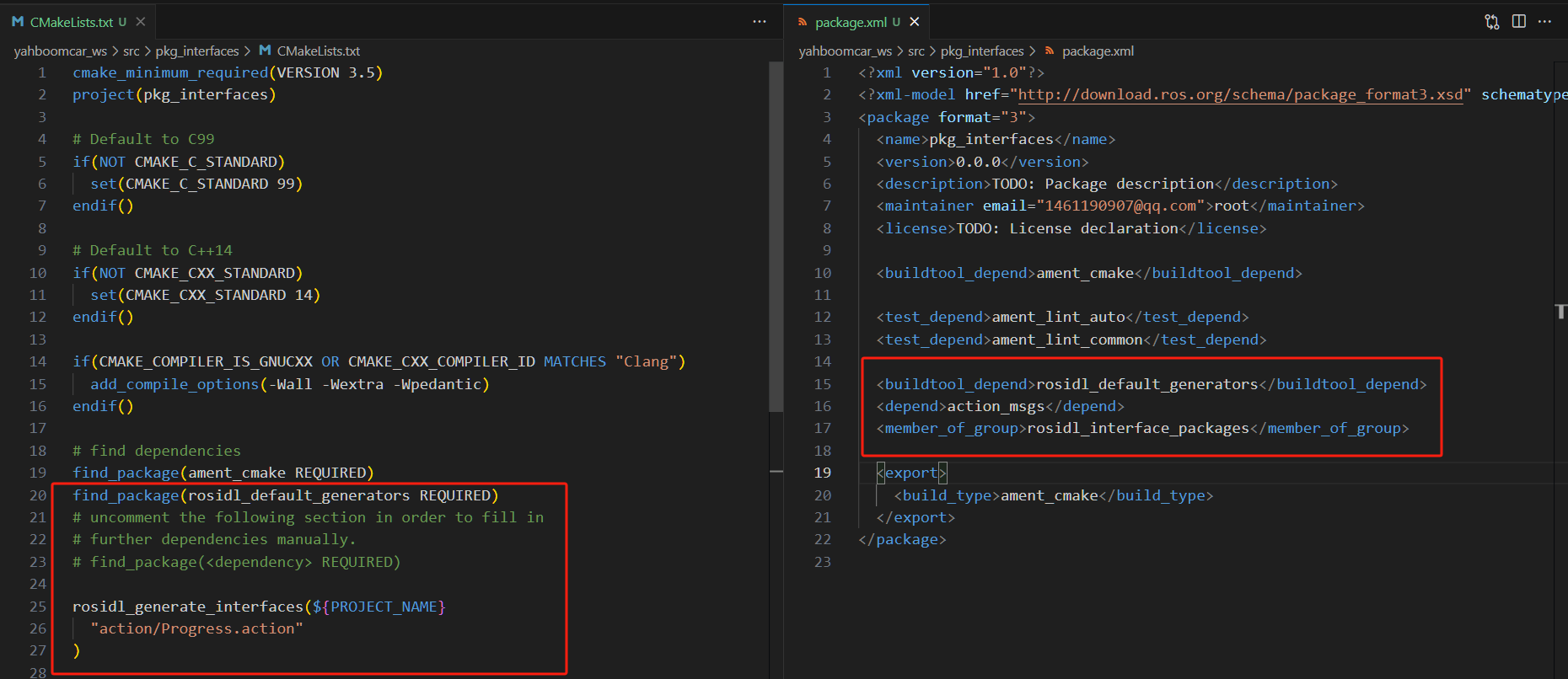
Compile the package:
xxxxxxxxxxcolcon build --packages-select pkg_interfaces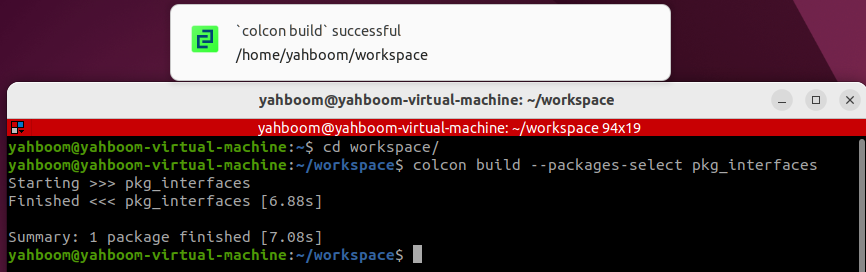
After compilation is complete, the C++ and Python files corresponding to the
Progress.actionfile will be generated in theinstalldirectory of the workspace. You can also enter the workspace in a terminal and check the file definition and whether the compilation is normal with the following commands:
xxxxxxxxxxsource install/setup.bashros2 interface show pkg_interfaces/action/ProgressUnder normal circumstances, the terminal will output content identical to the Progress.action file.

3.2. Creating an Action Communication Package
Create a new pkg_action package in the src directory of the workspace.
xxxxxxxxxxros2 pkg create pkg_action --build-type ament_python --dependencies rclpy pkg_interfaces --node-name action_server_demoAfter executing the above command, the pkg_action package will be created, an action_server_demo node will also be created, and the relevant configuration files will already be configured.
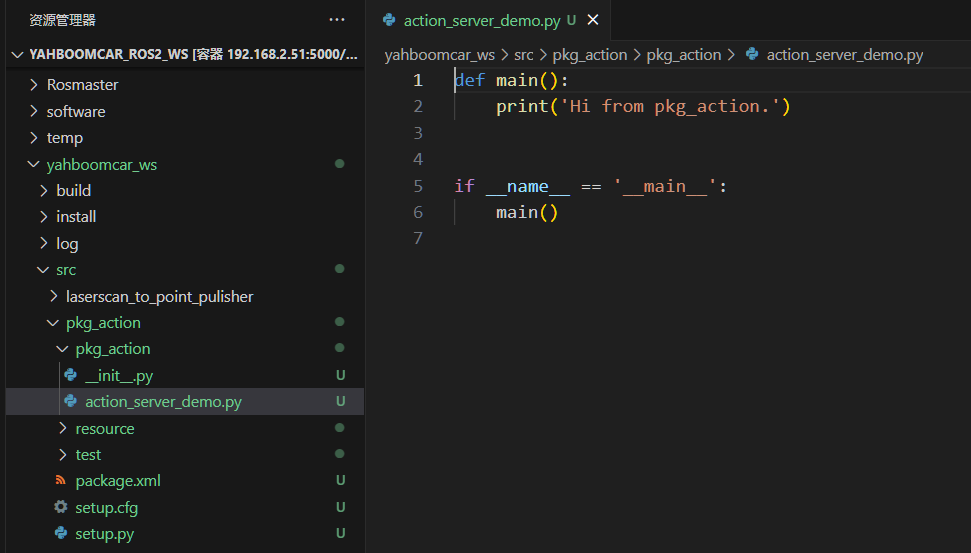
4. Server Implementation
4.1. Creating the Server
Next, edit 【action_server_demo.py】 to implement the server functionality, and add the following code:
xxxxxxxxxximport timeimport rclpyfrom rclpy.action import ActionServerfrom rclpy.node import Node
from pkg_interfaces.action import Progress

class Action_Server(Node):
    def __init__(self):        super().__init__('progress_action_server')        # Create an action server        self._action_server = ActionServer(            self,            Progress,            'get_sum',            self.execute_callback)        self.get_logger().info('Action service has been started!')
    def execute_callback(self, goal_handle):        self.get_logger().info('Starting task execution....')

        # Generate continuous feedback;        feedback_msg = Progress.Feedback()
        sum = 0        for i in range(1, goal_handle.request.num + 1):            sum += i            feedback_msg.progress = i / goal_handle.request.num            self.get_logger().info('Continuous feedback: %.2f' % feedback_msg.progress)            goal_handle.publish_feedback(feedback_msg)            time.sleep(1)
        # Generate the final response.        goal_handle.succeed()        result = Progress.Result()        result.sum = sum        self.get_logger().info('Task completed!')
        return result

def main(args=None):
    rclpy.init(args=args)    # Call the spin function and pass in the node object    Progress_action_server = Action_Server()    rclpy.spin(Progress_action_server)    Progress_action_server.destroy_node()     # Release resources    rclpy.shutdown()
4.2. Editing the Configuration File
Open setup.py, and add the following to the console_scripts list:
xxxxxxxxxx'action_server_demo = pkg_action.action_server_demo:main',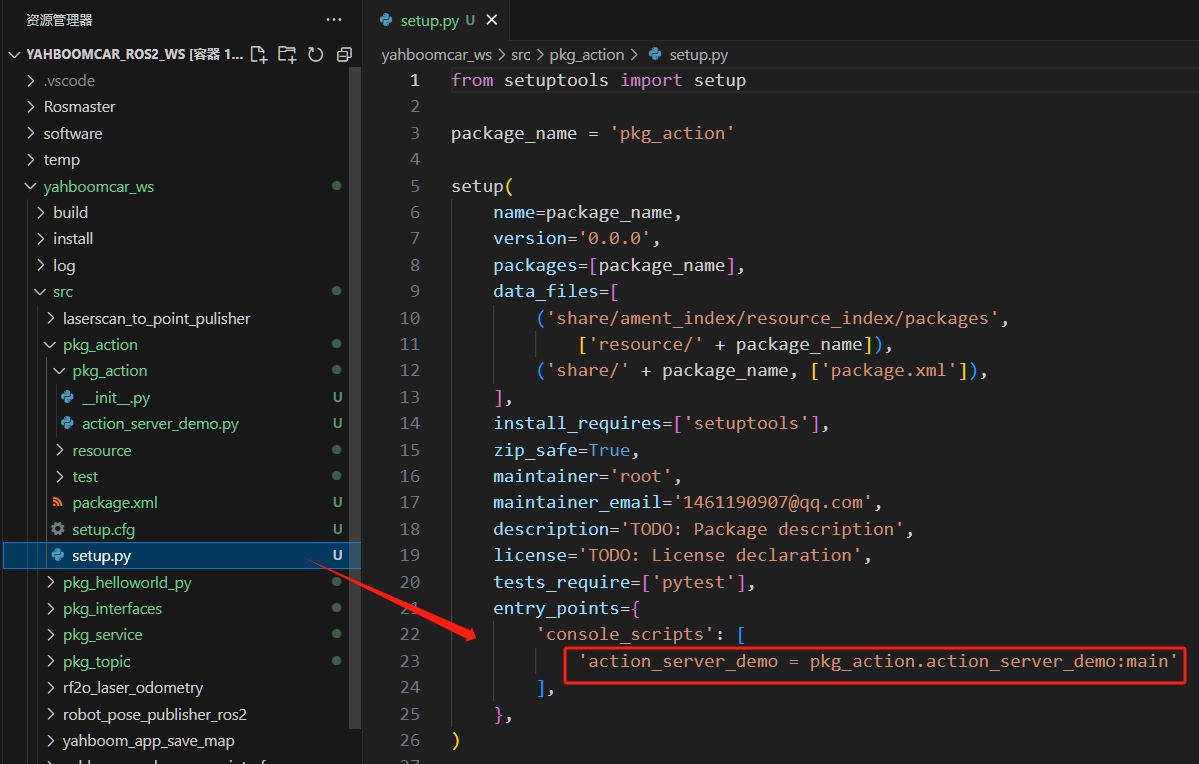
4.3. Compiling the Package
xxxxxxxxxxcolcon build --packages-select pkg_action4.4. Running the Program
xxxxxxxxxxros2 run pkg_action action_server_demo

In another terminal, enter:
xxxxxxxxxxros2 action list
/get_sum is the action we need to call. Call it with the following command. In the terminal, enter:
xxxxxxxxxxros2 action send_goal /get_sum pkg_interfaces/action/Progress "{num: 10}"Here we calculate the sum from 1 to 10:
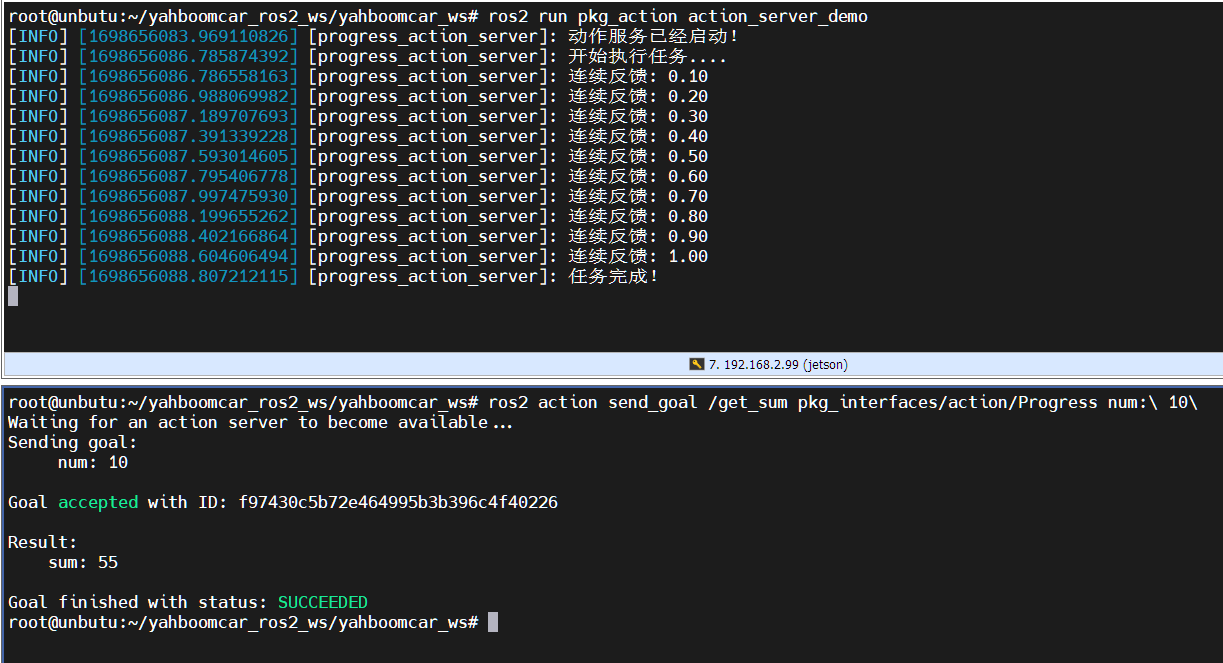
In the figure above, the upper part is the server and the lower part is the client. You can see that while calculating the sum from 1 to 10, the server keeps feeding back the computation progress. Finally, the task completion is displayed, and the client also receives the feedback that the sum is 55.
5. Client Implementation
5.1. Creating the Client
Create a new file 【action_client_demo.py】 in the same directory as 【action_server_demo.py】.
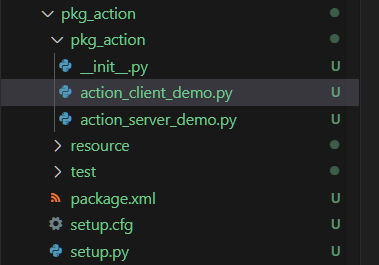
Next, edit 【action_client_demo.py】 to implement the server functionality, and add the following code:
xxxxxxxxxximport rclpyfrom rclpy.action import ActionClientfrom rclpy.node import Nodefrom pkg_interfaces.action import Progress
class Action_Client(Node):    def __init__(self):        super().__init__('progress_action_client')        # Create an action client;        self._action_client = ActionClient(self, Progress, 'get_sum')
    def send_goal(self, num):        # Send a request;        goal_msg = Progress.Goal()        goal_msg.num = num        self._action_client.wait_for_server()        self._send_goal_future = self._action_client.send_goal_async(goal_msg, feedback_callback=self.feedback_callback)        self._send_goal_future.add_done_callback(self.goal_response_callback)
    def goal_response_callback(self, future):        # Process the feedback after the goal is sent;        goal_handle = future.result()        if not goal_handle.accepted:            self.get_logger().info('Request rejected')            return
        self.get_logger().info('Request accepted, starting task execution!')
        self._get_result_future = goal_handle.get_result_async()        self._get_result_future.add_done_callback(self.get_result_callback)
    # Process the final response.    def get_result_callback(self, future):        result = future.result().result        self.get_logger().info('Final calculation result: sum = %d' % result.sum)        # 5. Release resources.        rclpy.shutdown()
    # Process continuous feedback;    def feedback_callback(self, feedback_msg):        feedback = (int)(feedback_msg.feedback.progress * 100)        self.get_logger().info('Current progress: %d%%' % feedback)

def main(args=None):    rclpy.init(args=args)    action_client = Action_Client()    action_client.send_goal(10)    rclpy.spin(action_client)
5.2. Editing the Configuration File
Open setup.py, and add the following to the console_scripts list:
xxxxxxxxxx'action_client_demo = pkg_action.action_client_demo:main'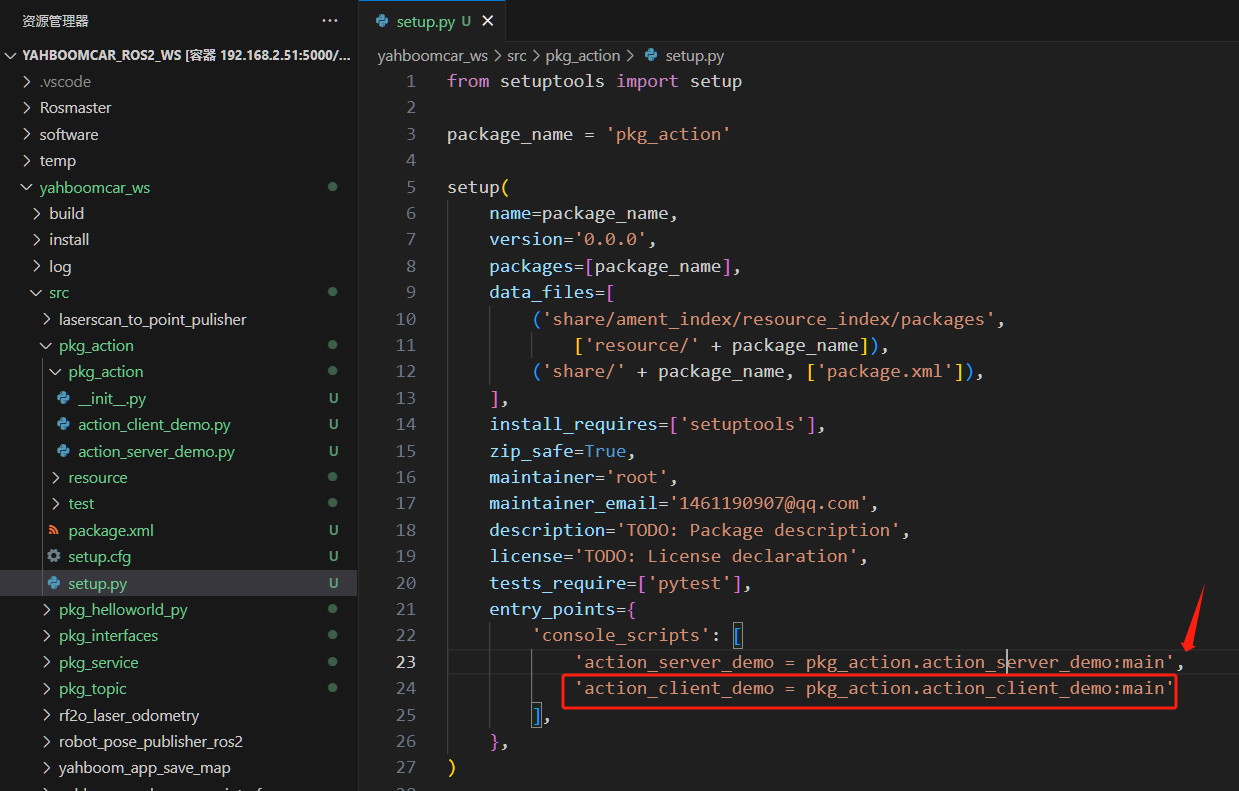
5.3. Compiling the Package
xxxxxxxxxxcolcon build --packages-select pkg_action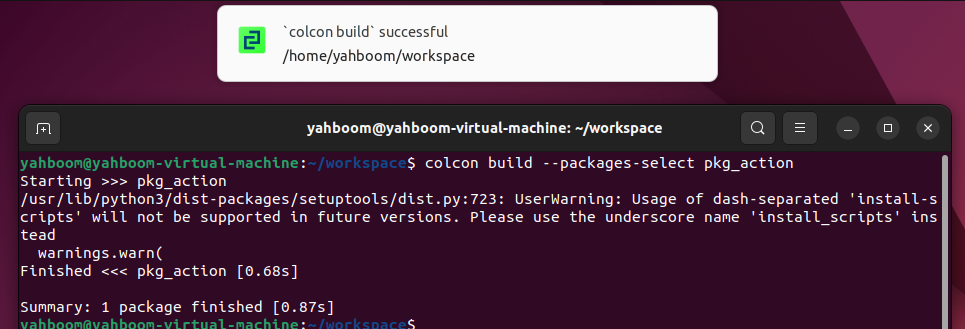
5.4. Running the Program
Execute the following in separate terminals:
xxxxxxxxxx# Start the server noderos2 run pkg_action action_server_demo# Start the client noderos2 run pkg_action action_client_demo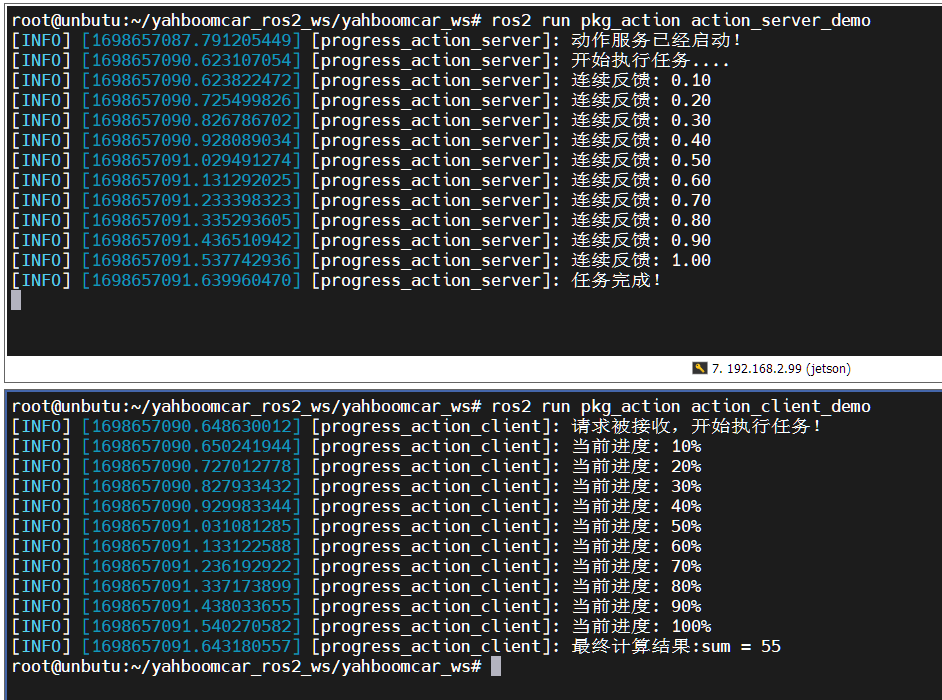
In the figure above, the upper part is the server and the lower part is the client. Here we calculate the sum from 1 to 10. You can see that while calculating the sum from 1 to 10, the server keeps feeding back the computation progress. Finally, the task completion is displayed, and the client also receives the feedback that the sum is 55.