yahboom
HomeTutorialsProduct
Solution
Blog
Online Store
About Us
EN/中文
Store
ROSMASTER M1 PRO📖
0.Robot Configuration and Operation Guidelines
  • 0.Unboxing and Review
  • 1.Assembly Videos
  • 2.User Manual
  • 3.Enter Docker (For Raspberry Pi)
  • 4.FAQ
  • 5.RobotManager User Guide
1.Chassis Control Course
  • 1.Robot Information Publishing
  • 2.Robot Handle Control
  • 3.Robot Keyboard Control
  • 4.Linear Velocity Calibration
  • 5.Angular Velocity Calibration
  • 6.Robot URDF Model
  • 7.Robot EKF State Estimation
2.Lidar Course
  • 1.Lidar Introduction And Use
  • 2.Lidar Obstacle Avoidance
  • 3.Lidar Following
  • 4.Lidar Guard
  • 5.Lidar Patrol
  • 6.GMapping-SLAM Mapping
  • 7.Cartographer-SLAM Mapping
  • 8.Slam-Toolbox Mapping
  • 9.Lifelong Mode Mapping
  • 10.Navigation2 Single Point Navigation
  • 11.Navigation2 Multi Point Navigation
  • 12.Cartographer Relocalization Navigation
  • 13.Slam-Toolbox Localization Navigation
  • 14.Synchronous Mapping And Navigation
  • 15.Aruco Visual Relocalization Navigation
  • 16.Mobile App Mapping And Navigation
3.USB Camera-Depth Camera Course
  • 1.USB Camera Introduction
  • 2.USB Camera Intrinsic Calibration
  • 3.Nuwa-HP60C Camera Introduction (Depth Camera Only)
  • 4.Depth Pseudo Color Image (Depth Camera Only)
  • 5.Depth Camera Distance Measurement (Depth Camera Only)
  • 6.Block Volume Calculation (Depth Camera Only)
  • 7.Edge Detection (Depth Camera Only)
  • 8.RTAB-Map SLAM Mapping (Depth Camera Only)
  • 9.RTAB-Map Navigation (Depth Camera Only)
4.Robotic Arm and 3D Space Gripping Course
  • 1.Robotic Arm Basic Usage
  • 2.Robotic Arm Kinematics
  • 3.Robotic Arm Chassis Coordination Control
  • 4.AprilTag ID Sorting
  • 5.AprilTag Height Anomaly Sorting
  • 6.AprilTag Tracking and Grasping
  • 7.Color Block Sorting
  • 8.Color Block Height Anomaly Sorting
  • 9.Color Block Tracking and Grasping
  • 10.Wood Block Shape Sorting
  • 11.KCF Tracking and Grasping Objects
  • 12.Mediapipe Gesture ID Sorting AprilTag
  • 13.Mediapipe Gesture Height Sorting AprilTag
  • 14.Desktop Tracking and Grasping AprilTag
  • 15.3D Spatial Tracking AprilTag
  • 16.Transformer Model Tracking Algorithm
  • 17.Line Following Obstacle Clearing
5.Road network planning and navigation
  • 1.Introduction To Road Network Planning
  • 2.Road Network Annotation
  • 3.Planning And Navigation Between Waypoints
  • 4.Road Network Navigation In Any Pose
  • 5.Path Re-planning
6.OpenClaw Basic Course
  • 1.Introduction to OpenClaw
  • 2.OpenClaw Core Concepts
  • 3.OpenClaw API-KEY Configuration
  • 4.OpenClaw Switch Models
  • 5.OpenClaw System Prompt Words
  • 6.OpenClaw Common CLI Commands
7.OpenClaw Interaction Method
  • 1.OpenClaw Webchat Interaction
  • 2.OpenClaw Tui Interaction
  • 3.OpenClaw Voice Dialogue Interaction
  • 4.OpenClaw WhatsApp Interaction
8.OpenClaw Development
  • 1.OpenClaw Connecting to Robot MCP Service
  • 2.Robot CLI Command Tool
  • 3.robot-control Plugin Tool
  • 4.reply-bridge Plugin Tool
  • 5.OpenClaw Multimodal Vision
  • 6.OpenClaw Chassis Control
  • 7.OpenClaw Robotic Arm Control
  • 8.OpenClaw Skills Development
  • 9.OpenClaw Scheduled Tasks
  • 10.OpenClaw Multi-Agent Intelligent Agent
  • 11.OpenClaw Active Interaction
  • 12.OpenClaw Vector Memory
9.OpenClaw Embodied intelligent application
  • 1.OpenClaw Target Tracking
  • 2.OpenClaw Arm Tracking And Grasping
  • 3.OpenClaw Arm Fixed-point Placement
  • 4.OpenClaw Waste Sorting
  • 5.OpenClaw SLAM Mapping And Navigation
  • 6.OpenClaw Navigation Transport
  • 7.OpenClaw AprilTag Grasping
  • 8.OpenClaw Color Line Patrol
  • 9.OpenClaw Visual Distance Measurement
10.OpenClaw scenario sandbox
  • 1.Map Description and Props Placement
  • 2.Building the Sandbox Map
  • 3.Visual Relocalization Marker
  • 4.Map Mapping Marker
  • 5.Sandbox Scenario Comprehensive Case
11.AI Large Model Basics
  • 1.AI Large Model Types and Principles
  • 2.RAG Retrieval Enhancement and Model Training Samples
  • 3.Embodied Intelligent Robot System Architecture
  • 4.Embodied Intelligent Functions Core Source Code
12.AI large Model Development
  • 1.Register a Model Service Provider Account
  • 2.Configuring API-KEY
  • 3.Introduction to Dify
  • 4.Basic Dify Features
  • 5.AI Large Model Development - Chatbot
  • 6.Deploy the RAG Knowledge Base
  • 7.RAG Knowledge Base + Chatbot
  • 8.AI Agent Workflow
  • 9.Custom Wake-up Response
13.AI Model - Voice Version
  • 1.Semantic Understanding and Command Following
  • 2.Multimodal Visual Understanding
  • 3.Multimodal Visual Understanding and Robotic Arm Gripping
  • 4.Multimodal Visual Understanding and SLAM Navigation
  • 5.Robotic arm gripping+Multimodal visual understand+SLAM navigation
  • 6.Intention Understanding
14.AI Model - Text Version
  • 1.Semantic Understanding and Command Following
  • 2.Multimodal Visual Understanding
  • 3.Multimodal Visual Understanding and Robotic Arm Gripping
  • 4.Multimodal Visual Understanding and SLAM Navigation
  • 5.Robotic arm gripping+Multimodal visual understand+SLAM navigation
  • 6.Intention estimation
15.Mediapipe Visual Course
  • 1.Hand detection
  • 2.Posture detection
  • 3.Overall detection
  • 4.Facial Landmark Detection
  • 5.Face detection
  • 6.Face special effects
  • 7.3D object recognition
  • 8.Brush
  • 9.Finger control
  • 10.Palm target positioning
  • 11.Fingertip trajectory recognition
  • 12.Fingertip gesture control robotic arm
  • 13.Gesture grabbing and releasing objects
  • 14.Finger control robotic arm
  • 15.Medipipe gesture control robotic arm action group
16.MoveIt2 Simulation Course
  • 1.MovelT2 configuration
  • 2.MovelT2 simulation-reality linkage
  • 3.Random movement
  • 4.Forward kinematics design
  • 5.Inverse kinematics design
  • 6.Cartesian path
  • 7.Trajectory Planning
  • 8.Collision Detection
  • 9.Scene Design
  • 10.3D perception obstacle‑avoidance
17.Multi-vehicle Course
  • 1.Multi-vehicle Control
  • 2.Multi-vehicle Navigation
  • 3.Multi-vehicle Formation
18.YOLO26 Development
  • 1.CLI Use
  • 2.Object Detection
  • 3.Instance Segmentation
  • 4.Pose Estimation
  • 5.Image Classification
  • 6.Oriented Object Detection
  • 7.YOLOv26 + DeepSORT Tracking
  • 8.Monocular Depth Estimation
19.Control Board STM32 Driver Course
  • 0.Notes (Must Read)
  • 1.About Expansion Board
  • 2.STM32 Development Environment
  • 3.Button Control
  • 4.FreeRTOS Application
  • 5.Serial Communication
  • 6.SBUS Model Aircraft Remote Control
  • 7.CAN Bus Communication
  • 8.RGB Colorful Light Bar
  • 9.Timer Interrupt to Control PWM Servo
  • 10.Control Serial Port Servos
  • 11.Nine-axis Attitude Sensor to Obtain Data
  • 12.Control Motor
  • 13.Timer Captures the Encoder Data
  • 14.1 Kinematic Analysis of Mecanum Wheel
  • 14.2 Kinematic Analysis of Ackerman
  • 14.3 Kinematic Analysis of 4WD
  • 15.PID Control Robot Movement
20.Docker Course
  • 1.Docker Introduction and Installation
  • 2.Docker Basic Commands
  • 3.Docker Submission and Multi-Terminal Access
  • 4. Docker Startup Script
  • 5.Docker-Vscode Environment Construction
21.Image Processing Basics Course
  • 1. Introduction to Open Source CV
  • 2. Image reading and display
  • 3. Image writing
  • 4. Image quality
  • 5. Pixel Operation
  • 6. Image zoom
  • 7. Image cutting
  • 8. Image translation
  • 9. Image Mirroring
  • 10. Affine Transformation
  • 11. Image Rotation
  • 12. Perspective Transformation
  • 13. Grayscale processing
  • 14. Image Binarization
  • 15. Edge Detection
  • 16. Line drawing
  • 17. Rectangle and circle drawing
  • 18. Drawing text and pictures
22.Linux System Course
  • 1.Introduction to Linux system
  • 2.Ubuntu file system
  • 3.Ubuntu common commands
  • 4.Ubuntu common editors
  • 5.Ubuntu software operation commands
  • 6.Virtual machine installation
  • 7.SSH remote control
  • 8.VNC remote control
  • 9.Transfer files remotely
  • 10.Driver library and communication
  • 11.Static IP and hotspot mode
  • 12.Bind device ID
  • 13.Capacity expansion and resource allocation
  • 14.Update system software sources
  • 15.Set root user password
  • 16.sudo free password
  • 17.Connect to WiFi network
  • 18.View system version
  • 19.Customized service management
  • 20.Back up system image
23.ROS2 Basic Course
  • 1.Introduction to ROS2
  • 2.ROS2 install Humble
  • 3.ROS2 development environment
  • 4.ROS2 workspace
  • 5.ROS2 function package
  • 6.ROS2 node
  • 7.ROS2 topic communication
  • 8.ROS2 service communication
  • 9.ROS2 action communication
  • 10.ROS2 custom interface message
  • 11.ROS2 parameter service case
  • 12.ROS2 meta-function package
  • 13.ROS2 distributed communication
  • 14.ROS2 DDS
  • 15.ROS2 time related API
  • 16.ROS2 common command tools
  • 17.ROS2 rviz2 use
  • 18.ROS2 rqt toolbox
  • 19.ROS2 Launch startup file configuration
  • 20.ROS2 recording and playback tool
  • 21.ROS2 URDF model
  • 22.ROS2 Gazebo simulation platform
  • 23.ROS2 TF2 coordinate transformation
24.Main Control Course
Jetson Orin Nano_NX
  • 1.Jetson Orin board introduction
  • 2.Restore the factory image system
  • 3.Backup SSD system
  • 4.SSD expansion
  • 5.Network configuration
  • 6.SSH remote login
  • 7.VNC remote control
  • 8.Remote file transfer
  • 9.Jtop tool
  • 10.Exchange space expansion
Raspberry Pi
  • 1. Introduction to Raspberry PI 5
  • 2. Raspberry PI system installation and backup
  • 3. Powering the Raspberry PI 5
  • 4. Startup of Raspberry PI 5
  • 5. Update and upgrade operating system
  • 6. Introduction to raspi-config tool
  • 7. config.txt file description
  • 8. Network Configuration
  • 9. remote access
  • 10. Transfer files remotely
  • 11. Set display resolution and rotation
  • 12. Set screen to sleep
  • 13. Play audio and video
  • 14. Using USB camera
  • 15. Using MIPI camera
  • 16. Get real-time temperature of Raspberry Pi
RDKX5
  • 1.Introduction to RDK X5 board
  • 2.Write system file
  • 3.Hardware interface description
  • 4.Install case and other accessories
  • 5.Network configuration
  • 6.Remote login
  • 7.Update system
  • 8.srpi-config user guide
  • 9.config. txt configuration file
  • 10.Self-startup setting
  • 11.RDK exclusive command usage
  • 12.Linux command usage
  • 13.GPIO readwrite operation
  • 14.Image classification algorithm
  • 15.Use USB camera
  • 16.Use MIPI camera
  • 17.Binocular camera depth algorithm
  • 18. Controlling RGB Cooling Fans
Download
  • System File
  • Code
  • 3D Model File
  • Software Tools
  • Hardware_Info
  • Deb function package
  • Dify AI Agent
Download ZIP

Welcome to ROSMASTER M1 PRO repository

17.ROS2 rviz2 use

17. Using ROS2 Rviz2

1. Introduction to Rviz2

During robot development, various functions require analysis at the data level, making it difficult to quickly understand their impact. For example, for robot models, we need to understand the design's appearance and the positions of the model's numerous internal coordinate systems during motion.

For robotic arm motion planning and mobile robot autonomous navigation, we need to visualize the robot's surrounding environment, the planned path, and, of course, sensor information, such as cameras, 3D cameras, and lidar. Data is used for calculations, while visualization is for human viewing.

Therefore, data visualization can greatly improve development efficiency. Rviz2 is such a data visualization software for robot development. It can handle everything from robot models, sensor information, and environmental information.

2. Preparation

  • If you have a physical robot, you can launch Rviz on the robot controller to practice this lesson. If you don't have a physical robot, you can use Gazebo to simulate a TurtleBot3 robot to simulate the lidar, camera, and other components, facilitating subsequent data visualization.

Note: The following installation steps are optional. If you have a physical robot and have set up multi-machine communication, you can directly use the actual robot's radar information. You can choose to use the actual radar or a simulated robot. The following information is for users without a physical robot.

  • This lesson uses a simulated robot as an example to teach you the visualization capabilities of Rviz2. The operation process is the same for both real and simulated robots.
  • Install the TutleBot3 simulator package
xxxxxxxxxx
sudo apt install ros-${ROS_DISTRO}-turtlebot3*
  • Install the ROS and Gazebo bridge tool
xxxxxxxxxx
sudo apt install ros-${ROS_DISTRO}-ros-gz
  • Set the TurtleBot3 robot type environment variable
xxxxxxxxxx
export TURTLEBOT3_MODEL=waffle
  • Start the Gazebo simulation environment
xxxxxxxxxx
ros2 launch turtlebot3_gazebo turtlebot3_world.launch.py
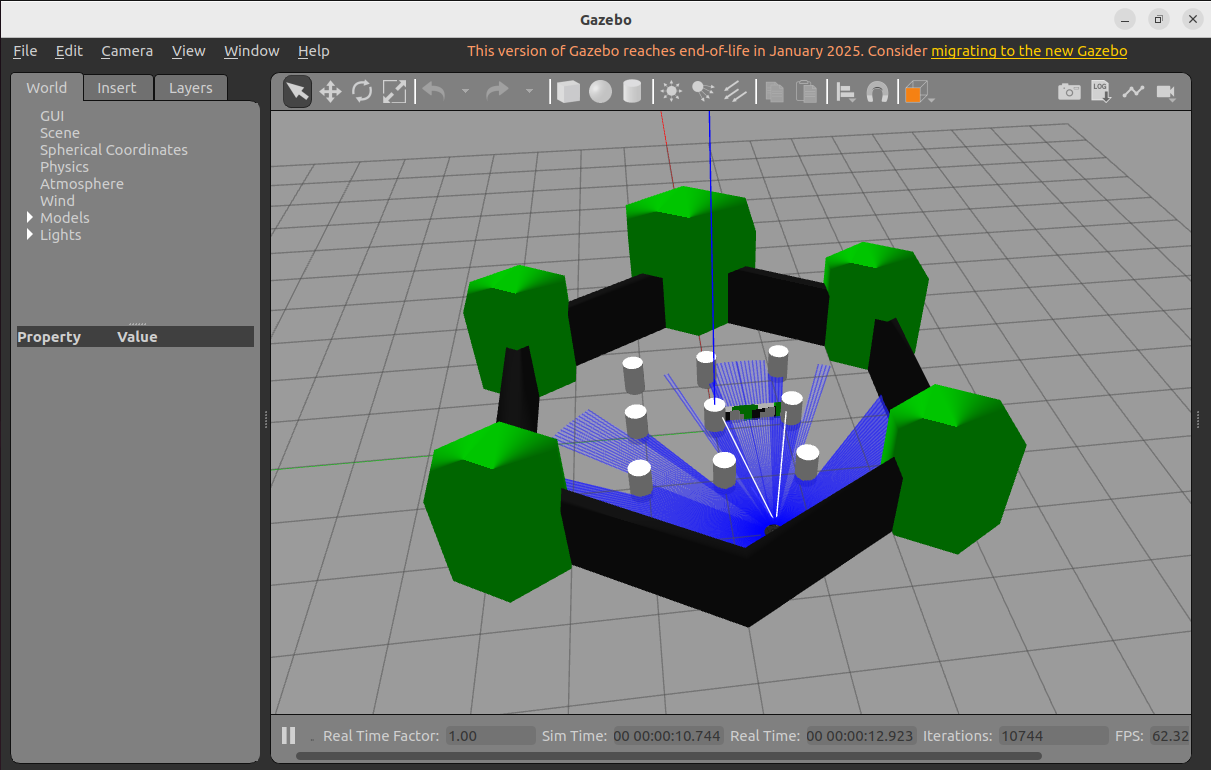
image-20250905164250419

3. Starting Rviz2

Open a terminal and run the following command to start it:

xxxxxxxxxx
rviz2

If starting in Docker, make sure the GUI is enabled.
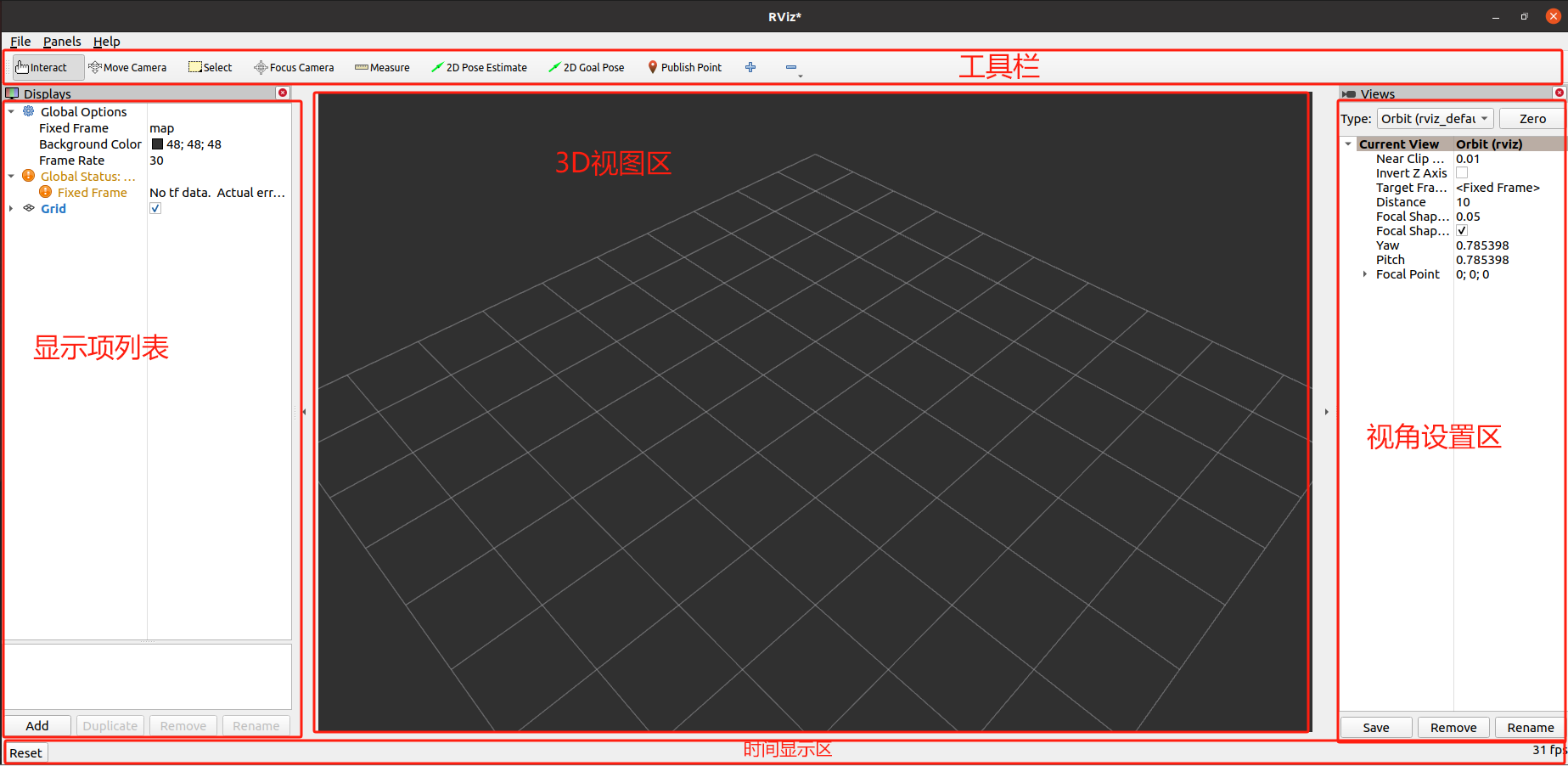
image-20231031104047357

4. Image Data Visualization

Click "Add" in the Displays window on the left, find the Image display item, and confirm it to add it to the display list. Then, configure the image topic to which the display item is subscribed. You can then view the robot's camera image.
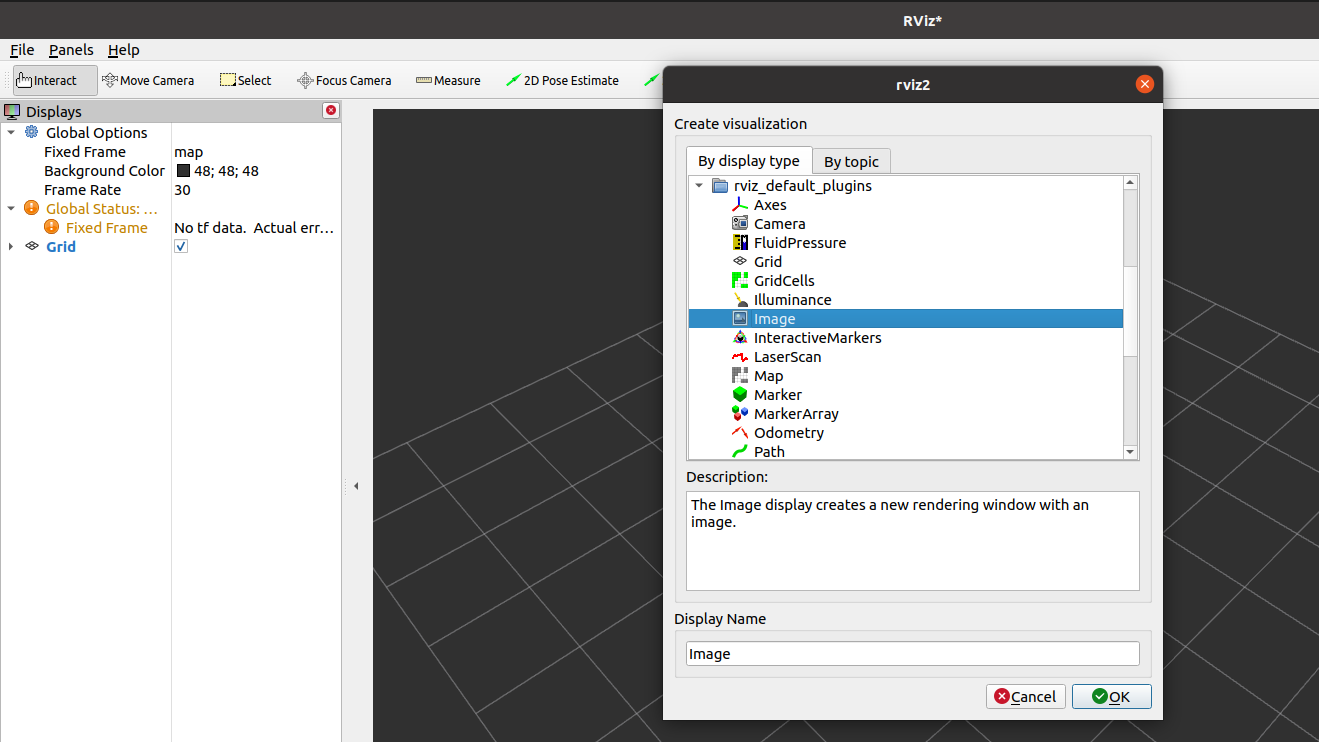
image-20231031104244974

  • Select Fixed Frame as the base_footprint coordinate system, and place the coordinate transformation error.
  • Select the camera color image topic /camera/image_raw.
  • Now you can see the current simulated robot's view in the Camera window.
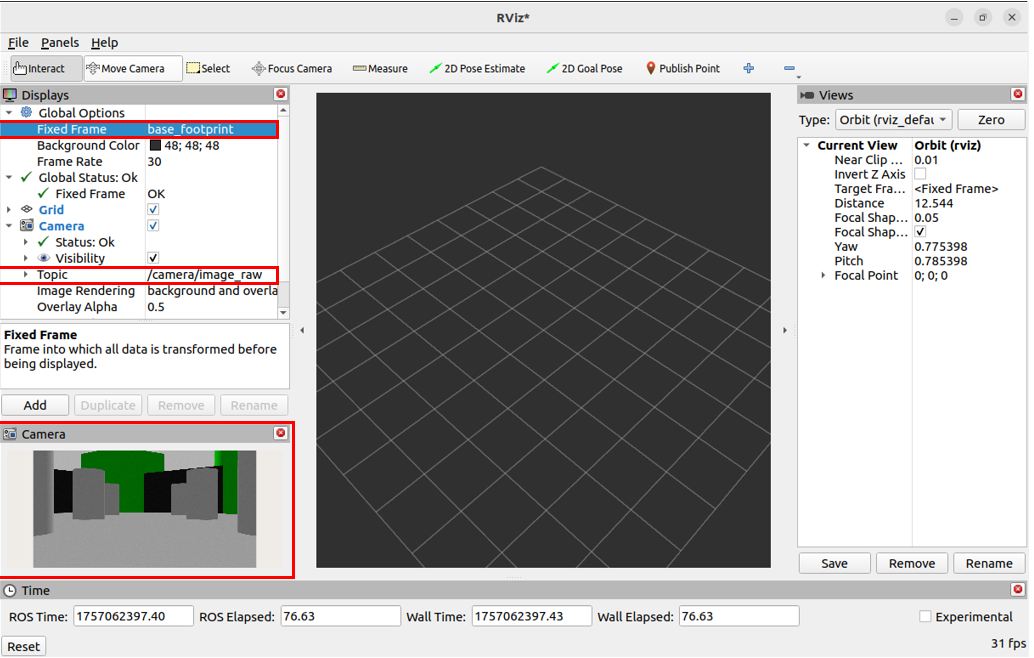
image-20250905165626951

5. Radar Data Visualization

Click "Add" in the Displays window on the left, select Laserscan, and then configure the subscription topic name. You should now see the laser dot.
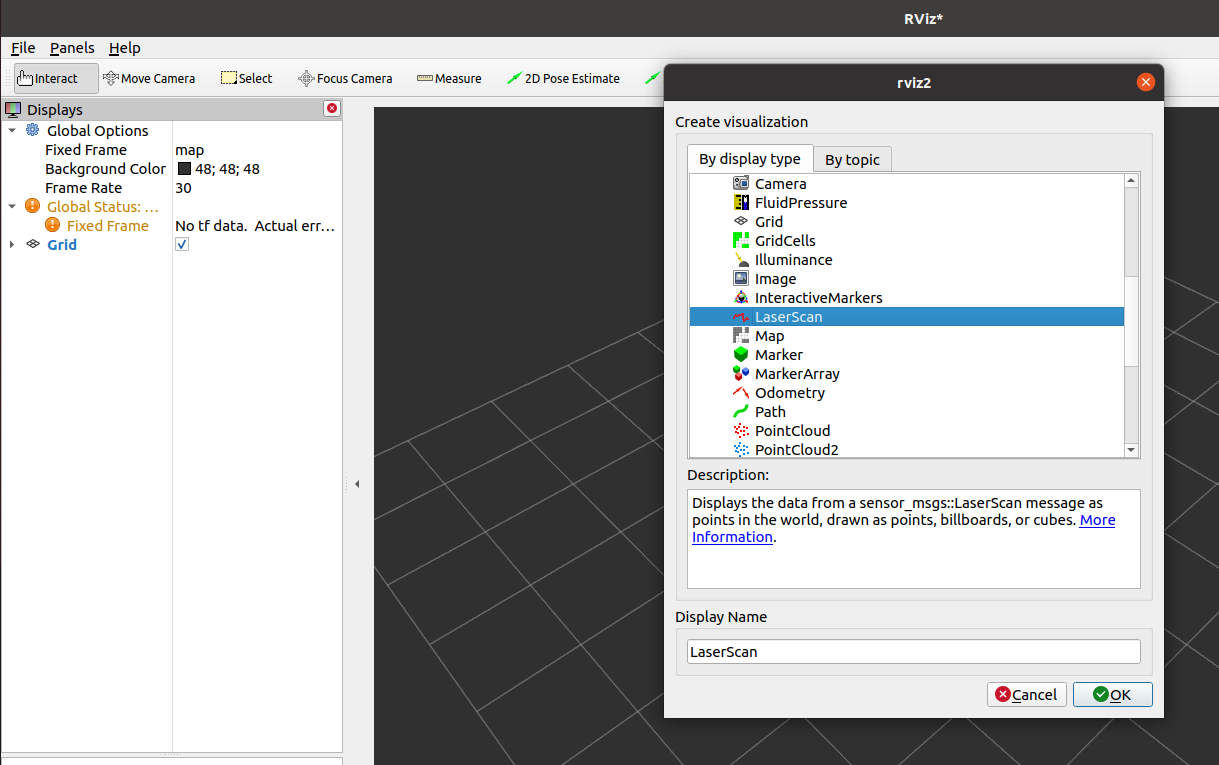
image-20231031104528033

  • Select /sacn in the LaserScan topic.
  • Now you can see the LiDAR point cloud outline.
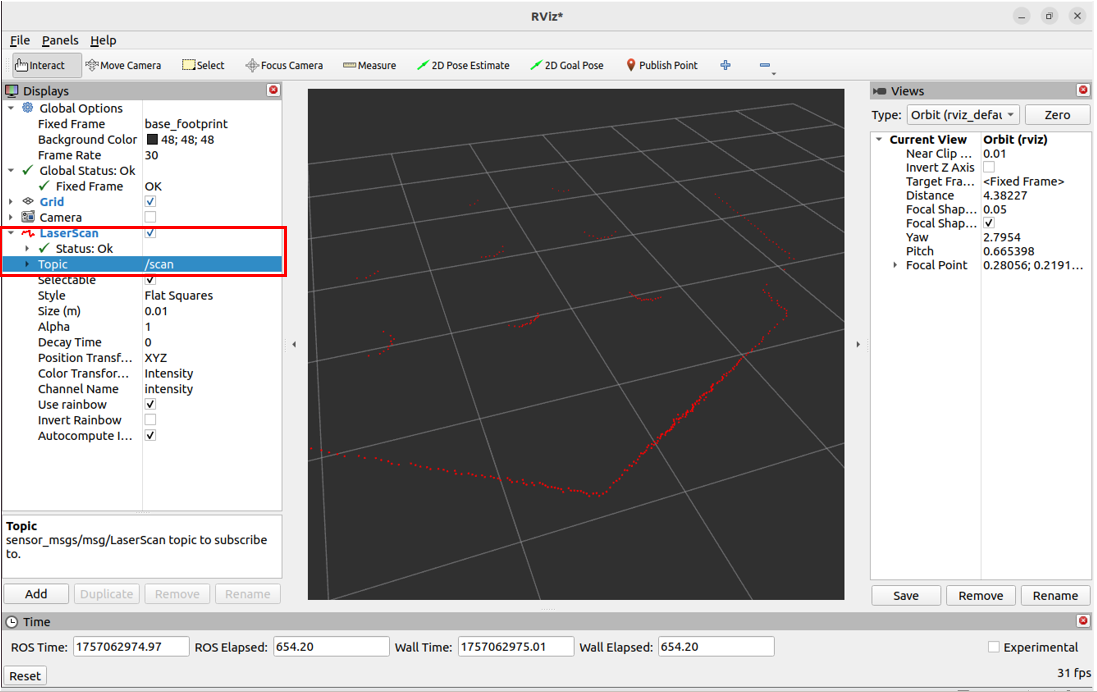
image-20250905170346004

6. Robot Model Visualization

Click "Add" in the Displays window on the left and select RobotModel.
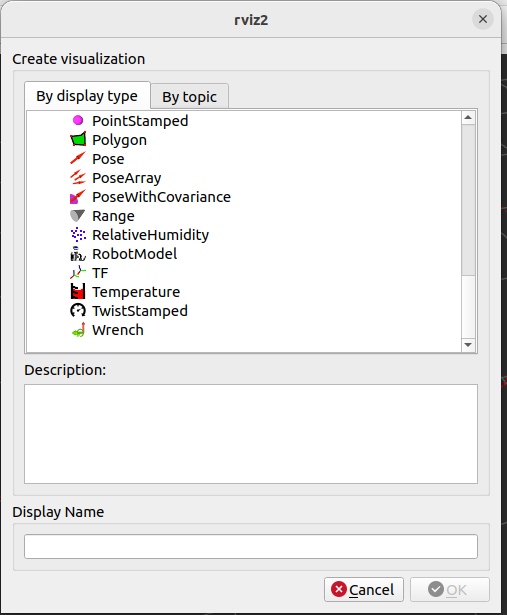
image-20250905170711426

  • In the robot's DescriptionTopic, select /robot_deseription.
  • Now you can see the robot model visualized in Rviz2.
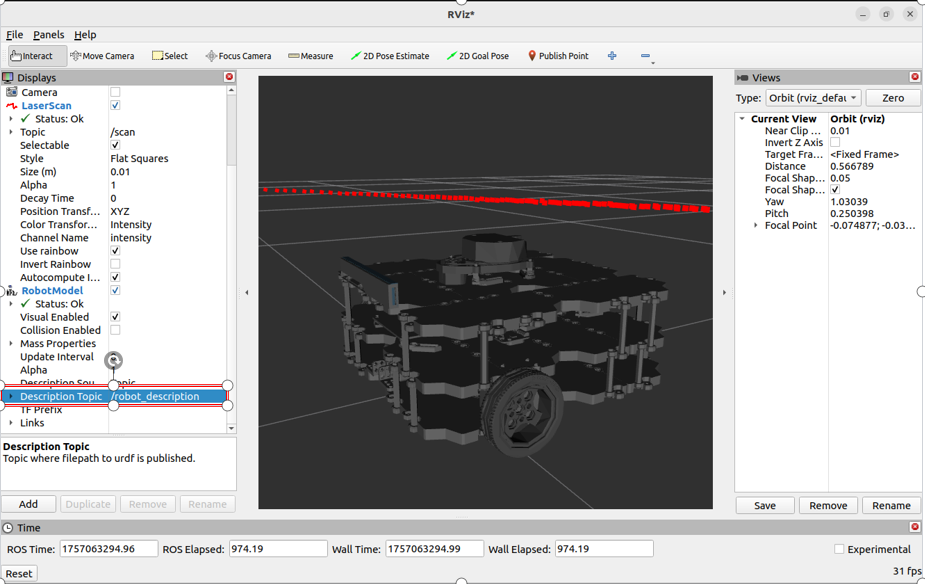
image-20250905170923074

7. Other Data Visualizations

The rivz_default_plugins section lists many commonly used data visualization plugins. Feel free to try them out.
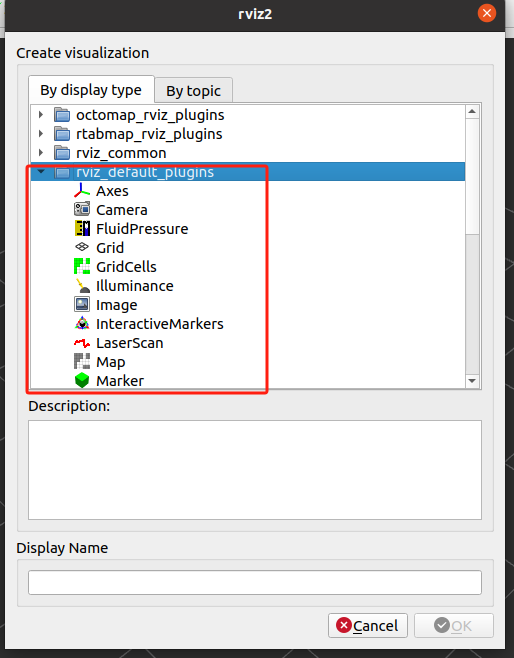
image-20231031104758824

ROS2 common command tools
ROS2 rqt toolbox

COMPANY

  • About us
  • Team Style
  • Blog

LEARNING & EXPLORATION

  • Tutorials
  • Edge AI hardware
  • Educational robots
  • Embedded intelligent hardware

WHERE TO BUY

  • Yahboom Online Store
  • Amazon
  • Alibaba
  • AliExpress
  • Mercado

TECHNOLOGY SUPPORT

  • Email: support@yahboom.com

BE A DISTRIBUTOR

  • Email: sales@yahboom.com
QR Code

Copyright © 2017-2026 Yahboom. All Rights Reserved.

EN/中文