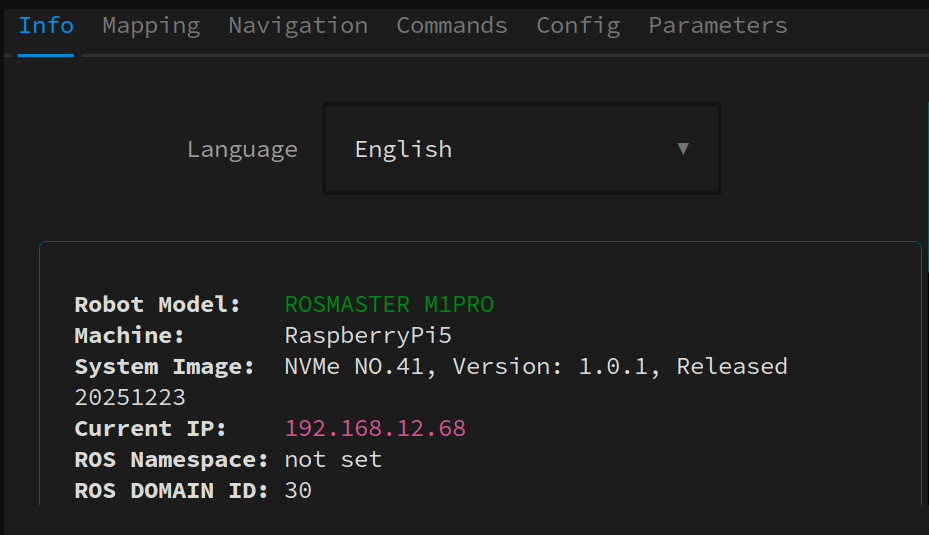
Welcome to ROSMASTER M1 PRO repository
3.Enter Docker (For Raspberry Pi)
How Raspberry Pi Users Enter Docker
Important
The Raspberry Pi 5 mainboard cannot directly install the ROS2 Humble environment; the ROS2 environment runs inside Docker, so Raspberry Pi users need to run the tutorial commands in the Docker terminal.
Method 1: Start the container via CLI and enter the Docker terminal
Important
If the container does not exist or is not started,
humble execwill automatically create and start the container
humble exec
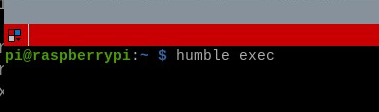
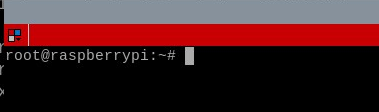
Method 2: Launch via icon; clicking the taskbar icon or the desktop icon has the same effect
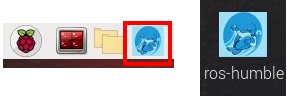
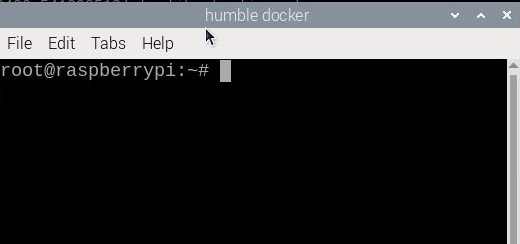
A Docker container terminal will then start, used to enter startup commands in Docker
Other commonly used ROS2 Humble Docker commands
| Command | Description |
|---|---|
humble stop | Stop the container, keeping it so it can be started again next time |
humble down | Stop and remove the container |
humble restart | Restart the container |
humble exec | Enter the container terminal; if the container is not started, it will start it automatically |
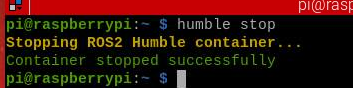
Stop the container
xxxxxxxxxxhumble stop
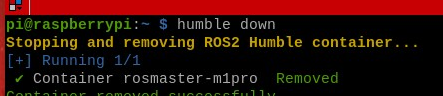
Stop and remove the container
xxxxxxxxxxhumble down
Note: Some built-in system-level commands need to be run on the host machine, such as
robot_manage guiandrobot_manage info
xxxxxxxxxxrobot_manage gui
Tip
It is recommended to start it in the SSH terminal, which is smoother than in VNC; the VNC graphical interface is affected by network bandwidth