Welcome to ROSMASTER M1 PRO repository
4.OpenClaw Switch Models
OpenClaw Switch Models
OpenClaw Switch Models1. Course Content2. Temporarily Switch Session Model2.1 Open TUI Session2.2 Use /model to Switch Session Model3. Switch Default Model3.1 Switch via CLI3.2 Switch via Configuration File4. Add Model Options List4.1 Add Models via Configuration File4.2 Add the Agent Model List via CLI Command4.3 Model Reference Format Specification
1. Course Content
This course will systematically introduce the model selection working mechanism of OpenClaw and three methods for model switching operations.
2. Temporarily Switch Session Model
2.1 Open TUI Session
Enter in the terminal
openclaw tui
2.2 Use /model to Switch Session Model
| Command | Description |
|---|---|
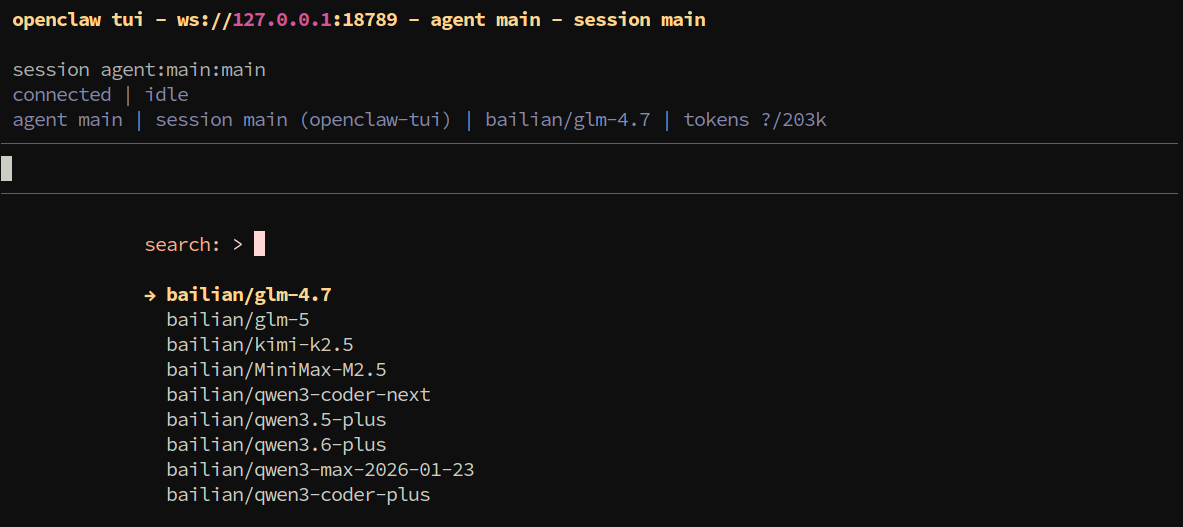
/model | View the available model list and select a model to switch |
Enter
/modelin the session input box. For example, here we choose to switch tobailian/qwen3.5-plus. Use the up and down arrow keys to select a model, then press Enter.
3. Switch Default Model
3.1 Switch via CLI
The simplest way is to use the CLI command to directly set the default model:
Here we take switching to the
bailian/qwen3.6-plusmodel as an example
xxxxxxxxxxopenclaw models set bailian/qwen3.6-plus

3.2 Switch via Configuration File
Edit the
openclaw.jsonconfiguration file to modify the Agent's default modelxxxxxxxxxxnano $HOME/.openclaw/openclaw.json# Or use your favorite editor, such as vim, code, etc. It is recommended to modify through IDEs like vscode for easier operation
In openclaw.json, specify the default primary model through the agents.defaults.model.primary configuration item:
xxxxxxxxxx{ "agents": { "defaults": { "model": { "primary": "bailian/qwen3.5-plus" } } }}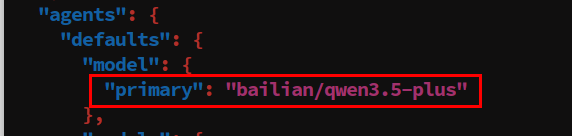
Verify whether the configuration takes effect:
xxxxxxxxxxopenclaw models status

4. Add Model Options List
agents.defaults.modelsis the allow list/directory that controls the available model range in OpenClaw. When this configuration item is set, users can only use models included in the list. This list serves as the basis for model range control for both the/modelcommand and session overrides.
4.1 Add Models via Configuration File
Configure agents.defaults.models in openclaw.json, and add the models you need to use to the allow list:
xxxxxxxxxx{ "agents": { "defaults": { "model": { "primary": "bailian/qwen3.5-plus" }, "models": { "bailian/qwen3.5-plus": {}, "bailian/qwen3.6-plus": {}, "bailian/qwen3-max-2026-01-23": {}, "bailian/qwen3-coder-next": {}, "bailian/qwen3-coder-plus": {}, "bailian/MiniMax-M2.5": {}, "bailian/glm-5": {}, "bailian/glm-4.7": {}, "bailian/kimi-k2.5": {} } } }}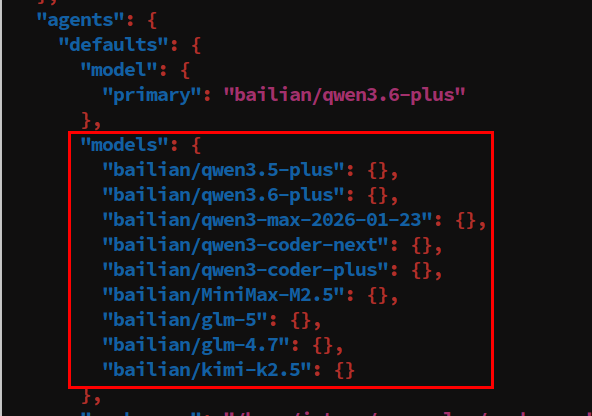
4.2 Add the Agent Model List via CLI Command
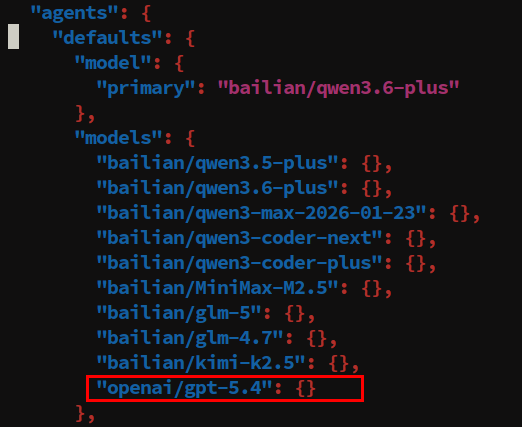
Using the openclaw config set command, you can safely edit the allow list without manually modifying the JSON file:
xxxxxxxxxxopenclaw config set agents.defaults.models.bailian/qwen3-plus '{}'
4.3 Model Reference Format Specification
In OpenClaw, all model references use a unified format:
xxxxxxxxxxprovider/modelID
Examples:
| Model Reference | Description |
|---|---|
anthropic/claude-opus-4-6 | Anthropic's Claude Opus model |
anthropic/claude-sonnet-4-6 | Anthropic's Claude Sonnet model |
openai/gpt-5.4 | OpenAI's GPT-5.4 model |
openrouter/moonshotai/kimi-k2 | Case where the model ID itself contains a slash |
Note: If the model ID itself contains
/(such asmoonshotai/kimi-k2), you must provide the complete reference in the formatopenrouter/moonshotai/kimi-k2.