Welcome to ROSMASTER M1 PRO repository
10.OpenClaw Multi-Agent Intelligent Agent
OpenClaw Multi-Agent System
OpenClaw Multi-Agent System1. Course ContentCourse OverviewLearning Objectives2. Case Demonstration2.1 Creating an Agent Using CLI Agent Wizard2.2 Agent Directory Structure2.3 Verifying Agent Creation2.4 Restarting Gateway to Apply Configuration2.5 Agent Conversation3. Deleting an Agent3.1 Deleting Using CLI Command3.2 Manually Cleaning Up Agent Directory3.3 Cleaning Up Binding Configuration4. CLI Commands and Parameter Description
1. Course Content
Course Overview
The OpenClaw multi-agent system allows running multiple isolated agents within the same Gateway, each with its own workspace, state directory, and session history
The multi-agent architecture is suitable for multi-role collaboration scenarios, for example, one agent handles programming development while another handles social media operations, with complete data isolation and no interference between them
Learning Objectives
Understand the concept and applicable scenarios of the OpenClaw multi-agent system
Learn how to create new agents using CLI commands
Learn how to edit agent prompt files (AGENTS.md / SOUL.md / IDENTITY.md, etc.)
Learn how to delete agents
2. Case Demonstration
OpenClaw runs a default agent (agentId is main). The following methods can be used to create additional isolated agents.
2.1 Creating an Agent Using CLI Agent Wizard
For example, to create a work agent named work:
openclaw agents add work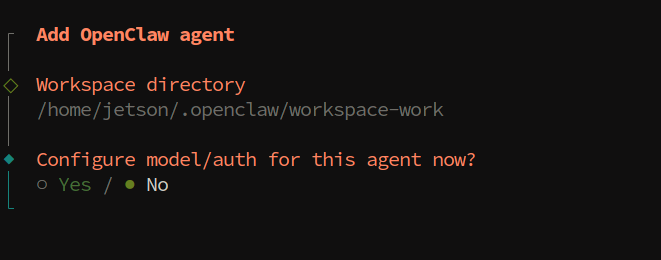

After execution, OpenClaw automatically performs the following:
Creates the agent directory:
~/.openclaw/agents/<agentId>/Creates workspace bootstrap files: including
AGENTS.md,SOUL.md,IDENTITY.md,TOOLS.md,USER.md, etc.
2.2 Agent Directory Structure
After creating an agent, a complete file structure is generated under the ~/.openclaw/agents/<agentId>/ directory:
xxxxxxxxxx~/.openclaw/agents/<agentId>/├── agent/│ ├── auth-profiles.json # Authentication configuration file│ ├── config.json # Agent configuration│ └── ...└── sessions/ # Session history storage└── <SessionId>.jsonl
The agent's workspace files are located in their respective workspace directories, where you can edit bootstrap files to define the agent's behavior and personality.
2.3 Verifying Agent Creation
After creation, you can view all agents and their binding status using the following command:
xxxxxxxxxxopenclaw agents list --bindings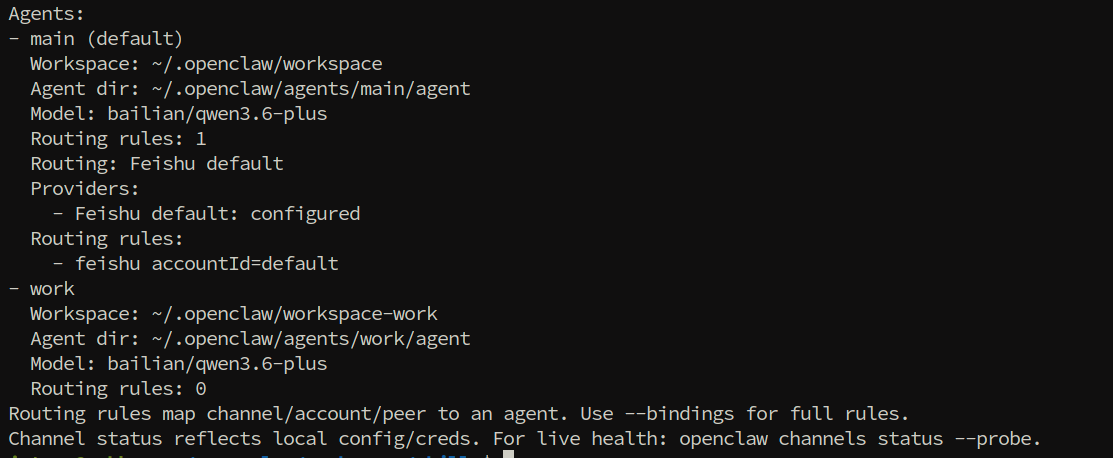
2.4 Restarting Gateway to Apply Configuration
After creating an agent or modifying binding configuration, you need to restart the Gateway:
xxxxxxxxxxopenclaw gateway restartAfter restart, verify the agent and channel status:
xxxxxxxxxxopenclaw agents list --bindings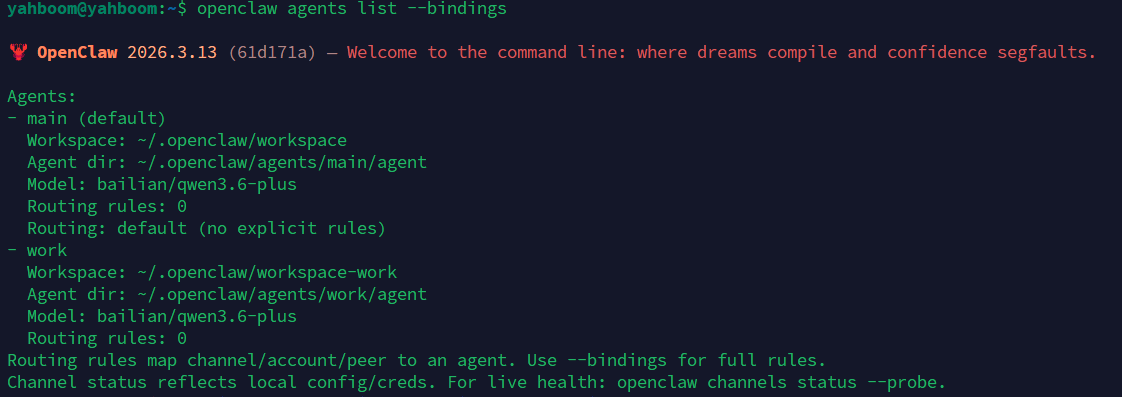
2.5 Agent Conversation
xxxxxxxxxxopenclaw tui
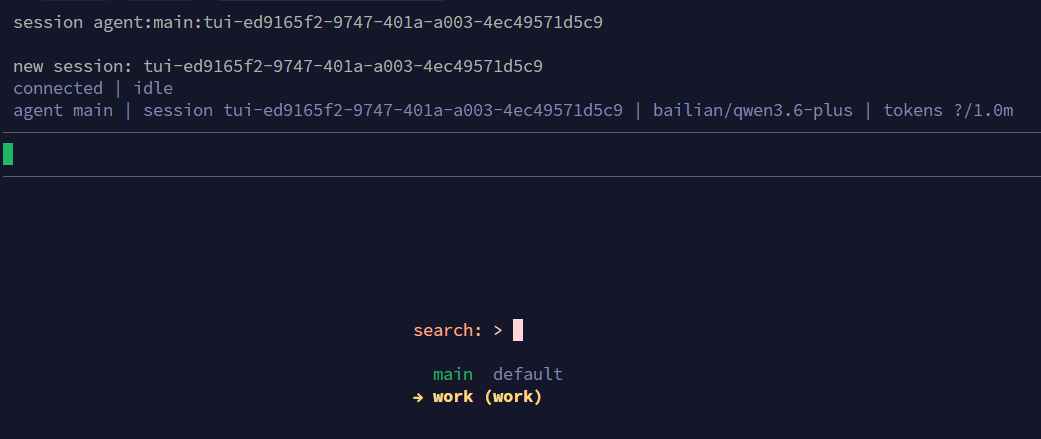
In the dialog box, enter /agent, press Enter, and select the newly created agent
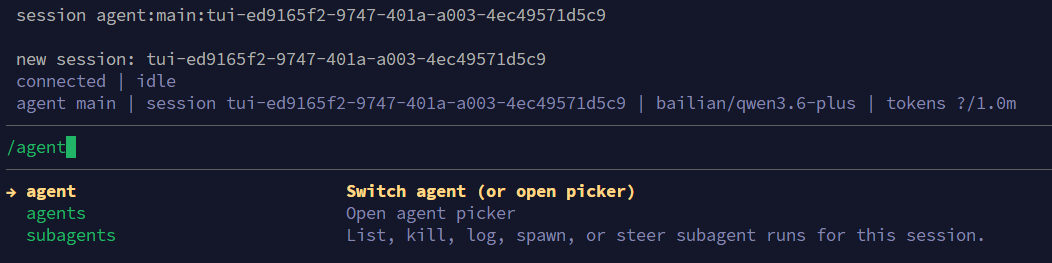
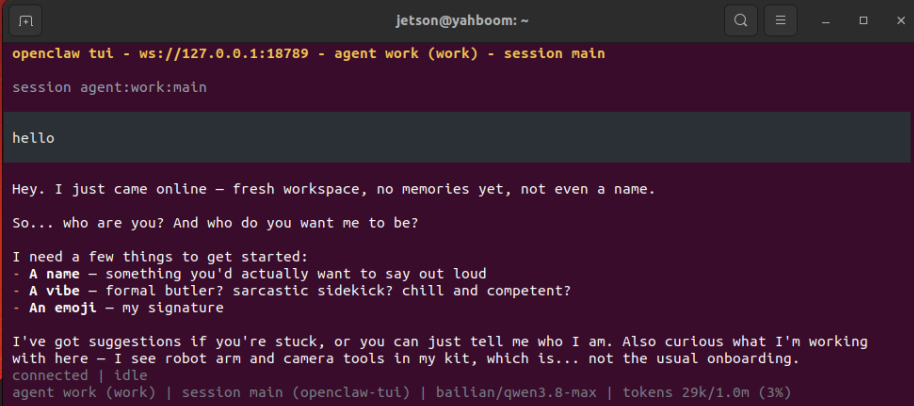
Enter text in the input box to converse with the agent
3. Deleting an Agent
3.1 Deleting Using CLI Command
For example, to delete an agent named work:
xxxxxxxxxxopenclaw agents delete work
3.2 Manually Cleaning Up Agent Directory
After executing the CLI command, it is recommended to also clean up the following residual data:
x# Delete agent data directoryrm -rf ~/.openclaw/agents/work
# Delete agent workspacerm -rf ~/.openclaw/workspace-work3.3 Cleaning Up Binding Configuration
After deleting an agent, you also need to clear the corresponding binding records and agent list entries from the openclaw.json configuration file:
Open the configuration file:
~/.openclaw/openclaw.jsonRemove the corresponding agent entry from
agents.listRemove binding rules related to this agent from
bindingsSave and restart the Gateway:
xxxxxxxxxxopenclaw gateway restart4. CLI Commands and Parameter Description
Agent Management Commands:
openclaw agents add <agentId>: Creates a new isolated agent.agentIdis the unique identifier of the agent (such aswork,dev). After execution, the agent directory and workspace bootstrap files are automatically createdopenclaw agents list --bindings: Views all agents and their channel binding status. The--bindingsparameter displays the interaction channel information bound to each agentopenclaw agents delete <agentId>: Deletes the specified agent. After execution, it is recommended to manually clean up the residual data directory and workspaceopenclaw tui: Launches the terminal interactive interface. Enter/agentto switch the agent for the current conversation
Workspace Bootstrap File Description:
AGENTS.md: The agent's main bootstrap file, defining the agent's core behavior rules, tool usage strategies, and task execution flowSOUL.md: The agent's soul file, defining the agent's personality traits and interaction styleIDENTITY.md: The agent's identity file, defining identity information such as the agent's name and role positioningTOOLS.md: The tool configuration file, defining the list of MCP Tools available to the agent and usage constraintsUSER.md: The user information file, recording user preferences and background information to help the agent better serve the user
Configuration File Parameter Description:
agents.list: Located in~/.openclaw/openclaw.json, stores the list entries of all created agents, each entry contains the agentId and the corresponding workspace pathbindings: Located inopenclaw.json, stores the binding rules between agents and interaction channels, determining which agent processes messages from which channel