yahboom
HomeTutorialsProduct
Solution
Blog
Online Store
About Us
EN/中文
Store
ROSMASTER M1 PRO📖
0.Robot Configuration and Operation Guidelines
  • 0.Unboxing and Review
  • 1.Assembly Videos
  • 2.User Manual
  • 3.Enter Docker (For Raspberry Pi)
  • 4.FAQ
  • 5.RobotManager User Guide
1.Chassis Control Course
  • 1.Robot Information Publishing
  • 2.Robot Handle Control
  • 3.Robot Keyboard Control
  • 4.Linear Velocity Calibration
  • 5.Angular Velocity Calibration
  • 6.Robot URDF Model
  • 7.Robot EKF State Estimation
2.Lidar Course
  • 1.Lidar Introduction And Use
  • 2.Lidar Obstacle Avoidance
  • 3.Lidar Following
  • 4.Lidar Guard
  • 5.Lidar Patrol
  • 6.GMapping-SLAM Mapping
  • 7.Cartographer-SLAM Mapping
  • 8.Slam-Toolbox Mapping
  • 9.Lifelong Mode Mapping
  • 10.Navigation2 Single Point Navigation
  • 11.Navigation2 Multi Point Navigation
  • 12.Cartographer Relocalization Navigation
  • 13.Slam-Toolbox Localization Navigation
  • 14.Synchronous Mapping And Navigation
  • 15.Aruco Visual Relocalization Navigation
  • 16.Mobile App Mapping And Navigation
3.USB Camera-Depth Camera Course
  • 1.USB Camera Introduction
  • 2.USB Camera Intrinsic Calibration
  • 3.Nuwa-HP60C Camera Introduction (Depth Camera Only)
  • 4.Depth Pseudo Color Image (Depth Camera Only)
  • 5.Depth Camera Distance Measurement (Depth Camera Only)
  • 6.Block Volume Calculation (Depth Camera Only)
  • 7.Edge Detection (Depth Camera Only)
  • 8.RTAB-Map SLAM Mapping (Depth Camera Only)
  • 9.RTAB-Map Navigation (Depth Camera Only)
4.Robotic Arm and 3D Space Gripping Course
  • 1.Robotic Arm Basic Usage
  • 2.Robotic Arm Kinematics
  • 3.Robotic Arm Chassis Coordination Control
  • 4.AprilTag ID Sorting
  • 5.AprilTag Height Anomaly Sorting
  • 6.AprilTag Tracking and Grasping
  • 7.Color Block Sorting
  • 8.Color Block Height Anomaly Sorting
  • 9.Color Block Tracking and Grasping
  • 10.Wood Block Shape Sorting
  • 11.KCF Tracking and Grasping Objects
  • 12.Mediapipe Gesture ID Sorting AprilTag
  • 13.Mediapipe Gesture Height Sorting AprilTag
  • 14.Desktop Tracking and Grasping AprilTag
  • 15.3D Spatial Tracking AprilTag
  • 16.Transformer Model Tracking Algorithm
  • 17.Line Following Obstacle Clearing
5.Road network planning and navigation
  • 1.Introduction To Road Network Planning
  • 2.Road Network Annotation
  • 3.Planning And Navigation Between Waypoints
  • 4.Road Network Navigation In Any Pose
  • 5.Path Re-planning
6.OpenClaw Basic Course
  • 1.Introduction to OpenClaw
  • 2.OpenClaw Core Concepts
  • 3.OpenClaw API-KEY Configuration
  • 4.OpenClaw Switch Models
  • 5.OpenClaw System Prompt Words
  • 6.OpenClaw Common CLI Commands
7.OpenClaw Interaction Method
  • 1.OpenClaw Webchat Interaction
  • 2.OpenClaw Tui Interaction
  • 3.OpenClaw Voice Dialogue Interaction
  • 4.OpenClaw WhatsApp Interaction
8.OpenClaw Development
  • 1.OpenClaw Connecting to Robot MCP Service
  • 2.Robot CLI Command Tool
  • 3.robot-control Plugin Tool
  • 4.reply-bridge Plugin Tool
  • 5.OpenClaw Multimodal Vision
  • 6.OpenClaw Chassis Control
  • 7.OpenClaw Robotic Arm Control
  • 8.OpenClaw Skills Development
  • 9.OpenClaw Scheduled Tasks
  • 10.OpenClaw Multi-Agent Intelligent Agent
  • 11.OpenClaw Active Interaction
  • 12.OpenClaw Vector Memory
9.OpenClaw Embodied intelligent application
  • 1.OpenClaw Target Tracking
  • 2.OpenClaw Arm Tracking And Grasping
  • 3.OpenClaw Arm Fixed-point Placement
  • 4.OpenClaw Waste Sorting
  • 5.OpenClaw SLAM Mapping And Navigation
  • 6.OpenClaw Navigation Transport
  • 7.OpenClaw AprilTag Grasping
  • 8.OpenClaw Color Line Patrol
  • 9.OpenClaw Visual Distance Measurement
10.OpenClaw scenario sandbox
  • 1.Map Description and Props Placement
  • 2.Building the Sandbox Map
  • 3.Visual Relocalization Marker
  • 4.Map Mapping Marker
  • 5.Sandbox Scenario Comprehensive Case
11.AI Large Model Basics
  • 1.AI Large Model Types and Principles
  • 2.RAG Retrieval Enhancement and Model Training Samples
  • 3.Embodied Intelligent Robot System Architecture
  • 4.Embodied Intelligent Functions Core Source Code
12.AI large Model Development
  • 1.Register a Model Service Provider Account
  • 2.Configuring API-KEY
  • 3.Introduction to Dify
  • 4.Basic Dify Features
  • 5.AI Large Model Development - Chatbot
  • 6.Deploy the RAG Knowledge Base
  • 7.RAG Knowledge Base + Chatbot
  • 8.AI Agent Workflow
  • 9.Custom Wake-up Response
13.AI Model - Voice Version
  • 1.Semantic Understanding and Command Following
  • 2.Multimodal Visual Understanding
  • 3.Multimodal Visual Understanding and Robotic Arm Gripping
  • 4.Multimodal Visual Understanding and SLAM Navigation
  • 5.Robotic arm gripping+Multimodal visual understand+SLAM navigation
  • 6.Intention Understanding
14.AI Model - Text Version
  • 1.Semantic Understanding and Command Following
  • 2.Multimodal Visual Understanding
  • 3.Multimodal Visual Understanding and Robotic Arm Gripping
  • 4.Multimodal Visual Understanding and SLAM Navigation
  • 5.Robotic arm gripping+Multimodal visual understand+SLAM navigation
  • 6.Intention estimation
15.Mediapipe Visual Course
  • 1.Hand detection
  • 2.Posture detection
  • 3.Overall detection
  • 4.Facial Landmark Detection
  • 5.Face detection
  • 6.Face special effects
  • 7.3D object recognition
  • 8.Brush
  • 9.Finger control
  • 10.Palm target positioning
  • 11.Fingertip trajectory recognition
  • 12.Fingertip gesture control robotic arm
  • 13.Gesture grabbing and releasing objects
  • 14.Finger control robotic arm
  • 15.Medipipe gesture control robotic arm action group
16.MoveIt2 Simulation Course
  • 1.MovelT2 configuration
  • 2.MovelT2 simulation-reality linkage
  • 3.Random movement
  • 4.Forward kinematics design
  • 5.Inverse kinematics design
  • 6.Cartesian path
  • 7.Trajectory Planning
  • 8.Collision Detection
  • 9.Scene Design
  • 10.3D perception obstacle‑avoidance
17.Multi-vehicle Course
  • 1.Multi-vehicle Control
  • 2.Multi-vehicle Navigation
  • 3.Multi-vehicle Formation
18.YOLO26 Development
  • 1.CLI Use
  • 2.Object Detection
  • 3.Instance Segmentation
  • 4.Pose Estimation
  • 5.Image Classification
  • 6.Oriented Object Detection
  • 7.YOLOv26 + DeepSORT Tracking
  • 8.Monocular Depth Estimation
19.Control Board STM32 Driver Course
  • 0.Notes (Must Read)
  • 1.About Expansion Board
  • 2.STM32 Development Environment
  • 3.Button Control
  • 4.FreeRTOS Application
  • 5.Serial Communication
  • 6.SBUS Model Aircraft Remote Control
  • 7.CAN Bus Communication
  • 8.RGB Colorful Light Bar
  • 9.Timer Interrupt to Control PWM Servo
  • 10.Control Serial Port Servos
  • 11.Nine-axis Attitude Sensor to Obtain Data
  • 12.Control Motor
  • 13.Timer Captures the Encoder Data
  • 14.1 Kinematic Analysis of Mecanum Wheel
  • 14.2 Kinematic Analysis of Ackerman
  • 14.3 Kinematic Analysis of 4WD
  • 15.PID Control Robot Movement
20.Docker Course
  • 1.Docker Introduction and Installation
  • 2.Docker Basic Commands
  • 3.Docker Submission and Multi-Terminal Access
  • 4. Docker Startup Script
  • 5.Docker-Vscode Environment Construction
21.Image Processing Basics Course
  • 1. Introduction to Open Source CV
  • 2. Image reading and display
  • 3. Image writing
  • 4. Image quality
  • 5. Pixel Operation
  • 6. Image zoom
  • 7. Image cutting
  • 8. Image translation
  • 9. Image Mirroring
  • 10. Affine Transformation
  • 11. Image Rotation
  • 12. Perspective Transformation
  • 13. Grayscale processing
  • 14. Image Binarization
  • 15. Edge Detection
  • 16. Line drawing
  • 17. Rectangle and circle drawing
  • 18. Drawing text and pictures
22.Linux System Course
  • 1.Introduction to Linux system
  • 2.Ubuntu file system
  • 3.Ubuntu common commands
  • 4.Ubuntu common editors
  • 5.Ubuntu software operation commands
  • 6.Virtual machine installation
  • 7.SSH remote control
  • 8.VNC remote control
  • 9.Transfer files remotely
  • 10.Driver library and communication
  • 11.Static IP and hotspot mode
  • 12.Bind device ID
  • 13.Capacity expansion and resource allocation
  • 14.Update system software sources
  • 15.Set root user password
  • 16.sudo free password
  • 17.Connect to WiFi network
  • 18.View system version
  • 19.Customized service management
  • 20.Back up system image
23.ROS2 Basic Course
  • 1.Introduction to ROS2
  • 2.ROS2 install Humble
  • 3.ROS2 development environment
  • 4.ROS2 workspace
  • 5.ROS2 function package
  • 6.ROS2 node
  • 7.ROS2 topic communication
  • 8.ROS2 service communication
  • 9.ROS2 action communication
  • 10.ROS2 custom interface message
  • 11.ROS2 parameter service case
  • 12.ROS2 meta-function package
  • 13.ROS2 distributed communication
  • 14.ROS2 DDS
  • 15.ROS2 time related API
  • 16.ROS2 common command tools
  • 17.ROS2 rviz2 use
  • 18.ROS2 rqt toolbox
  • 19.ROS2 Launch startup file configuration
  • 20.ROS2 recording and playback tool
  • 21.ROS2 URDF model
  • 22.ROS2 Gazebo simulation platform
  • 23.ROS2 TF2 coordinate transformation
24.Main Control Course
Jetson Orin Nano_NX
  • 1.Jetson Orin board introduction
  • 2.Restore the factory image system
  • 3.Backup SSD system
  • 4.SSD expansion
  • 5.Network configuration
  • 6.SSH remote login
  • 7.VNC remote control
  • 8.Remote file transfer
  • 9.Jtop tool
  • 10.Exchange space expansion
Raspberry Pi
  • 1. Introduction to Raspberry PI 5
  • 2. Raspberry PI system installation and backup
  • 3. Powering the Raspberry PI 5
  • 4. Startup of Raspberry PI 5
  • 5. Update and upgrade operating system
  • 6. Introduction to raspi-config tool
  • 7. config.txt file description
  • 8. Network Configuration
  • 9. remote access
  • 10. Transfer files remotely
  • 11. Set display resolution and rotation
  • 12. Set screen to sleep
  • 13. Play audio and video
  • 14. Using USB camera
  • 15. Using MIPI camera
  • 16. Get real-time temperature of Raspberry Pi
RDKX5
  • 1.Introduction to RDK X5 board
  • 2.Write system file
  • 3.Hardware interface description
  • 4.Install case and other accessories
  • 5.Network configuration
  • 6.Remote login
  • 7.Update system
  • 8.srpi-config user guide
  • 9.config. txt configuration file
  • 10.Self-startup setting
  • 11.RDK exclusive command usage
  • 12.Linux command usage
  • 13.GPIO readwrite operation
  • 14.Image classification algorithm
  • 15.Use USB camera
  • 16.Use MIPI camera
  • 17.Binocular camera depth algorithm
  • 18. Controlling RGB Cooling Fans
Download
  • System File
  • Code
  • 3D Model File
  • Software Tools
  • Hardware_Info
  • Deb function package
  • Dify AI Agent
Download ZIP

Welcome to ROSMASTER M1 PRO repository

1.OpenClaw Connecting to Robot MCP Service

OpenClaw Connecting to Robot MCP Service

OpenClaw Connecting to Robot MCP Service1. Course ContentCourse OverviewLearning Objectives2. Preparation3. MCP Protocol Introduction4. OpenClaw Robot Control Communication Architecture5. Demo Cases5.1 🖥️ MCP Service5.2 🛠️ MCP Tools5.3 💬 MCP Message Interface

1. Course Content

Course Overview

This lesson explains how to use the MCP (Model Context Protocol) interface to achieve OpenClaw's intelligent control of the robot based on the OpenClaw framework.

Learning Objectives

  1. Understand the basic principles of the MCP protocol

  2. Control the robot through OpenClaw conversational interaction

2. Preparation

ros2 launch yahboomcar_bringup mcp_service.launch.py
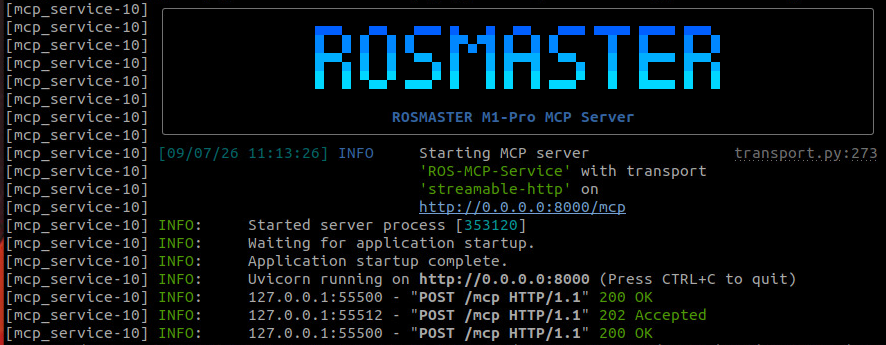
image-20260907112658746

3. MCP Protocol Introduction

  • MCP (Model Context Protocol) is an open protocol used to connect large language models with external tools and services. In this system, OpenClaw converts the user's natural language instructions into specific robot operation instructions through the MCP protocol.

  • After the AI model parses the user instruction, it selects the corresponding MCP Tool to execute. The MCP service converts tool calls into ROS2 Action instructions, driving hardware such as the robot chassis and robotic arm to perform actions.
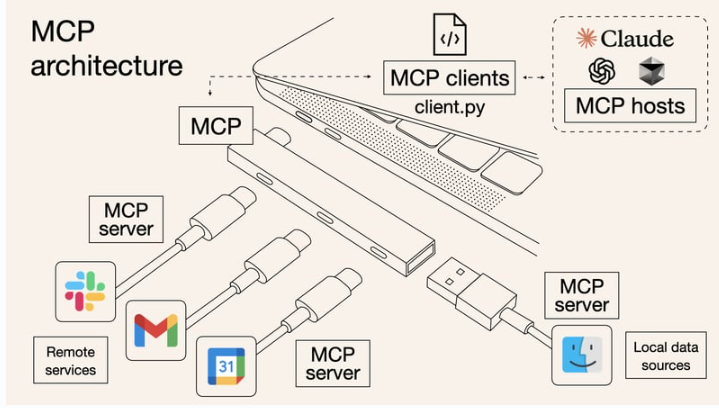
image-20260429113528661

  • Through the robot's MCP service interface, the robot can be connected to any MCP-supported AI model, Agent, AI tool, etc., achieving control of the robot.

4. OpenClaw Robot Control Communication Architecture

The communication architecture for OpenClaw controlling the robot is divided into four layers:

  1. User Interaction Layer: Send natural language instructions through interaction methods such as Web Chat and WeChat

  2. AI Decision Layer: The LLM in OpenClaw parses the user's intent and selects the corresponding MCP Tool

  3. MCP Service Layer: Runs based on the FastMCP framework, registering tool functions such as chassis movement and visual recognition, and communicates with the robot hardware through ROS2 Action, Topic, and Service

  4. Robot Execution Layer: The MicroROS chassis agent receives instructions and drives hardware such as the robot chassis to perform actions

xxxxxxxxxx
                                                        ┌───────────────────────────┐
                                                        │          OpenClaw         │
                                                        └─────────────┬─────────────┘
                                                                      │
                                                                      ▼
                                                        ┌───────────────────────────┐
                                                        │       robot-control       │
                                                        │           Plugin          │
                                                        └─────────────┬─────────────┘
                                                                      │MCP Protocol
                                                                      ▼
                                                        ┌───────────────────────────┐
                                                        │         MCP Server        │
                                                        └─────────────┬─────────────┘
                                                                      │
                                                                      ▼
                                                        ┌───────────────────────────┐
                                                        │      ROS2 Comm Stack      │
                                                        │  Topics/Services/Actions  │
                                                        └─────────────┬─────────────┘
                                                                      │
                                                                      ▼
                                                        ┌───────────────────────────┐
                                                        │   Hardware Driver Layer   │
                                                        └─────────────┬─────────────┘
                                                                      │
                                                                      ▼
                                                        ┌───────────────────────────┐
                                                        │       Robot Hardware      │
                                                        └───────────────────────────┘


5. Demo Cases

  • Control the robot through conversation with OpenClaw

  • On a PC on the same LAN as the robot, open the Web Chat UI and log in

Note

  • For the interaction method with OpenClaw here, choose any one of the OpenClaw interaction methods; here we use Web Chat interaction as an example for the demonstration

  • Here we use OpenClaw controlling the robotic arm as an example for the demonstration test:

    • Move forward 0.5 meters, then turn left 90 degrees
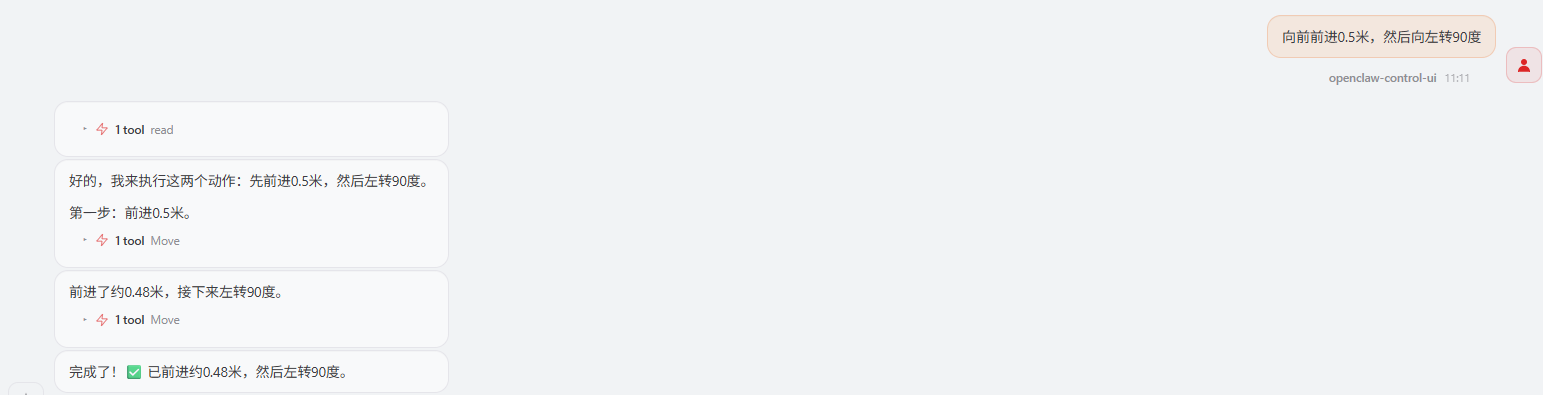
image-20260724111245140

  • The MCP server will indicate that it has received the corresponding MCP call request, calling the chassis control service interface through the underlying ROS2 Action

image-20260907112155920


5.1 🖥️ MCP Service

Source code path:

xxxxxxxxxx
~/yahboomcar_ros2_ws/yahboomcar_ws/src/multi_brains_pre/multi_brains_pre/mcp_service.py

mcp_service.py is the entry file of the MCP service and mainly accomplishes the following work:

  1. Create a FastMCP service instance named "ROS-MCP-Service"

  2. Create a ROS2 node through ROSContext and start background spin

  3. Call register_actions() to register all robot control tools

  4. Start the MCP service, listening on the specified host and port

Code Description:

  • FastMCP(name="ROS-MCP-Service"): Create a FastMCP service instance, where name is the service name identifier

  • ROSContext().create_node(): Create a ROS2 node instance, serving as a bridge for communication with the robot hardware

  • ROSContext.start_spin(): Start the ROS2 background spin thread, continuously handling callbacks for topics, services, and actions

  • signal.signal(signal.SIGINT, signal_handler): Register a signal handler to capture interrupt signals such as Ctrl+C, ensuring ROS2 resources can be properly released when the service shuts down

  • register_actions(mcp, action_controller): Register all robot control tools (chassis movement, visual recognition, robotic arm control, etc.) into the MCP service

  • mcp_service.run(host="0.0.0.0", port=8000, transport="streamable-http"): Start MCP service listening, where host is the listening address (0.0.0.0 means allowing LAN access), port is the service port, and transport is the transport protocol

Service Parameter Description:

  • host: Service listening address; "0.0.0.0" means listening on all network interfaces and allowing access from other devices on the LAN; if only local access is needed, it can be set to "127.0.0.1"

  • port: Service port number, default 8000. The robot-control plugin connects to this service via http://localhost:8000/mcp

  • transport: Transport protocol; "streamable-http" means using the streamable HTTP protocol, supporting request-response mode and streaming transmission, suitable for real-time communication in robot control scenarios

  • ROSContext: ROS2 context manager, encapsulating node creation, spin thread management, and resource release, ensuring correct integration of the MCP service with the ROS2 communication stack

​x

from fastmcp import FastMCP
from .action_controller import ROSContext
import signal
import sys
from .mcp_tools.mcp_action import register_actions
def signal_handler(signum, frame):
    '''Handle system signals for graceful shutdown'''
    ROSContext.shutdown()
    sys.exit(0)
signal.signal(signal.SIGINT, signal_handler)
signal.signal(signal.SIGTERM, signal_handler)
def main(args=None):
    try:
        mcp_service = FastMCP(name="ROS-MCP-Service")
        action_controller = ROSContext().create_node()
        ROSContext.start_spin()
        #--------------------------------------------MCP TOOLS---------------------------------------------------------
        register_actions(mcp=mcp_service,action_controller=action_controller)    
        mcp_service.run(host="0.0.0.0", port=8000,transport="streamable-http")
        
    except KeyboardInterrupt:
        print("Service interrupted by user.")
    finally:
        ROSContext.shutdown()

if __name__ == "__main__":
    main()


5.2 🛠️ MCP Tools

Source code path:

xxxxxxxxxx
~/yahboomcar_ros2_ws/yahboomcar_ws/src/multi_brains_pre/multi_brains_pre/mcp_tools/mcp_action.py

mcp_action.py registers MCP Tools through the register_actions() function

All tools follow a unified registration pattern, using the @mcp.tool() decorator to define the description and timeout, constraining parameter ranges through Pydantic Field, and returning the common_response data class. Take the chassis movement tool Move as an example:

Code Description:

  • @mcp.tool(description, timeout): MCP tool registration decorator; description describes the tool function so the AI model can understand when to call it, and timeout sets the tool execution timeout (seconds)

  • direction: Movement direction parameter, supporting forward, backward, turn_left, and turn_right

  • distance: Linear movement distance, unit: meters; only used for the forward/backward directions, set to 0.0 during rotation

  • angle: Rotation angle, unit: degrees; only used for the turn_left/turn_right directions, set to 0.0 during straight movement

  • Annotated[type, description]: Pydantic type annotation that adds description information to each parameter, helping the AI model understand the parameter meaning and value range

  • action_controller.move_by_odom(...): Calls the underlying ROS2 Action interface to control chassis movement through odometry feedback

  • common_response(execution_result, reason): Unified return format, where execution_result is "success" or "failed", and reason contains the detailed execution result or error information

Move Tool Parameter Description:

  • direction: Required parameter, the movement direction; options: forward, backward, turn_left, and turn_right

  • distance: Optional parameter, linear movement distance, unit: meters; only used for the forward/backward directions, default value 0.0

  • angle: Optional parameter, rotation angle, unit: degrees; only used for the turn_left/turn_right directions, default value 0.0

  • timeout=30.0: Tool execution timeout, unit: seconds. Chassis movement depends on odometry feedback; if not completed within 30 seconds, it times out and returns failure

  • res[0]: The first element of the move_by_odom return result, a boolean indicating whether the movement succeeded

  • res[1]: The second element of the return result, containing detailed execution information or error description

xxxxxxxxxx
    @mcp.tool(
        description='''Move the robot chassis by a specified distance or rotate by a specified angle using odometry feedback. '''
                    '''Supported directions: forward, backward, turn_left, turn_right. '''
                    '''For linear movement (forward/backward), specify distance in meters. '''
                    '''For rotation (turn_left/turn_right), specify angle in degrees (positive value).''',
        timeout=30.0)
    def Move(
        direction: Annotated[str, "Movement direction: 'forward', 'backward', 'turn_left', or 'turn_right'"],
        distance: Annotated[float, "Linear movement distance in meters. Only used when direction is 'forward' or 'backward'. Set to 0.0 for rotation."] = 0.0,
        angle: Annotated[float, "Rotation angle in degrees. Only used when direction is 'turn_left' or 'turn_right'. Set to 0.0 for linear movement."] = 0.0
        )-> common_response:
        res = action_controller.move_by_odom(distance=distance, angle=angle, direction=direction)
        if res[0]:
            return common_response(execution_result="success", reason=res[1])
        return common_response(execution_result="failed", reason=res[1])


5.3 💬 MCP Message Interface

Source code path

xxxxxxxxxx
$HOME/microros_ws/src/multi_brains_pre/multi_brains_pre/message/mcp_message.py

mcp_message.py uses Python dataclasses to define the request and response message formats of MCP Tools.

All MCP Tools uniformly return common_response; the AI model judges whether the operation succeeded based on the execution_result field:

Code Description:

  • @dataclass: Python data class decorator that automatically generates methods such as __init__ and __repr__, simplifying message format definition

  • common_response: The unified response data class for all MCP Tools

  • execution_result: Execution result field; the value "success" indicates the operation succeeded and "failed" indicates it failed. The AI model uses this field to judge whether a retry or error report is needed

  • reason: Detailed reason field, containing the specific result description or error information of the operation, for the AI model to understand the execution result and generate a natural language reply

xxxxxxxxxx
@dataclass
class common_response:
    execution_result: str
    reason: str


OpenClaw WhatsApp Interaction
Robot CLI Command Tool

COMPANY

  • About us
  • Team Style
  • Blog

LEARNING & EXPLORATION

  • Tutorials
  • Edge AI hardware
  • Educational robots
  • Embedded intelligent hardware

WHERE TO BUY

  • Yahboom Online Store
  • Amazon
  • Alibaba
  • AliExpress
  • Mercado

TECHNOLOGY SUPPORT

  • Email: support@yahboom.com

BE A DISTRIBUTOR

  • Email: sales@yahboom.com
QR Code

Copyright © 2017-2026 Yahboom. All Rights Reserved.

EN/中文