Welcome to ROSMASTER M1 PRO repository
1.Semantic Understanding and Command Following
Semantic Understanding and Command Following
Semantic Understanding and Command Following1. Course Content2. Preparation3. Case Demonstration4. Code Analysis5. Common Problem Troubleshooting5.1 Adjusting the Microphone Recording Sensitivity
1. Course Content
After running the large model program, the user can interact with the robot through voice conversation. The user's voice command is first converted into text through the speech recognition large model, and then the text generation large model and visual multimodality accurately understand the user's command and voice. Finally, the robot completes the specified action according to the user's command and replies to the user.
2. Preparation
ros2 launch yahboomcar_bringup dify_llm_agents.launch.py use_tts:=true
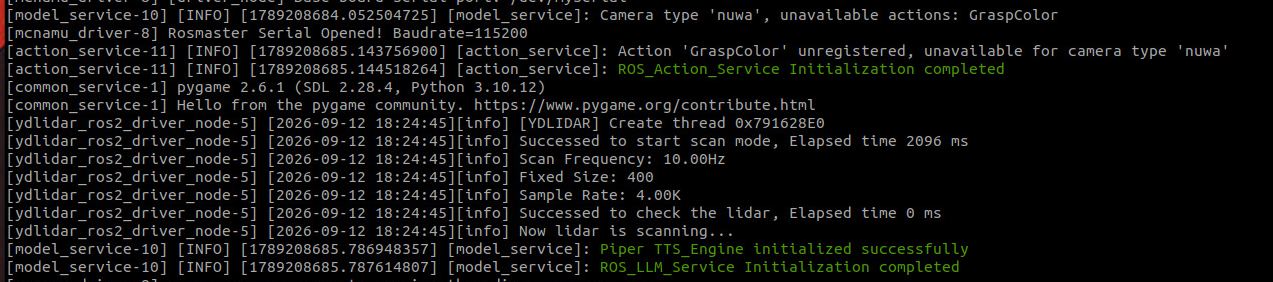
Voice recognition node
xxxxxxxxxxros2 run multi_brains asr_detect

3. Case Demonstration
A reference test case is given below. You can write your own test commands as you like.
Please move forward 1 meter, then backward 0.5 meters, then turn left 30 degrees, turn right 90 degrees, then translate left 0.5 meters, and then translate right 10 centimeters.

4. Code Analysis
This lesson applies the program framework of the basic AI embodied intelligence gameplay. For the code analysis, refer to the section "AI Model Basics - Core Source Code Analysis of the Architecture".
5. Common Problem Troubleshooting
5.1 Adjusting the Microphone Recording Sensitivity
Give priority to adjusting the microphone sensitivity; in general, the sensitivity is rarely adjusted at the software level.
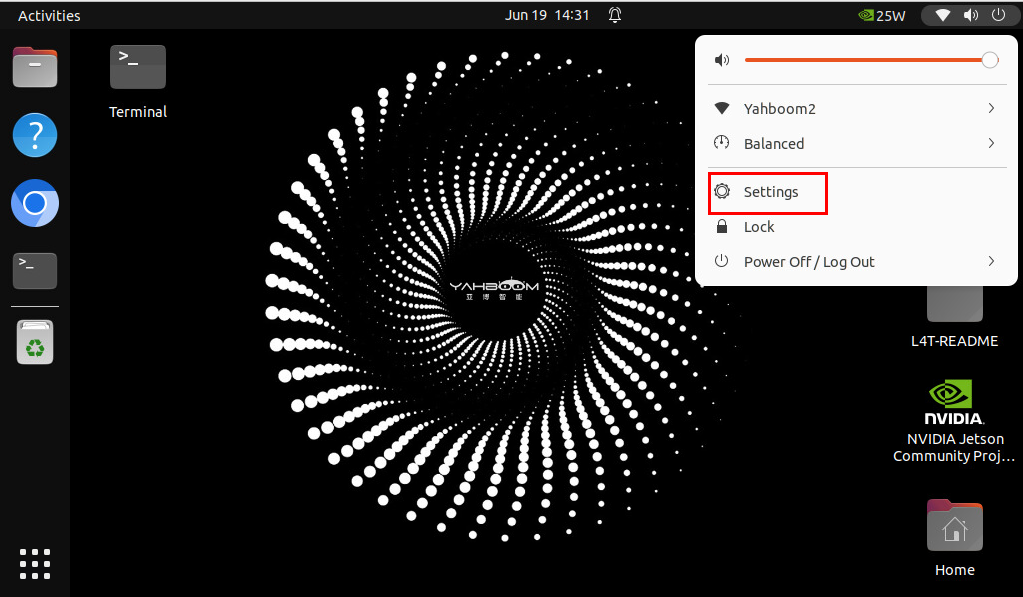
First, connect to the robot's host computer screen through VNC, click the option bar in the upper right corner, and find the Settings option.
Note
The operation method is similar for the Raspberry Pi and RDK models: both adjust the microphone sensitivity in the settings in the upper right corner, with only a slight difference in UI style.
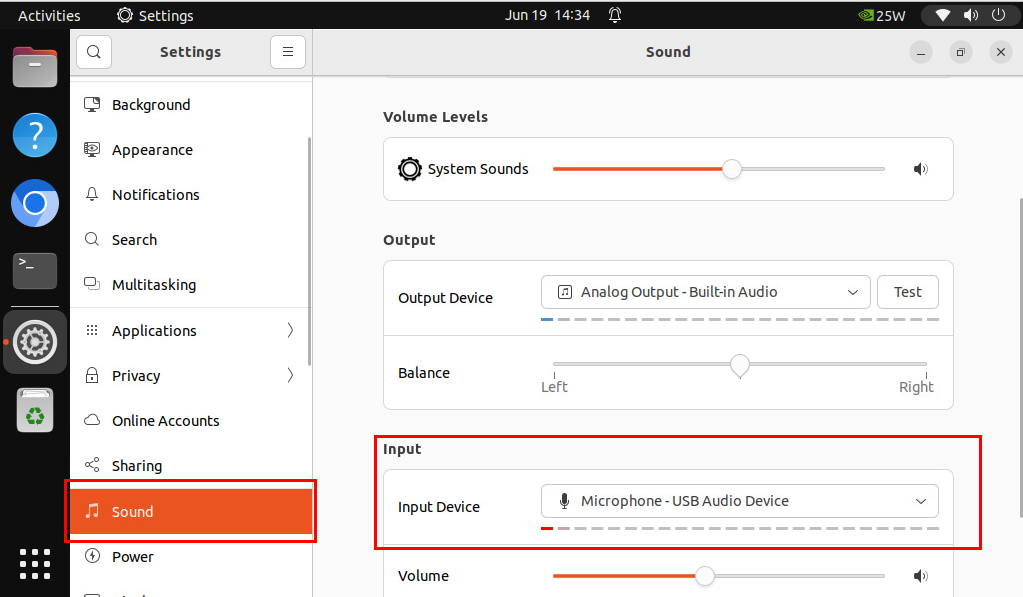
Pull down the Settings list on the left, find the Sound option, and on the Sound page find Input Device under Input, then drag Volume below to adjust the sensitivity. Try to adjust it to a suitable value while recording.