Welcome to ROSMASTER M1 PRO repository
5.RobotManager User Guide
RobotManager User Guide
RobotManager User Guide1. Launch Methods2. Information Panel3. Mapping Panel4. Navigation Panel5. Command Panel6. Configuration Panel7. Parameter Panel8. Viewing Robot Information
RobotManager is the accompanying operation software; it integrates a set of commonly used functions, making it convenient to quickly launch features and configure robot parameter information
1. Launch Methods
Method 1: Launch from the SSH terminal (recommended)
Tip
It is recommended to launch from the SSH terminal, which is smoother; the VNC screen's smoothness is affected by network quality
In all subsequent courses of this product, the way to launch RobotManager is the same. Method 1: the CLI command
robot_manage gui(Tab completion is supported); Method 2: launch from the desktop icon in VNC. In the subsequent chapter courses, when using the RobotManager software, the launch methods will not be repeated
robot_manage gui
Method 2: Launch via icon; click the VNC desktop icon
RobotManager Feature Overview
2. Information Panel
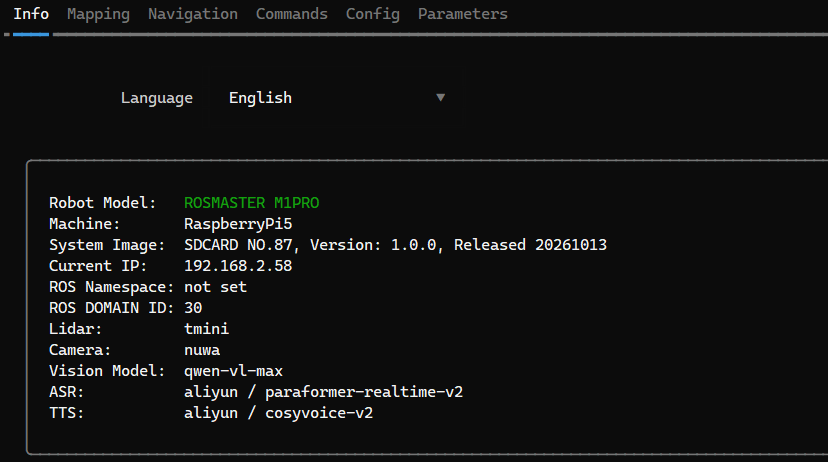
Information Panel: you can view basic information such as the mainboard IP, image version, and devices
3. Mapping Panel
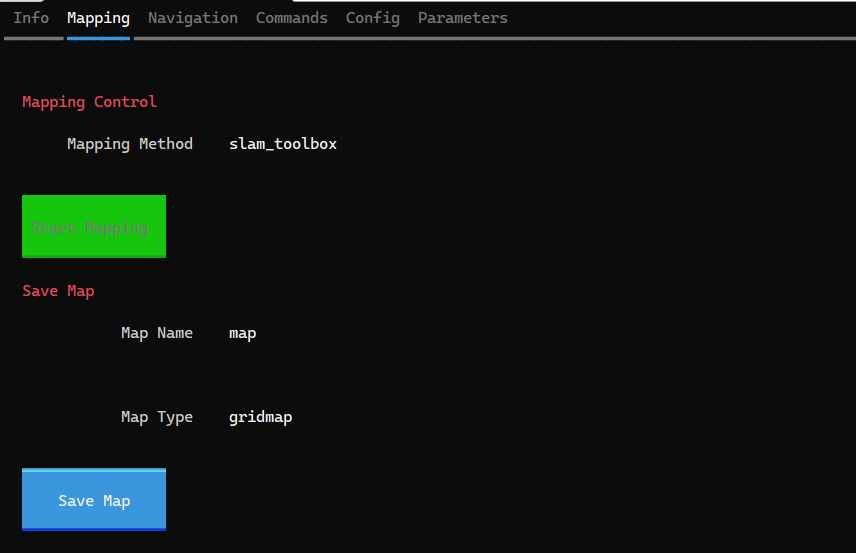
Mapping Panel: provides one-click shortcuts for common SLAM functions such as mapping, saving maps, and road network editing. How to use them will be explained in subsequent practical features
4. Navigation Panel
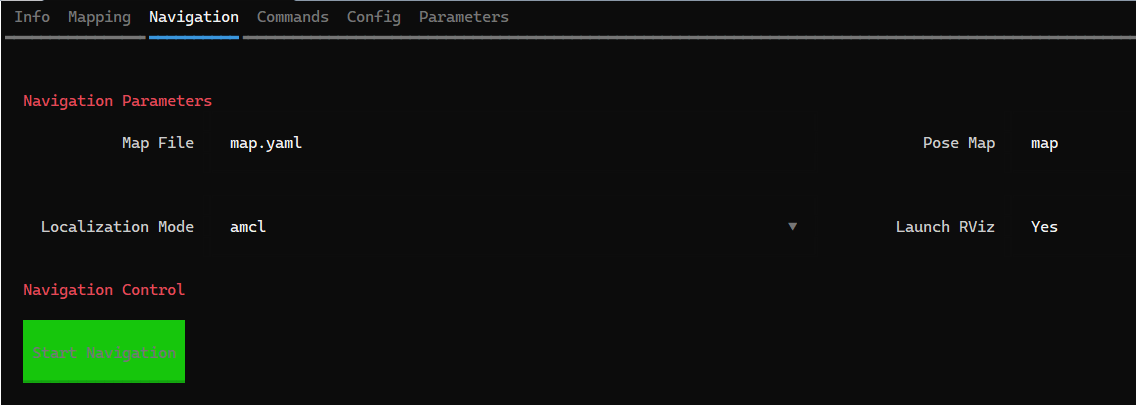
Navigation Panel: provides quick launch methods for commonly used navigation algorithms
5. Command Panel
Important
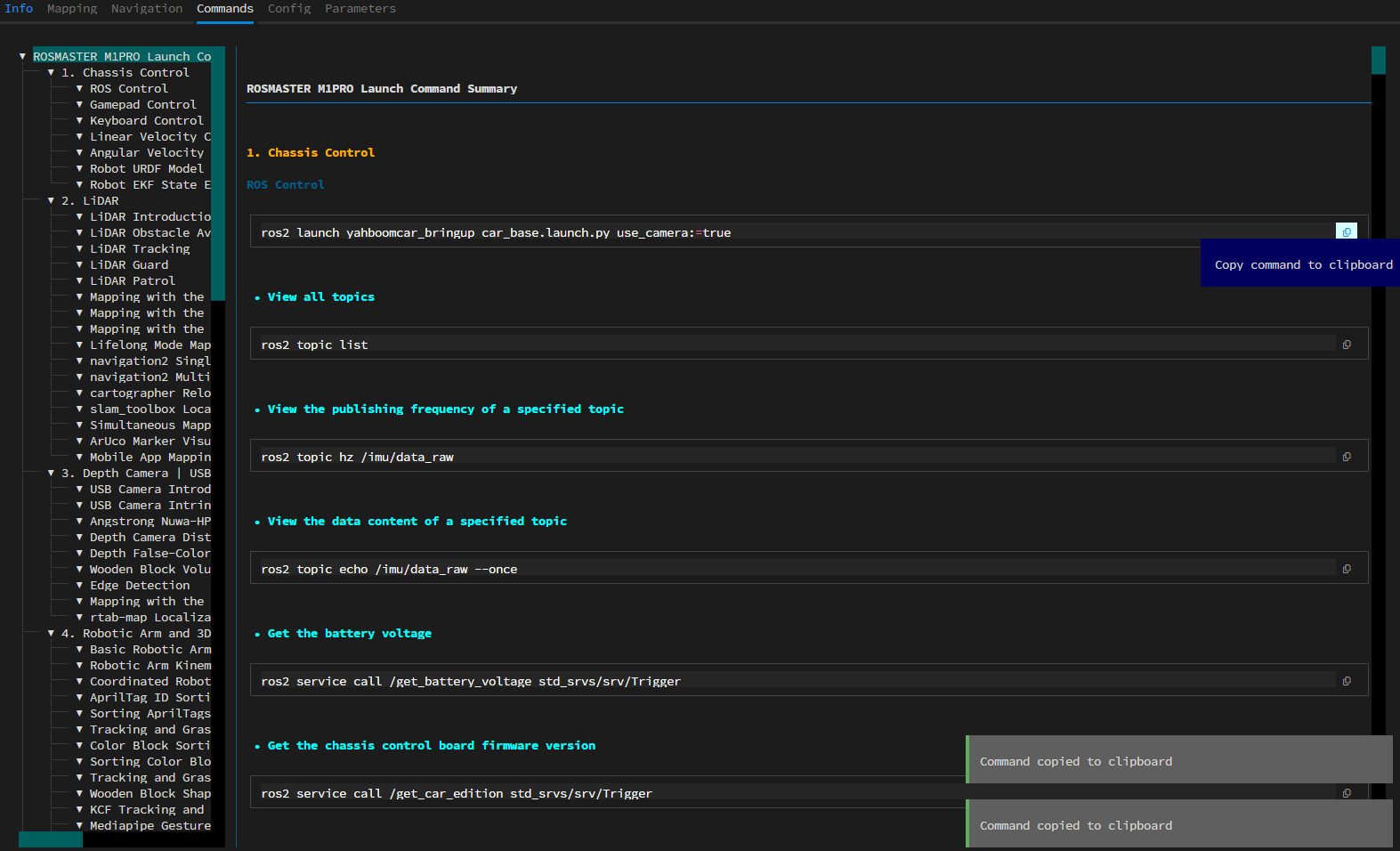
RobotManager must be launched in the SSH terminal for commands to be copied to the user's computer clipboard; in the VNC remote desktop, they cannot be copied to the user's computer clipboard.
The document content displayed in the command panel is a Markdown-format document. You can add your own custom content or make modifications by editing the document. Document path: the
~/yahboomcar_ros2_ws/yahboomcar_ws/docs/command_setsdirectory; ROSMASTER-M1PRO_zh.md and ROSMASTER-M1PRO_en.md correspond to the Chinese and English documents respectively
Command Panel: provides the operation commands for all course cases, allowing you to quickly look up all launch commands in the tutorial cases, copy them, and start them in the terminal
6. Configuration Panel
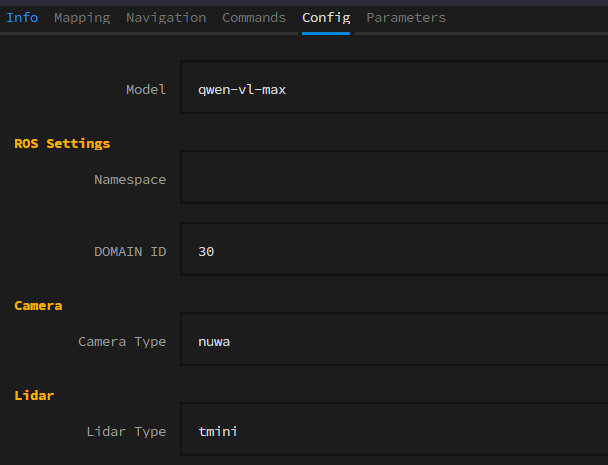
Configuration Panel: provides commonly used system configuration items, which will be explained when needed in each lesson's tutorial document. Note that after modifying the configuration, you must click Save Configuration for it to take effect
7. Parameter Panel
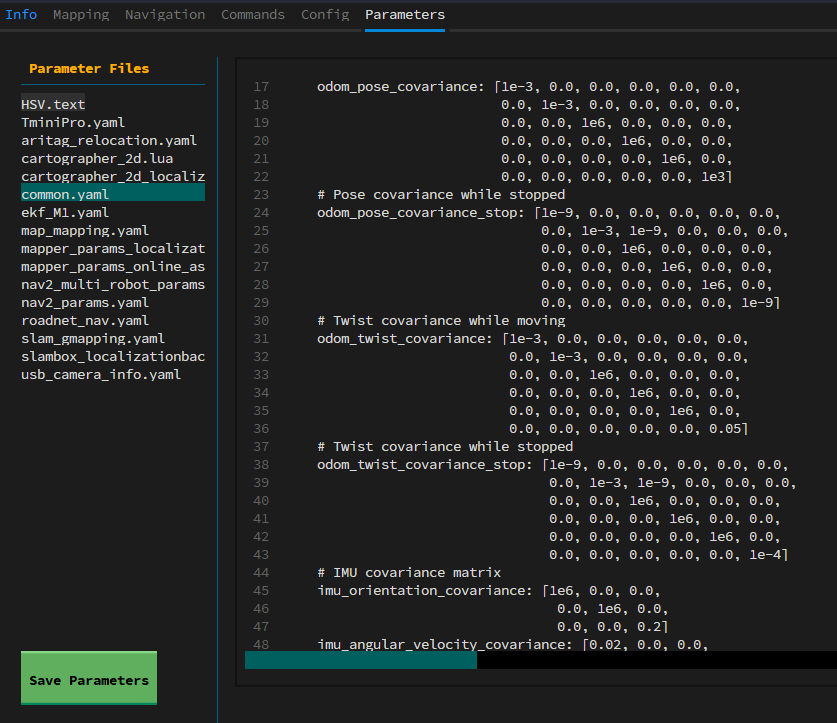
Parameter Panel: provides a quick way to view all configuration parameter files, allowing you to quickly view and modify function parameters. Note that after modifying, click Save Parameters
When you need to exit or close the software, exit via Ctrl+q
8. Viewing Robot Information
Method 1: CLI command
xxxxxxxxxxrobot_manage info
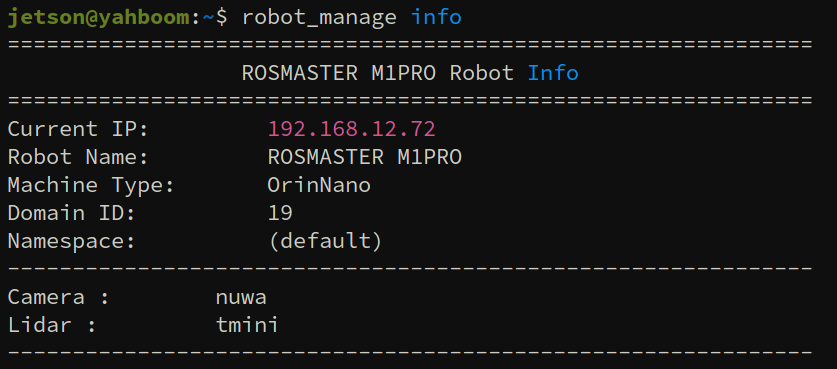
Method 2: Click the desktop icon
