Welcome to ROSMASTER M1 PRO repository
1.CLI Use
CLI Use
CLI Use1. Course Content2. Case Demonstration2.1 Image PredictionPreview2.3. Video PredictionPreview
1. Course Content
Learn about common Ultralytics CLI command tools.
2. Case Demonstration
CLI is a way for users to interact with a computer or software program, in which programs are run or tasks are performed by typing text commands. Ultralytics provides a very convenient command-line interaction tool.
2.1 Image Prediction
First enter the yolo environment
Note
To prevent mutual pollution and interference between Python environments, the yolo library files are located in the directory
~/yahboomcar_ros2_ws/yahboomcar_ws/.venv
yolo_env
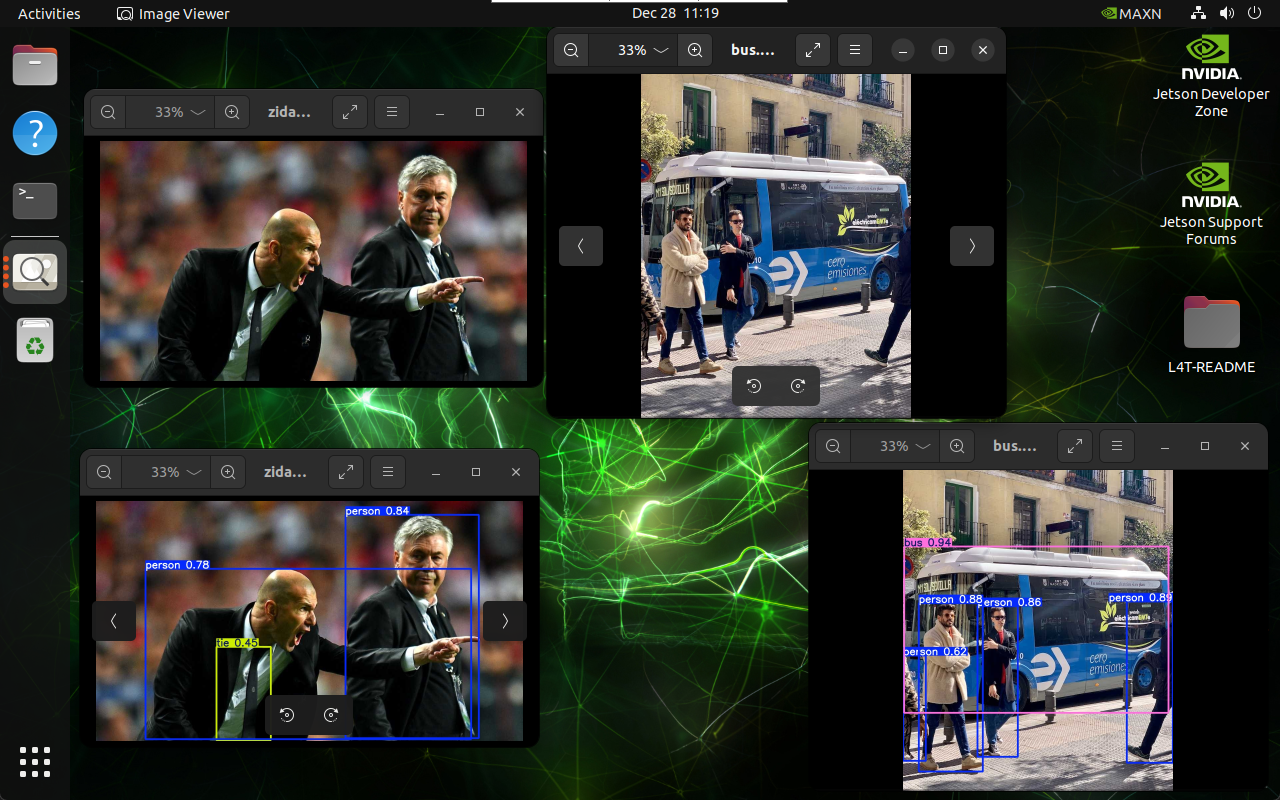
Use yolo26n.pt to run prediction on a target image:
xxxxxxxxxxyolo predict model="$HOME/MODELS/yolo/yolo26n.pt" source="$HOME/MODELS/yolo/assets/bus.jpg" save=True
Preview
With each run, the predict sequence number under this folder is incremented automatically:
2.3. Video Prediction
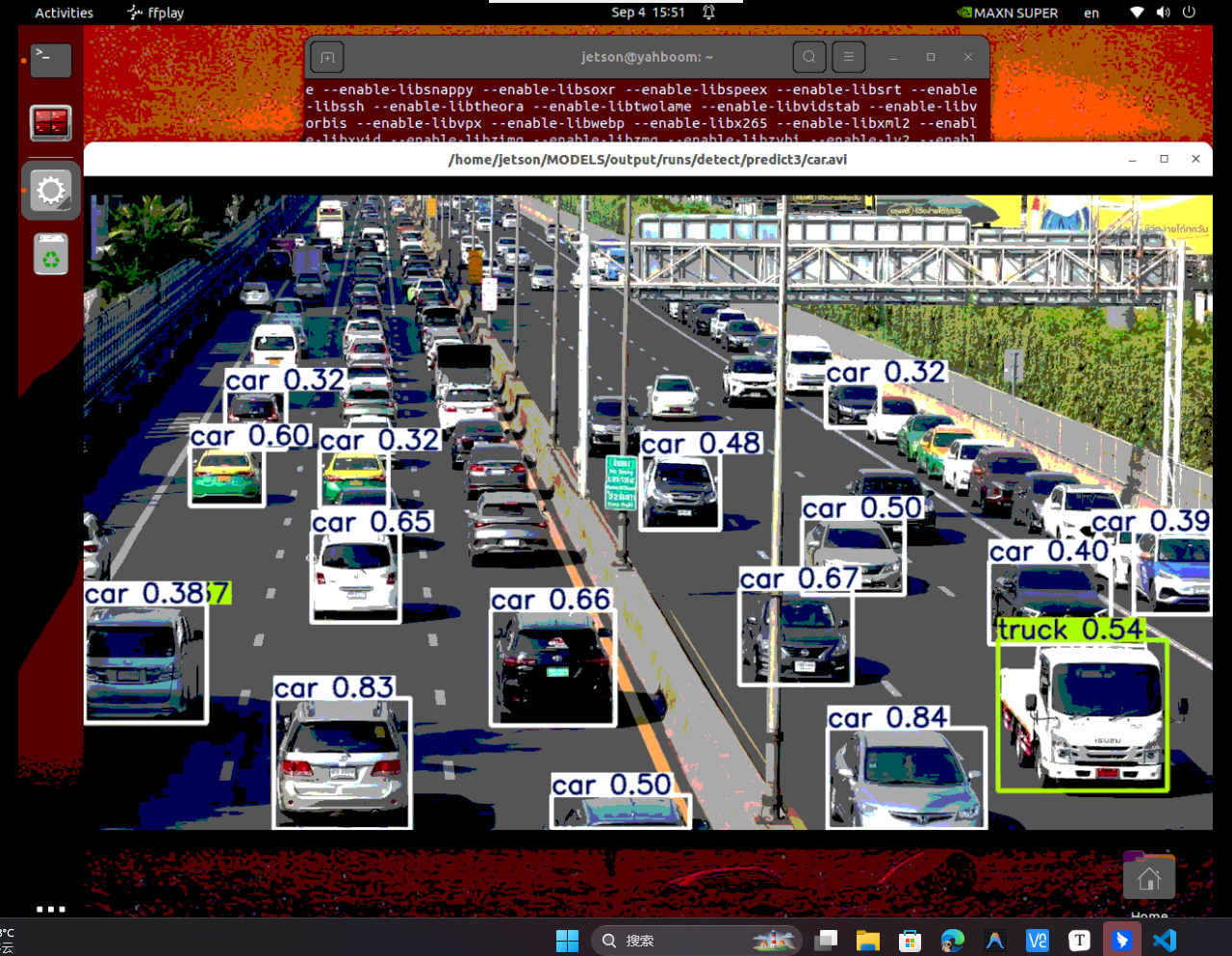
xxxxxxxxxxyolo_envUse yolo26n.pt to detect videos in the target folder and output the results:
xxxxxxxxxxyolo predict model="$HOME/MODELS/yolo/yolo26n.pt" source="$HOME/MODELS/yolo/assets/car.mp4" save=True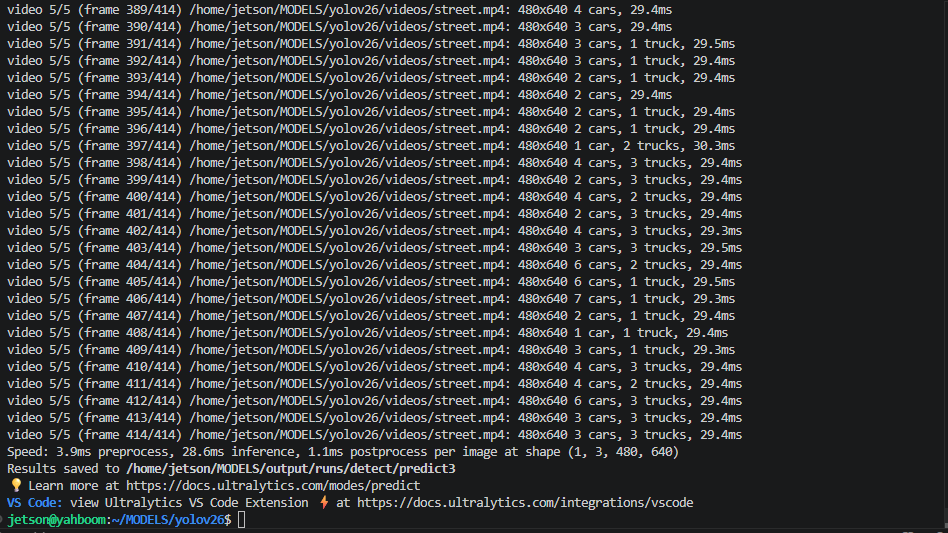
Preview
Find the video file in the corresponding output path.

Play the video (you can also directly open the video in the corresponding directory to view it):
xxxxxxxxxxffplay <video_name>.avi