Welcome to ROSMASTER M1 PRO repository
2.OpenClaw Tui Interaction
OpenClaw TUI Interaction
OpenClaw TUI Interaction1. Course ContentCourse OverviewLearning Objectives2. Starting TUI ConversationApplicable Scenarios3. Common TUI Terminal Conversation Commands4. Common Errors and Solutions4.1 Invalid API4.2 Model Quota Exceeded4.3 Gateway Not Running4.4 Session Abnormal or Frozen
1. Course Content
Course Overview
OpenClaw TUI (Terminal User Interface) is a terminal-based text interaction interface. No graphical desktop environment is required; you can chat with the OpenClaw robot directly from the command line. TUI interaction is especially suitable for scenarios where you connect to the robot remotely via SSH and perform pure text interaction in the terminal.
Learning Objectives
Master the method to start a terminal interaction session using the
openclaw tuicommandLearn the advanced usage of starting TUI with parameters
Become familiar with common conversation commands (slash commands) in the TUI terminal
Be able to troubleshoot and resolve common errors during TUI usage
2. Starting TUI Conversation
Applicable Scenarios
TUI conversation is mainly applicable to the following scenarios:
SSH Remote Connection — After logging into the robot remotely via SSH, you can directly chat with OpenClaw in the terminal
Lightweight Interaction — Compared to Web UI, TUI consumes fewer resources and starts faster, making it suitable for quick debugging and daily use
Enter the following command directly in the terminal to start the TUI conversation interface:
openclaw tui
Note
You can chat with the robot by typing text just like in WebChat
As long as the session ID is the same, the dialogue history is synchronized between WebChat and TUI
3. Common TUI Terminal Conversation Commands
Conversation commands in the TUI terminal are exactly the same as slash commands in WebChat, with identical usage. All commands must start with
/and be sent as independent messages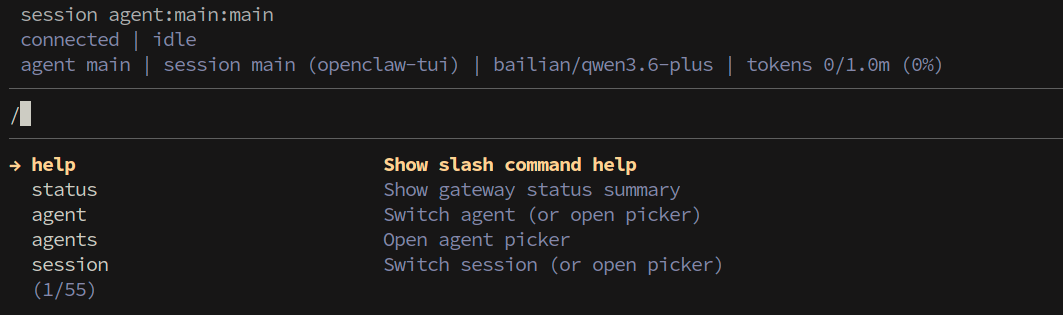
4. Common Errors and Solutions
4.1 Invalid API
Symptoms: After sending a message, the robot reports an invalid API-KEY, authentication failure, or returns a 401 error.
Possible causes and solutions:
API-KEY configuration error — Check whether the API-KEY configuration item in
openclaw.jsonis correct; reconfigure and restart the gatewayAPI-KEY expired — Go to the model service provider's platform to check whether the API-KEY has expired; generate a new KEY and update the configuration
Model service provider address error — Confirm that the API address (base URL) for the model in
openclaw models listis filled in correctly
xxxxxxxxxx# View current model configurationopenclaw models list# View model statusopenclaw models status4.2 Model Quota Exceeded
Symptoms: After sending a message, it reports that the model's call quota limit has been reached (Rate Limit / Quota Exceeded), or returns a 429 status code.
Possible causes and solutions:
Quota exhausted — Model service providers impose daily/hourly call limits or token limits on free/trial accounts; please check your account quota status
Multiple concurrent sessions consuming quota — Having multiple sessions open for parallel conversations will accelerate quota consumption; it is recommended to reduce the number of concurrent sessions
Switch model — If the current model's quota is limited, you can use the
/modelcommand to switch to another configured model to continue the conversation
4.3 Gateway Not Running
Symptoms: After running openclaw tui, it reports that it cannot connect to the Gateway, the connection is refused, or it hangs in the connecting state for a long time.
Possible causes and solutions:
Gateway not started — Start the Gateway service first:
xxxxxxxxxxopenclaw gateway start# Or use foreground run modeopenclaw gateway runGateway stopped or crashed — Check the Gateway running status and restart:
xxxxxxxxxxopenclaw gateway statusopenclaw gateway restartPort occupied — The Gateway's default port is occupied by another program; check the port usage:
xxxxxxxxxx# Check whether the default port 18789 is occupiedlsof -i :187894.4 Session Abnormal or Frozen
Symptoms: The TUI interface is unresponsive, no reply for a long time after sending a message, or the interface displays abnormally.
Possible causes and solutions:
Model response timeout — Use the
/stopcommand to stop the currently generating response, then send the message againTerminal window size issue — Resize the terminal window and run the command again; some terminal windows that are too small may cause display anomalies
Session context too long — Use
/compactto compact the conversation context and free up token spaceRestart TUI — Press
Ctrl+Cto exit TUI, then runopenclaw tuiagain to start it