Welcome to ROSMASTER A1 PRO repository
3.Nuwa-HP60C Camera Introduction (Depth Camera Only)
📷 Angstrong Nuwa-HP60C 3D Depth Camera Introduction and Usage
1. Course Overview
This course will introduce the basic characteristics of the Angstrong Nuwa-HP60C 3D Structured Light Depth Camera equipped on the A1 Pro robot, and demonstrate how to use ROS 2 driver to start the camera node, use rqt_image_view and RViz2 to view RGB color stream, Depth stream, IR infrared images, and 3D spatial dense point cloud in real-time.
🎯 Course Objectives
Understand the structured light measurement principle and core hardware parameters of the Angstrong Nuwa-HP60C depth camera
Master how to use
ascamerato start the depth camera driver nodeMaster how to subscribe and visualize RGB color image, 16-bit depth map, and 3D point cloud in ROS 2 environment
Important
This course is only applicable to users with the Angstrong Nuwa-HP60C Depth Camera version.
2. Camera Hardware Introduction
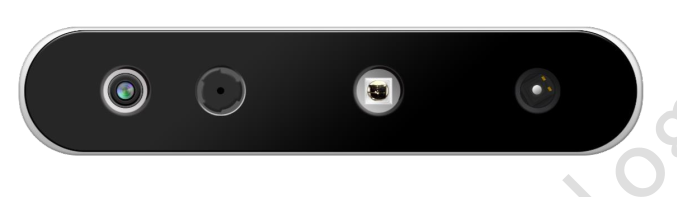
The Angstrong Nuwa-HP60C is an industrial-grade micro 3D structured light depth camera, consisting of VCSEL laser speckle projector, infrared receiver, and high-resolution RGB sensor:
Measurement Range: 0.2m ~ 4m
RGB: 1280×720 / 640×480 @ 30FPS
Depth: 640×480 @ 30FPS, 16-bit millimeter-level accuracy
Field of View: H73.8° × V51.7°
Interface: Type-C USB 2.0 / 3.0
3. Preparation and Driver Startup
3.1 Start Camera Driver Individually
Open the terminal and run the following command to start the camera low-level driver:
xxxxxxxxxxros2 launch ascamera hp60c.launch.py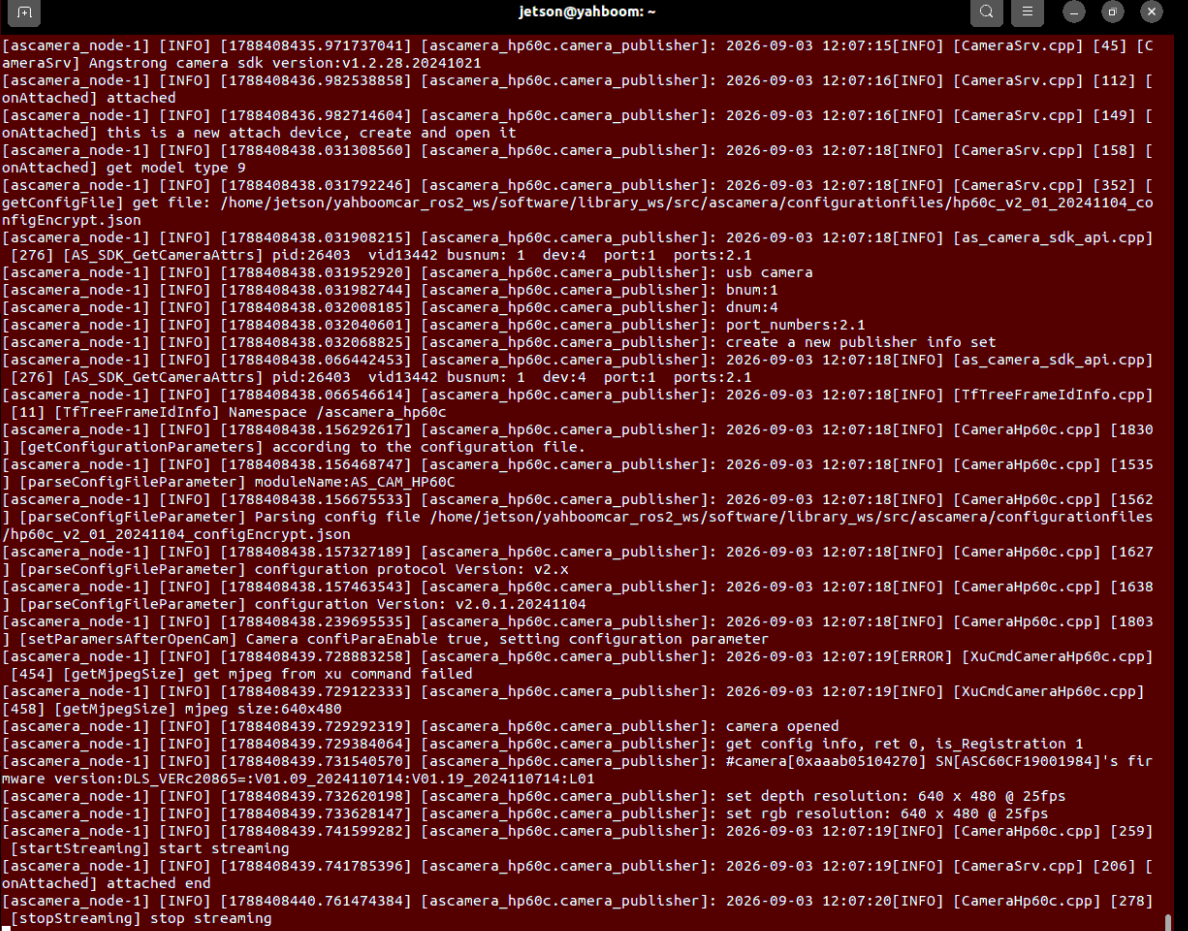
3.2 Start Camera Driver and RViz Visualization Integrated Environment
If you need to start the driver and automatically pop up RViz2 point cloud monitoring and topic monitoring:
xxxxxxxxxxros2 launch dofbot_pro_bringup nuwa_camera_view.launch.py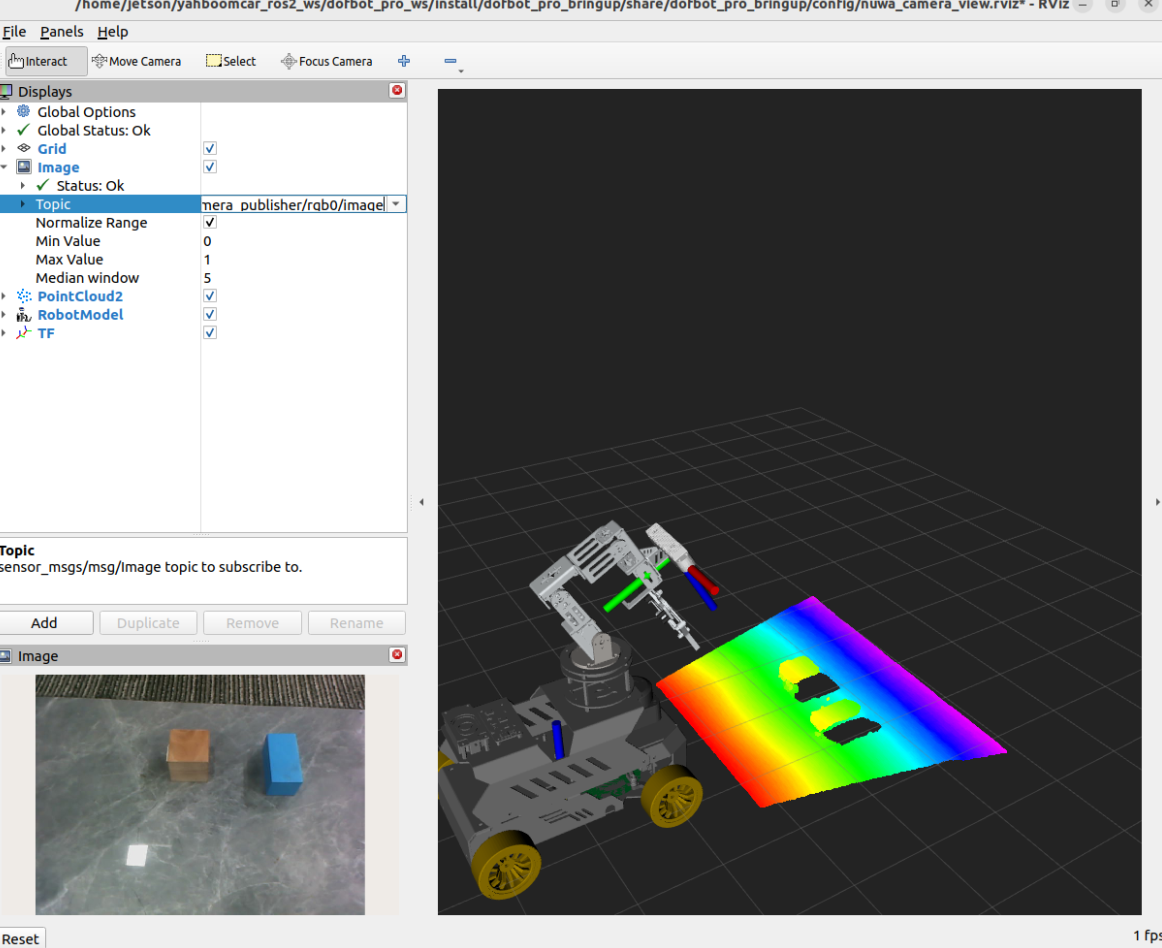
Subscribe to depth image, select
/ascamera_hp60c/camera_publisher/depth0/image_rawdepth image topic
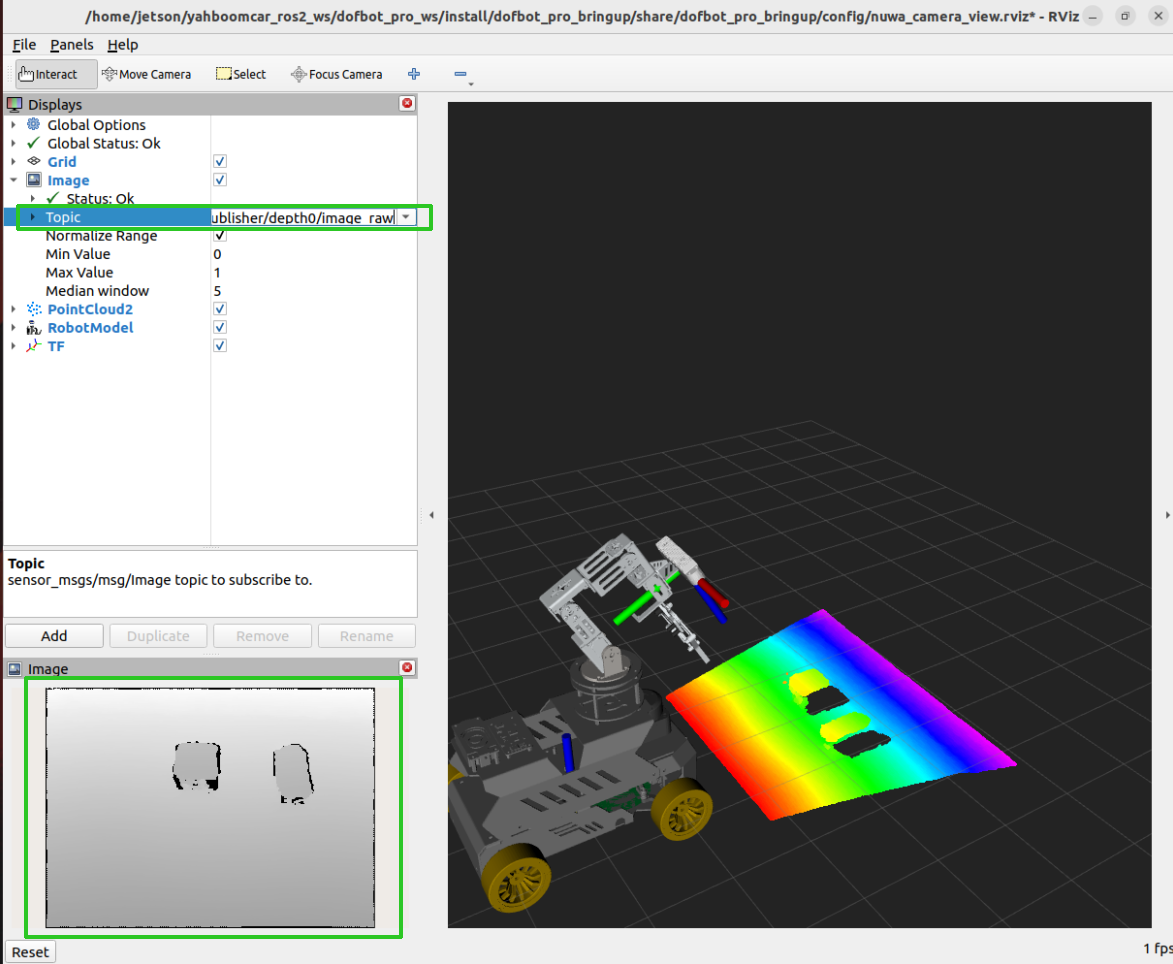
4. Hands-on Demo and Topic Monitoring
4.1 View Camera Node and Topic Information
Execute in the terminal:
xxxxxxxxxxros2 node info /ascamera_hp60c/camera_publisherThe published topics are shown in the figure below:
xxxxxxxxxx/ascamera_hp60c/camera_publisherSubscribers:/parameter_events: rcl_interfaces/msg/ParameterEventPublishers:/ascamera_hp60c/camera_publisher/depth0/camera_info: sensor_msgs/msg/CameraInfo/ascamera_hp60c/camera_publisher/depth0/image_raw: sensor_msgs/msg/Image/ascamera_hp60c/camera_publisher/depth0/points: sensor_msgs/msg/PointCloud2/ascamera_hp60c/camera_publisher/rgb0/camera_info: sensor_msgs/msg/CameraInfo/ascamera_hp60c/camera_publisher/rgb0/image: sensor_msgs/msg/Image/parameter_events: rcl_interfaces/msg/ParameterEvent/rosout: rcl_interfaces/msg/Log/tf: tf2_msgs/msg/TFMessage
The provided services are shown in the figure below:
Service Servers:/ascamera_hp60c/camera_publisher/describe_parameters: rcl_interfaces/srv/DescribeParameters/ascamera_hp60c/camera_publisher/get_parameter_types: rcl_interfaces/srv/GetParameterTypes/ascamera_hp60c/camera_publisher/get_parameters: rcl_interfaces/srv/GetParameters/ascamera_hp60c/camera_publisher/list_parameters: rcl_interfaces/srv/ListParameters/ascamera_hp60c/camera_publisher/set_parameters: rcl_interfaces/srv/SetParameters/ascamera_hp60c/camera_publisher/set_parameters_atomically: rcl_interfaces/srv/SetParametersAtomically