Welcome to ROSMASTER A1 PRO repository
7.Scene Design
Scene Design and Attached Object Obstacle Avoidance
1. Content Description
In industrial automated assembly and warehouse sorting scenarios, after the robot arm grasps a workpiece, the workpiece becomes part of the robot arm itself (Attached Collision Object). If the planner does not consider the volume of the workpiece itself, the workpiece is very likely to collide with and damage the shelf layers when the robot arm feeds it into a narrow shelf or workstation.
This course introduces how to import a complex 3D static shelf scene in MoveIt2, and dynamically attach a cylindrical workpiece to the robot arm's gripper in the program. MoveIt2 will bind this workpiece to the end link in real time, and in the subsequent multi-layer shelf shuttling motion planning, incorporate the workpiece's collision geometry into the global obstacle avoidance computation, safely and smoothly completing the simulated workpiece placement task.
2. Launch and Operation Steps
2.1 Launching the MoveIt2 Simulation Environment
Enter the following command in the terminal to launch the MoveIt2 simulation environment:
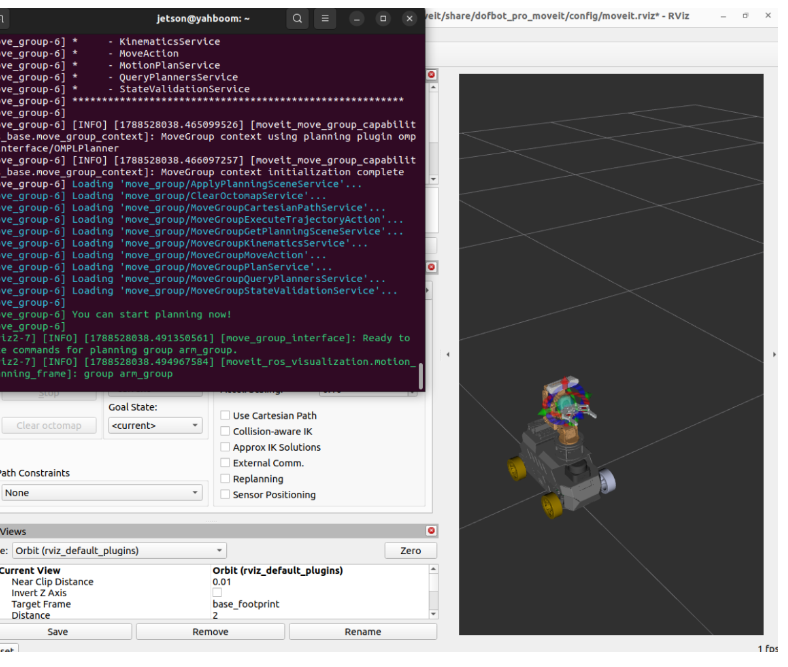
xxxxxxxxxxros2 launch dofbot_pro_moveit demo_3d.launch.pyOnce the program starts, when You can start planning now! is output in the terminal, it means the MoveIt2 simulation environment was launched successfully, as shown in the figure below:
2.2 Starting Real-Machine Linkage (Optional)
If you want the simulation actions to synchronously control the real physical robot arm, open another terminal and run the hardware control conversion node:
xxxxxxxxxxros2 run movelt_demo SimulationToMachine(It is recommended not to start this node during the initial test. First verify that the obstacle-avoidance trajectory is correct in the pure RViz simulation environment before connecting to the real machine).
2.3 Running the Workpiece Attachment and Shuttling Planning Program
In another terminal, enter the following command to run the scene planning program:
xxxxxxxxxxros2 run movelt_demo set_sceneAfter the program runs:
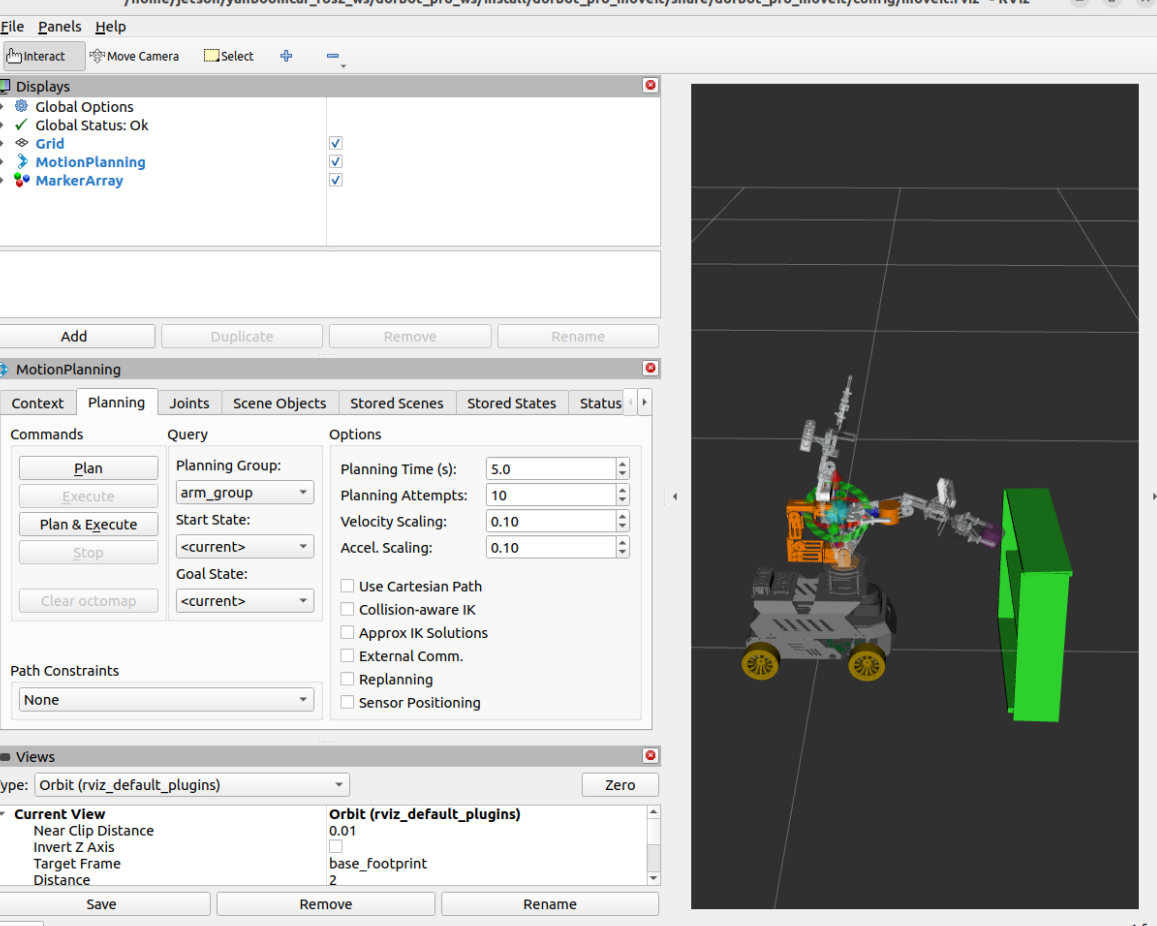
The node first dynamically generates and attaches a purple cylindrical workpiece (
cylinder1) at the position of the robot arm's end-effector gripper (Gripping);Carrying the cylindrical workpiece, the robot arm first smoothly plans and moves to the
initpreparation pose;Then tilts downward to the
downpose;Next, MoveIt computes a fine trajectory that avoids colliding with the shelf partitions, guiding the robot arm's end effector to precisely feed the cylinder into the middle layer of the shelf, simulating a smooth placement action, as shown in the figure below:
3. Core Code Analysis
Program source code path:
~/yahboomcar_ros2_ws/dofbot_pro_ws/src/movelt_demo/movelt_demo/set_scene.py
3.1 Node Initialization and Interface Definition
The program is natively written in ROS 2 Python. The class SetScene initializes the action execution client, the scene publisher, and the motion planning service client:
xxxxxxxxxximport timeimport rclpyfrom rclpy.node import Nodefrom rclpy.action import ActionClientfrom control_msgs.action import FollowJointTrajectoryfrom geometry_msgs.msg import Posefrom moveit_msgs.msg import (    PlanningScene,    CollisionObject,    AttachedCollisionObject,    Constraints,    JointConstraint,)from moveit_msgs.srv import GetMotionPlanfrom shape_msgs.msg import SolidPrimitive
class SetScene(Node):    def __init__(self):        super().__init__('set_scene_node')        self.get_logger().info("Initializing SetScene node...")
        # 1. Trajectory execution Action client        self._action_client = ActionClient(            self,            FollowJointTrajectory,            '/arm_group_controller/follow_joint_trajectory'        )
        # 2. Planning scene publisher (used to inject/attach obstacles into the environment)        self._planning_scene_pub = self.create_publisher(PlanningScene, '/planning_scene', 10)
        # 3. Motion planning service client        self._plan_client = self.create_client(GetMotionPlan, '/plan_kinematic_path')
        # 4. The 5 joint names of the robot arm        self.joint_names = [            "arm1_Joint", "arm2_Joint", "arm3_Joint",            "arm4_Joint", "arm5_Joint"        ]
        # 5. Preset named target poses (in radians)        self.named_states = {            "up":   [0.0,  0.0,      0.0,     0.0,     0.0],            "down": [0.0, -1.5708,   0.0,     0.0,     0.0],            "init": [0.0,  1.5708,  -1.5708, -1.5708,  0.0],        }
3.2 Dynamic Workpiece Creation and Attachment (add_and_attach_cylinder)
How does MoveIt know that the robot arm is "holding an object"?
The program achieves this through AttachedCollisionObject:
Creates a
CollisionObjectcylinder 3 cm high with a radius of 2 cm;Specifies its attachment carrier as the end link
link_name = "Gripping";Configures
touch_links = ["llink2", "rlink2"], telling the collision detection engine that physical contact between the left and right gripper fingers and the workpiece is allowed without reporting errors;Adds it to
scene.robot_state.attached_collision_objectsand publishes it to/planning_scene.
xxxxxxxxxx    def add_and_attach_cylinder(self):        """Create a cylindrical obstacle and attach it to the Gripping link at the end of the robot arm"""        scene = PlanningScene()        scene.is_diff = True
        # 1. Define the workpiece geometric collision body (a cylinder 0.03m high with a radius of 0.02m)        collision_object = CollisionObject()        collision_object.header.frame_id = "Gripping"        collision_object.header.stamp = self.get_clock().now().to_msg()        collision_object.id = "cylinder1"
        cylinder = SolidPrimitive()        cylinder.type = SolidPrimitive.CYLINDER        cylinder.dimensions = [0.03, 0.02]  # [height, radius]
        grab_pose = Pose()        grab_pose.orientation.w = 1.0        grab_pose.position.z = 0.00        grab_pose.position.x = 0.00
        collision_object.primitives.append(cylinder)        collision_object.primitive_poses.append(grab_pose)        collision_object.operation = CollisionObject.ADD
        # 2. Construct an AttachedCollisionObject bound to the Gripping link        attached_object = AttachedCollisionObject()        attached_object.link_name = "Gripping"        attached_object.object = collision_object        attached_object.touch_links = ["llink2", "rlink2"]  # Two gripper links allowed to make contact
        scene.robot_state.attached_collision_objects.append(attached_object)        scene.robot_state.is_diff = True
        # Publish the scene change        self._planning_scene_pub.publish(scene)        time.sleep(1.0)        self.get_logger().info("The cylindrical workpiece has been successfully attached to the end of the robot arm!")
3.3 Collision-Free Planning Considering the Workpiece Geometry (plan_to_joints)
After attaching the workpiece, when /plan_kinematic_path is called, MoveIt automatically treats cylinder1 as a rigid extension at the frontmost part of the robot arm for collision detection, ensuring that the workpiece does not scrape against the upper and lower partitions when entering the shelf layers:
xxxxxxxxxx    def plan_to_joints(self, target_joints, current_joints):        """Send a joint-space trajectory planning request with attached-object obstacle avoidance to MoveIt"""        request = GetMotionPlan.Request()        req = request.motion_plan_request        req.group_name = "arm_group"
        req.start_state.joint_state.name = self.joint_names        req.start_state.joint_state.position = list(current_joints)
        constraints = Constraints()        for i, name in enumerate(self.joint_names):            jc = JointConstraint()            jc.joint_name = name            jc.position = target_joints[i]            jc.tolerance_above = 0.01            jc.tolerance_below = 0.01            jc.weight = 1.0            constraints.joint_constraints.append(jc)        req.goal_constraints.append(constraints)
        req.num_planning_attempts = 10        req.allowed_planning_time = 5.0
        future = self._plan_client.call_async(request)        rclpy.spin_until_future_complete(self, future)        response = future.result()
        if response.motion_plan_response.error_code.val == 1:            return response.motion_plan_response.trajectory        return None
3.4 Continuous Multi-Station Pick-and-Place Simulation (run Method)
In the main execution logic, first attach the workpiece, then sequentially execute the preparation pose, the head-down transition pose, and the precise target pose inside the shelf, implementing the full-flow collision-free trajectory planning and action playback:
    def run(self):        # 1. Attach the cylindrical workpiece        self.add_and_attach_cylinder()
        current_joints = self.named_states["up"]
        # 2. Move to the init preparation pose        target = self.named_states["init"]        if self.plan_and_execute(target, current_joints, name="init"):            current_joints = target
        # 3. Move to the down transition pose        target = self.named_states["down"]        if self.plan_and_execute(target, current_joints, name="down"):            current_joints = target
        # 4. Move to the target placement angle inside the shelf layer        target = [0.0, -1.57, -0.875, 0.60, 0.0]        if self.plan_and_execute(target, current_joints, name="custom"):            current_joints = target
        self.get_logger().info("All attached-object obstacle-avoidance placement actions in the multi-layer shelf are complete!")