Welcome to ROSMASTER A1 PRO repository
5.OpenClaw Multimodal Vision
OpenClaw Multimodal Vision
1. Course Content
Course Overview
OpenClaw's multimodal vision capability provides visual perception through MCP interfaces, enabling robots to "understand" their surroundings
Covers 3 core vision tools: SeeWhat (capture image), GetBbox (object detection bounding box), GetPlacePoint (get placement point coordinates)
Supports configuring SeeWhat auto-send channels to automatically push robot observation images to communication channels like Feishu and WhatsApp
Learning Objectives
Understand the functionality and use cases of the 3 vision control interfaces provided by OpenClaw
Master the configuration method for SeeWhat auto-send channels
Master how to invoke vision tools directly via CLI
2. Preparation
Start the MCP service:
xxxxxxxxxxros2 launch dofbot_pro_bringup mcp_service.launch.py
If you need voice broadcast replies, add the
use_ttsparameter:ros2 launch dofbot_pro_bringup mcp_service.launch.py use_tts:=true, otherwise it can be omitted
3. Vision-Related Control Interfaces
Note
For detailed functionality, parameters, and usage of the interfaces, please refer to tutorials 【01-OpenClaw Connecting to Robot MCP Service】、 【02-Robot CLI Command Tool】
| Tool Name | Function Description |
|---|---|
| SeeWhat | Capture camera image and return save path |
| GetBbox | Detect bounding box coordinates of target object |
| GetPlacePoint | Get placement point coordinates and check reachability |
4. Case Demonstration
4.1 Start OpenClaw Interaction
Use any interaction method to converse with OpenClaw, here demonstrating with Web Chat
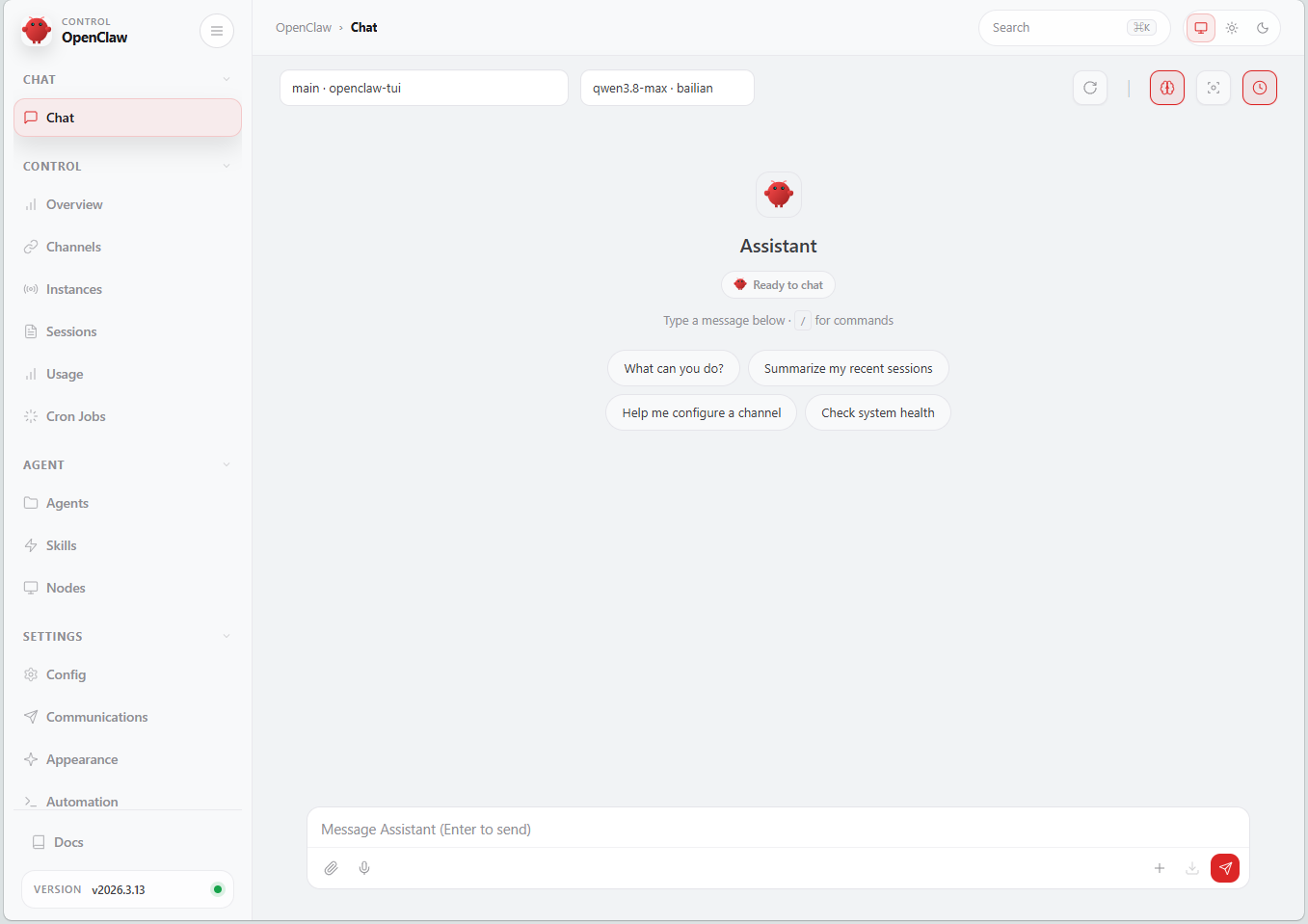
Tip
You can write conversation statements according to your own needs, following is the case demonstration
4.2 Visual Observation and Understanding
Look at the colors of the squares in front of you.
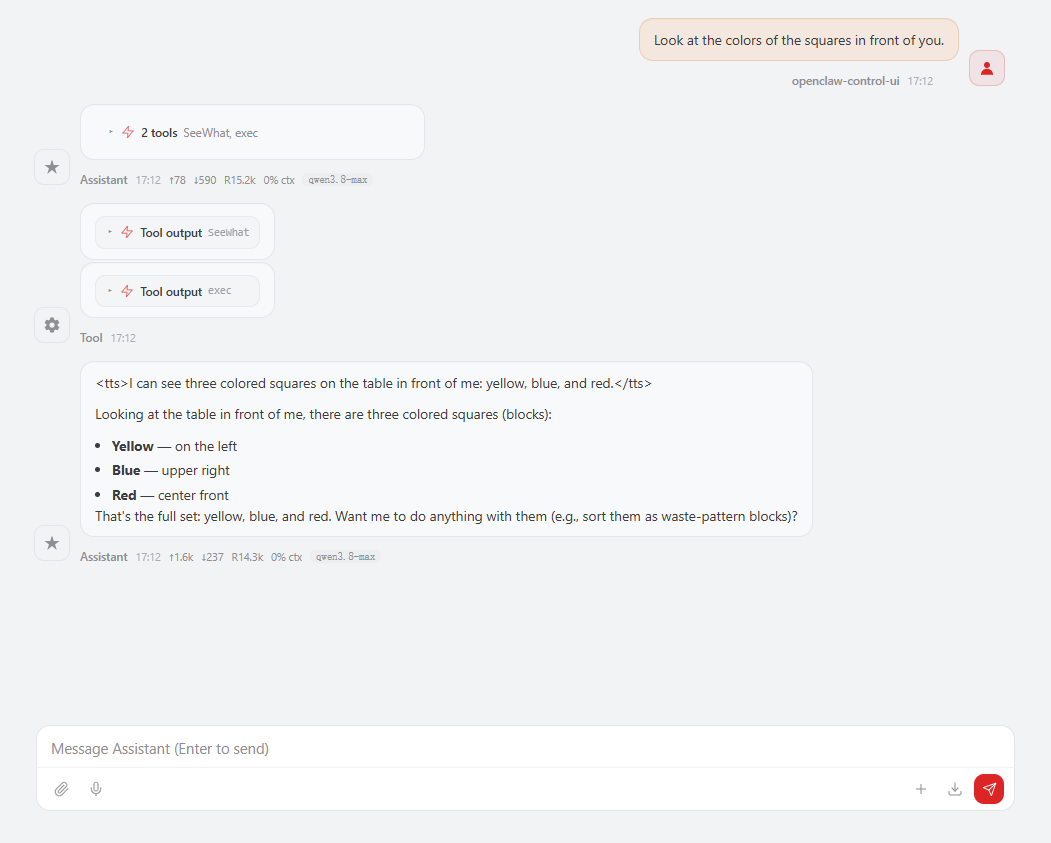
When the SeeWhat tool on the MCP server side is called, the image is automatically saved for checking observation content, image path:
~/MODELS/multi_brains_file/image.pngRDK boards and Raspberry Pi boards (USB camera version):
~/MODELS/multi_brains_file/camera-usb.png
4.3 Configure SeeWhat Auto-Send Channel
This feature is used for the robot to automatically send observation perspective images to mobile communication channels when calling SeeWhat to observe the environment
Configuration file path:
$HOME/.openclaw/openclaw.json, you can directly modify the configuration file or configure via CLI command, here is an example of CLI command configuration
Important
SeeWhat_channels is the channel that needs to be auto-sent, images will only be sent to channels in the list
xxxxxxxxxx "robot-control": { "enabled": true, "config": { "SeeWhat_channels": [ "whatsapp", "feishu", "weixin" ], "feishu_chat_id": "oc_c10ce0aa182cb3f6162d003cxxxxxxx", "whatsapp_number": "+8615338xxxxxxx" } }Configuration Parameter Description:
SeeWhat_channels: Auto-send channel list, supportswhatsapp,feishu,weixin, when SeeWhat is called, observation images will be automatically sent to channels in the listfeishu_chat_id: Feishu group chat ID, used to specify the send target for Feishu channelwhatsapp_number: WhatsApp recipient phone number, must include country code (e.g.,+86)
4.3.1 Configure Feishu Channel (China)
xxxxxxxxxxopenclaw config set plugins.entries.robot-control.config.SeeWhat_channels '["feishu"]'
Copy and add Feishu ID

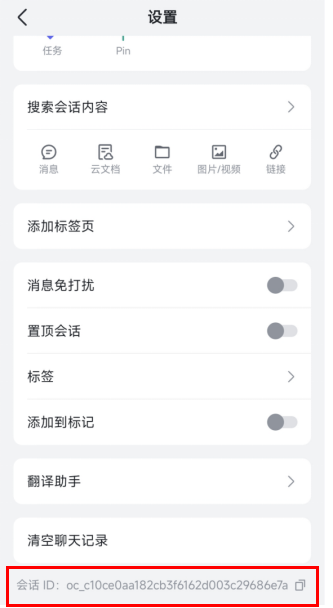
Set SeeWhat_channels chat ID
xxxxxxxxxxopenclaw config set plugins.entries.robot-control.config.feishu_target "oc_c10ce0aa182cb3f6162d003c296xxxxx"

Restart gateway to take effect
xxxxxxxxxxopenclaw gateway restart# For Raspberry Pi version:ocg restart
During restart, openclaw logs will indicate the auto-send channel

4.3.2 Configure WhatsApp Channel (International)
xxxxxxxxxxopenclaw config set plugins.entries.robot-control.config.SeeWhat_channels '["feishu","whatsapp"]'
Set SeeWhat_channels phone number
xxxxxxxxxxopenclaw config set plugins.entries.robot-control.config.whatsapp_number "+861533xxxxx"
Restart gateway to take effect
xxxxxxxxxxopenclaw gateway restart# For Raspberry Pi version:ocg restart
During restart, openclaw logs will indicate the auto-send channel

Note
Now you can converse with OpenClaw, and images will be automatically sent to configured communication channels when vision functions are called
4.4 Get Target Bounding Box Coordinates
Get target object outer bounding box, this tool is used for subsequent robotic arm grasping of objects and tracking targets, GetBbox tool provides the function to obtain target bounding box coordinates based on natural language descriptions
You can directly call GetBbox via robot_control CLI
xxxxxxxxxxrobot_control call-tool GetBbox --query "yellow block on the table"
If the target object exists within the camera's field of view, it will return the bounding box coordinates and the path to the annotated verification image, the bounding box coordinates are used by OpenClaw to decide the next operation. (the path differs for the USB camera version; check the terminal for the actual path)

Auto-saved verification image path:
xxxxxxxxxx~/MODELS/multi_brains_file/verify_image.png
You can check through the image whether the vision model accurately draws a bounding box around the target
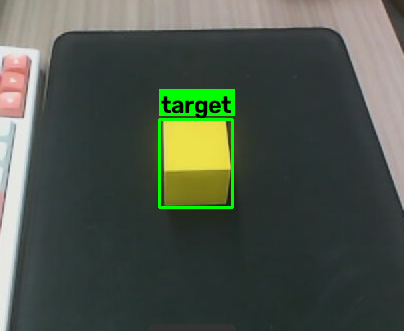
Important
The accuracy of visual positioning and bounding box selection depends on the capability of the vision model, which will directly affect robotic arm grasping and visual tracking functions
4.5 Get Placement Point Coordinates (Depth Camera Only)
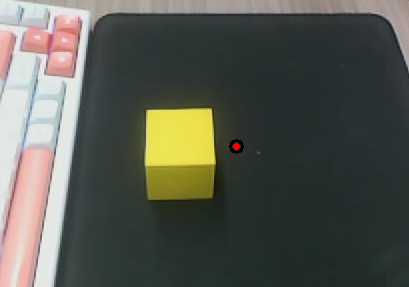
This tool is used for subsequent robotic arm placing objects to specified points, obtains the spatial 3D coordinates of the target point based on natural language descriptions, and determines whether the point is within the robotic arm's working range
You can directly call GetPlacePoint via robot_control CLI
xxxxxxxxxxrobot_control call-tool GetPlacePoint --query placetotherightoftheyellowblockonthetable
If a point matching the description exists within the camera's field of view, the tool returns the spatial coordinates of the target point in the vehicle's base_link coordinate system, the verification image path, and a notification about whether the point is within the robotic arm's working range

Verification image save path:
xxxxxxxxxx~/MODELS/multi_brains_file/image_point_selected.png
5. Source Code Analysis
Core source code modules:
Controller adapter layer:
~/yahboomcar_ros2_ws/dofbot_pro_ws/src/ackermann_mcp/ackermann_mcp/action_controller.pyVision tool wrapper:
~/yahboomcar_ros2_ws/dofbot_pro_ws/src/ackermann_mcp/ackermann_mcp/vision/visual_tools.pyObject bounding box detection:
~/yahboomcar_ros2_ws/dofbot_pro_ws/src/ackermann_mcp/ackermann_mcp/vision/visual_bounding.pyGrid placement positioning:
~/yahboomcar_ros2_ws/dofbot_pro_ws/src/ackermann_mcp/ackermann_mcp/vision/visual_positioning.pyLLM communication layer:
~/yahboomcar_ros2_ws/dofbot_pro_ws/src/ackermann_mcp/ackermann_mcp/vision/_vision_model.py
The following is the core implementation and source code analysis of the multimodal vision pipeline.
5.1 SeeWhat() — Capture Current Camera Frame
Code Description:
SeeWhat: Unified image capture entry with multi-camera backend adaptive capabilityDual backend adaptation:
When working in USB monocular camera mode, captures the latest valid frame from USB video stream and caches to temp directory via
UsbVisionBackend.capture_image()When working in depth camera mode, calls ROS 2 Trigger client
/save_imageservice viavisual_see_what(self)to trigger camera driver to save and return image physical path
Cache maintenance: Updates
self.image_pathafter successful capture, used as input data source by subsequent tools likeGetBbox,GetPlacePoint,Pick
xxxxxxxxxx def SeeWhat(self) -> list: """Capture and save current camera image for vision tools.""" if self.vision_backend is not None: return self.vision_backend.capture_image() return visual_see_what(self)Depth camera implementation in vision/visual_tools.py:
xxxxxxxxxxdef see_what(node) -> list:    """Capture and cache the current depth-camera image."""    response: Trigger.Response = node.image_client.call(Trigger.Request())    if response.success:        node.image_path = response.message        return [True, response.message]
    node.image_path = None    node.get_logger().error(response.message)    return [False, response.message]
5.2 GetBbox() — Get Target Bounding Box Coordinates
Code Description:
GetBbox: Locates target object in scene based on natural language description, returns pixel-level bounding box coordinates{"x1": ..., "y1": ..., "x2": ..., "y2": ...}Adaptive pre-refresh: Automatically calls
SeeWhat()to refresh frame, ensuring recognition is always based on robot's latest observationPrompt and coordinate system: Vision LLM uses
ONLINE_PROMPT, mapping image resolution to standardized scale of0 ~ 1000, model outputs normalized rectangular box which is then back-calculated to real pixel coordinate system, greatly improving cross-resolution positioning accuracy and generalizationVerification image save: Draws bounding box around recognition result on original image and saves to
verify_image.png(USB mode isverify_image-usb.png), convenient for review and frontend interface visualizationCoordinate safety validation: Filters noise boxes smaller than threshold via
normalize_image_bbox, ensuring output bounding box is within current image dimension legal range
xxxxxxxxxxdef get_bbox(node, query: str, capture_image=None) -> list:    """Capture an image and locate one described object directly."""    target = str(query).strip()    if not target:        return [False, "GetBbox query must not be empty", ""]    capture_image = capture_image or (lambda: see_what(node))    capture_result = capture_image()    if not capture_result[0]:        return [False, capture_result[1], ""]
    source_image = cv2.imread(str(node.image_path))    if source_image is None:        return [False, f"Failed to read camera image: {node.image_path}", ""]    verify_path = _artifact_path(node, "verify_image_path", "verify_image.png")    try:        tool = node._get_bbox_tool()        with node._visual_tool_lock:            result = tool.BoundingBoxDetection(                image_path=str(node.image_path),                target_description=target,                output_path=verify_path,            )    except Exception as exc:        node.get_logger().error(f"GetBbox failed: {exc}")        return [False, f"GetBbox failed: {exc}", ""]
    if result.error:        node.get_logger().error(result.error_message)        return [False, f"GetBbox failed: {result.error_message}", ""]    if not result.found:        return [False, f"GetBbox: target '{target}' not found in the image", ""]
    height, width = source_image.shape[:2]    bbox = normalize_image_bbox(        {            "x1": result.x1,            "y1": result.y1,            "x2": result.x2,            "y2": result.y2,        },        image_width=width,        image_height=height,        min_size=2,    )    if bbox is None:        return [False, "GetBbox returned an invalid image bounding box", ""]    x1, y1, x2, y2 = bbox    node.get_logger().info(f"GetBbox: target bbox=({x1},{y1},{x2},{y2})")    return [True, str({"x1": x1, "y1": y1, "x2": x2, "y2": y2})]
5.3 GetPlacePoint() — Get Placement Point 3D Space Coordinates
Code Description:
GetPlacePoint: For depth camera scenarios, calculates 3D space coordinates(x, y, z)of free placement point based on natural language (e.g., "place on the empty space to the right of the yellow block"), and checks if it is within the robotic arm's working envelopeGrid overlay positioning mechanism: Overlays semi-transparent grid with row/column numbers and top/bottom/left/right orientation text labels on original image with spacing of
place_point_grid_size(default 20 pixels) viadraw_grid_overlay, vision model directly outputs candidate grid cell{"found": true, "col": <int>, "row": <int>}, greatly reducing hallucination rate of vision LLM directly predicting absolute pixel coordinates3D space projection resolution: After extracting grid center pixel point, calls depth camera's
/get_target_poseservice via ROS 2, uses pixel sampling radiustarget_circlecombined with depth point cloud to resolve actual 3D position in robot'sbase_linkcoordinate systemWorking range determination: Compares robotic arm limit working range
place_distance(X-axis/Y-axis allowed boundaries), returns out-of-range warning if exceeded, returns placement confirmation if within range
xxxxxxxxxxdef get_place_point(node, query: str) -> list:    """Locate a free placement pixel, then convert it to a 3D target pose."""    target = str(query).strip()    if not target:        return [False, "GetPlacePoint query must not be empty", ""]    if not node._prepare_chassis_for_place_point():        return [False, "Failed to adjust chassis before locating place point", ""]
    capture_result = see_what(node)    if not capture_result[0]:        return [False, f"SeeWhat error:{capture_result[1]}", ""]    source_image = cv2.imread(str(node.image_path))    if source_image is None:        return [False, f"Failed to read camera image: {node.image_path}", ""]
    verify_path = _artifact_path(node, "place_verify_image_path", "place_point_selected.png")    try:        tool = node._get_place_point_tool()        with node._visual_tool_lock:            result = tool.FindTargetPoint(                image_path=str(node.image_path),                target_description=target,                output_path=verify_path,            )    except Exception as exc:        node.get_logger().error(f"GetPlacePoint failed: {exc}")        return [False, f"GetPlacePoint failed: {exc}", ""]
    if result.error:        node.get_logger().error(result.error_message)        return [False, f"GetPlacePoint failed: {result.error_message}", ""]    if not result.found:        return [False, "Point is empty; the target point may not exist in the frame.", ""]
    height, width = source_image.shape[:2]    pixel = normalize_image_point({"x": result.x, "y": result.y}, image_width=width, image_height=height)    if pixel is None:        return [False, "GetPlacePoint returned an invalid image point", ""]    x, y = pixel
    if not node.get_pose_client.wait_for_service(timeout_sec=1.0):        return [False, "GetTargetPose service is unavailable", ""]    request = GetTargetPose.Request(x=float(x), y=float(y), radius=node.target_circle)    try:        pose_result: GetTargetPose.Response = node.get_pose_client.call(request)    except Exception as exc:        return [False, f"GetTargetPose call failed: {exc}", ""]    if not pose_result.success:        return [False, str(pose_result.message), ""]
    position = pose_result.pose.position    point = str({"x": round(position.x, 2), "y": round(position.y, 2), "z": round(position.z, 2)})    node.get_logger().info(f"Target Point: x:{position.x:.2f}, y:{position.y:.2f}, z:{position.z:.2f}")
    if abs(position.x) > node.place_distance[2] or abs(position.y) > node.place_distance[3]:        return [False, "The target point is outside the working range of the robotic arm", point]    return [True, "The target point is within the working range of the robotic arm", point]
5.4 Vision Bottom-Layer Model Communication and Prompt Architecture
Source code module paths:
~/yahboomcar_ros2_ws/dofbot_pro_ws/src/ackermann_mcp/ackermann_mcp/vision/visual_bounding.py~/yahboomcar_ros2_ws/dofbot_pro_ws/src/ackermann_mcp/ackermann_mcp/vision/visual_positioning.py~/yahboomcar_ros2_ws/dofbot_pro_ws/src/ackermann_mcp/ackermann_mcp/vision/_vision_model.py
5.4.1 Standard OpenAI Compatible Adapter (_vision_model.py)
The bottom layer eliminates third-party complex dependencies and directly wraps a unified client call and JSON parsing mechanism based on the official standard openai Python SDK:
xxxxxxxxxxfrom openai import OpenAI
def complete(*, model: str, api_base: str, api_key: str, messages: list[dict[str, Any]], timeout_sec: float):    """Call configured standard OpenAI-compatible multimodal LLM endpoint"""    client = OpenAI(        api_key=api_key,        base_url=api_base,        timeout=float(timeout_sec),        max_retries=1,    )    return client.chat.completions.create(        model=normalize_model_name(model),        messages=messages,    )
def parse_json_response(response: Any) -> dict[str, Any]:    """Parse JSON object returned by model, automatically remove Markdown code block wrapping"""    content = response.choices[0].message.content    text = content.strip()    if text.startswith("```"):        lines = text.splitlines()        if lines and lines[0].strip().lower() in {"```", "```json"}:            lines = lines[1:]        if lines and lines[-1].strip() == "```":            lines = lines[:-1]        text = "\n".join(lines).strip()    return json.loads(text)
5.4.2 Object Bounding Box Detection and Prompt Design (visual_bounding.py)
Normalized prompt (
ONLINE_PROMPT): Maps images of any resolution to a standardized coordinate system of[0, 1000], strictly constraining model output to{"found": true, "x1": <int>, "y1": <int>, "x2": <int>, "y2": <int>}.Online detection execution (
_online_detection):
    def _online_detection(self, image_path: str, target_description: str) -> VisualResult:        data_url = encode_image_data_url(image_path)        system_prompt = Template(ONLINE_PROMPT).substitute(width=1000, height=1000)        try:            response = complete(                model=self.model,                api_base=self.base_url,                api_key=self.api_key,                messages=[                    {"role": "system", "content": system_prompt},                    {                        "role": "user",                        "content": [                            {"type": "text", "text": f"Target: {target_description}"},                            {"type": "image_url", "image_url": {"url": data_url}},                        ],                    },                ],                timeout_sec=self.timeout_sec,            )            data = parse_json_response(response)        except Exception as exc:            return VisualResult(error=True, error_message=f"Vision model error: {exc}")
        if not data.get("found"):            return VisualResult(found=False, error_message=f"Target '{target_description}' not found")
        # Convert [0, 1000] normalized coordinates back to original image pixel coordinates        return VisualResult(            found=True,            x1=int(round(data["x1"] / 1000.0 * img_w)),            y1=int(round(data["y1"] / 1000.0 * img_h)),            x2=int(round(data["x2"] / 1000.0 * img_w)),            y2=int(round(data["y2"] / 1000.0 * img_h)),        )