Welcome to ROSMASTER A1 PRO repository
4.OpenClaw Waste Sorting
OpenClaw Garbage Sorting
1. Course Content
Course Overview
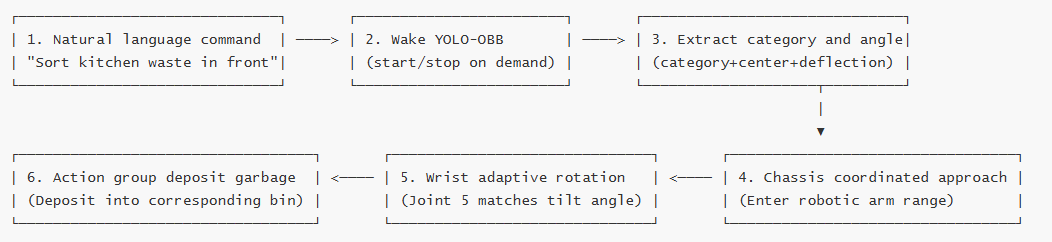
In industrial automation and smart environmental protection scenarios, domestic waste classification and grasping is a highly challenging embodied intelligence task. Unlike regular square wooden blocks, real-world garbage comes in various bizarre shapes and messy arrangements (e.g., diagonally lying cans, bent banana peels, crumpled paper balls, etc.).
To make a robot sort garbage as dexterously as human hands, two core challenges must be solved:
Not only knowing "what it is", but also "how it's tilted (pose angle)": Ordinary AI object detection gives a "horizontal square bounding box" (HBB). If a banana peel is tilted 45° on the table, the horizontal box not only captures the banana peel but also contains a lot of empty background. Most critically, the robotic arm has no idea which direction to grasp! If cutting vertically, it's easy to slip and launch the object. This course adopts advanced YOLO-OBB (Oriented Bounding Box, rotated object detection box), which can fit the object edge to output a bounding box with rotation angle. It not only identifies whether the garbage belongs to "kitchen waste, recyclable, other, or hazardous", but also precisely calculates the object's tilt angle (Angle).
Wrist rotation following the trend (adaptive pose grasping): The robotic arm wrist (joint 5) rotates clockwise or counter-clockwise according to the OBB output rotation angle, keeping the two gripper claws always parallel to the object edge, achieving human finger-like adaptive gripping grasping.
Note
Hardware note: This case combines depth point cloud spatial anti-projection and 3D pose calculation, requiring RGB-D depth camera to run.
Learning Objectives
Understand the core advantages of YOLO-OBB rotated bounding boxes compared to traditional detection boxes for irregular object grasping.
Learn to call the
GetWasteRecognitionResults,GraspWaste,PlaceWastetoolchain through OpenClaw dialogue or CLI commands.Master the large model edge reasoning "on-demand start/stop" mechanism and performance tuning methods.
Master the tuning techniques for key garbage grasping parameters (
waste_grasp_offset,waste_grasp_distance).This case uses 3* 3 * 3 matching garbage cubes
2. Preparation
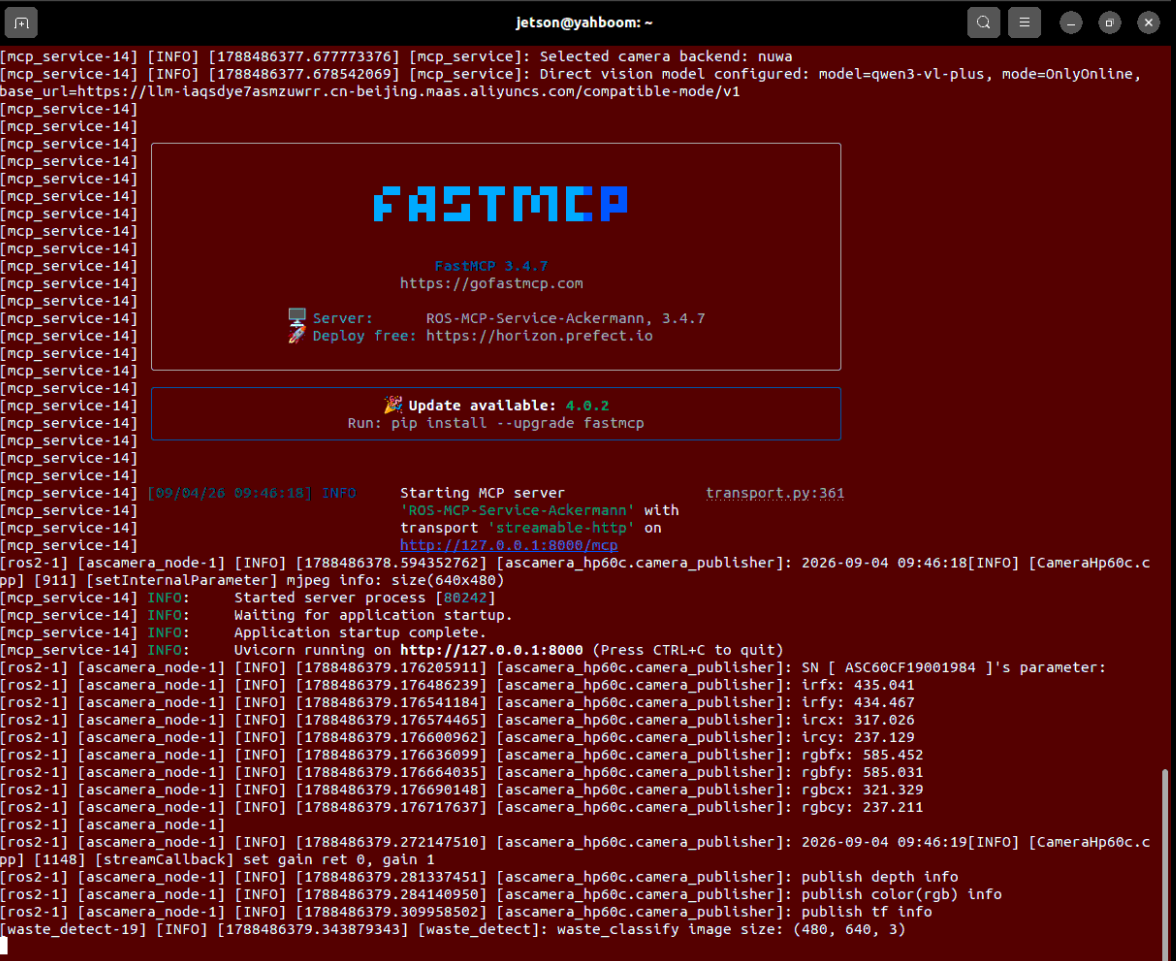
Start core nodes:
xxxxxxxxxxros2 launch dofbot_pro_bringup mcp_service.launch.pyIf you need voice broadcast replies:
xxxxxxxxxxros2 launch dofbot_pro_bringup mcp_service.launch.py launch_openclaw_bridge:=true
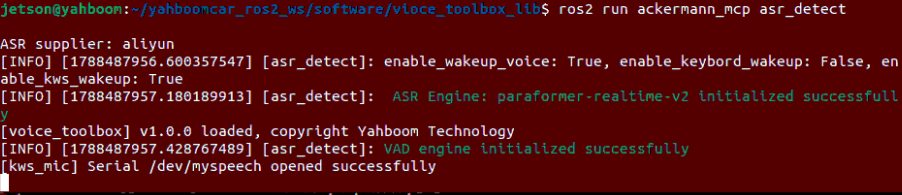
For voice dialogue interaction:
xxxxxxxxxxros2 run ackermann_mcp asr_detect
3. Robotic Arm Garbage Sorting Case Practice
Tip
Instructions can be expressed naturally. Here we use WebChat as an example.
Under the hood, OpenClaw breaks down human language and calls the following 3 core tools:
| Tool Name | Input Parameters | Core Function |
|---|---|---|
GetWasteRecognitionResults | None | Wake YOLO model, get names, classification and pose of all garbage in view |
GraspWaste | --waste-name (garbage name) | Autonomously adjust chassis and gripper angle, precisely grasp specified garbage object |
PlaceWaste | None | Deposit grasped garbage into garbage bin according to preset safe action group |
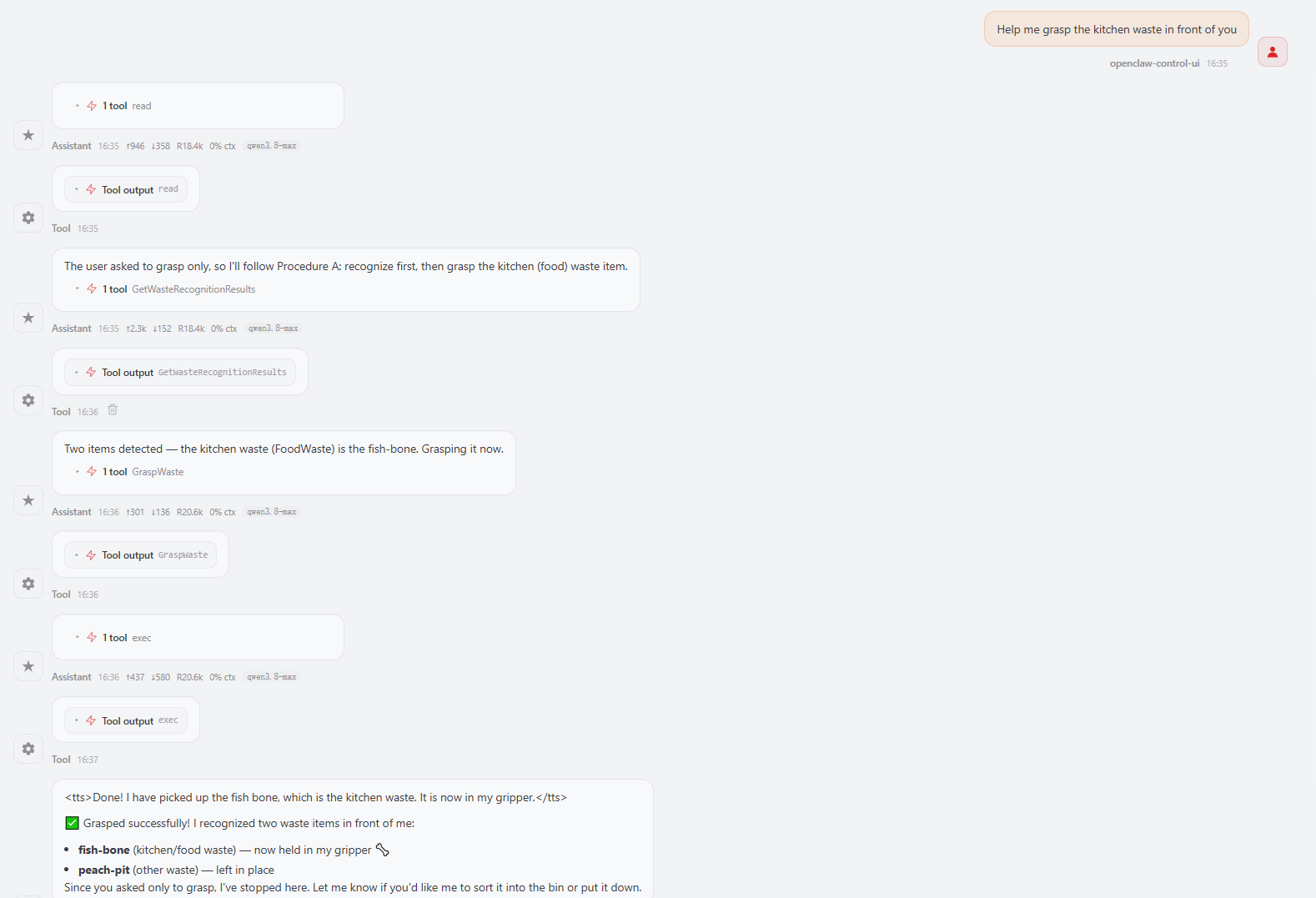
Step 1: Issue Garbage Recognition and Sorting Command
Enter the command in the WebChat interface:
"Help me grasp the kitchen waste in front of you" or "Grasp the banana peel in front"
Step 2: YOLO Model Wake-up and Status Perception
Garbage recognition is driven by the underlying YOLO-OBB model. To balance onboard chip heat dissipation and low power consumption, the model is in standby energy-saving mode by default.
When first receiving a command, the system automatically wakes up and loads the model (with a few seconds cold start time). The model automatically unloads and hibernates after 240 seconds of continuous no-task, greatly protecting system computing power:

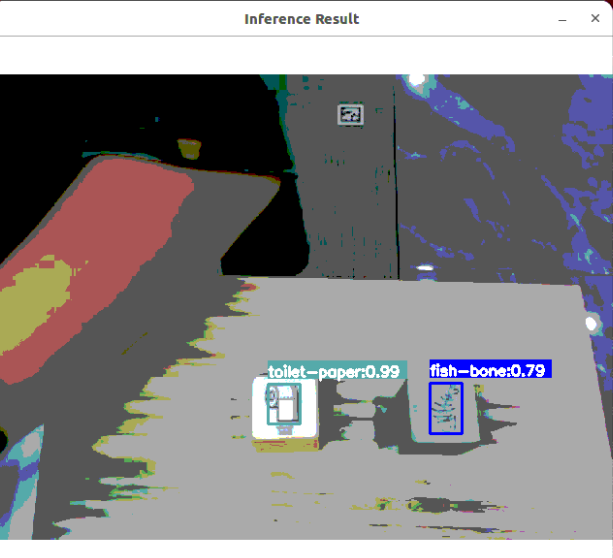
After loading is complete, the system automatically pops up the detection window, displaying tilted rotated boxes and classification labels in real-time:
Step 3: Get Recognition Results and Frame Image Return
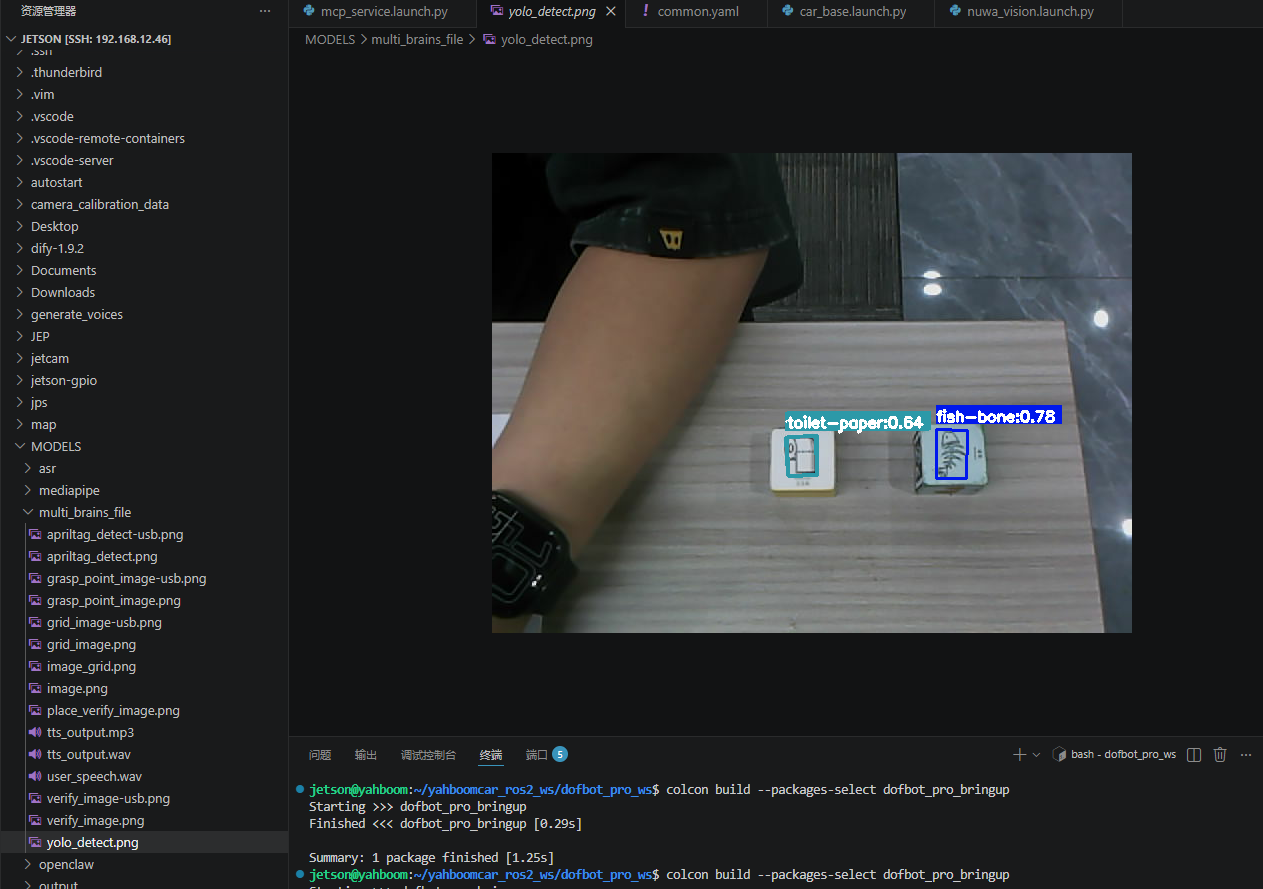
OpenClaw calls GetWasteRecognitionResults to get the target list, and the system automatically saves a detection verification image with OBB tilted rotated box annotations:
xxxxxxxxxx~/MODELS/multi_brains_file/yolo_detect.png
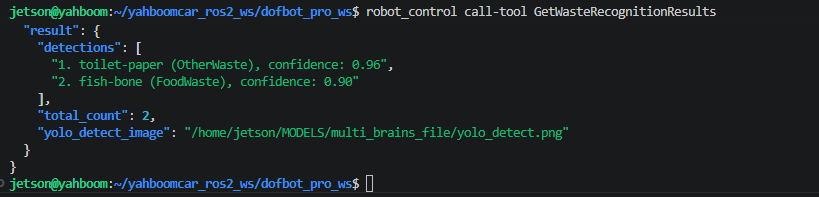
Developer practical debugging tip: Besides large model dialogue, you can also use CLI command tool to query current garbage detection data with one click:
xxxxxxxxxxrobot_control call-tool GetWasteRecognitionResultsThe terminal will directly print each object's name, classification confidence and image path in the view:
Step 4: Tilt Angle Adaptive Grasping and Safe Deposit
OpenClaw calls
GraspWaste, the car chassis first moves into the graspable range;The robotic arm wrist rotates following the object's OBB angle direction, the gripper clamps down and closes, tightly locking the garbage;
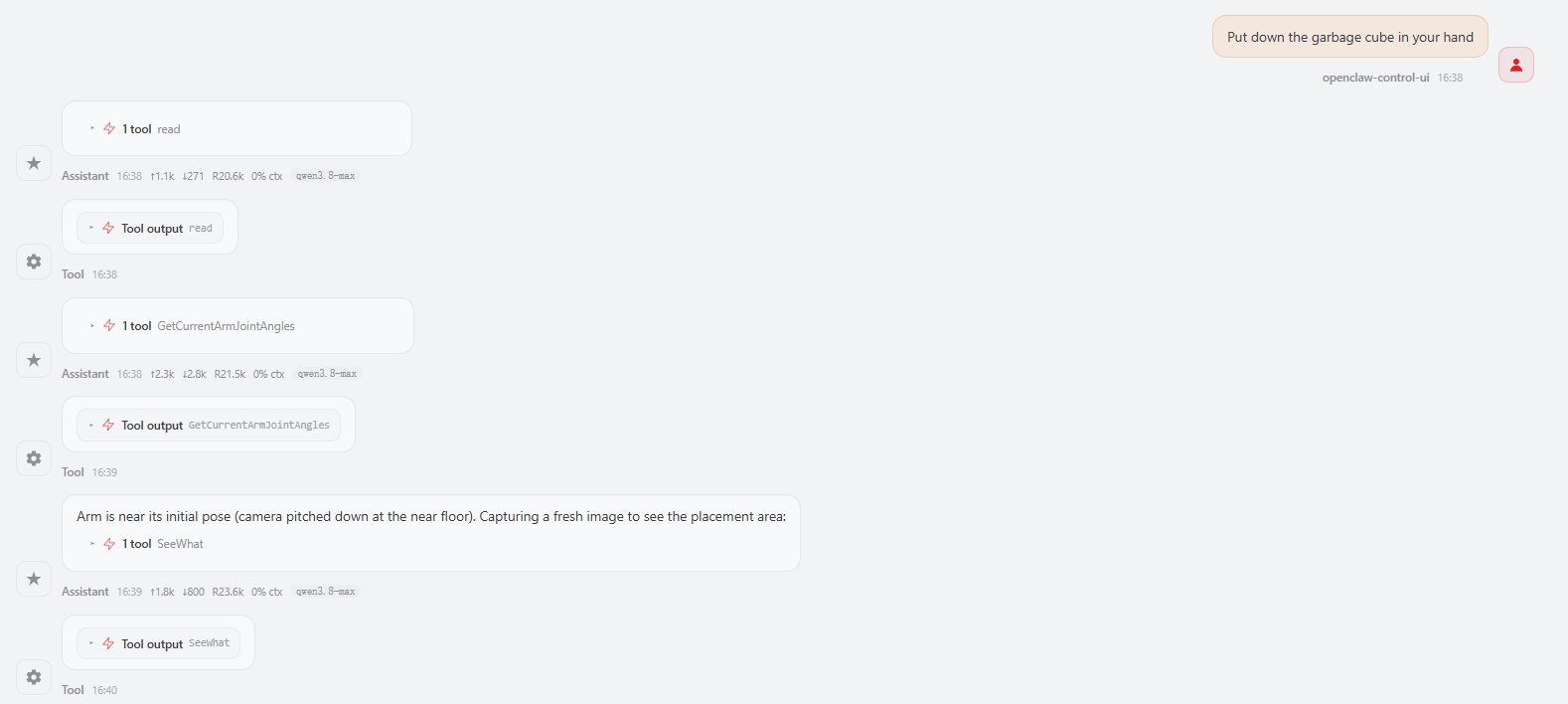
Call
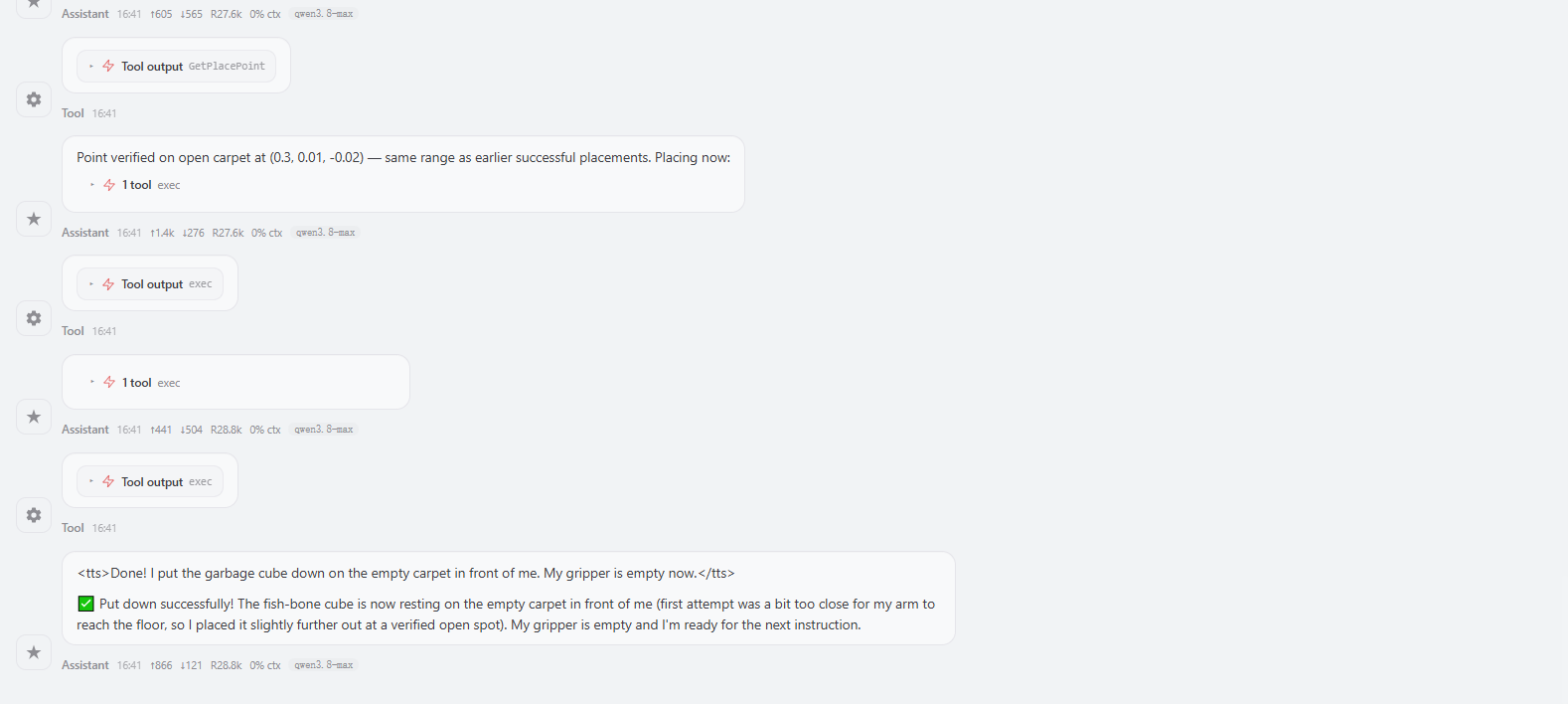
PlaceWaste, the robotic arm delivers the garbage smoothly into the corresponding garbage bin according to the step-by-step action group and releases the gripper:
4. YOLO-OBB Rotated Object Detection Node Analysis
To ensure extremely fast response of the robotic arm control main process, garbage detection is encapsulated as an independent ROS 2 node waste_detect.
Startup Configuration Description
In the MCP startup file mcp_service.launch.py, the detection node is configured to be off by default (detect_enable: False), started on demand:
xxxxxxxxxxwaste_classify = Node( package="waste_classify", executable="waste_detect", name="waste_detect", parameters=[ common_param_file, {'image_save_path': os.path.join(os.path.expanduser('~'), 'MODELS', 'multi_brains_file', 'yolo_detect.png')}, {'model_path': yolov26_model_path}, {'show_image': True}, {'detect_enable': False}, # Standby hibernation by default to protect CPU {'device': device} ], emulate_tty=True, output='screen')Manual Control Service Interface (Debugging Dedicated)
Developers can manually switch detection function status through ROS 2 service at any time:
Query current running status (operation=0):
xxxxxxxxxxros2 service call /waste_enable_srv waste_classify_msg/srv/WasteEnable "{operation: 0}"
Manually enable detection (operation=1):
xxxxxxxxxxros2 service call /waste_enable_srv waste_classify_msg/srv/WasteEnable "{operation: 1}"
Manually disable detection to hibernate (operation=2):
xxxxxxxxxxros2 service call /waste_enable_srv waste_classify_msg/srv/WasteEnable "{operation: 2}"
Topic Data Monitoring
After enabling detection, the node continuously publishes rotated box data to the /waste_detecttions topic. You can capture single frame data with:
xxxxxxxxxxros2 topic echo /waste_detecttions --onceTypical message output:
xxxxxxxxxxheader stamp sec1778052123 nanosec473421724 frame_id''waste_detectionsclass_namepeach-pit classificationOtherWaste confidence0.88507 center_x390.08 center_y314.08 width32.05 height25.97 angle-0.0227 pointsx406.40, y326.70x405.81, y300.73x373.76, y301.46x374.35, y327.43Key Data Field Popular Explanation
| Field Name | Type | Popular Meaning and Role in Robotic Arm |
|---|---|---|
class_name | string | Specific garbage item name (e.g., peach pit peach-pit, banana peel banana-peel) |
classification | string | Classification category (Recyclable, KitchenWaste, OtherWaste, HazardousWaste) |
confidence | float | Model certainty (0.0~1.0), filter low confidence noise |
center_x, center_y | float | Rotated box geometric center pixel coordinates, used for inverse solving 3D grasping position |
angle | float | Object rotation radians relative to the plane, core parameter! The robotic arm wrist rotates following this angle for adaptive grasping |
points | Point2D[] | 4 real corner coordinates of the rotated box, used for drawing tilted bounding box |
5. Core Source Code Analysis
Source code file path:
xxxxxxxxxx~/yahboomcar_ros2_ws/dofbot_pro_ws/src/ackermann_mcp/ackermann_mcp/action_controller.py
5.1 GetWasteRecognitionResults() — Intelligent Wake-up and Result Acquisition
xdef GetWasteRecognitionResults(self) -> list: '''Main interface for getting YOLO garbage detection results''' # Step 1: First move robotic arm to global top-view detection posture to avoid large arm blocking camera self._pubSix_Arm(self.waste_detect_pose) time.sleep(3.0) # Step 2: Check if detection node is in standby, if so actively wake up and enable (operation=1) response: WasteEnable.Response = self.waste_enable_client.call(WasteEnable.Request(operation=0)) if not response.detect_enable: response = self.waste_enable_client.call(WasteEnable.Request(operation=1)) if not response.success: return [False, "Failed to enable waste detection"] time.sleep(10.0) # Give model sufficient time to complete cold start initialization reasoning # Step 3: Call acquisition service to extract recognition results in current view response: GetWaste.Response = self.get_waste_client.call(GetWaste.Request()) if not response.success: return [False, response.message]
if len(response.waste_detections) == 0: return [False, "No waste detected"] # Step 4: Format and package recognition results (including classification, confidence and verification image path) result_lines = [] for i, item in enumerate(response.waste_detections, 1): result_lines.append( f"{i}. {item.class_name} ({item.classification}), confidence: {item.confidence:.2f}") result = waste_recognition_result( detections=result_lines, total_count=len(response.waste_detections), yolo_detect_image=response.image_path) return [True, result]Key point popular explanation:
Importance of posture first: Before taking the photo, the program first calls
_pubSix_Arm(self.waste_detect_pose)to raise the robotic arm to look up at the table. If the robotic arm is still lying on the table, the camera view will be blocked by its own arm for more than half, unable to capture the full table.
5.2 GraspWaste() — Tilt Angle Adaptive Following Grasping
This is the most brilliant part of the entire sorting algorithm: converting the detection box angle into the real rotation angle of joint 5.
xxxxxxxxxxdef GraspWaste(self, waste_name: str) -> list[bool, str]:    '''Grasp specified named garbage object'''    self._pubSix_Arm(self.waste_detect_pose)    time.sleep(3.0)        # 1. Query 3D spatial pose and OBB data of target object (retry up to 5 times to improve anti-shake robustness)    result = self._get_target_pose(waste_name, max_attempts=5)    if not result[0]:        return [False, result[1]]    target_pose: Pose = result[1]    target_item: WasteItem = result[2]
    # 2. Chassis autonomous coordination: If beyond grasp distance threshold, car actively moves forward or laterally aligns    adjusted_flag = False    if target_pose.position.x > self.waste_grasp_distance[0]:        adjusted_flag = True        delta_x = target_pose.position.x - self.waste_grasp_distance[0]        self.move_by_odom(distance=abs(delta_x), direction='forward')        time.sleep(4.0)
    if abs(target_pose.position.y) > self.waste_grasp_distance[1]:        adjusted_flag = True        direction = 'left' if target_pose.position.y > 0 else 'right'        self.move_by_odom(distance=abs(target_pose.position.y), direction=direction)        time.sleep(4.0)
    # 3. If car has moved, must re-photograph to confirm pose, eliminate odometry accumulated error    if adjusted_flag:        result = self._get_target_pose(waste_name, max_attempts=5)        target_pose = result[1]        target_item = result[2]
    # 4. Core formula: Wrist joint 5 pose adaptive mapping!    item_rotation_angle = math.degrees(target_item.angle)    if abs(item_rotation_angle) > 5.0:        # 90° is the wrist neutral position, superimpose the object's rotation tilt angle onto the wrist joint        arm_joint5_angle = 90 + item_rotation_angle    else:        arm_joint5_angle = 90  # If deviation less than 5°, keep neutral to avoid motor tiny vibration
    # 5. Execute inverse kinematics descent grasping, pass in wrist rotation angle arm_joint5_angle    self._waste_grasp(grasp_x=target_pose.position.x,                      grasp_y=target_pose.position.y,                      grasp_z=target_pose.position.z,                      joint_5_angle=arm_joint5_angle,                      grasp_pitch=self.waste_grasp_offset[3])
    # 6. Safe retreat    self.move_by_odom(direction='backward', distance=self.auto_back_dist)    return [True, "Grasp waste successfully"]
Key point popular explanation:
arm_joint5_angle = 90 + anglegeometric mystery:
DOFBOT Pro robotic arm's joint 5 controls gripper rotation around the axis, and 90° is exactly the gripper's "horizontal symmetric open" neutral balance position. When OBB measures the object tilted 30° to the right (angle = +30°), joint 5 is set to90 + 30 = 120°; the gripper is exactly tilted 30°, perfectly aligned with the object's two long edges for a secure grip, preventing slippage!
5.3 PlaceWaste() — Smooth Deposit Action Group
xxxxxxxxxxdef PlaceWaste(self): '''Safely deposit grasped garbage into collection bin''' # Action 1: First raise big arm (shoulder joint 2 to 135°) and elbow (joint 4 to 50°), lift garbage to avoid table self.SingleJoint_pub.publish(ArmJoint(id=2, joint=135, time=1200)) self.SingleJoint_pub.publish(ArmJoint(id=4, joint=50, time=1200)) time.sleep(2.0) # Action 2: Overall translate to above preset position in garbage bin self._pubSix_Arm(self.waste_place_pose) time.sleep(3.0) # Action 3: Gripper opens to 0°, object falls into bin by gravity self.SingleJoint_pub.publish(ArmJoint(id=6, joint=0, time=1500)) time.sleep(2.0) # Action 4: Robotic arm gracefully resets, car backs up to open safe space self._pubSix_Arm(self.init_arm_pose) self.move_by_odom(direction='backward', distance=self.auto_back_dist) return True6. Parameter Debugging
Core parameter configuration file path:
xxxxxxxxxx~/yahboomcar_ros2_ws/dofbot_pro_ws/src/dofbot_pro_bringup/config/common.yaml
6.1 Garbage Sorting Control Parameters
xxxxxxxxxxmcp_service ros__parameters waste_grasp_offset0.0 0.015 -0.02 1.57 # Grasping fine-tuning offset [X, Y, Z, gripper pitch] waste_grasp_distance0.24 0.09 # Chassis approach threshold [X front-rear threshold, Y left-right lateral threshold] waste_place_pose90 50 90 50 90 140 # Garbage placement posture angles waste_detect_pose90 90 50 -30 90 0 # Global top-view detection posture angles| Parameter Name | Default Value | Function and Debugging Suggestion |
|---|---|---|
waste_grasp_offset[2] | -0.02 | Z-axis downward exploration depth (meters). If can't grasp thin objects, adjust to -0.03; if hitting table, adjust to -0.01 |
waste_grasp_distance[0] | 0.24 | Front-rear distance threshold (meters). Drive car forward when target exceeds 24cm |
waste_grasp_distance[1] | 0.09 | Left-right distance threshold (meters). Drive car laterally when target eccentricity exceeds 9cm |
waste_place_pose | Six joint list | Each joint angle when placing garbage, fine-tune based on your garbage bin height and placement position |
6.2 YOLO Reasoning and Performance Optimization Parameters
waste_detect ros__parameters detect_enableFalse # Standby by default on startup conf0.1 # Confidence threshold (increase to prevent false detection, decrease to prevent missed detection) auto_shutdown_time240.0 # Auto hibernation time when idle with no task (seconds) device"cuda:0" # Reasoning device (onboard GPU acceleration) show_imageTrue # Whether to show real-time detection debug window