Welcome to ROSMASTER A1 PRO repository
9.OpenClaw Scheduled Tasks
OpenClaw Scheduled Tasks
OpenClaw Scheduled Tasks1. Course ContentCourse Objectives2. Introduction to OpenClaw Scheduled Tasks3. Preparation4. Demo Example5. Viewing and Managing Scheduled Tasks
1. Course Content
OpenClaw Scheduled Tasks is a task automation scheduling feature of the OpenClaw platform that allows users to create robot tasks that trigger at specified times
Course Objectives
Understand the functionality and application scenarios of OpenClaw Scheduled Tasks
Master the method of creating scheduled tasks using natural language
Master the operations for viewing, managing, and maintaining scheduled tasks
2. Introduction to OpenClaw Scheduled Tasks
Scheduled Tasks is an intelligent scheduling feature of OpenClaw. Users can create scheduled tasks to have the robot automatically execute specific operations at specified times or intervals
After creating a scheduled task, OpenClaw will automatically execute the task instructions according to the set schedule and record the execution log for each run
3. Preparation
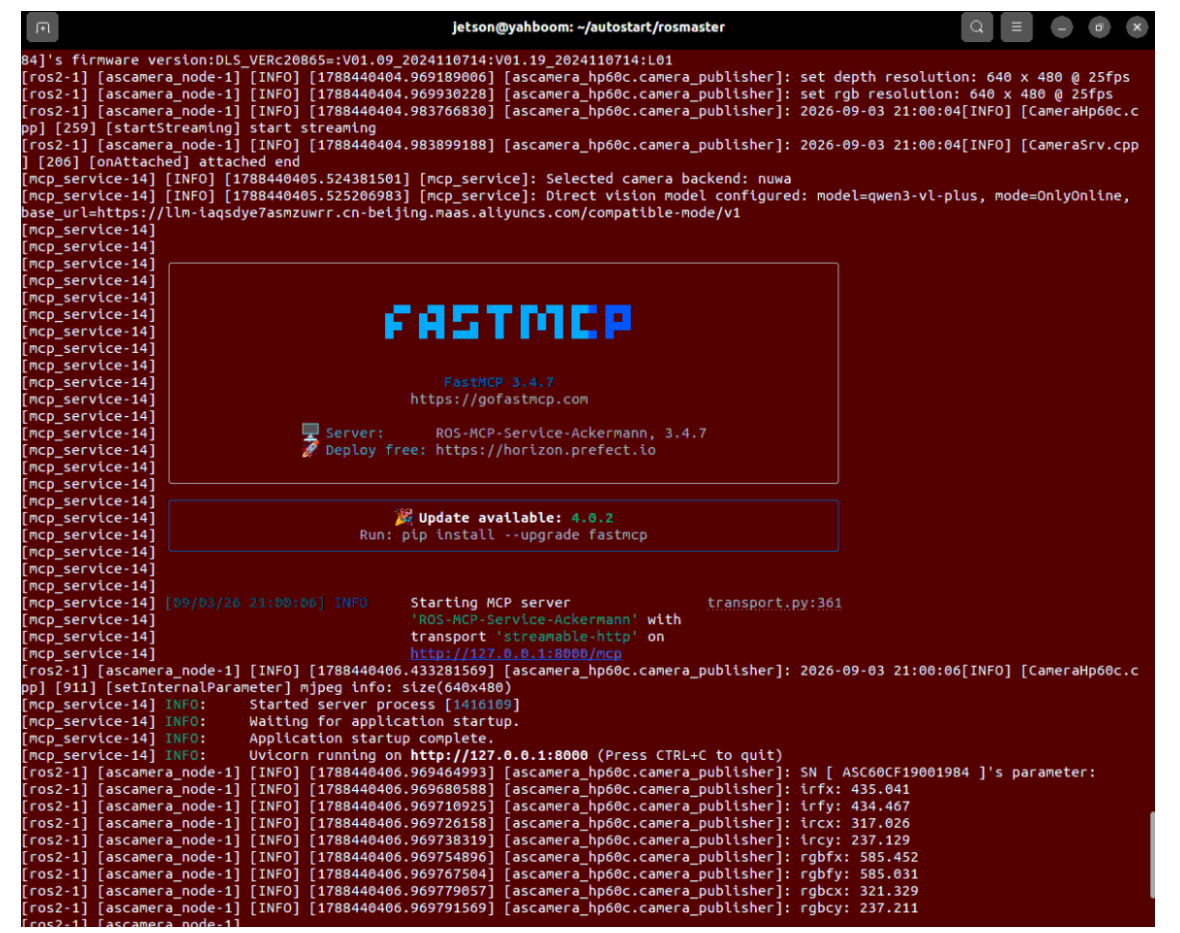
ros2 launch dofbot_pro_bringup mcp_service.launch.py
4. Demo Example
Note
Any interaction method is acceptable; this example uses web-based interaction
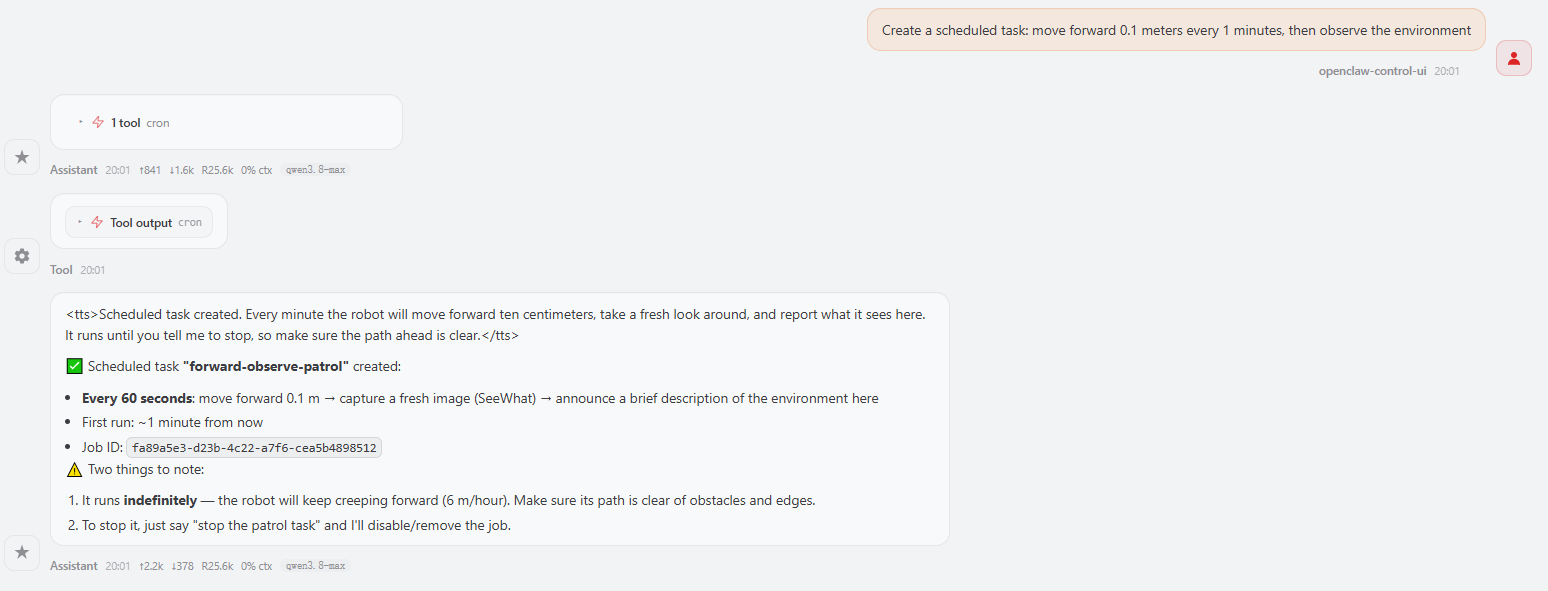
The simplest way is to directly give instructions to OpenClaw, for example: create a scheduled task: move forward 0.1 meters every one minutes, then observe the environment
5. Viewing and Managing Scheduled Tasks
Open WebChat, click Cron Jobs to view the list of all created scheduled tasks
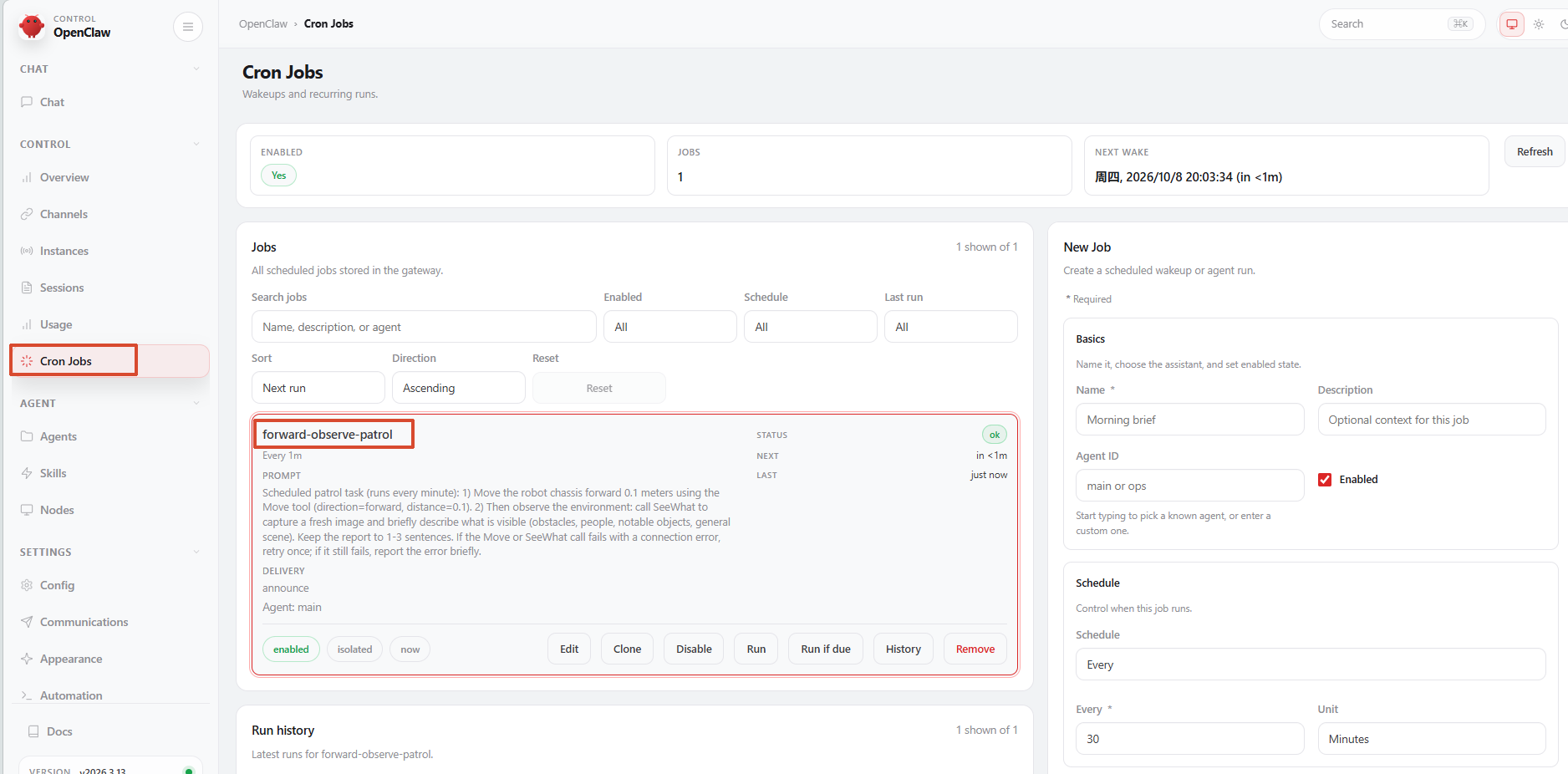
In the scheduled tasks list, the following management operations are supported:
Enable/Disable: Use the switch to control whether the scheduled task is active. When disabled, the task will no longer execute according to schedule
Run: Manually trigger a scheduled task once, used for quickly verifying if the task is working properly
Remove: Delete scheduled tasks that are no longer needed
Click on a scheduled task to view and edit task details, including task description and execution schedule
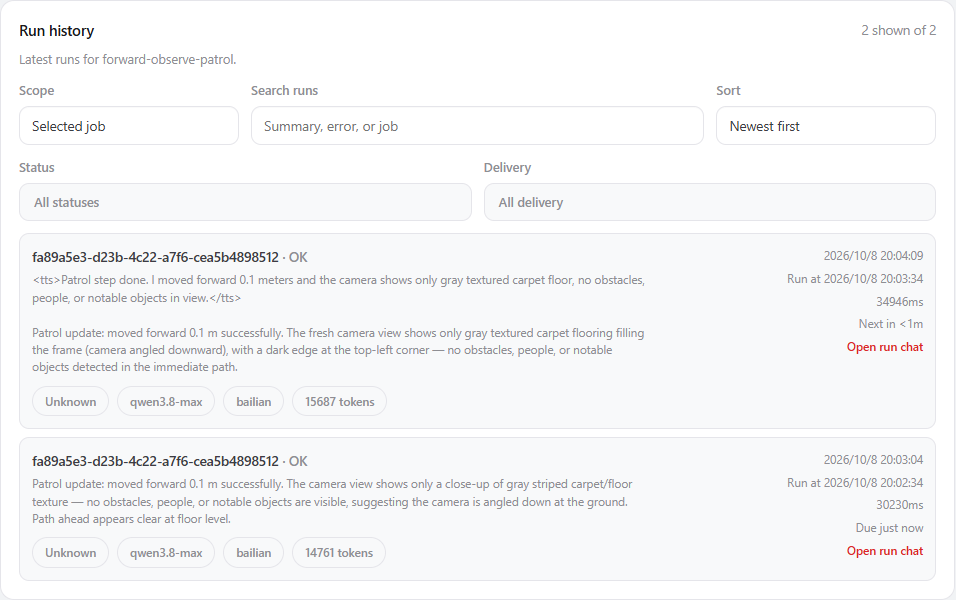
In Run History, you can see the execution records for each trigger of the scheduled task, including execution time, execution status, and run results