Welcome to ROSMASTER A1 PRO repository
8.OpenClaw Skills Development
OpenClaw Skills Development
1. Course Content
Course Overview
OpenClaw Skills is a set of advanced task instructions for developers that orchestrates multiple MCP Tools into a complete workflow according to business logic, guiding the AI model to call the right tools at the right time to complete complex tasks
The robot comes pre-installed with core skills: navigation and positioning, visual tracking
Learning Objectives
Understand the concept, principles, and function of OpenClaw Skills
Be familiar with the functionality and usage of the robot's pre-installed core skills
Master the operations to enable and disable skills in the Agent
2. Preparation
Before developing and debugging skills, start the robot MCP service first to ensure all dependent underlying Tools are in ready state:
ros2 launch dofbot_pro_bringup mcp_service.launch.py3. Skills Introduction
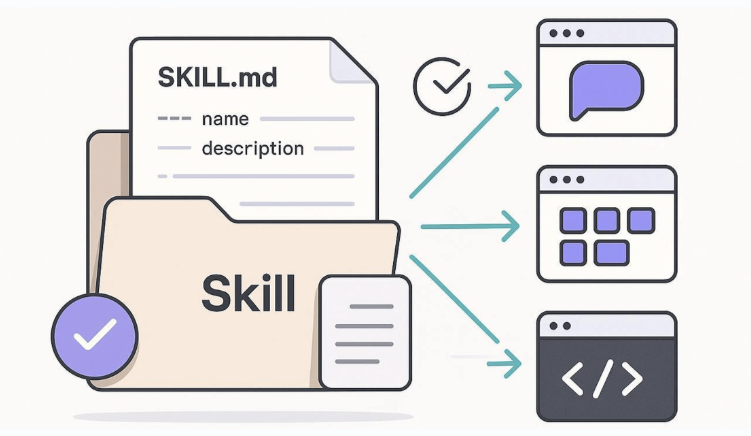
Skills are a task-level workflow instruction set
The AI model executes the workflow defined in the skill file, calling MCP Tools step by step to complete the full loop from environment perception to decision planning to action execution to result verification
Skill files are stored in the
$HOME/.openclaw/workspace/skillsdirectory, with each skill corresponding to a subdirectory, where theSKILL.mdfile defines the complete skill instructions
4. Robot Pre-installed Skills
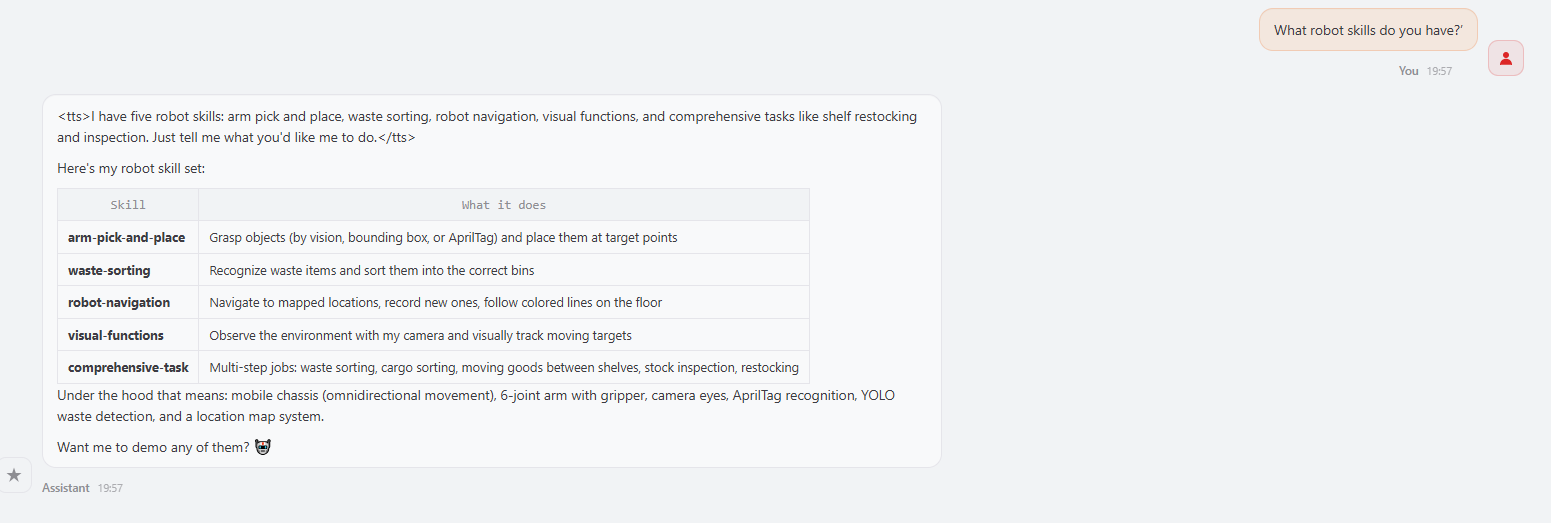
You can directly ask OpenClaw about its current skills through conversation
Skills folder path:
xxxxxxxxxx$HOME/.openclaw/workspace/skills
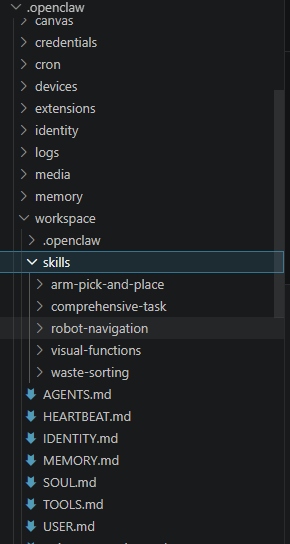
The robot comes pre-installed with the following 5 core skills:
🦾 arm-pick-and-place Uses the robotic arm to complete object picking, handling, and placing, including the complete visual positioning to grasping to placing workflow.
🗑️ waste-sorting Observes and identifies waste blocks, and sorts them into corresponding trash bins.
🧩 comprehensive-task Multi-task integrated workflow: waste sorting, cargo sorting, cargo handling between shelves, out-of-stock inspection and restocking.
🗺️ robot-navigation Navigates to the target position according to route rules on the map, supporting map point recording and reading.
👀 visual-functions Observes the environment and visually tracks target objects.
The above skill files are stored in the $HOME/.openclaw/workspace/skills directory, with each skill in its own subdirectory. You can directly view or modify the SKILL.md file inside.
5. Agent Skill Management
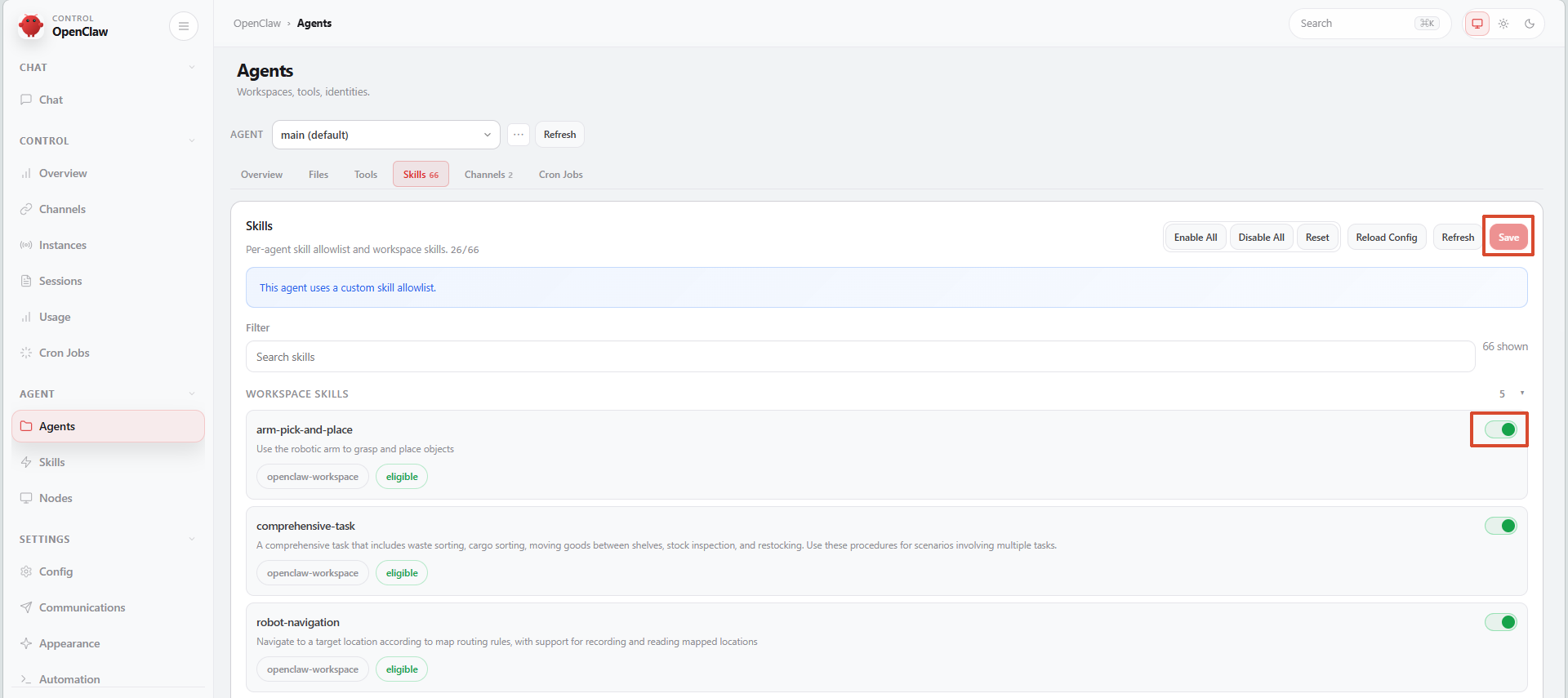
Log in to OpenClaw's WebChat, then click Agent → Skills
Under the Workspace Skills tab, you can see the pre-installed skills in the workspace. If you need to enable or disable individual skills, click the toggle switch, then click Save to apply
6. Custom Skill Development
6.1 How to Develop Your Own Skill
A custom Skill is essentially writing a
SKILL.mdfile that conforms to the format specification and placing it in the$HOME/.openclaw/workspace/skillsdirectoryDeveloping a skill requires completing the following steps:
Create skill directory: Create a new subdirectory under the
skillsdirectory; the directory name is the skill name (lowercase letters with hyphens recommended)Write SKILL.md: Create a
SKILL.mdfile in the subdirectory and write the skill content according to the formatRestart OpenClaw: Restart the OpenClaw gateway to activate the new skill
Enable in Agent: Enable the new skill in WebChat's Agent Skills management
6.2 Creating a Skill
Create skill directory and file
xxxxxxxxxxmkdir -p $HOME/.openclaw/workspace/skills/my-custom-skilltouch $HOME/.openclaw/workspace/skills/my-custom-skill/SKILL.md6.3 Skill Document Format
Each SKILL.md file consists of two parts:
YAML Meta Header
xxxxxxxxxx---namemy-custom-skill # Skill name (unique identifier)descriptionSkill function description # Brief description of the skill's purposeversion1.0.0 # Version numberauthor"Your Name" # Author informationtrigger_keywords# Trigger keywords (AI calls this skill based on these words)keyword1keyword2---The body section is written in Markdown format to describe the skill workflow, usually containing:
Related Tools: Lists the MCP Tools required by this skill
Rules: Any necessary constraints and rules
Workflow: Defines the operation flow step by step, including specific command line examples
Error Handling: Handling solutions for common errors
6.4 Writing Skill Content
When writing skill content, follow these principles:
Clear step division: Break the task into clear steps (Step1 / Step2 / ...), each step should have a clear execution goal and judgment criteria
Complete tool call examples: For each MCP Tool that needs to be called in a step, provide the complete command format and parameter description
Error handling mechanism: Provide clear handling strategies for possible error situations (such as target not existing, tool call failure, etc.)
Conditional judgment and loops: Steps that require looping operations should have clear termination conditions, and steps requiring conditional judgment should provide judgment criteria
When writing, you can refer to the pre-installed skill's
SKILL.mdfile as a template, path:xxxxxxxxxx$HOME/.openclaw/workspace/skills/<skill-name>/SKILL.md
6.5 Enabling Skills in OpenClaw
Refer to 5. Agent Skill Management to enable and disable skills