Welcome to ROSMASTER A1 PRO repository
3.Docker Submission and Multi-Terminal Access
Docker Commit and Multi-Terminal Access
1. Docker Commit
1.1. Description
If the customer uses the same script to enter Docker every time the machine is powered on, and exits Docker after modifying the programs inside without committing the changes, then the next time the script is used to enter Docker, it will not be the modified container but the original one. This is because, after modifying the programs, the container must be recommitted to update Docker.
1.2. Commit Docker
After we have entered a Docker container and finished modifying the programs inside, enter the following command in the terminal to check the running containers.
docker ps

Here what we need to focus on are the container's ID, which in this case is f8086cb992f3, and its current name, 192.168.2.51:5000/ros-humble:5.1.0. Once the ID and name are known, the current container can be committed.
xxxxxxxxxxdocker commit f8086cb992f3 192.168.2.51:5000/ros-humble:5.1.0
In the command above, we commit the modified container under the same image name, which overwrites the current one and thereby achieves the effect of saving the modified programs.
If you want to rename the container to a different name, run the following command:
xxxxxxxxxxdocker commit f8086cb992f3 192.168.2.51:5000/ros-humble:5.1.1
The command above is equivalent to committing a brand-new, modified Docker image named 192.168.2.51:5000/ros-humble:5.1.1. We can check whether the commit was successful by entering docker images.
xxxxxxxxxxdocker images
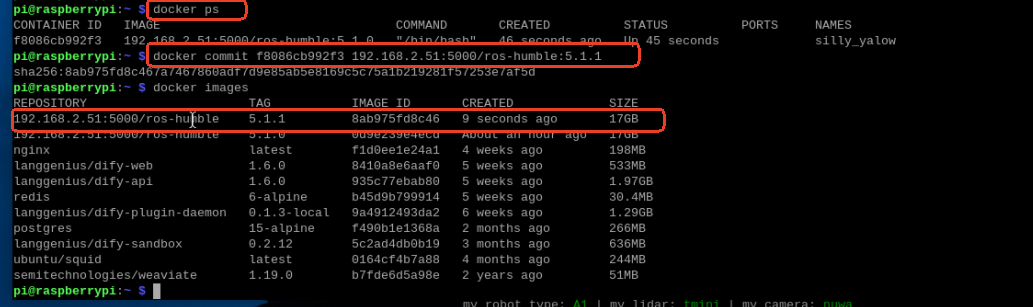
If we renamed the container to another name, the next time we want to use the same script to enter the modified container, we need to modify the Docker script to use the renamed container. The vim editor is used here.
xxxxxxxxxxvim run_humble.sh
Press the i key to start editing.
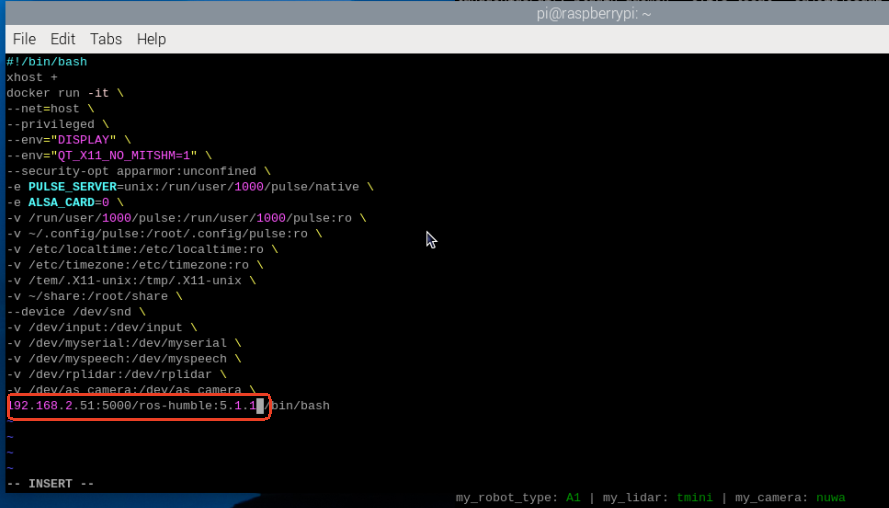
After editing is complete, save and exit. The next time this script is run to start Docker, the modified container will be started.
2. Entering the Same Docker Container from Multiple Terminals
Note: The tutorials for the Raspberry Pi and Jetson Nano boards all use Docker, and most of the tutorials require entering the same container terminal to run commands.
If a Docker container has already been started, you can open another terminal on the host (the robot car) to check it:
- View the running Docker containers.
xxxxxxxxxxdocker ps

Write down the ID of this container.
- Now enter the following command to access the terminal of the container with the same ID.
xxxxxxxxxxdocker exec -it eade20b96389 /bin/bash
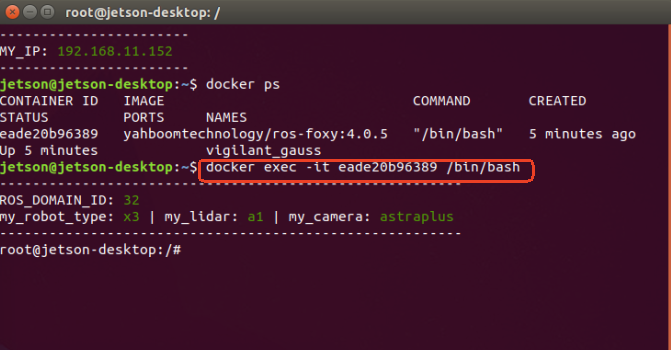
Once you have successfully entered the container, you can use this method to open any number of terminals to access the same container.