Welcome to ROSMASTER A1 PRO repository
4.Multimodal Visual Understand+SLAM Navigation
4. Multimodal Visual Understanding + SLAM Navigation (Text Version)
1. Course Content
Learn how the large model closes a cross-modal, long-chain loop involving multi-point navigation, physical-space semantic mapping, and multimodal visual perception;
Master the waypoint calibration of the map semantic mapping file
map_mapping.yamland the Dify variable synchronization mechanism;Learn to perform initial pose calibration (2D Pose Estimate) in the RViz2 visualization interface;
Issue complex long-duration tasks through the text terminal: cross-room navigation patrol, image-perception multimodal memory, returning along the original route, and outputting a summary report;
Analyze the core source code of the collaborative scheduling between the underlying navigation Action client and the action server.
2. Preparation
2.1 Content Description
This lesson applies to controllers such as Raspberry Pi 5, Jetson Orin NANO, and D-Robotics RDK X5:
Raspberry Pi 5: You must first enter the Docker container before running ROS 2 related commands. Refer to [3.Enter Docker (For Raspberry Pi)] in the [Robot Configuration and Operation Guide];
Orin / RDK X5: Run commands directly in the onboard terminal; there is no need to enter Docker.
2.2 Start the Local Dify Large-Model Environment
Enter the following command in the host terminal to start the Dify service:
sh ~/bringup_dify.shThe terminal prints the following message, indicating that the Dify service is connected successfully:
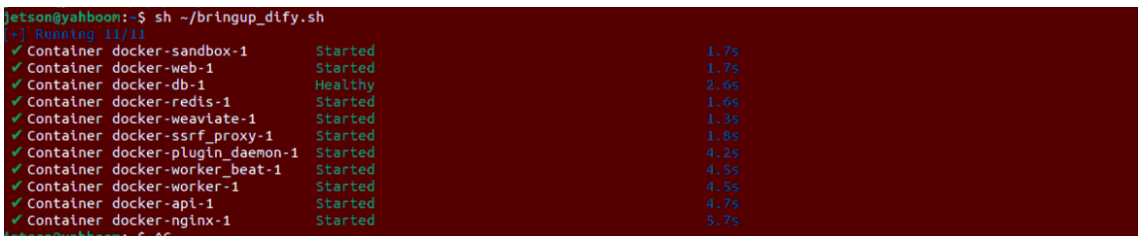
Important
Precondition:
This lesson requires the robot to navigate on an already-built map. Please make sure that a grid map (such as map.yaml) has been built and saved according to the navigation chapter tutorial.
2.3 Configure the Map Waypoint Semantic Mapping (map_mapping.yaml)
To let the large model understand the physical coordinates of natural-language places such as "tea room," "kitchen," and "office," a mapping relationship between place names and absolute map coordinates must be established in the configuration file.
1. Calibrate Room Coordinates and Orientation
Connect to the robot desktop via VNC and run the following command to start the navigation node:
Start the low-level layer
xxxxxxxxxxros2 launch yahboomcar_nav laser_bringup_launch.py
Visualization node, or alternatively start the display on a virtual machine
xxxxxxxxxxros2 launch yahboomcar_nav display_nav_launch.py
Start navigation. Note: whichever localization method was used during waypoint calibration must be used for subsequent navigation, because the poses of different localization methods may differ
x# AMCL localization + navigationros2 launch yahboomcar_nav navigation_teb_launch.py
# Relocalization method; see the Cartographer relocalization navigation for detailsros2 launch yahboomcar_nav localization_imu_odom.launch.py use_rviz:=false load_state_filename:=$HOME/yahboomcar_ros2_ws/yahboomcar_ws/src/yahboomcar_nav/maps/map.pbstream
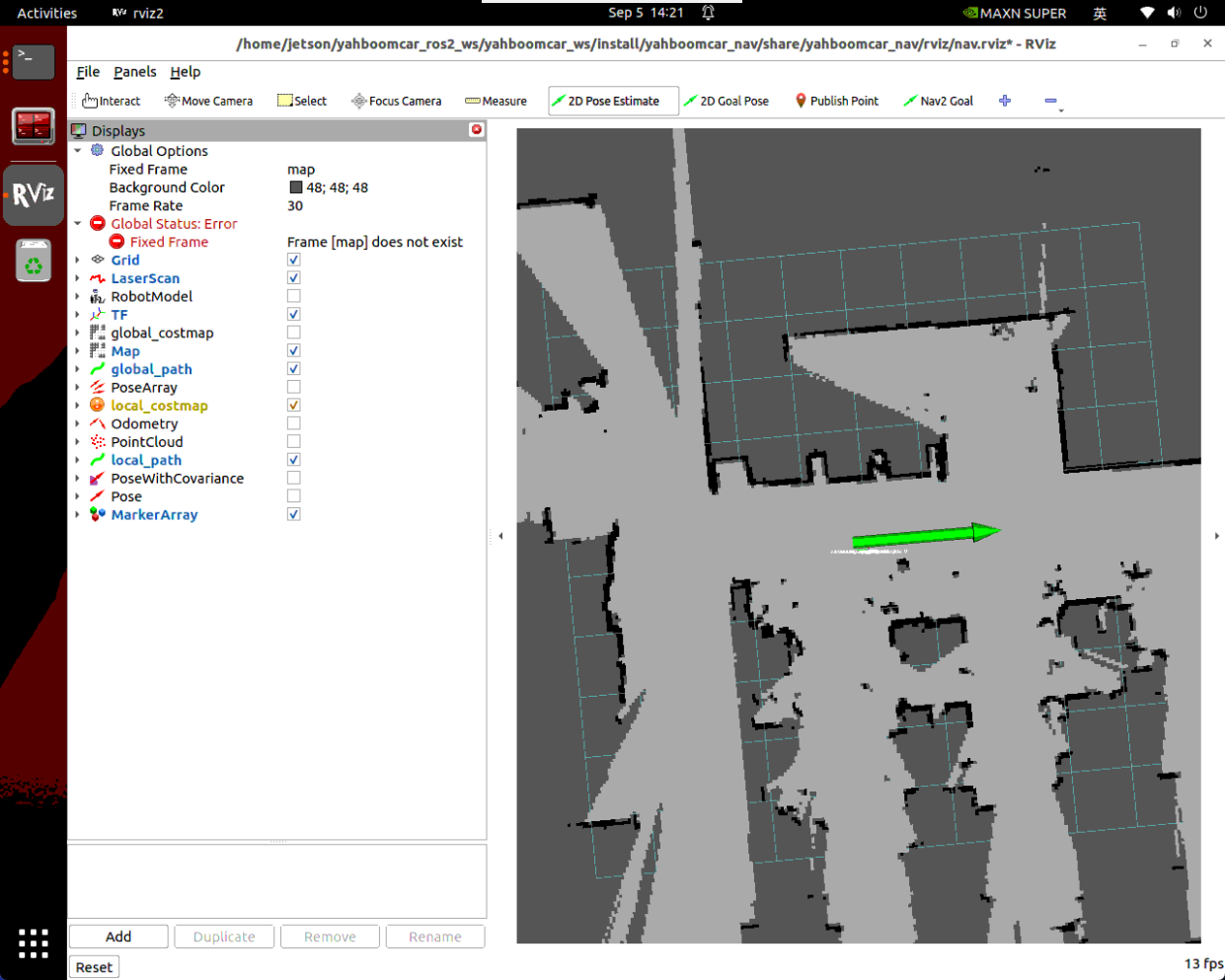
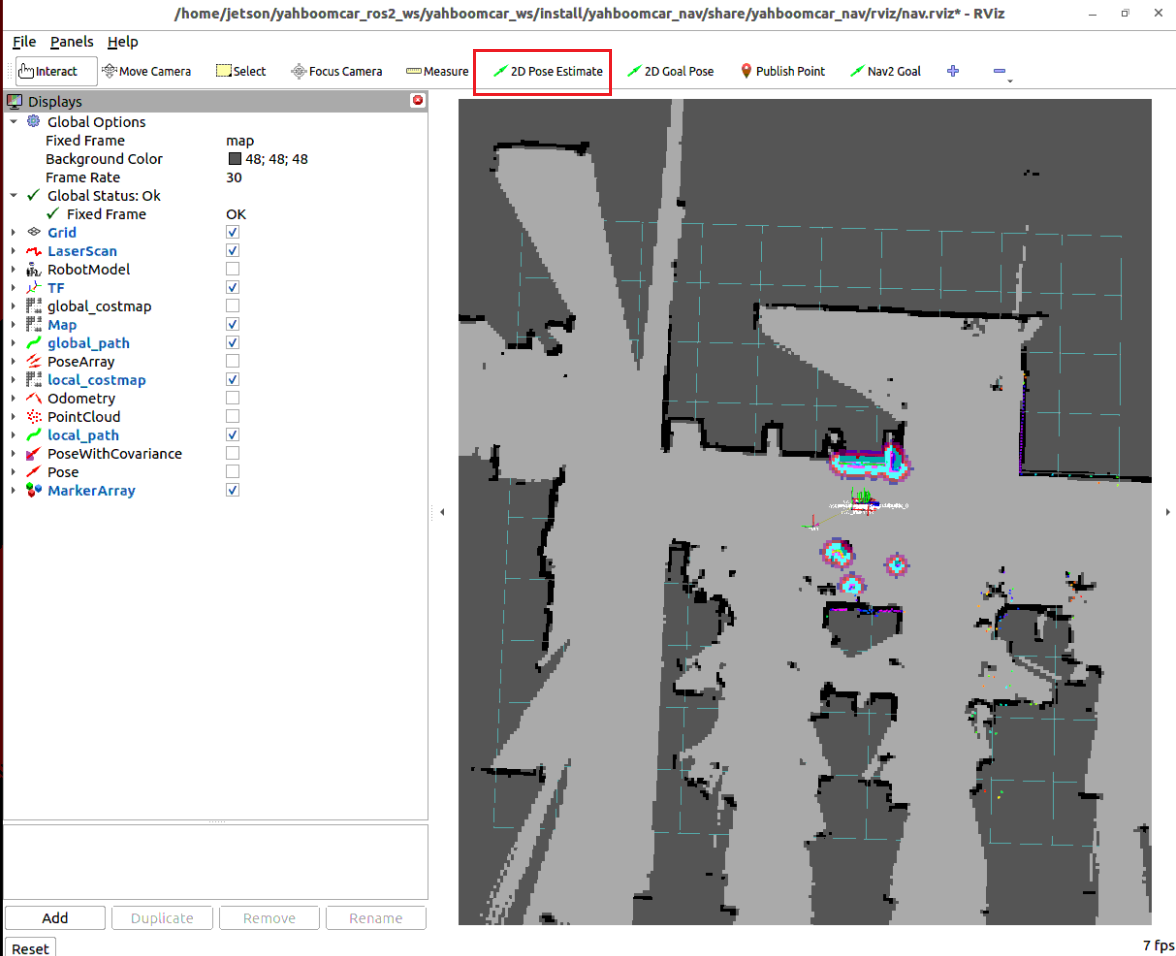
ros2 launch yahboomcar_nav navigation_cartodwb_launch.py maps:=$HOME/yahboomcar_ros2_ws/yahboomcar_ws/src/yahboomcar_nav/maps/map.yamlOpen the RViz2 navigation interface (see the startup steps below), click the 2D Pose Estimate tool in the upper toolbar, and mark the robot's current real physical position and orientation on the map:
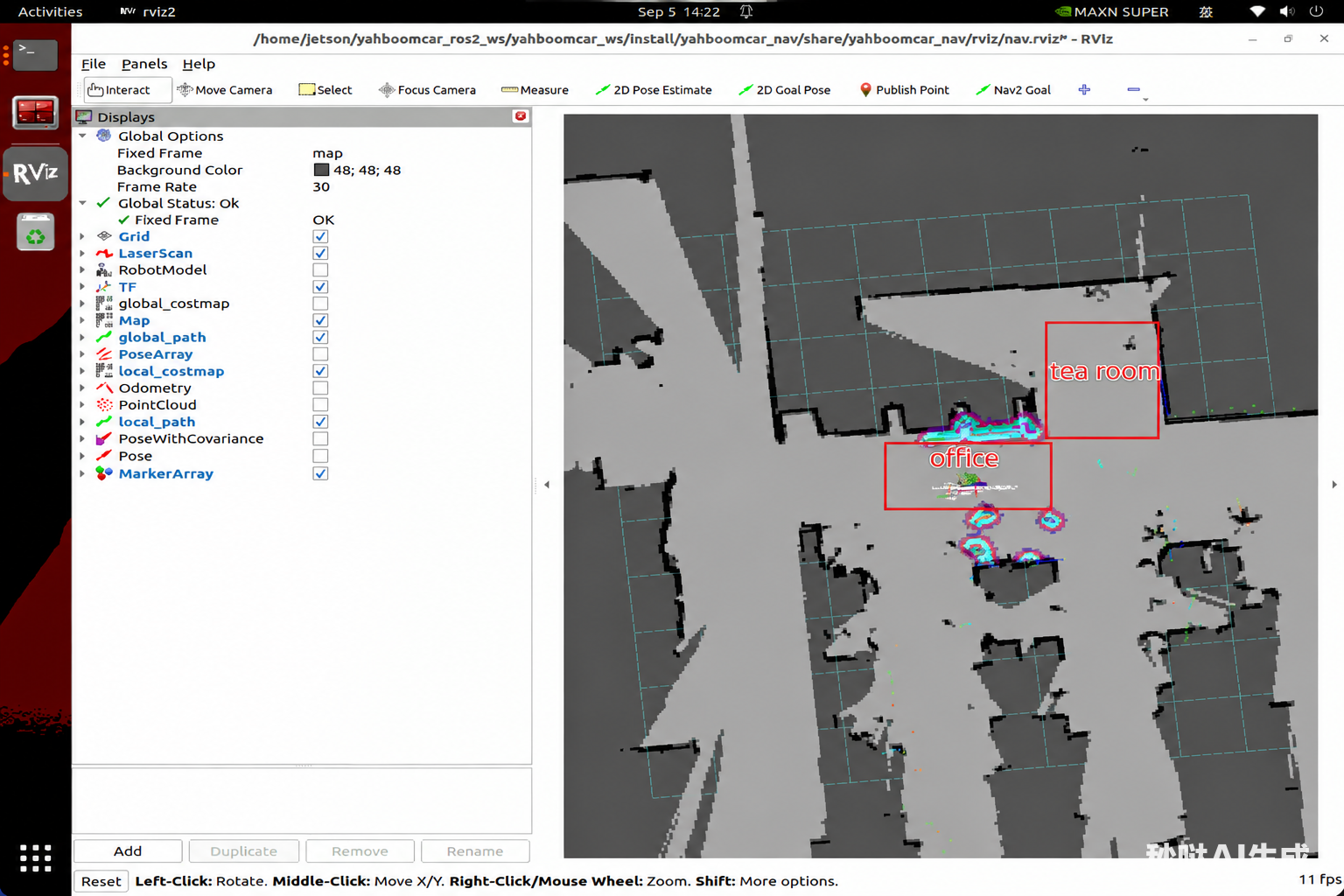
Combined with the target areas of the robot in the map (such as "office," "tea room"):
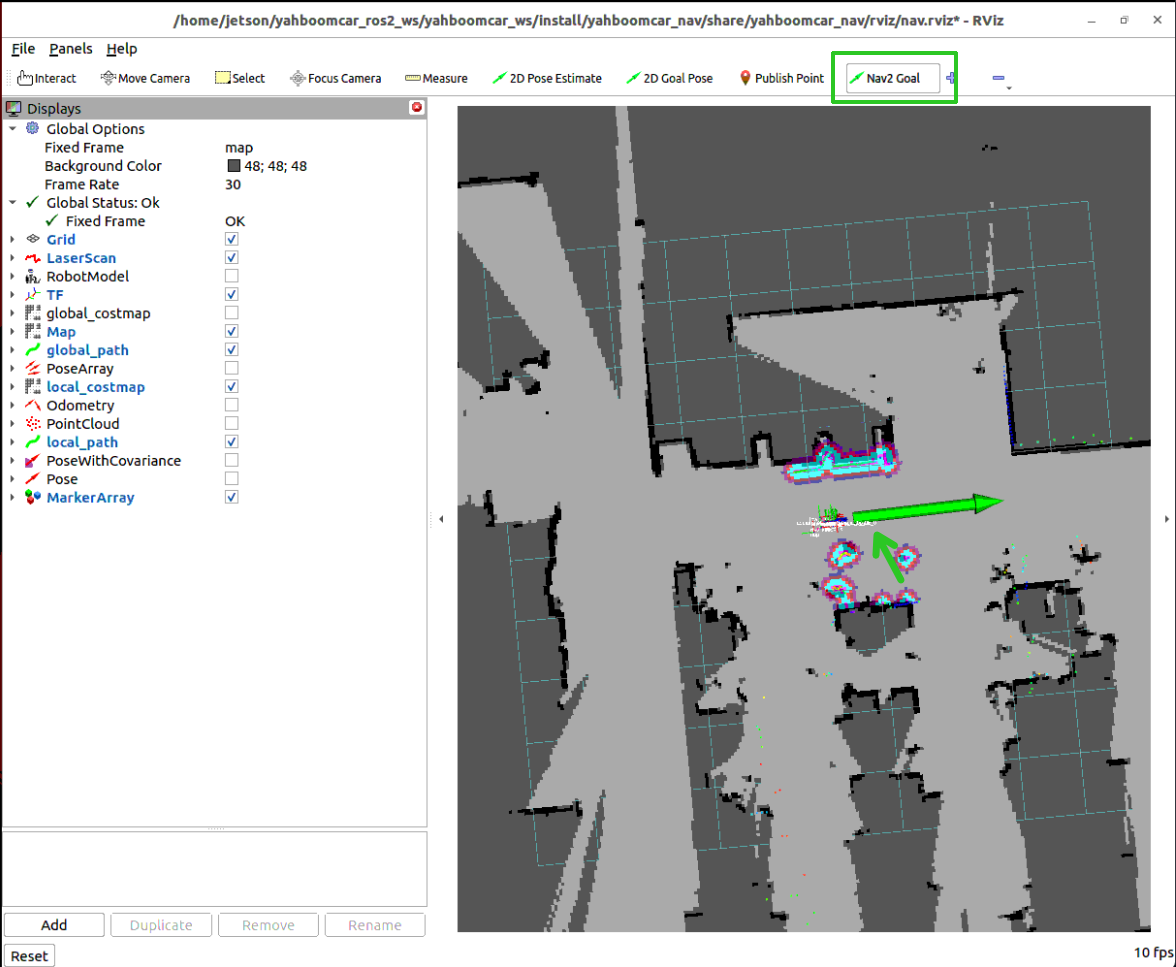
In RViz2, use the 2D Goal POSE tool to click the target position of the room, driving the robot to navigate to that point:
After the robot arrives at the target room, run the following command in the terminal to obtain the robot's precise pose parameters in the current map coordinate system:
xxxxxxxxxxros2 run tf2_ros tf2_echo map base_footprintThe terminal prints the translation Translation [x, y, z] and quaternion rotation Rotation [x, y, z, w] of the current pose:
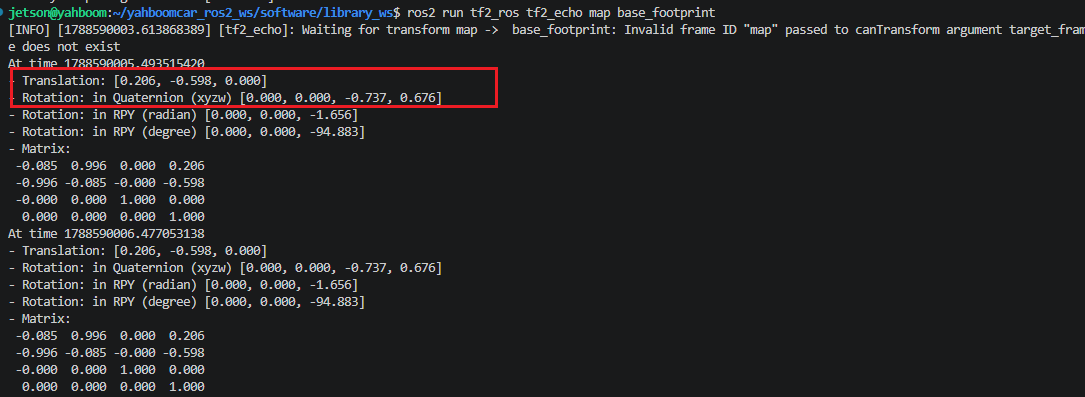
2. Edit the map_mapping.yaml File
The configuration file path for each controller board is as follows:
xxxxxxxxxx~/yahboomcar_ros2_ws/yahboomcar_ws/src/multi_brains/config/map_mapping.yaml
Open the map_mapping.yaml map mapping file (by any one of VNC, VSCode, command line, etc.), and fill in the room names and coordinates obtained above under common_map_areas:
xxxxxxxxxxcommon_map_areas# common navigation A name'Office' position x0.206 y-0.598 z0.0 orientation x0.0 y0.0 z-0.737 w0.676 B name'tea room' position x1.064 y-2.432 z0.0 orientation x0.0 y0.0 z-0.141 w0.990After completing the configuration, rebuild and source the environment variables:
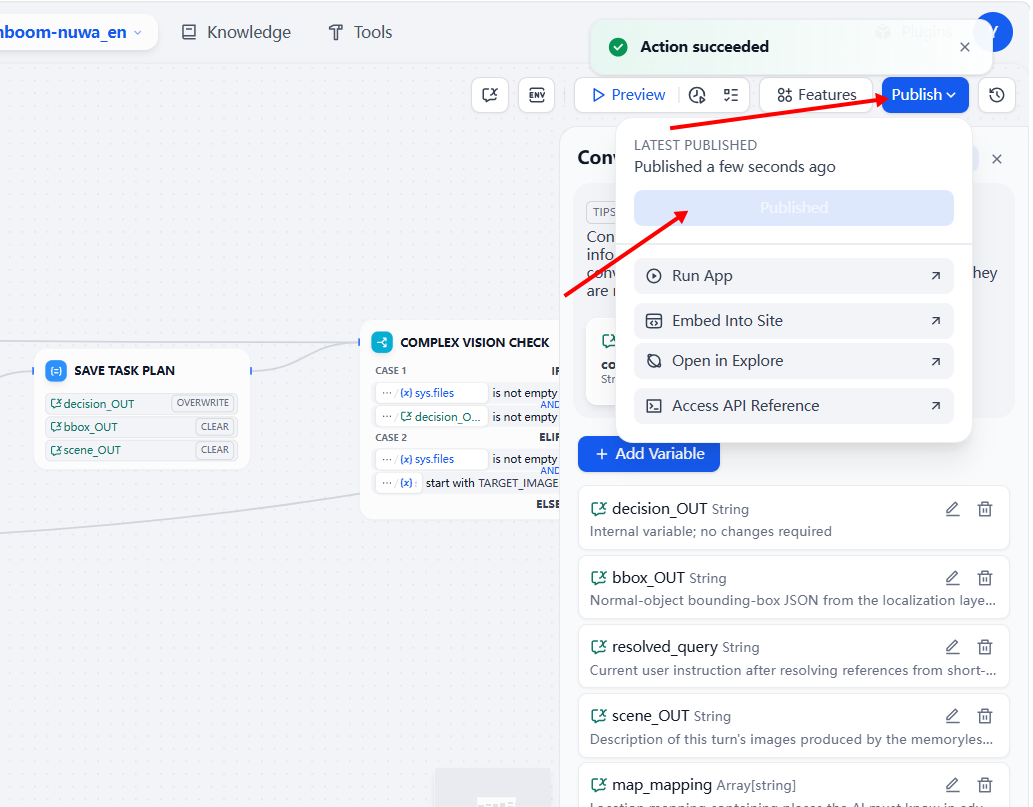
xxxxxxxxxxcd ~/yahboomcar_ros2_ws/yahboomcar_ws/colcon build --packages-select multi_brainssource install/setup.bashThen open the Dify workbench application in a browser (vehicle IP), synchronously update the map_mapping variable in the [Conversation Variables] of the corresponding application, and click [Publish Update]:
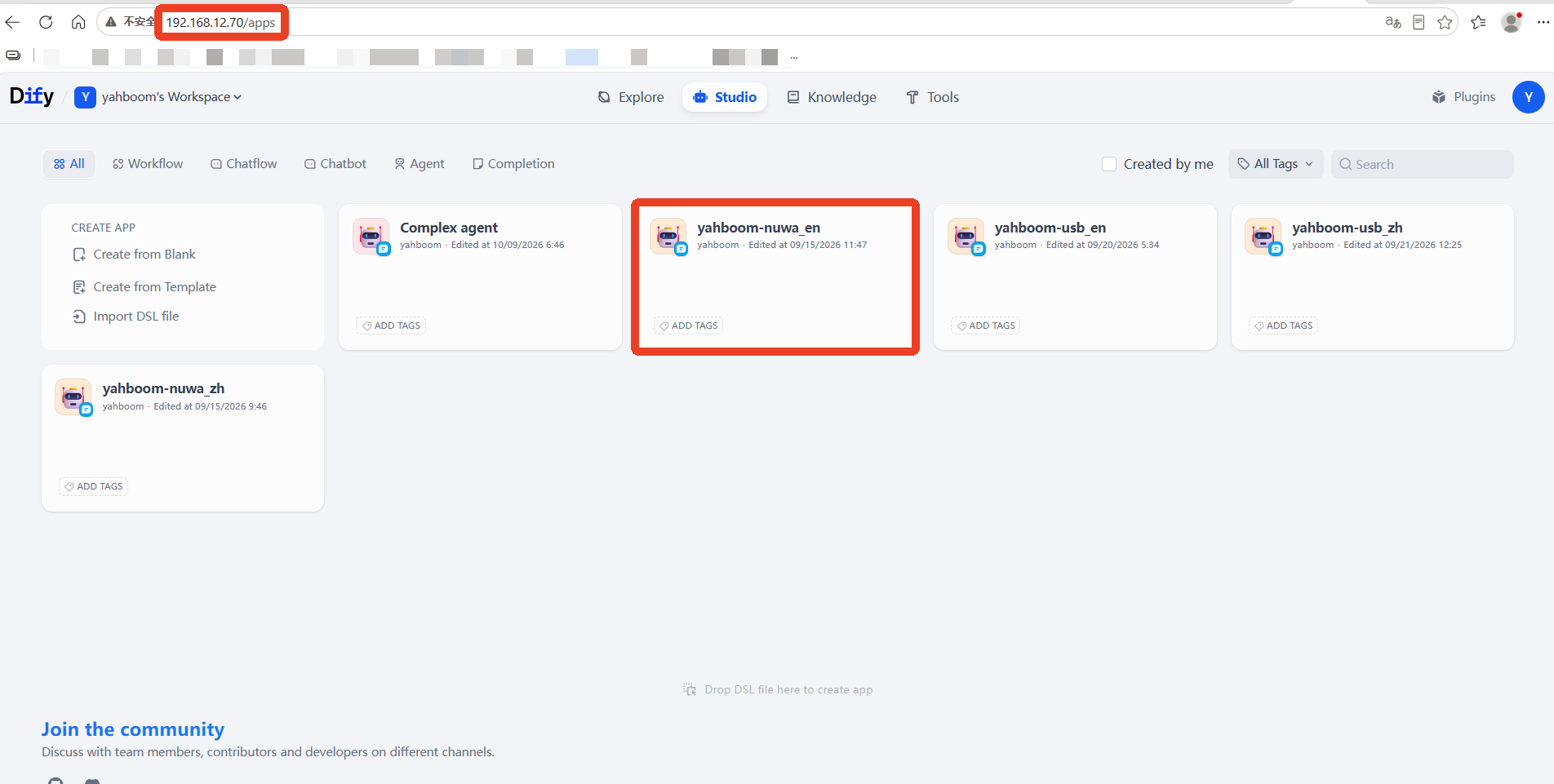
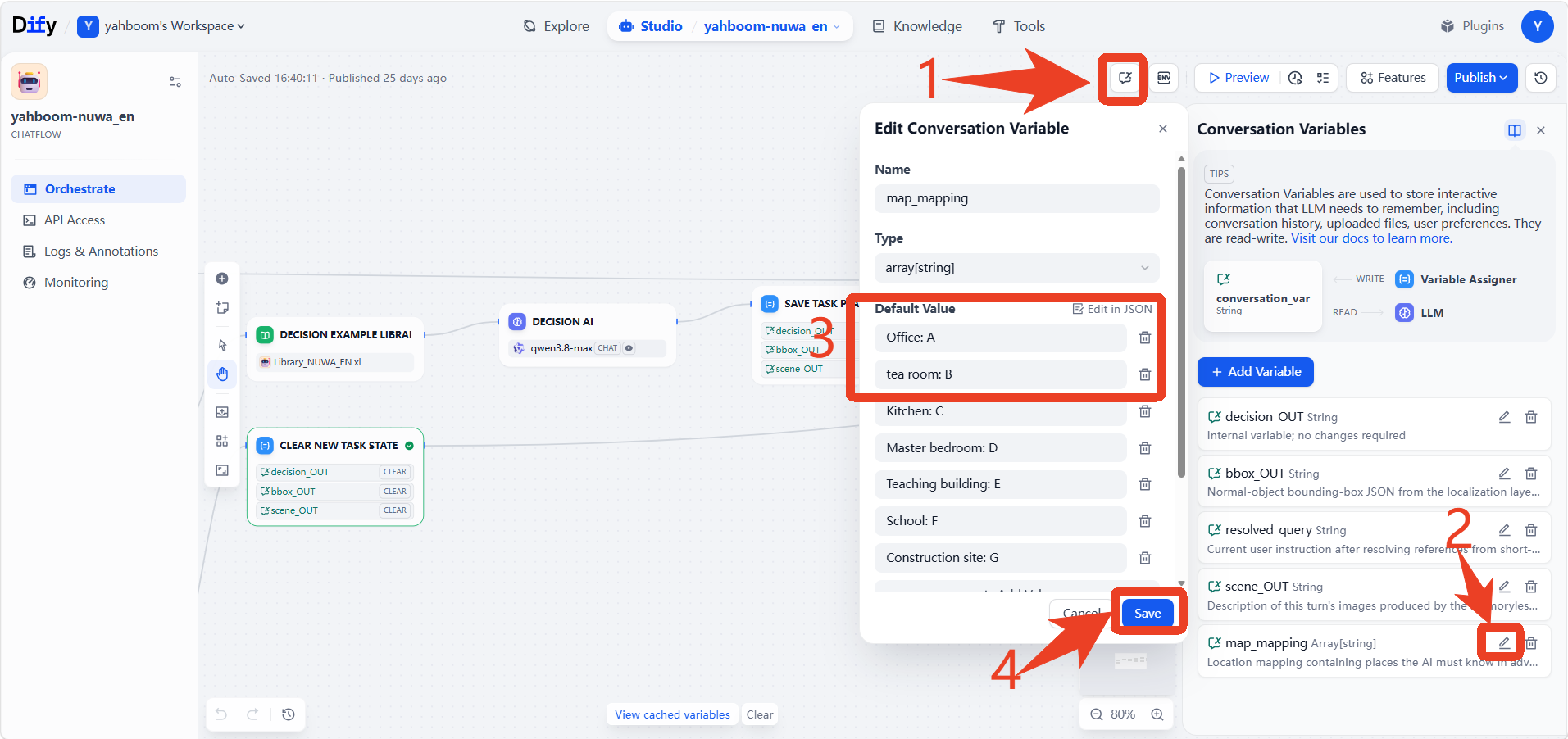
Click Publish Update
3. Running Examples
3.1 Start the System Master Control Node (Text Interaction Mode)
After closing all terminals, re-enter the following command in a terminal to start the large-model embodied control service:
xxxxxxxxxxros2 launch multi_brains llm_agent_control.launch.py text_chat_mode:=True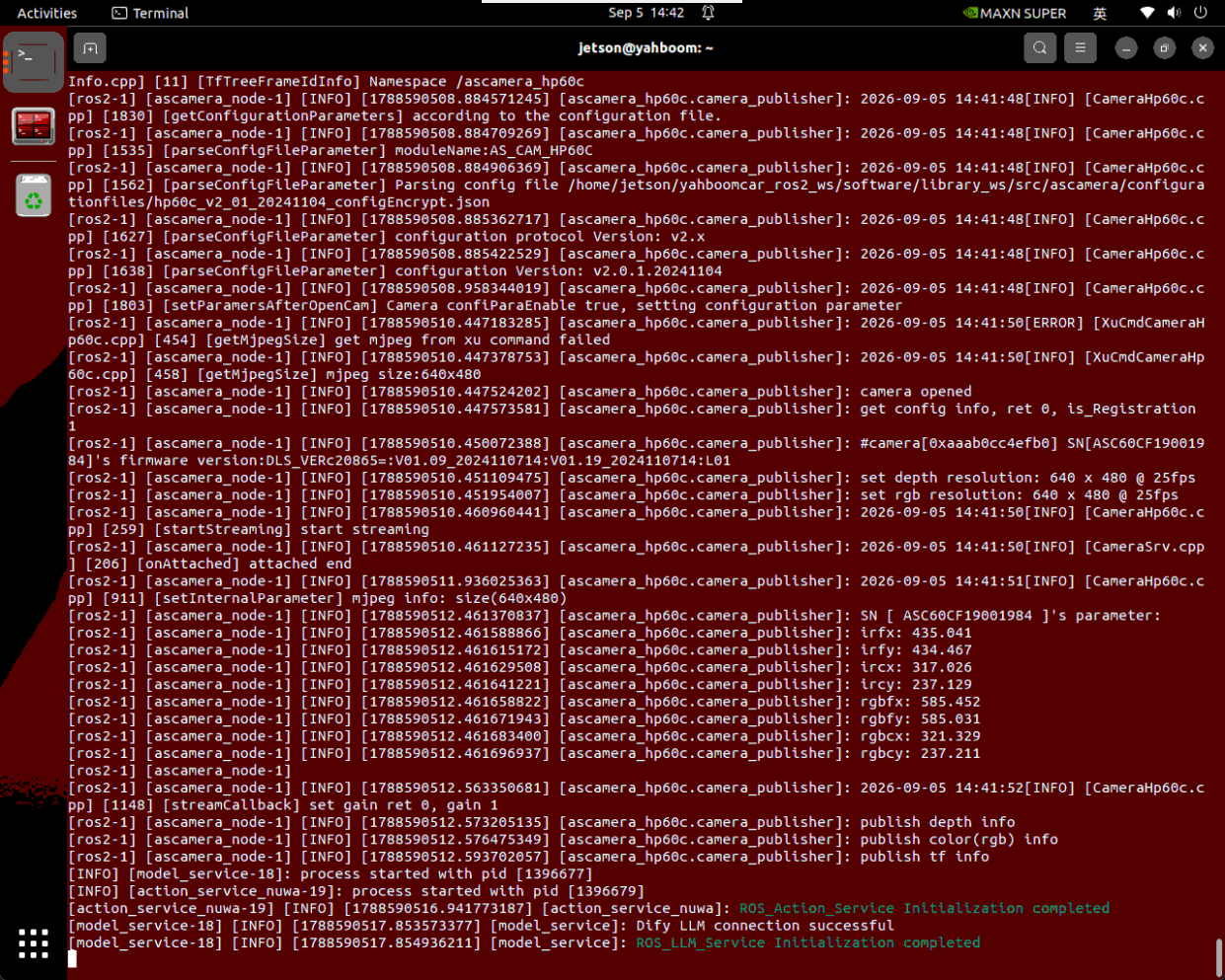
3.2 Start the SLAM Navigation and Visualization System
On the onboard desktop or a virtual machine, open another terminal and start the navigation visualization interface:
xxxxxxxxxxros2 launch yahboomcar_nav display_nav_launch.pyThen open another terminal and start the underlying navigation algorithm (the TEB local path planner is recommended): Note: whichever localization method was used during waypoint calibration must be used for subsequent navigation, because the poses of different localization methods may differ
xxxxxxxxxxros2 launch yahboomcar_nav navigation_teb_launch.py# Relocalization method; see the Cartographer relocalization navigation for detailsros2 launch yahboomcar_nav localization_imu_odom.launch.py use_rviz:=false load_state_filename:=$HOME/yahboomcar_ros2_ws/yahboomcar_ws/src/yahboomcar_nav/maps/map.pbstream
ros2 launch yahboomcar_nav navigation_cartodwb_launch.py maps:=$HOME/yahboomcar_ros2_ws/yahboomcar_ws/src/yahboomcar_nav/maps/map.yaml
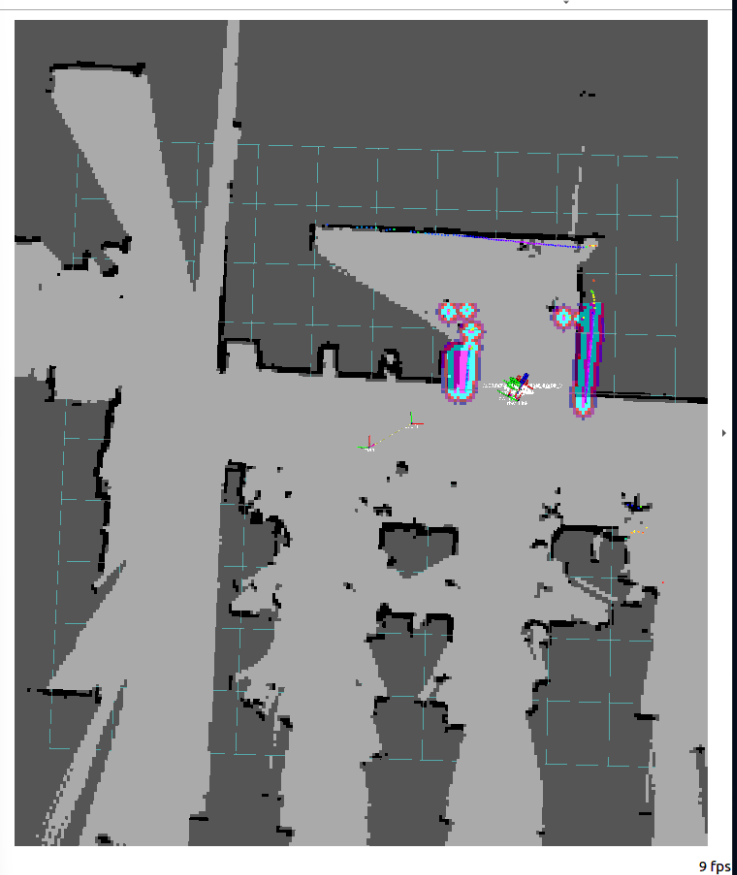
In the opened RViz2 window, use the 2D Pose Estimate tool to perform initial alignment and localization according to the robot's parked position in the real scene.
3.3 Start the Text Interaction Terminal
Enter the following command in the SSH terminal on the computer to start the text interaction interface:
xxxxxxxxxxros2 run text_chat text_chat
3.4 Classic Test Case (Cross-Room Patrol and Multimodal Long-Term Memory Report)
Enter the composite inspection task statement in the text interaction terminal:
xxxxxxxxxxGo to the tea room, help me see what items are inside, then return to the office and report.The terminal prints the continuous long-chain task plan parsed by the large model:

Execution Process and Behavior:
Head to the master bedroom: the robot chassis automatically plans an obstacle-avoidance path and navigates to the "master bedroom" waypoint:
Visual perception and memory: after arriving at the master bedroom, the robot brakes to a stop and calls the
seewhat()method to wake up the camera to capture a photo of the current scene; the multimodal large model analyzes and recognizes the items in the scene (such as a tissue box, a water cup, and blocks):
xxxxxxxxxx~/yahboomcar_ros2_ws/yahboomcar_ws/cache/image_raw.png
Return to the kitchen: the large model keeps the list of observed objects in the session context,

Proactive text report: after arriving at the kitchen, the robot triggers
finish_dialogue()and gives the user a detailed summary report in the text interaction terminal: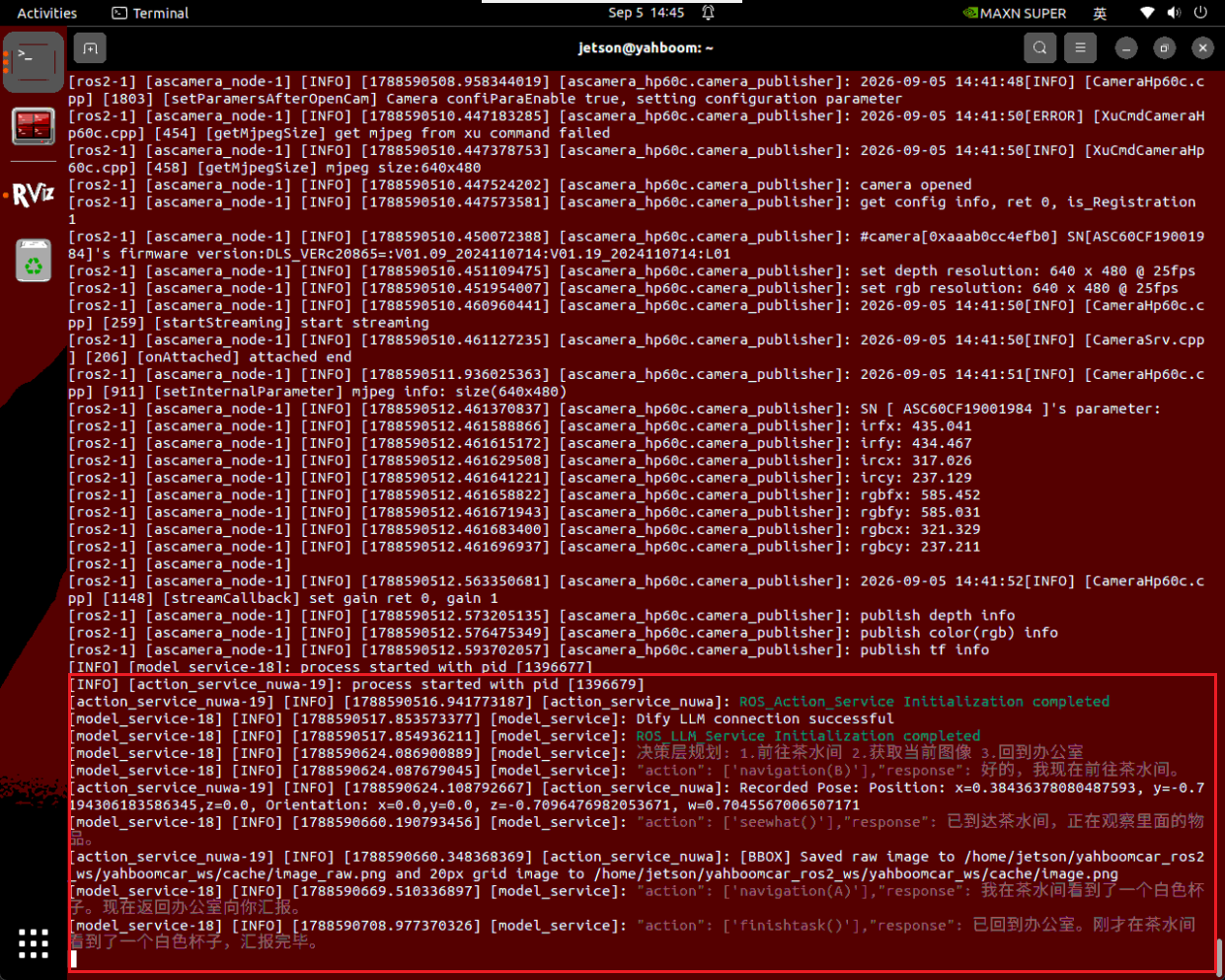
4. Core Source Code Analysis
Source package path:
~/yahboomcar_ros2_ws/yahboomcar_ws/src/multi_brains
4.1 Semantic Waypoint Parsing and Navigation Goal Issuance (action_service_*.py)
In ActionController, the navigation method encapsulates the Nav2 NavigateToPose action client:
xxxxxxxxxxdef navigation(self, point_name): # 1. Look up the pose parameters of the corresponding waypoint in the map mapping table target_info = self.map_areas.get(point_name) if not target_info: self.get_logger().error(f"Target waypoint not found: {point_name}") return False # 2. Assemble the PoseStamped goal message goal_pose = PoseStamped() goal_pose.header.frame_id = "map" goal_pose.header.stamp = self.get_clock().now().to_msg() goal_pose.pose.position.x = target_info['position']['x'] goal_pose.pose.position.y = target_info['position']['y'] goal_pose.pose.orientation.z = target_info['orientation']['z'] goal_pose.pose.orientation.w = target_info['orientation']['w'] # 3. Send the goal asynchronously and block waiting for the navigation completion feedback nav_goal = NavigateToPose.Goal() nav_goal.pose = goal_pose self.nav_client.send_goal_async(nav_goal) ...4.2 Long-Chain Cross-Room Context Preservation Mechanism (model_service.py)
Chain-of-thought orchestration: after receiving the composite command, the large model decomposes the task into a standard action flow:
xxxxxxxxxx[{"action": "navigation", "params": {"point_name": "master bedroom"}},{"action": "seewhat", "params": {}},{"action": "navigation", "params": {"point_name": "kitchen"}},{"action": "finish_dialogue", "params": {"text": "report content..."}}]State-machine safety isolation:
model_service.pymaintains a session lock, issuing the next step only after each underlying action is completed and fed back through the ROS 2 Action. This ensures that the robot captures a photo only after it has fully reached the master bedroom and come to a stop, and starts the return trip only after the visual analysis is complete, guaranteeing the high robustness of long-chain embodied tasks.