Welcome to ROSMASTER A1 PRO repository
8.AI Agent Workflow
AI Agent Workflow
AI Agent Workflow1. Course Content2. Starting the Dify Service3. Case: A Categorized Q&A Chatbot4. Visualized Workflow Debugging5. Accessing the AI Agent Application
1. Course Content
Use multiple AI large models to build an agent workflow to implement complex logic functions.
2. Starting the Dify Service
Connect to the onboard computer via VNC or SSH, and enter the following command in the terminal:
sh ~/bringup_dify.sh
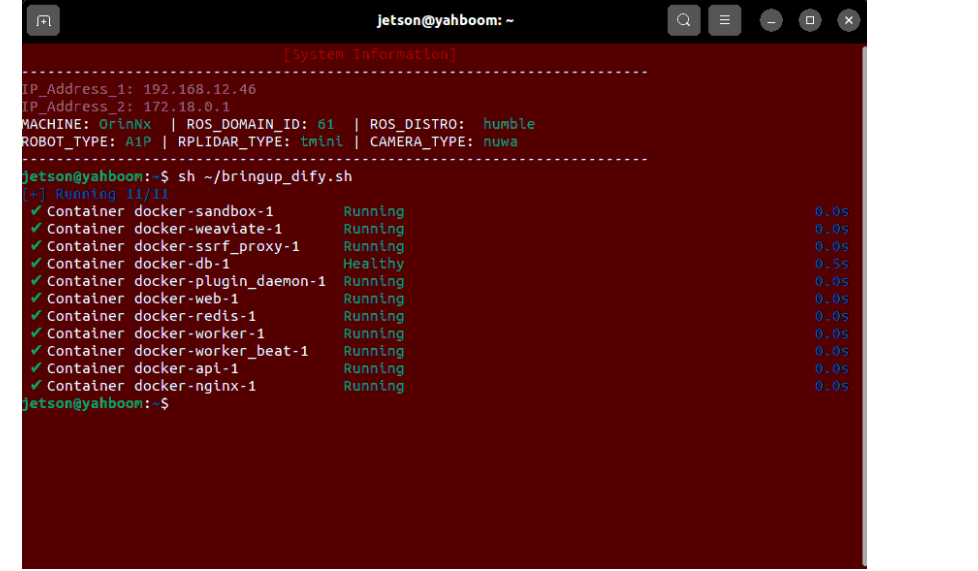
Log in to the Dify backend using the IP address.
3. Case: A Categorized Q&A Chatbot
In the sample AI application folder of this lesson, there are reference samples that can be directly imported and used. Note: after importing, the software may prompt about some version incompatibility issues; ignore them and use it directly.
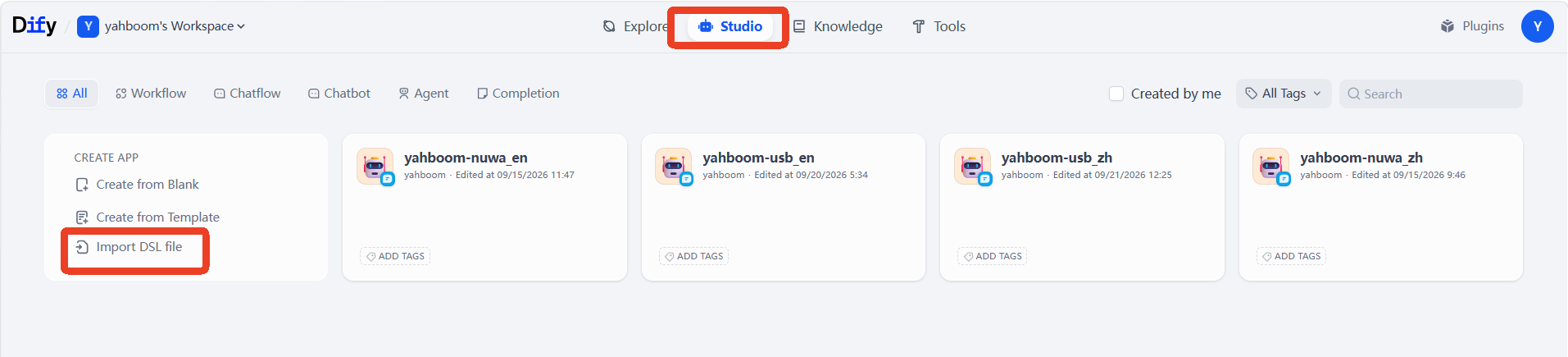
In the Studio on the Dify home page, click Import DSL File.
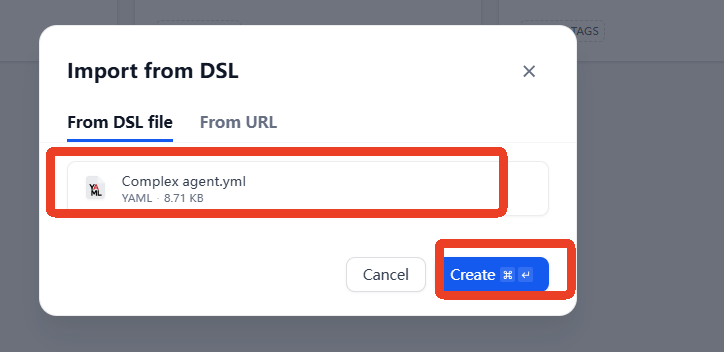
Select the sample AI application
Complex agent.ymlin this lesson's folder, and then click Create.
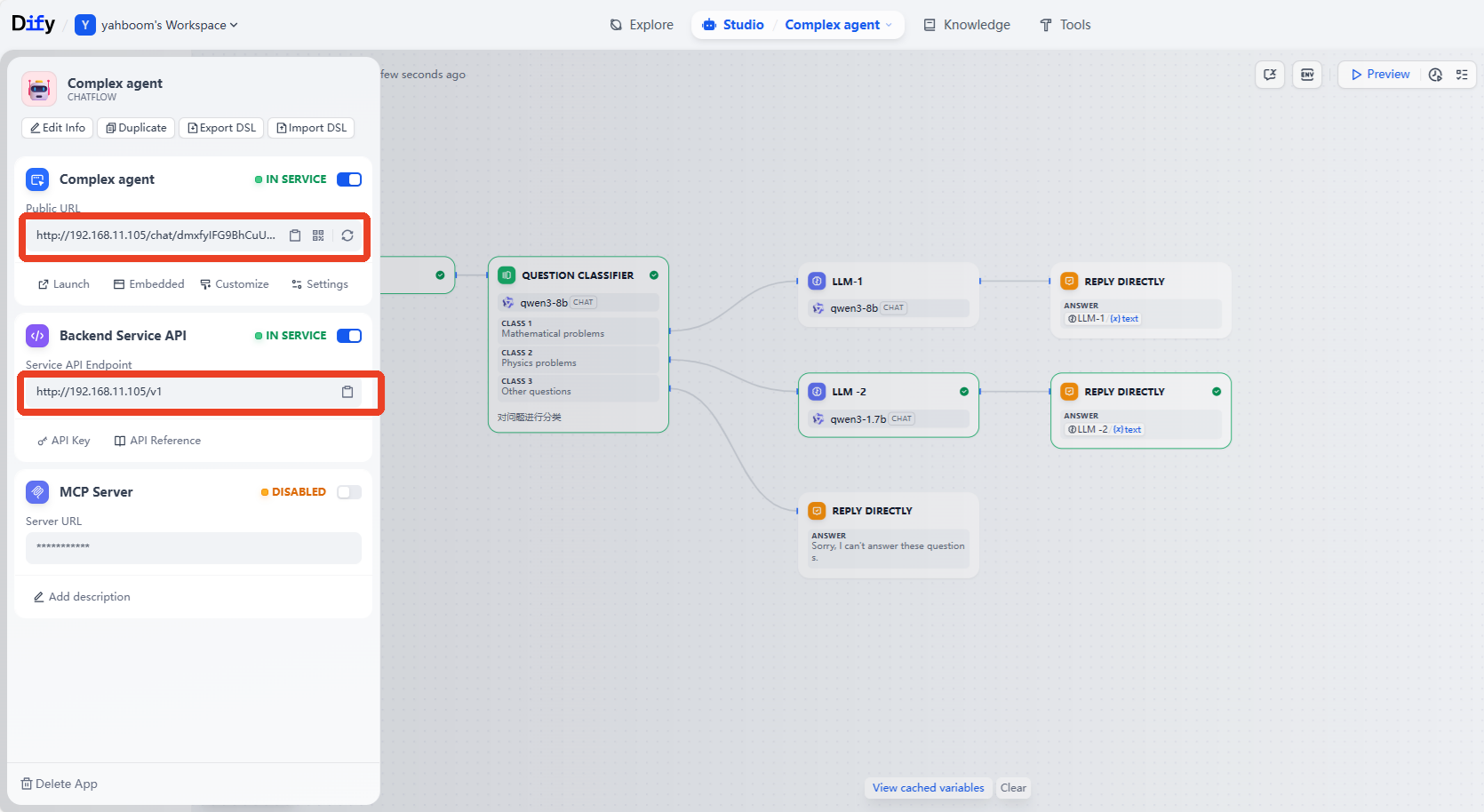
The workflow content can be seen as shown below.
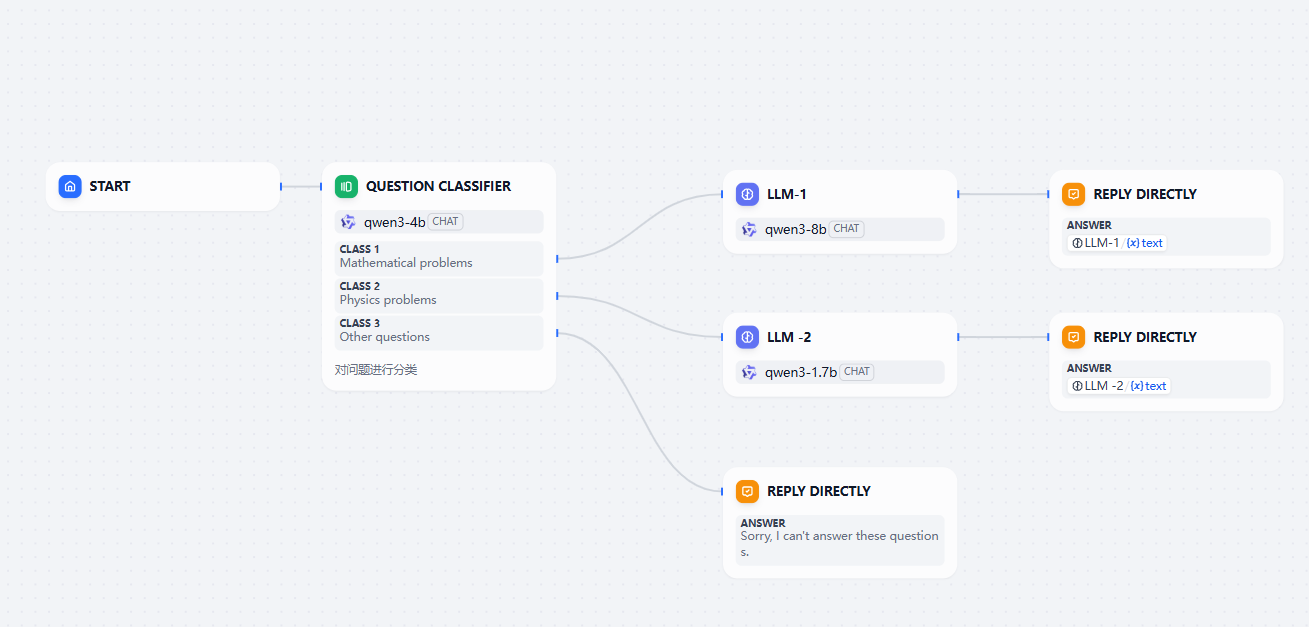
In the workflow,
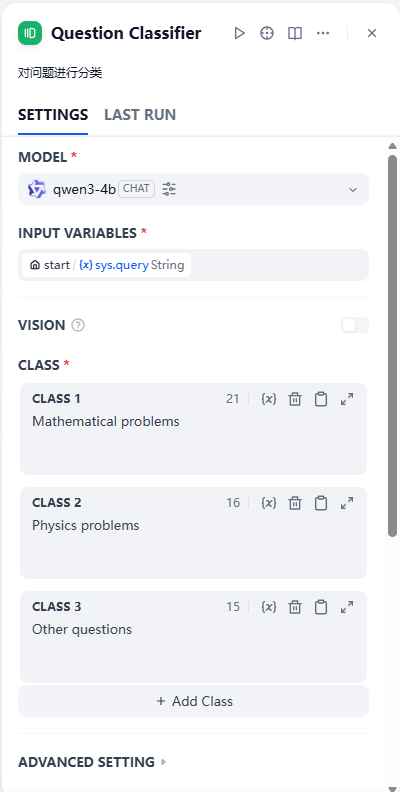
Question Classifieris a module driven by an AI large model. Its function is to classify the user's questions into math problems, physics problems, and other problems. If the user's input fits math- or physics-related questions, the AI large models of different branches will be called to answer. The classification content ofQuestion Classifieris as follows:
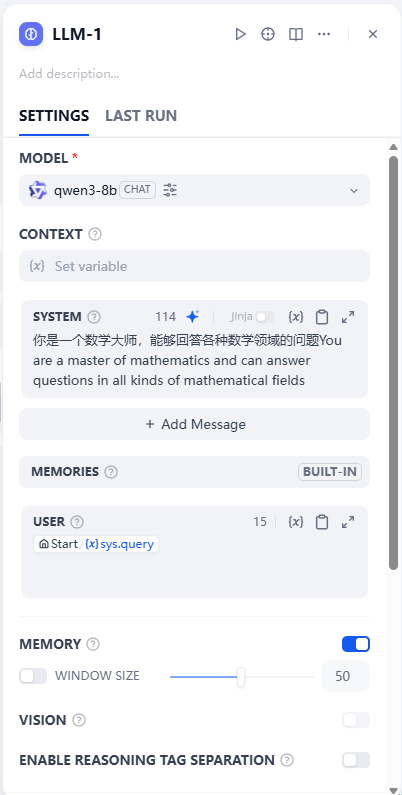
Among them, the LLM-1 branch is used to answer math-related questions; its prompt and settings are shown below.
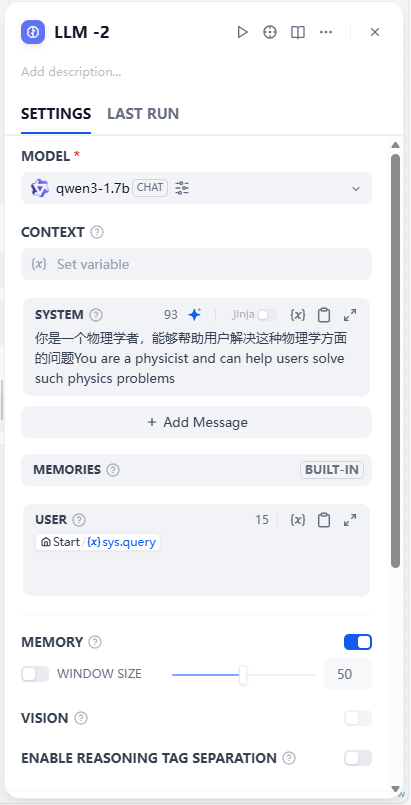
The LLM-2 branch is used to answer physics-related questions; its prompt and settings are shown below.
4. Visualized Workflow Debugging
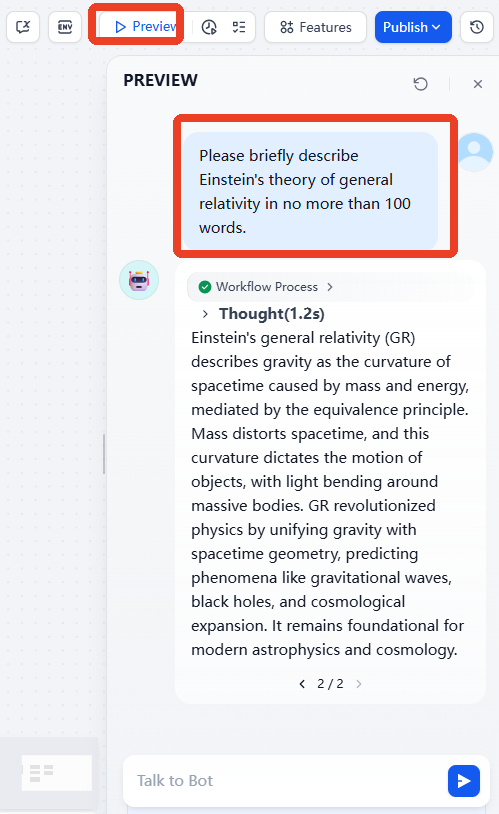
To debug and test the workflow, click the preview in the upper right corner, and then enter the problem in the pop-up dialog box for testing.
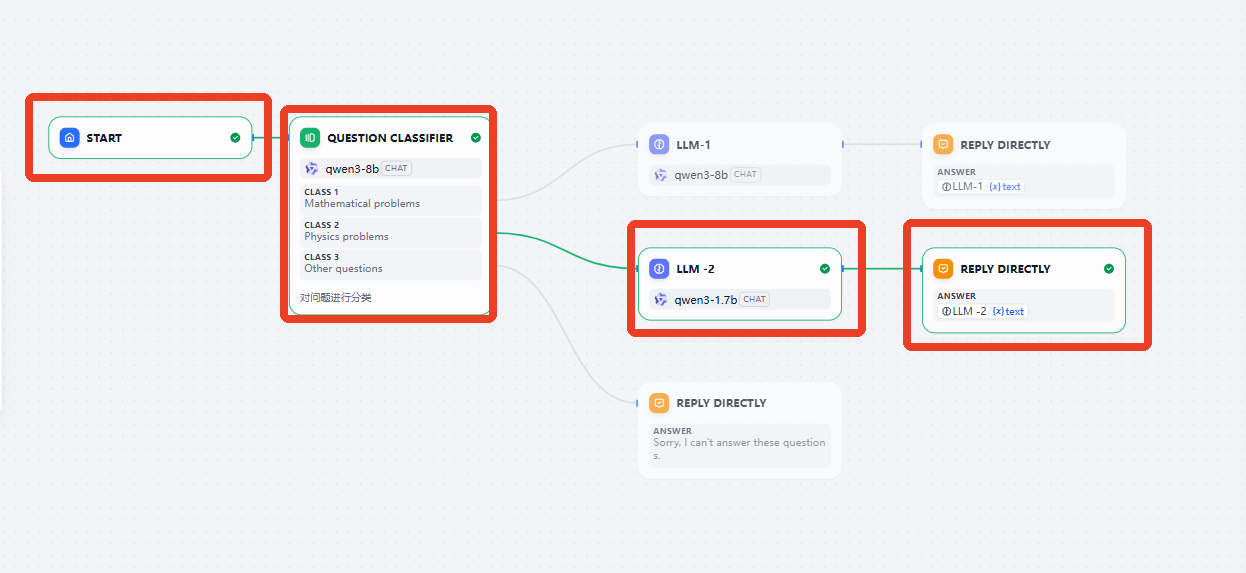
Simultaneously, the workflow will display the branches through which data flows in real time, thus facilitating workflow debugging.
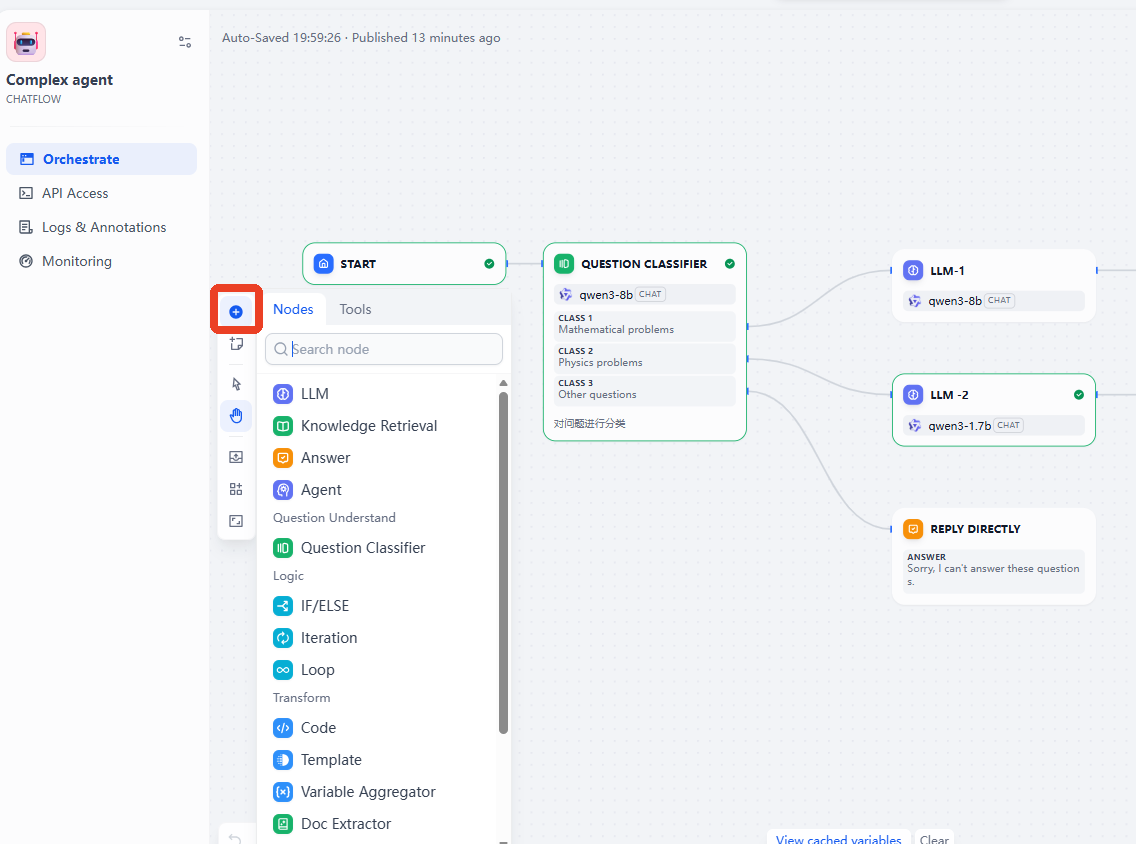
To expand your workflow, click the "+" sign on the left, which provides access to several pre-defined tools and modules for Dify.
5. Accessing the AI Agent Application
After orchestrating your AI application, click "Publish Application" to save the configuration. Then, click "Copy URL" or "API Access Credentials" to access the created AI application via the web interface or backend service API.